
Product Filters let you control which products can appear in a recommendation using product information such as categories, attributes, tags, brands, price, stock status, and the product currently being viewed. WowRecommend includes 12 Product Filters.
You’ll find all 12 options under the Product tab inside the Products to Be Recommended Filter:
- Specific Products – Recommend or exclude products you select manually.
- Product Categories – Filter products by WooCommerce category.
- Product Attributes – Filter products by attributes and attribute terms.
- Product Tags – Filter products by WooCommerce product tags.
- Brand – Filter products by brand.
- Current Product’s Category – Find products based on the categories of the product currently being viewed.
- Current Product’s Tag – Find products based on the current product’s tags.
- Current Product’s Attribute – Find products based on the current product’s attributes.
- Product Price – Filter products by price.
- Stock Status – Filter products by their current stock status.
- Relative Price – Filter products by price in relation to the current product.
- Newest Products – Recommend products recently added to your store.
1. Specific Products
The Specific Products filter lets you manually choose exactly which products should be included in or excluded from the recommendation. After selecting this filter, choose:
Include– Only the selected products can be included.Exclude– The selected products will be left out.
Then use the search field to find and select one or more products.
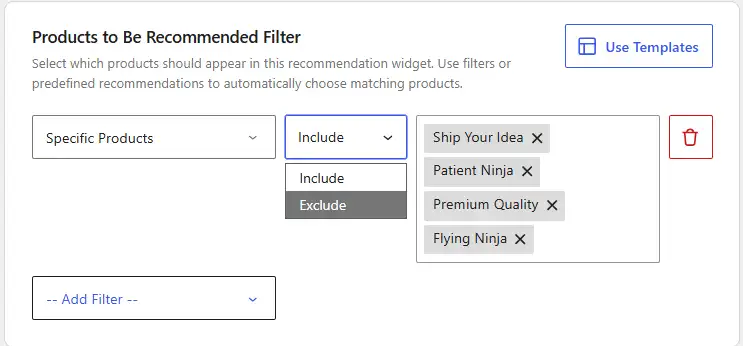
For example, you can use Include and select Sports Shoe to make that product eligible for the recommendation.
2. Product Categories
The Product Categories filter lets you recommend or exclude products from specific WooCommerce categories. After selecting this filter, choose:
Include– Include products from the selected categories.Exclude– Exclude products from the selected categories.
Then select one or more categories.
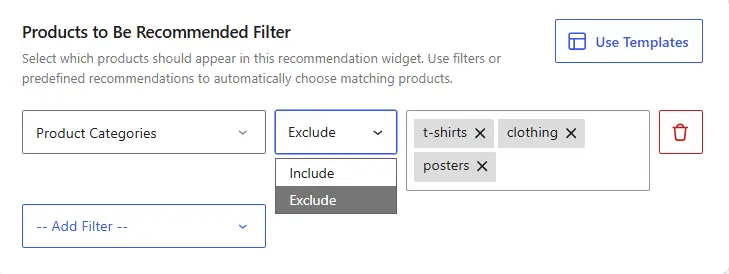
For example, Include → Backpack allows products from the Backpack category to appear in the recommendation.
3. Product Attributes
The Product Attributes filter lets you control recommendations using product attributes such as color, size, material, or any custom WooCommerce attribute. After selecting this filter, choose:
Include– Include products matching the selected attribute terms.Exclude– Exclude products matching the selected attribute terms.
Next, select an attribute and then choose its terms. You can also use All or None to quickly manage the term selection.
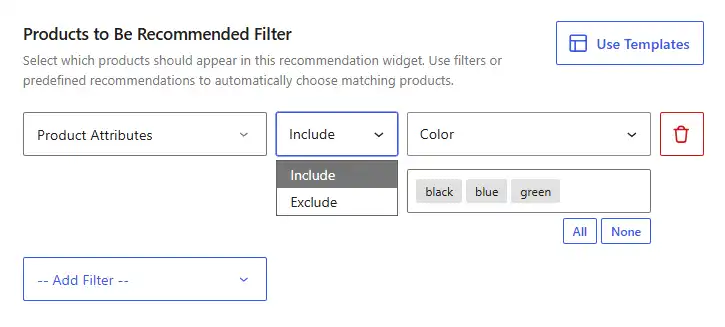
For example, you could select Color and then choose the colors you want to include.
4. Product Tags
The Product Tags filter lets you include or exclude products based on their WooCommerce product tags.
After selecting this filter, choose:
Include– Include products with the selected tags.Exclude– Exclude products with the selected tags.
Then select one or more product tags.
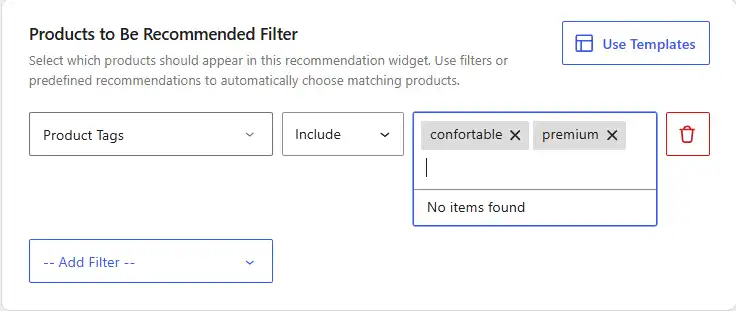
For example, Include → name-your-price allows products assigned that tag to appear in the recommendation.
5. Brand
The Brand filter lets you control recommendations based on product brands. After selecting this filter, choose:
Include– Include products from the selected brands.Exclude– Exclude products from the selected brands.
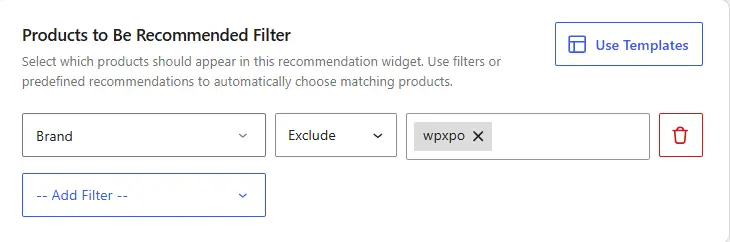
Then search for and select one or more brands.
6. Current Product’s Category
The Current Product’s Category filter finds products based on the categories of the product the customer is currently viewing. This filter provides three conditions:
Any– Match products using any category associated with the current product.Include– Use only the selected categories when matching products.Exclude– Leave the selected categories out when matching products.
If you select Include or Exclude, choose the categories you want to apply.
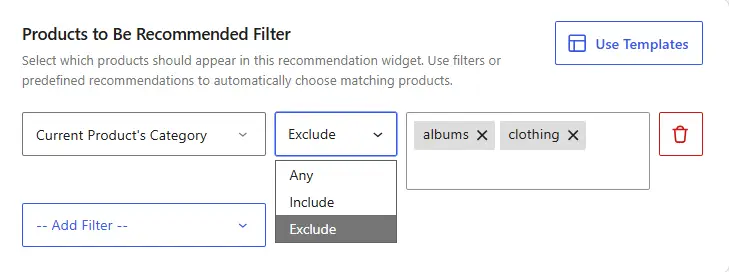
For example, Include → Bag uses the Bag category when finding products related to the current product.
7. Current Product’s Tag
The Current Product’s Tag filter finds products based on tags associated with the product currently being viewed. This filter provides three conditions:
Any– Match products using any tag associated with the current product.Include– Use only the selected tags when matching products.Exclude– Leave the selected tags out when matching products.
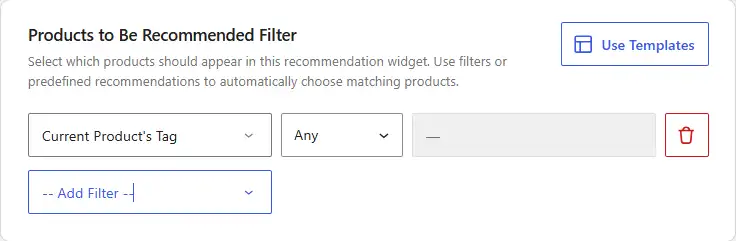
If you select Include or Exclude, choose the tags you want to apply.
8. Current Product’s Attribute
The Current Product’s Attribute filter finds products based on attributes shared with the product currently being viewed. After selecting this filter, choose:
Include– Match products using the selected attribute of the current product.Exclude– Exclude products matching the selected attribute.
Then select the attribute you want to use, such as Color.
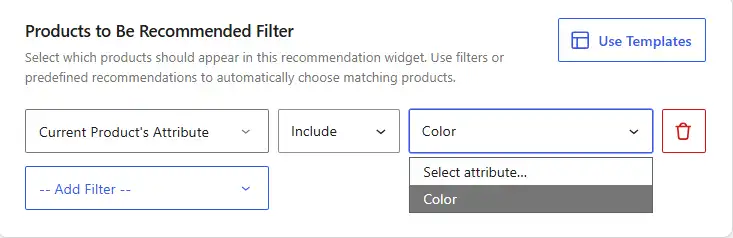
For example, Include → Color Let’s have WowRecommend find products based on the current product’s color attribute.
9. Product Price
The Product Price filter lets you control recommendations using a specific product price. Enter the price in the Number field and choose:
>=– Include products priced at or above the entered amount.<– Include products priced below the entered amount.
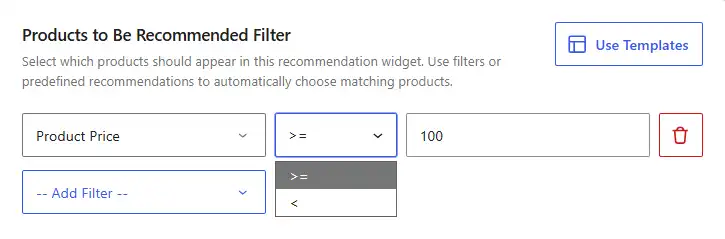
For example, >= → 50 allows products priced 50 or higher to appear in the recommendation.
10. Stock Status
The Stock Status filter lets you include or exclude products according to their current inventory status. After selecting this filter, choose:
Is– Include products with the selected stock status.Is Not– Exclude products with the selected stock status.
Then choose either In Stock or Backorder.
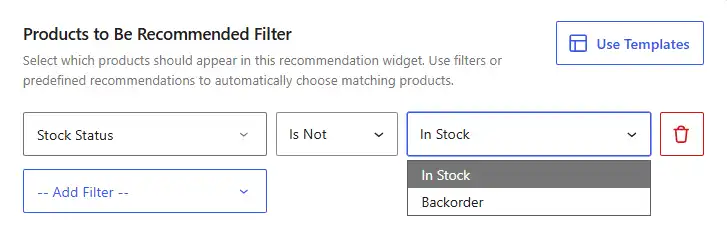
For example, Is → In Stock allows only products that are currently in stock to appear in the recommendation.
11. Relative Price
The Relative Price filter lets you recommend products according to how their price compares with the product currently being viewed. Enter a number and choose:
>=– Match products whose relative price meets or exceeds the entered value.<– Match products whose relative price is below the entered value.
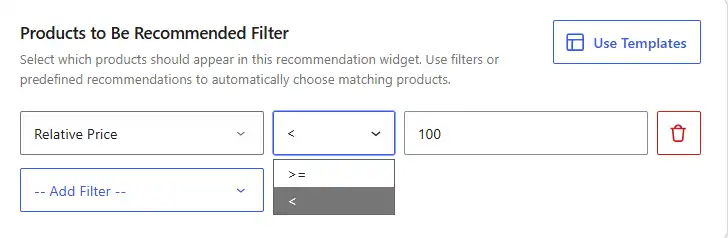
Use the value to define the price comparison you want WowRecommend to apply to the current product.
12. Newest Products
The Newest Products filter recommends products based on how recently they were added to your store.
This filter only has the In condition. It means WowRecommend will include products added within the selected period. Choose a period of the last 24 hours, 7 days, 30 days, or 3 months.
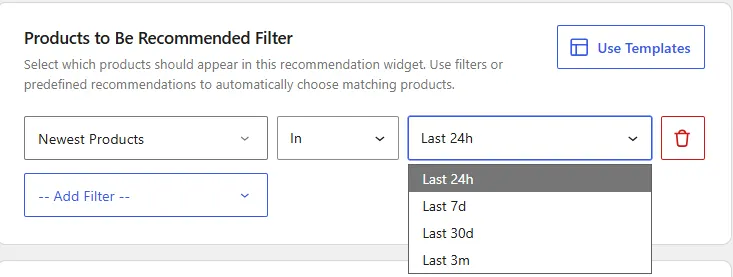
For example, In → Last 7 days Let’s have WowRecommend recommend products added during the previous 7 days.