
The Display Conditions option controls how multiple recommendation widgets behave when they are added to the same position on a product page.
For example, if you add both Recommended for You and New Arrivals to the same recommendation area, you can show both together or display them one after another based on specific conditions.
To configure this, click Display Conditions from the recommendation area in the preview.
Choose How Recommendations Are Displayed
Under Display Dependency Type, choose one of these options:
Always
Displays all eligible recommendations in that position at the same time.
Choose Always when you want each recommendation section to remain visible on the page.
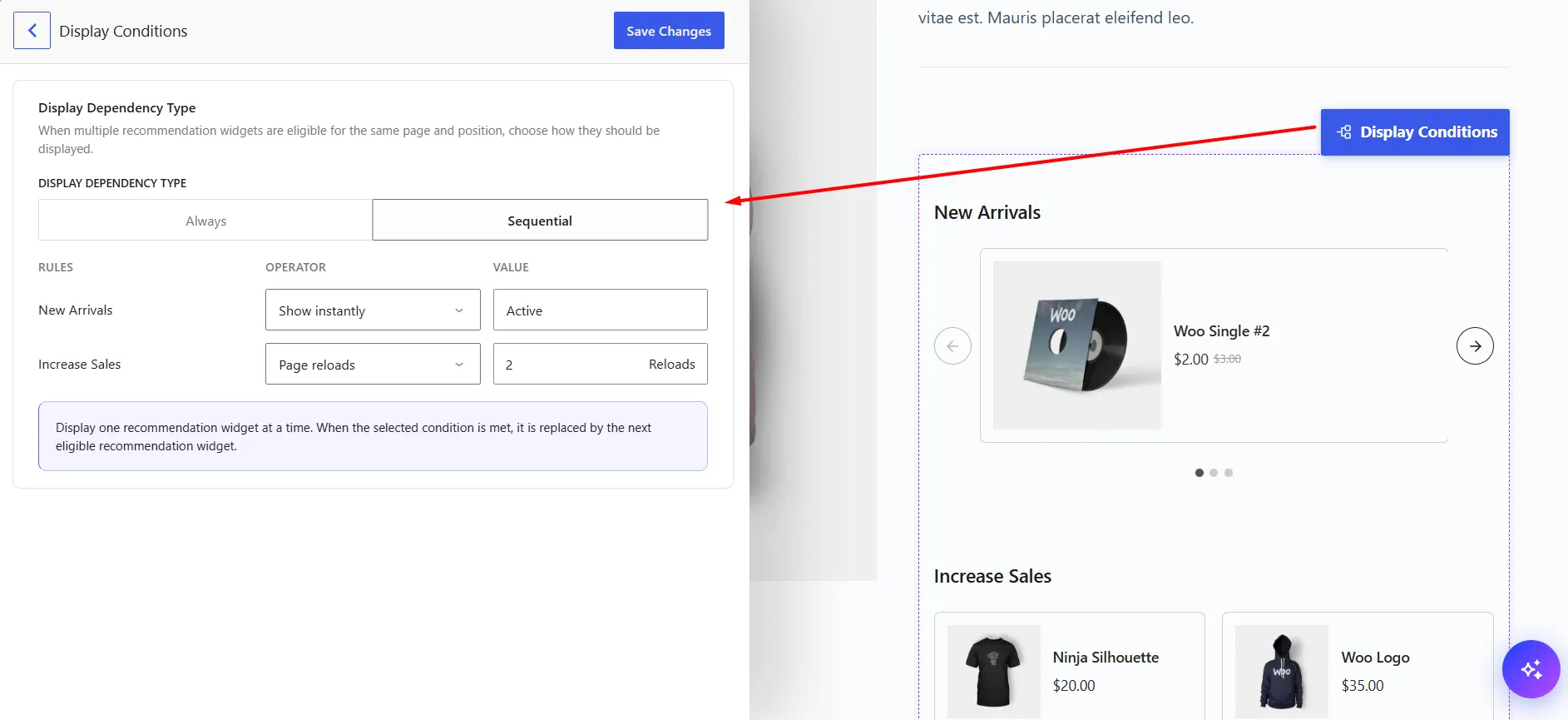
Sequential
Displays one recommendation at a time and switches to another based on the rules you configure.
When Sequential is selected, each recommendation in that position gets its own rule, so you can control when each one should appear.
Set the Sequential Rules
Choose an Operator for each recommendation:
- Show instantly – Makes the recommendation available immediately.
- After delay – Shows it after the specified number of minutes.
- Page reloads – Shows it after the specified number of page reloads.
Enter the required value where applicable.
For example, you could show your first recommendation immediately and set New Arrivals to appear after 1 minute.
Save the Conditions
Click Save Changes after configuring the display behavior.
The recommendations in that position will now be displayed according to the dependency type and rules you selected.