
The layout option controls how a recommendation looks and how its products are arranged on your store. To access this option, open a recommendation and switch to the Layout tab to customize its design.
Choose a Layout
Start by selecting one of the 5 premade layouts. Each layout uses a different product card arrangement, so you can choose the structure that best fits the page and recommendation placement.
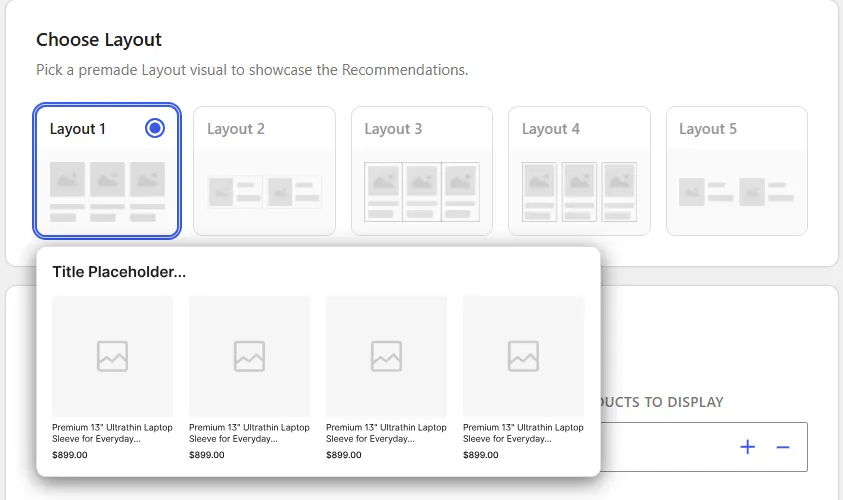
After selecting a layout, you can further customize it from the settings below.
Configure the Layout
Under Layout Settings, you can control how the recommendation is displayed.
Layout Type
Choose between:
Grid– Displays recommended products in rows and columns.Slider– Displays products in a horizontally scrollable slider.
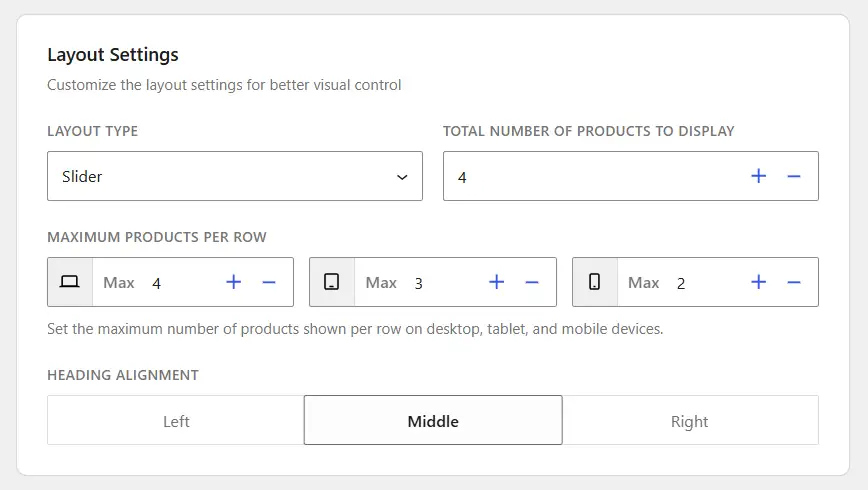
Total Number of Products to Display
Set how many recommended products should be shown in the recommendation. You can use the + and – controls to adjust the number.
Maximum Products per Row
Set the maximum number of products shown in one row for each device type:
- Desktop
- Tablet
- Mobile
For example, you can show 3 products on desktop, 2 on tablet, and 1 on mobile. This lets you keep the recommendation layout readable across different screen sizes.
Heading Alignment
Choose how the recommendation heading should be aligned:
| Left | Middle | Right |
Adjust the Layout Style
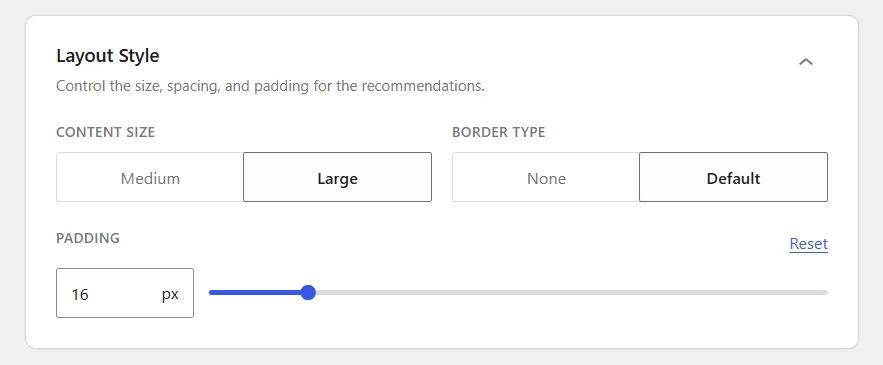
Use Layout Style to control the visual appearance of the recommendation.
Content Size
Choose between Medium or Large. This changes the overall size of the content displayed inside the recommendation cards.
Border Type
Choose:
- None – Display the product cards without a border.
- Default – Use the default card border.
Choose Which Product Elements to Show
The Element Display section lets you show or hide individual parts of the product card. You can control:
- Product Image
- Product Category
- Product Title
- Rating
- Product Price
- Add to Cart Button
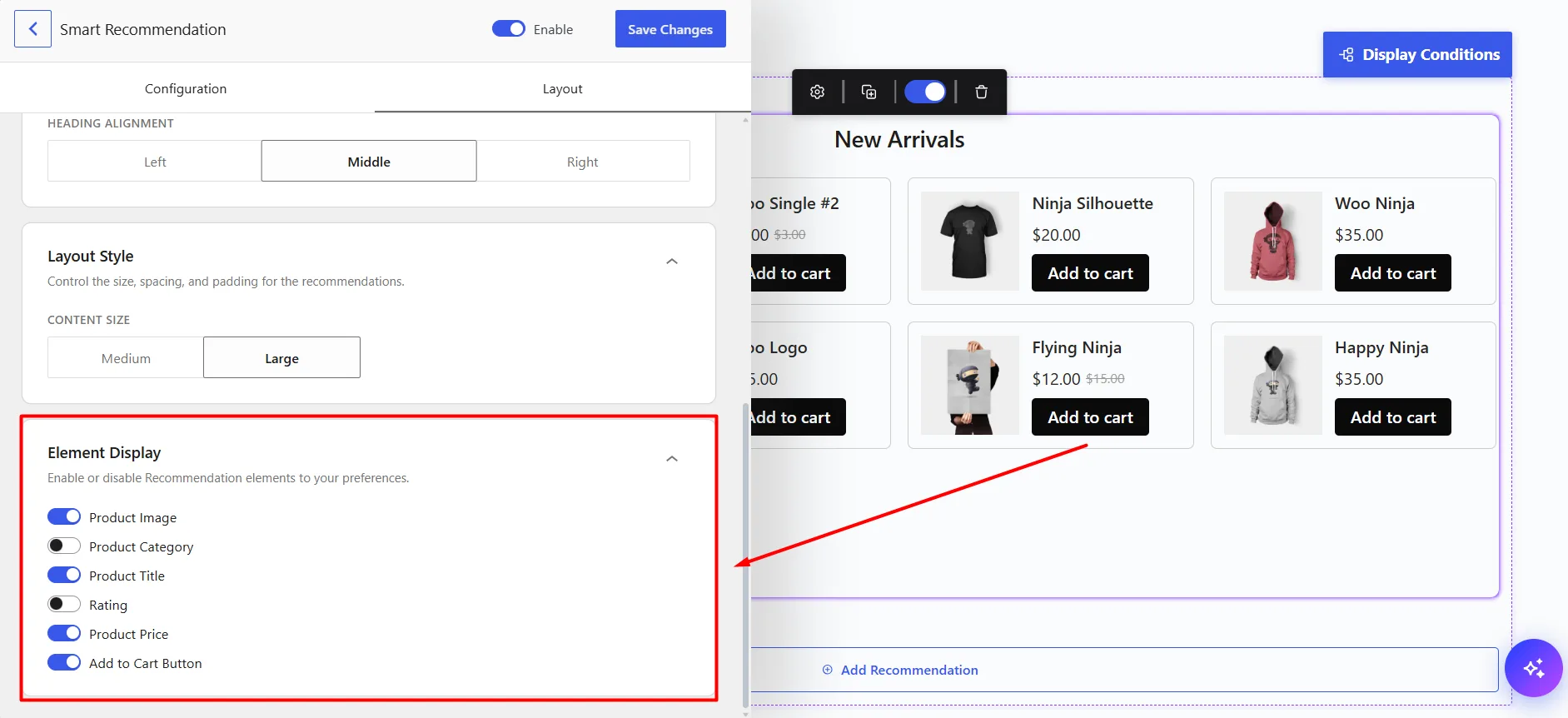
For example, you can create a simpler recommendation by showing only the image, title, and price, or enable more details when customers need additional product information.
Once the design looks right in the preview, click Save Changes.
Based on the screenshot, the Global Customization section should describe the actual available settings rather than generic styling options. A better documentation section:
Global Customization (Widget Style)
In addition to customizing the design of individual recommendations, WowRecommend also provides Global Customization options to manage the default appearance of all recommendation widgets from one place.
To access these settings, go to WowRecommend → Widget Style and configure the available styling options.
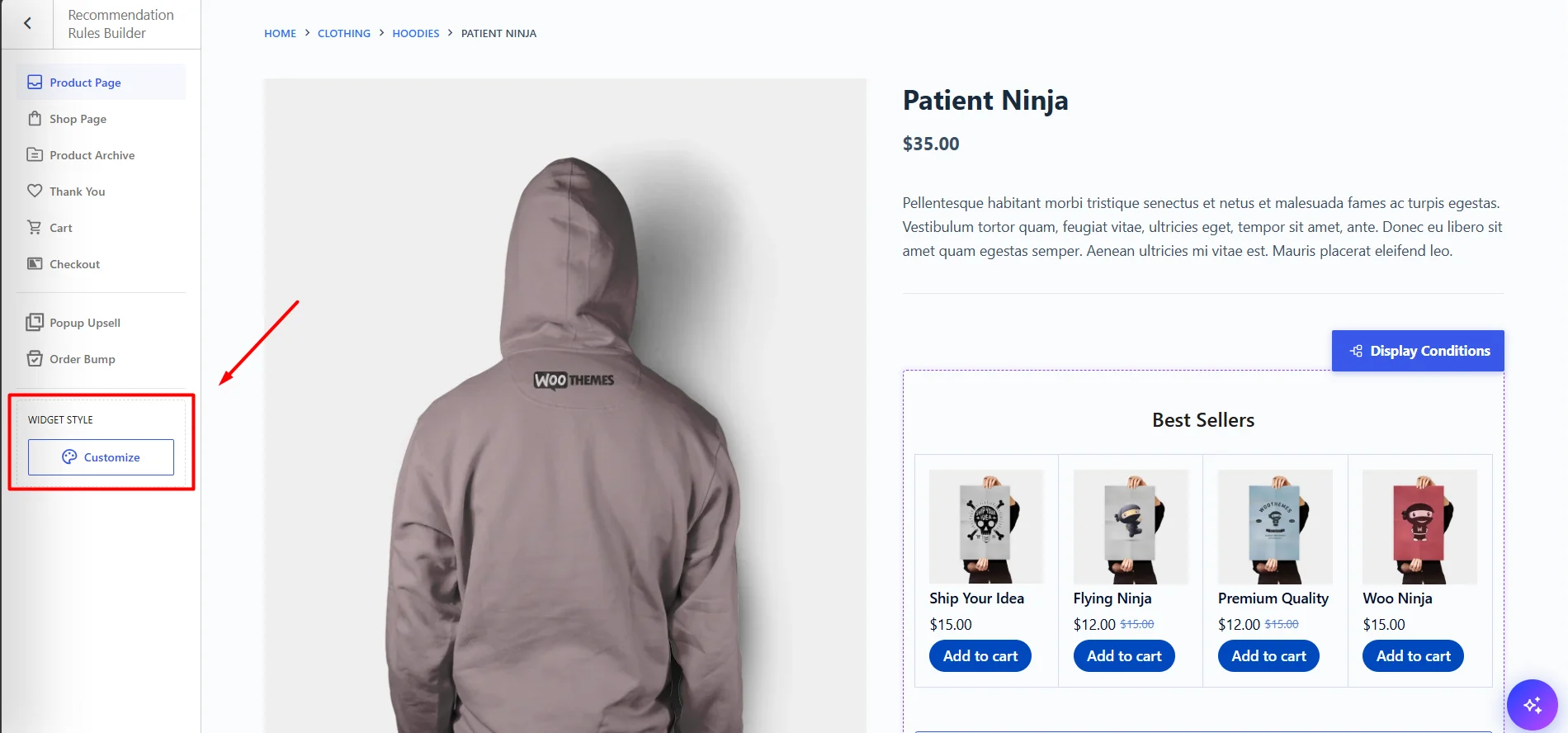
Color Theme
Choose from predefined color themes to quickly match your store’s branding. Available themes include:
- Classic
- Blue
- Green
You can also customize individual colors manually, including:
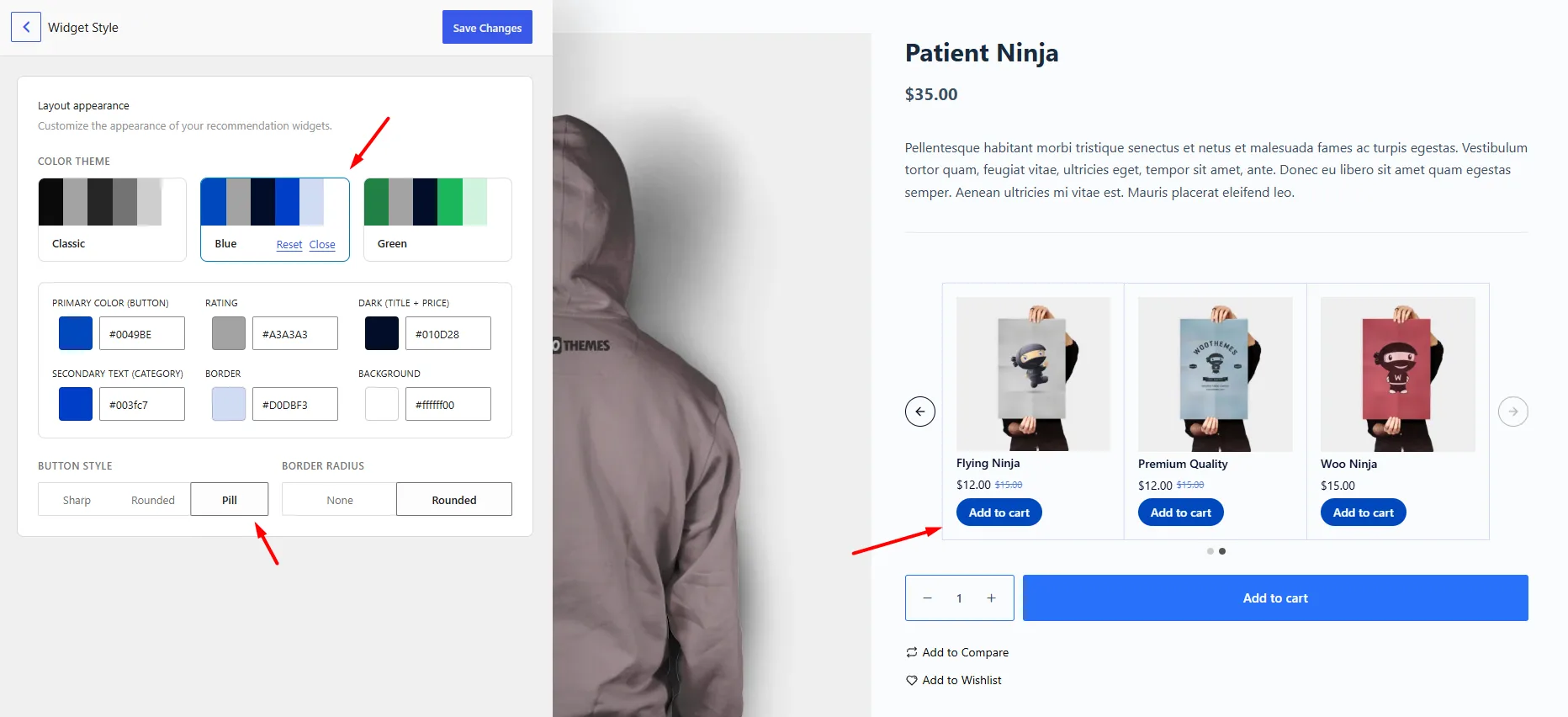
- Primary Color – Used for buttons and key action elements.
- Rating Color – Controls the appearance of product ratings.
- Dark Color (Title + Price) – Controls product title and price text.
- Secondary Text Color (Category) – Controls category and secondary text.
- Border Color – Adjusts the border appearance of recommendation cards.
- Background Color – Changes the recommendation widget background.
Button Style
Customize how the Add to Cart buttons appear inside your recommendation widgets. You can choose the button style that best fits your store’s design, with options like Sharp, Rounded, and Pill.
Border Radius
Control the corner roundness of recommendation elements using the Border Radius setting. You can choose None for a sharp look or Rounded for softer, rounded corners.
After making changes, click Save Changes to apply the updated styling across your recommendation widgets.