
AI Chat Recommendation lets you create and update product recommendations by describing what you want in normal language.
Instead of finding the right filters and sorting rules yourself, tell the AI what you are trying to achieve. WowRecommend can turn that request into a recommendation configuration that you can review before applying.
An AI provider must be connected to use natural-language chat.
How to Create a Recommendation with AI Chat
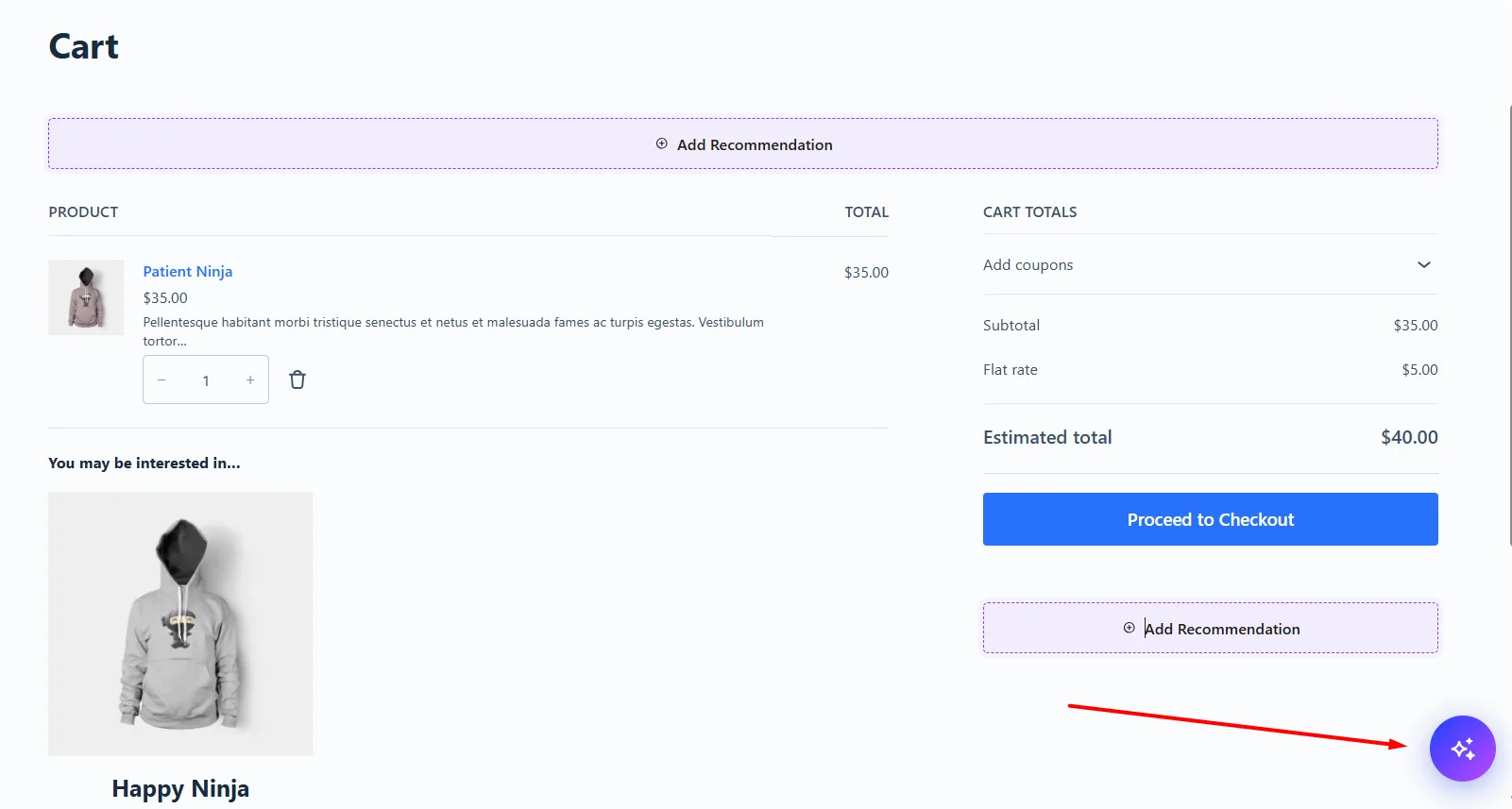
First, select the target page where you want to add the recommendation. Then click the AI Recommendation Chat button at the bottom-right. The chat automatically works within the context of the target page you currently have selected.
1. Describe What You Want
Type your recommendation goal into the chat field. You can keep the request simple:
Create a best sellers recommendation.
Or provide more detail:
Create a best sellers recommendation using sales from the last 30 days and show 5 products.
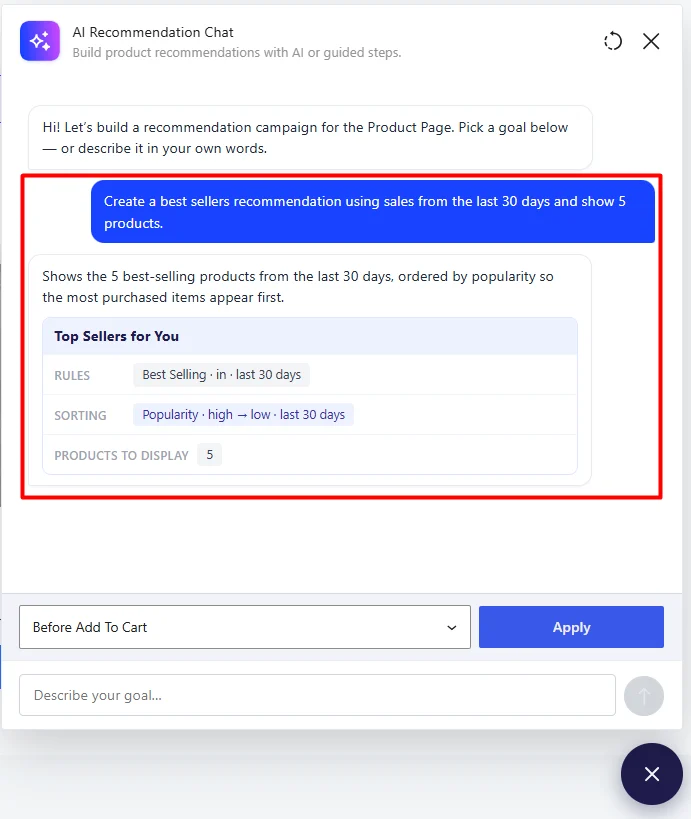
The AI responds with a proposed recommendation and can show details such as the recommendation name, rules, sorting, and number of products to display.
2. Refine the Recommendation Through Chat
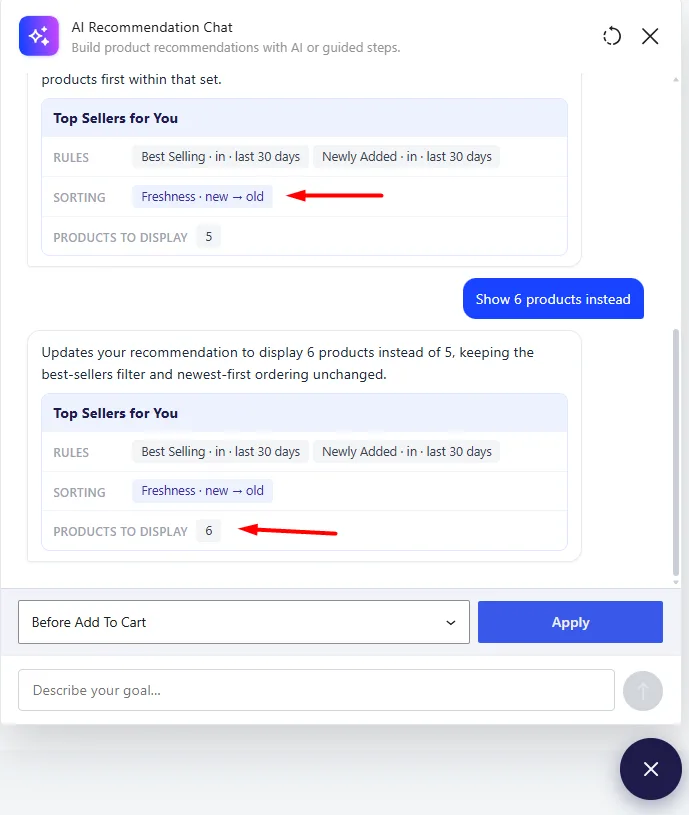
You do not need to get every setting right in the first prompt. Continue the conversation to change individual settings while keeping the rest of the recommendation intact.
For example:
Show 6 products instead.
Or:
Keep the current filter but show the newest products first.
WowRecommend updates the proposed recommendation based on your instruction.
3. Choose the Placement and Apply
When the recommendation is ready, select where it should appear from the placement dropdown. The available positions automatically match the target page you are currently working with. Click Apply to add the recommendation to that position.
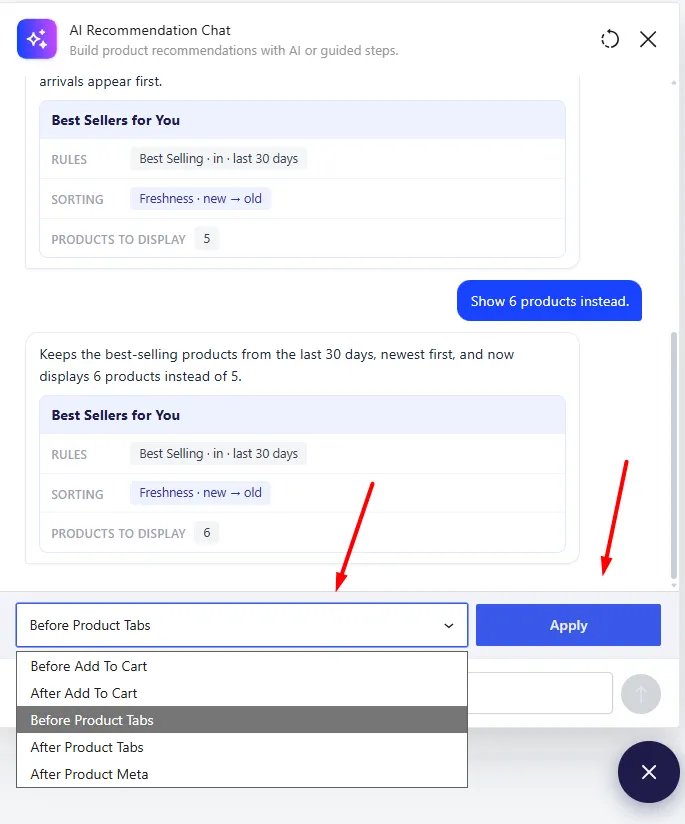
WowRecommend then opens the recommendation in the regular settings panel, where you can see and manually edit the generated configuration.
Continue Editing with AI
AI Chat does not stop working after the recommendation has been applied.
While editing an existing recommendation, the chat shows which recommendation and placement you are currently working with. You can continue asking for changes, and WowRecommend updates the corresponding recommendation settings.
For example:
Change the number of products to 3.
Or:
Sort these by rating instead.
This lets you switch between AI Chat and manual settings whenever you want.
Dynamic Options During the Conversation
AI Recommendation Chat can also provide clickable options based on the current conversation.
For example, when asking how products should be ordered, it may offer options such as:
- Trending First
- Newest First
- Price: Low to High
- Price: High to Low
- Top Rated
These suggestions change according to the target page, recommendation goal, and choices you have already made. You can select one of the suggested options or continue typing your own instruction.
Example Prompts
You can use prompts like these as a starting point and replace the placeholders with your own requirements.
Create a Complete Recommendation
Create a [recommendation type] recommendation with [number] products.
Use [filter or time period] and sort them by [sorting method].
Example:
Create a best sellers recommendation with 5 products.
Use sales from the last 30 days and show the most popular products first.
Create a Personalized Recommendation
Create a personalized recommendation based on [customer behavior] and show [number] products.
Example:
Create a personalized recommendation based on recently viewed products and show 4 products.
Create a Product-Based Recommendation
Recommend products from [category/brand/tag] and exclude [products or condition].
Example:
Recommend products from the Accessories category and exclude out-of-stock products.
Create a Bought Together Recommendation
Recommend products frequently bought together with the current product using data from the last [time period].
Change an Existing Recommendation
Keep the current recommendation but change [setting] to [value].
Example:
Keep the current recommendation but change the number of products to 3.
Change the Sorting
Keep the current filters and sort the products by [sorting method].
Example:
Keep the current filters and show the highest-rated products first.
Start Over
Click the Start Over icon at the top of the AI Recommendation Chat when you want to leave the current conversation and begin a new recommendation flow.
If you are editing an existing recommendation, check the editing indicator at the top of the chat before making changes so you know which recommendation your instructions will affect.