
WowRecommend does not have a separate API key setting. Its AI Chat uses the AI Client and Connectors system built into WordPress 7.0.
WordPress 7.0 provides a central Settings → Connectors screen for managing AI provider connections and API credentials. Once a compatible provider is connected there, WowRecommend can use that connection without requiring you to enter the same API key again inside the plugin.
When Do You Need an AI Provider?
You only need an AI provider if you want to create recommendations using natural language. Guided Steps work without one.
If WowRecommend does not find an AI connection, the AI Recommendation Chat displays a message asking you to connect a provider. You can click Configure from that notice or go directly to: WordPress Dashboard → Settings → Connectors
1. Install a Connector Plugin
To connect an AI provider to your WordPress site, first install and activate an AI connector plugin. These connector plugins are free and allow WordPress to communicate with different AI models and providers.
You can use these AI provider connector plugins:
- AI Provider for OpenAI – Connects OpenAI models to the WordPress AI Client.
- AI Provider for Google – Connects Google Gemini models.
- AI Provider for Anthropic – Connects Anthropic Claude models.
- Multi-Provider AI Connector – Connect multiple AI providers through a single plugin.
One Plugin, Multiple Providers
If you want several AI providers, you can install a separate connector plugin for each provider.
Alternatively, you can use Multi-Provider AI Connector to manage multiple supported providers through a single plugin instead of maintaining one provider plugin for each service.
2. Add the API Key
After installing and activating your connector plugin:
- Go to Settings → Connectors.
- Open the provider you want to configure.
- Enter the API key.
- Save the connection.
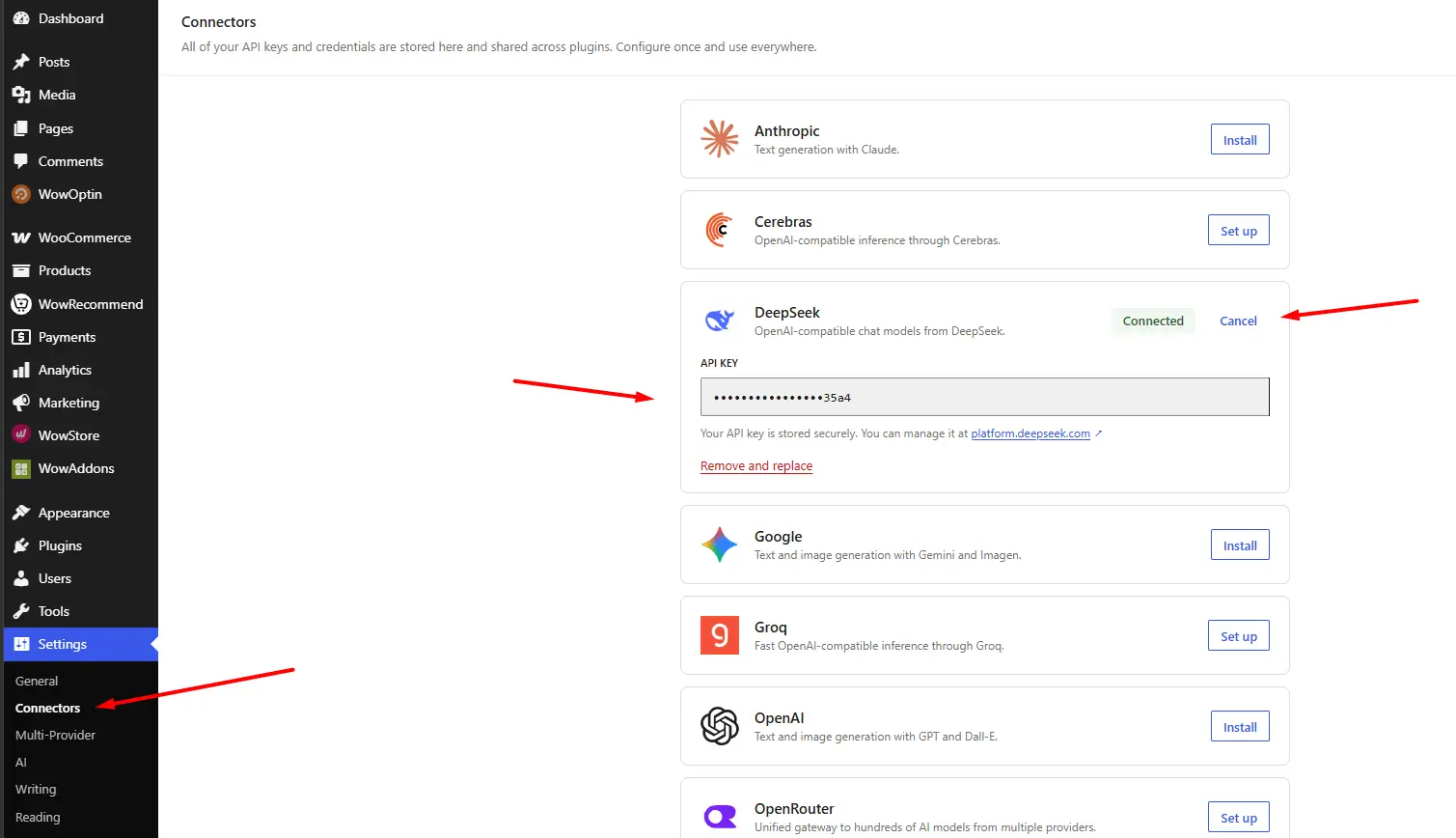
Note: Follow the provider link to obtain an API key if you do not already have one.
WordPress’s Connectors screen supports API-key-based providers and shows their connection status in one place.
3. Return to WowRecommend
Go back to the Recommendation Rules Builder and open AI Recommendation Chat.
Once a supported AI provider is connected, the connection warning disappears, and the natural-language chat field becomes available.