
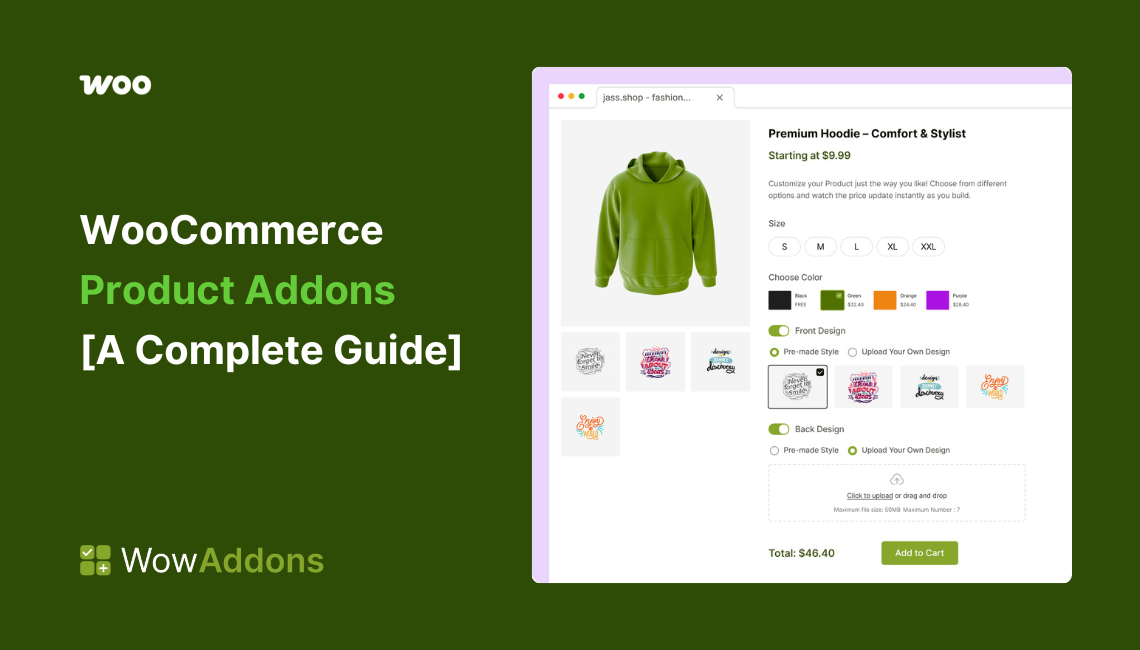
A Quick Look at WooCommerce Product Addons
WooCommerce product add-ons are extra options added to product pages that let customers personalize products, select upgrades, or add services.
There are multiple types of product add-ons, including checkboxes, dropdowns, radio buttons, text fields, file uploads, color/image swatches, and date pickers – each suited for different personalization and upsell use cases.
Default WooCommerce does not support true product add-ons, which is why store owners need to choose a product add-ons plugin. While choosing the plugin, consider factors like addon variety, pricing flexibility, conditional logic, ease of use, etc.
Creating product addons typically includes following these steps: installing a plugin, assigning add-ons to products or categories, configuring fields and pricing, and applying conditions.
Product customization plays a huge role in how customers choose and buy online. Whether it’s personalization, optional upgrades, or value-added services, the right product options can make a real difference in conversions.
In this guide, you’ll learn how WooCommerce product add-ons work, the best addon types and usecases, choosing the right product addons plugin, and how to create the add-ons easily.
Check out this video playlist to create product addons for free!
What Are Product Add-Ons? And Why Should You Care?
WooCommerce Product add-ons are extra options or custom input fields that you can add to your product pages to allow customers to personalize or enhance their purchase before adding it to the cart.
Some popular product add-ons include checkboxes, dropdowns, buttons, text fields, upload field and so on. Using these custom options, users can customize their order. And the store owners, in most cases, enjoy increased revenue and, well, satisfied customers.
What Are the Benefits of Using WooCommerce Product Addons?
Adding product add-ons isn’t just about looking fancy; it’s a proven way to increase revenue while improving the shopping experience. Here’s why they work so well:
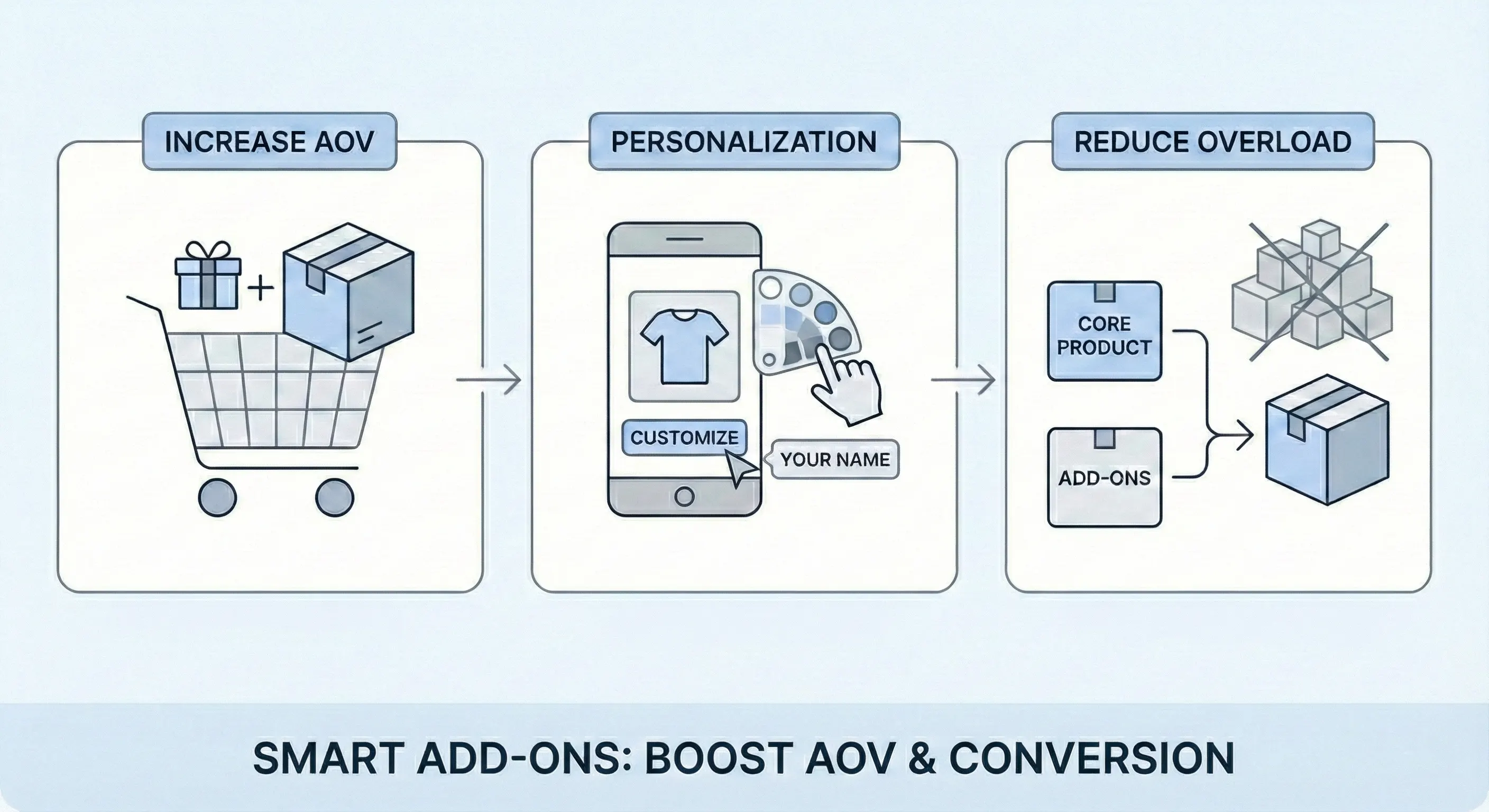
☑️ Increase Average Order Value (AOV)
Product add-ons let you increase order value without aggressive upselling. Instead of pushing another product, you offer relevant, low-friction extras directly on the product page, like upgrades, add-ons, or services.
☑️ Personalization = Better Customer Experience
Modern-day customers expect more than “solutions”; they want a personalized experience. Whether it’s adding a name, choosing a custom color, or uploading a design, personalization gives them more control over their purchase.
☑️ Reduce Product Variation Overload
WooCommerce variations can become unmanageable when multiple attributes are involved, and you have an increasing number of products. Creating dozens of combinations becomes a headache pretty fast.
Product add-ons solve this by keeping the core product simple. For example, instead of creating multiple pizza variations, you can use:
- Checkboxes for extra toppings
- Radio buttons for crust type
- Dropdown for sauce selection
Understanding Product Variations vs. Product Addons
Product variations are built into WooCommerce and are used when a product comes in fixed, structured options.
Each variation is a real version of the product and has:
- Their own price
- Their own stock
- Their own SKU
WooCommerce treats each variation almost like a mini product
On the other hand, product add-ons are extra, custom inputs shown on the product page.
Key characteristics of add-ons:
- They do not create new products
- They sit on top of the main product
- Mostly used for: personalization, upsells, extra services
- Pricing is usually dynamic (fixed, percentage, or calculated)
The following example of a T-shirt store should give you a better idea.
Example: T-shirt store
| Requirement | Best choice |
| Size (S, M, L) | Variation |
| Base color | Variation |
| Custom name print | Add-on |
| Upload custom image | Add-on |
| Gift wrapping | Add-on |
| Express shipping | Add-on |
Hopefully, that clears up any confusion between product addons and product variations.
Can You Add Product Add-Ons Using Default WooCommerce?
Short answer: not in any practical way.
Default WooCommerce only supports simple and variable products. While you can use attributes like size or color, it doesn’t support true product add-ons.
Out of the box, WooCommerce cannot easily:
- Add text fields for personalization
- Allow file uploads
- Offer optional paid extras (like gift wrap or upgrades)
- Collect delivery dates or special instructions
- Calculate prices dynamically based on inputs
- Show conditional fields based on user choices
Trying to force these features using product variations quickly becomes messy, hard to manage, and bad for user experience.
This is exactly why WooCommerce product add-on plugins exist.
They let you add flexible custom fields, upsells, pricing logic, and conditional options without breaking your product structure or overloading variations.
Choosing the Right WooCommerce Product Addons Plugin
With so many WooCommerce product add-ons plugins available, choosing the right one can feel overwhelming. This section will guide you through that process, so you can select a suitable tool for your business.
How to Find the Right WooCommerce Product Add-Ons Plugin
Instead of relying on marketing pages alone, it’s best to use a research-first approach.
Here are two practical ways you can find plugins that actually work for real stores.
1. Check Reddit and Community Forums (Highly Recommended)
Reddit and WooCommerce-focused forums are some of the best places to find honest, experience-based feedback.
Real store owners often share:
- What plugins they’re currently using
- Issues they’ve faced in real-world scenarios
- Which tools have worked well for them
Because these discussions are ongoing, you’ll also get up-to-date insights on which plugins are actively maintained and working for businesses like yours.
Check out this highly-engaging reddit thread about the best product addons plugin:
2. Search the WordPress Plugin Repository
The WordPress plugin repository is another way to discover product add-ons plugins.
Search using keywords like:
- product add-ons
- product options
- WooCommerce add-ons
Once you find potential plugins, manually review:
- Support threads
- Recent updates
- User ratings and reviews
- Compatibility with your WooCommerce version
This helps you narrow down plugins that are reliable.
While choosing the plugins, you should keep these factors in mind:
Key Factors to Consider When Choosing a Product Addons Plugin
- Available Add-on Field Types: Make sure the plugin supports all essential fields such as checkboxes, dropdowns, file uploads, color/image swatches, and text inputs—plus advanced fields if needed.
- Pricing Flexibility: Look for support for fixed pricing, percentage-based pricing, quantity-based pricing, or dynamic price calculations per add-on.
- Conditional Logic: The ability to show or hide add-ons based on customer selections is crucial for reducing clutter and improving user experience.
- Layout & Design Control: A good plugin should allow you to organize add-ons using sections or visual grouping, so product pages stay clean and readable.
- Pricing Model: Consider whether you prefer a one-time payment or a recurring subscription, depending on your budget and long-term plans.
Quick Comparison of the Best Addons Plugin for WooCommerce
Now, I have discussed the research process for the plugin selection. But, to make your job even easier, I have listed and compared four of the best WooCommerce product add-ons plugins available today: WowAddons, Flexible Product Fields, YITH Product Add-ons, and PH Product Add-ons.
| Feature | WowAddons | Flexible Product Fields | YITH Product Add-ons | PH Product Add-ons |
| Product Addons Types | 26 Addons | 19 Addons | 11 Addons | 13+ Addons |
| Unique Selling Point | One-time fee. Lifetime update. Wide range of addons. | Great variety of field types | Amazing customization logic | Extensive field options with flexible pricing |
| Dynamic Pricing | Add fixed, percentage-based, or sale prices to fields, price per variation. | Fixed or percentage price assigned to fields. | Fixed or percentage cost increase, or discount on product price. | Flat fee, quantity-based, percentage-based |
| Conditional Logic | Yes, show/hide fields based on selections. | Yes, based on other FPF fields. | Yes, show/hide blocks based on user selections | Yes, display fields based on user input selection |
| Color/Image Swatches | Yes, for colors and images. | Radio with images, Radio with colors. | Color picker with swatch/image option. | Yes, single or multiple color selection available |
| File Upload Support | Yes | Yes | Yes | Yes |
| Layout Controls | Yes | Yes | Yes | Yes |
| Pricing | One-time payment | Free + Premium version | Free + Premium version | Free + Premium version |
| Ease of Use | ⭐⭐⭐⭐⭐ | ⭐⭐⭐⭐ | ⭐⭐⭐⭐ | ⭐⭐⭐⭐ |
So, which addon plugin should you choose?
For a detailed discussion, you can check out our dedicated blog on the best product addons plugins.
But to put it briefly:
If you want an all-in-one product addons plugin with modern UI and great pricing, WowAddons is a suitable option. It’s offering 20+ addons in its free version, so perfect for anyone who is getting started with WooCommerce.
The following video will give you a quick sneak peek:
16 Effective Product Add-on Types You Should Use in Your Store
You already know what product add-ons are and why they are important. But which ones are more frequently used? Well, if you check out the popular addons plugins in the market, you will notice that there’s no shortage of addons – for example, WowAddons now offers 26 addons.
All are important based on your specific use cases. However, in this section, I would like to introduce you to 16 very popular types of product addons – so you get familiar with them and get an idea of what addons you should use in your WooCommerce store.
Radio Buttons
The radio button add-on lets customers select one option from a predefined list. All choices are visible at once, making it suitable for situations where only a single selection is allowed.
Checkbox Options
Checkbox add-ons typically allow customers to select multiple options independently. Each option can be turned on or off, making this add-on perfect for optional extras and add-on services.
Switch Option
The switch add-on provides a simple on/off toggle for enabling or disabling a specific option. It offers a clean, user-friendly way to present optional features or upgrades.
Dropdown Field
The dropdown add-on displays multiple options inside a compact, expandable menu. It’s best used when you want to offer several choices without taking up too much space on the product page.
File Upload Fields
The file upload add-on allows customers to upload files such as images directly from the product page. Uploaded files are attached to the order and can be used for customization, personalization, or production purposes.
Here’s the step-by-step guide on adding upload fields in WooCommerce stores.
Button Options
Button add-ons display selectable options as clickable buttons instead of text fields. These fields improve visibility and interaction, making them perfect for highlighting important choices or upgrades.
Image Swatches
Image swatches present product options as visual thumbnails. This allows customers to see what they’re selecting instead of relying on text labels – making the decision-taking process faster.
Color Swatches
Color swatches display clickable color blocks that let customers choose a color visually. This add-on is ideal when color plays a key role in the purchasing decision.
Color Picker Field
The color picker add-on lets customers select any custom color using a color selection tool. It’s useful when predefined color options can be limited, and you want to allow customers full customization power.
Learn the detailed steps of adding color fields in WooCommerce stores.
Date Picker Field
The date picker add-on allows customers to choose a specific date using a calendar interface. It’s commonly used for deliveries, bookings, appointments, or time-sensitive orders.
Mail Field
The mail add-on adds a field for customers to enter an email address on the product page. This can be used for delivering digital products, sending order-related information, or enabling follow-up communication.
Text Area Field
The text area add-on provides a multi-line input field for collecting longer customer input. It’s ideal for custom instructions, messages, or any information that doesn’t fit into short text fields.
Font Picker
The font picker add-on allows customers to select a font style directly from the product page. It’s commonly used for personalized or design-based products where typography plays a role in the final output.
Range Slider
The range slider add-on lets customers choose a value within a predefined range by dragging a slider. It’s ideal for selecting quantities, dimensions, pricing ranges, or other variable inputs in a visual and interactive way.
Popup Field
The popup field add-on displays a button that, when clicked, shows a pop-up to display additional information about a product. This helps provide extra information without cluttering the main product layout.
Products Add-On
The products add-on allows you to display complementary or related products as optional add-ons on the product page. Customers can add these items to their order without leaving the main product page, making cross-selling seamless.
Quick Guide to Set Up Product Add-Ons in WooCommerce
Technically, there are two ways to add product add-ons in WooCommerce:
- Using a product add-ons plugin
- Using custom code
While both approaches are possible, they are not equally practical for most stores.
Can You Product Add-Ons with Custom Code?
Custom coding product add-ons is possible by extending WooCommerce hooks, templates, and cart logic.
However, this approach comes with significant limitations, such as:
- High development and maintenance costs
- Compatibility issues with WooCommerce updates
- No visual interface for managing fields
- Limited flexibility when requirements change
- Increased risk of breaking checkout or cart functionality
If you don’t want to create a complete addon plugin yourself, it’s best to use already established plugins in the market. As already discussed in the previous section, you can pick the addons plugin that meets your requirements and budget.
With that said, let’s see the step-by-step process of adding product addons/options in WooCommerce.
Step 1: Install a Product Add-Ons Plugin
Since WooCommerce doesn’t support advanced add-ons by default, first, you need to install a dedicated product add-ons plugin. Most plugins can be installed and activated directly from the WordPress dashboard.
Step 2: Assign Add-Ons to Products
Next, choose where the add-ons should appear. Most plugins let you apply add-ons to all products, specific products, or entire categories, with the option to exclude certain items.
Step 3: Add and Configure Add-On Fields
Select the add-on types you want to show on the product page, such as selection fields like radios, checkbox or input fields like text area, mail, and so on. You can then customize each add-on’s labels, pricing rules, required settings, and display layout.
Step 4: Test & Optimize
Finally, check your product page and test pricing, required fields, mobile behavior, and the add-to-cart flow to ensure everything works as expected.
This was a brief setup guide. To learn in-detailed explanation for each step, check out our dedicated guide on adding extra product options to WooCommerce.
Practical Applications of WooCommerce Product Addons (with Niche Examples)
Now that you have a solid foundation on WooCommerce product addons and how it works, let’s explore some practical applications – in terms of business problems you want to solve.
Each use case here combines multiple add-on types that work together to achieve a specific goal.
1. Let Customers Customize Product Options
Scenario: When you have a store selling products with multiple choices, like size, material, packaging, or style.
Common examples:
- Clothing stores (size, fit, fabric)
- Electronics (storage, color, warranty)
- Furniture (finish, dimensions)
Relevant add-on types:
| Add-On Type | How It Helps |
| Radio Buttons | Single-option selection (e.g., choose one size) |
| Checkboxes | Multiple optional upgrades (e.g., gift wrap + warranty) |
| Switches | Simple yes/no or tiered upgrades |
| Dropdowns | Compact selection for many options |
| Buttons | Highlight key choices visually |
| Image Swatches | Visual selection for styles or designs |
| Color Swatches | Faster color selection without text |
| Custom Color Picker | Advanced color personalization |
Why it matters: These add-ons improve UX and prevent customers from abandoning the product page due to unclear choices.
2. Sell Personalized or Custom-Made Products
Scenario: Essential for stores offering personalization, made-to-order items, or customer-provided content.
Common examples:
- Custom t-shirts, mugs, posters
- Engraved jewelry
- Printed marketing materials
Relevant add-on types:
| Add-On Type | How It Helps |
| Text Area | Collect custom messages, names, or engraving text |
| File Upload | Upload logos, images, or artwork |
| Font Picker | Let users choose typography for personalization |
| Color Picker | Choose exact print or background colors |
| URL / Link | Collect links to external assets or references |
Why it matters: These add-ons help reduce back-and-forth emails and make customization scalable and error-free.
3. Increase Average Order Value with Smart Upsells
Scenario: Best for store owners who want to increase revenue without adding more products to the catalog.
Common examples:
- Add accessories
- Extended warranties
- Premium packaging
- Service upgrades
Relevant add-on types:
| Add-On Type | How It Helps |
| Products Add-On | Cross-sell related products directly |
| Checkboxes | Optional paid upgrades |
| Switches | Enable/disable premium features |
| Radio Buttons | Choose between pricing tiers |
| Formula Add-On | Calculate dynamic pricing based on selections |
Why it matters: Well-placed add-ons can greatly boost AOV while keeping the checkout experience smooth.
4. Collect Order-Specific Details for Fulfillment & Delivery
Scenario: Crucial when orders require timing, contact details, or logistical input from the customer.
Common examples:
- Food delivery
- Event-based services
- Same-day or scheduled shipping
Relevant add-on types:
| Add-On Type | How It Helps |
| Date Picker | Choose delivery or service date |
| Time Picker | Select exact time slots |
| Telephone | Collect contact numbers |
| Email (Mail) | Send order confirmations or digital items |
| Number | Specify quantities or attendees |
Why it matters: This helps in reducing fulfillment errors and improving post-purchase communication.
5. Enable Dynamic Pricing and Quantity Control
Scenario: Perfect for products priced based on size, volume, usage, or custom calculations.
Common examples:
- Printing services
- Bulk orders
- Subscription-like products
Relevant add-on types:
| Add-On Type | How It Helps |
| Range Slider | Select values within a defined range |
| Number Field | Input precise quantities |
| Formula Add-On | Automatically calculate price |
| Radio Buttons | Predefined pricing tiers |
Why it matters: Helping you charge for products dynamically without any complicated setup.
Frequently Asked Questions
What Are The Best Free Plugins For WooCommerce Product Add-Ons In 2026?
Many users look for budget-friendly alternatives to the Official WooCommerce Product Add-Ons extension or the Advanced Product Fields plugin – some great alternatives are WowAddons, WPC Product Addons, and YayExtra.
How to Add Custom Fields to the WooCommerce Product Page?
To add custom fields, your best bet is using a product add-ons plugin like WowAddons or Flexible Product Fields. These plugins let you insert input fields like text boxes, dropdowns, checkboxes, or upload buttons – no coding needed. Just assign them to specific products and customize how they look and behave.
How to Add Attributes to A WooCommerce Product?
Navigate to Products > Attributes in your WordPress dashboard. From there, you can create global attributes (like Size, Color, etc.). Then, go to the product edit page, and under the “Attributes” tab, assign those attributes. These are especially useful for filtering and variation setups.
Can I Add Conditional Logic to Show or Hide Certain Add-on Fields?
Yes, advanced plugins like WowAddons or Product Add-Ons Ultimate allow you to display fields only when a user selects a specific previous option.
How Do I Charge Extra Fees for Specific Product Customizations?
Popular add-on plugins let you assign a flat fee, a percentage-based fee, or even a fee per unit or character – so you can easily charge extra for the addons.
Can Customers Upload Images or Files Through Product Add-ons?
Yes, the “File Upload” field type is a core feature of most add-on plugins, enabling customers to provide custom designs or photos for their custom orders.