
You can set up table rate shipping in WooCommerce for free. You can do this in two ways:
- Using WooCommerce’s built-in shipping class cost or
- A free third-party plugin for full table rate functionality, including weight, cart total, quantity, and location-based conditions.
You want to charge $5 to ship a t-shirt but $50 to ship a sofa, yet WooCommerce’s default “Flat Rate” option treats them like they’re the same thing. If you want shipping that’s actually fair, flexible, and profitable, table rate shipping is your secret weapon.
But here’s the catch: setting up table rate shipping isn’t exactly a walk in the park. And finding a free way to do it feels like chasing unicorns.
Don’t worry, though, I’ve got you covered. In this post, I’m going to show you how to set up table rate shipping in WooCommerce without spending a dime.
If you would prefer a video guide on setting up free table rate shipping, here’s a helpful tutorial:
What Is Table Rate Shipping and When Do You Need It?
Table rate shipping is a method that lets you set shipping costs based on multiple conditions, like weight, quantity, cart total, or destination. Instead of charging a flat rate for all orders, you can create rules that calculate shipping more fairly.
So, actually, how does table rate shipping work in WooCommerce? It evaluates your shipping rules in order.
Each rule can specify conditions, like weight, number of items, or cart value, and assign a corresponding shipping cost. When a customer checks out, WooCommerce applies the matching rule automatically, so the shipping cost adjusts dynamically based on their order.
In Which Cases Is Table Rate Shipping Generally Used?
The table rate shipping method is typically used in these use cases,
- Weight-based shipping: Charge more for heavier items.
- Quantity-based rates: Adjust shipping depending on the number of items in the cart.
- Location-specific shipping: Set different rates for local, national, or international deliveries.
- Product-based shipping: Apply different shipping costs for specific products.
- Category-based shipping: Set rules for entire product categories instead of individual items.
- Shipping class-based: Apply rates based on product shipping classes.
- User role-based shipping: Offer different shipping rates for different customer types, such as wholesale or retail customers.
For a detailed breakdown on this concept, check out our Comprehensive Guide to Table Rate Shipping
Does WooCommerce Support Table Rate Shipping by Default?
No, WooCommerce does not include true table rate shipping out of the box. The default Flat Rate option can handle basic shipping calculations, but it has some tricks you can use to mimic table rate behavior.
What You Can Do with WooCommerce Default
WooCommerce’s default Flat Rate shipping method is basic, but you can hack around your way to approximate table rate shipping using shipping classes.
A shipping class is a way to group products that share similar shipping costs, for example, “Small Items,” “Medium Items,” or “Large Items.”
Once you assign shipping classes to your products, you can set a specific cost per class in the Flat Rate settings. WooCommerce then calculates the shipping for the order based on the selected calculation type:
- Per Order: Adds one cost per shipping class in the order.
- Per Item: Multiplies the class cost by the number of items in that class.
- Per Class: Adds the cost for each class present in the cart.
Example:
- Flat Rate base: $5
- Small Items class: $2 per item
- Large Items class: $10 per item
If a customer orders 2 small items and 1 large item, the shipping cost would be:
$5 + (2 × $2) + (1 × $10) = $19
This approach works for basic tiered shipping scenarios, letting you charge different amounts for different products without a plugin. However, it’s still limited in flexibility compared to true table rate shipping.
Limitations of WooCommerce Shipping Class Cost
WooCommerce’s default shipping options, including the Flat Rate + Shipping Class trick, are helpful for simple scenarios, but they have significant limitations:
⚠️ Limited rule flexibility: You can’t combine multiple conditions like weight, cart total, or quantity in a single rule.
⚠️ No dynamic adjustments: Shipping rates don’t change automatically based on user roles, shipping address, or product categories beyond basic shipping classes.
⚠️ Minimal conditional logic: You can’t show or hide shipping options based on complex rules or customer-specific criteria.
⚠️ Basic calculations only: Only simple “per item,” “per class,” or “per order” calculations are possible; advanced formulas are not supported.
⚠️ Hard to scale: Managing many products or zones with different rates becomes cumbersome without a plugin.
Because of these limitations, store owners looking for truly flexible, rule-based shipping usually turn to third-party table rate plugins.
These plugins allow advanced conditional logic, multiple rule types, and easier ongoing management, making shipping setup faster, more accurate, and adaptable to any store scenario.
What are the Best Free Plugins for Table Rate Shipping
Not all “free” table rate shipping plugins offer the same level of flexibility.
Some focus only on weight-based rules, while others allow advanced conditions like product categories, user roles, or conditional display at checkout.
The table below compares the most popular free WooCommerce table rate shipping plugins based on real, practical criteria. So you can quickly decide which one fits your store’s needs without trial and error.
| Criteria | Flexible Shipping | WowShipping | Weight-Based Shipping | Easy Table Rate | Advanced Table Rate |
|---|---|---|---|---|---|
| Shipping Condition Types | Weight, cart total | Cart Weight, total, quantity, and 6 more conditions | Weight only | Weight, cart total | Weight, price, quantity, user role |
| Shipping Zones Support | ✅ | ✅ | ✅ | ✅ | ✅ |
| Max Rules / Limitations | ✅ Unlimited (basic logic) | ✅ Unlimited | ❌ Very limited | ✅ Multiple | ✅ Multiple |
| Conditional Logic / Display Rules | ❌ | ✅ | ❌ | ❌ | ❌ |
| Ease of Use / Setup Complexity | ✅ Easy | ✅ Easy | ✅ Very easy | ✅ Moderate | ✅ Moderate |
| HPOS Compatibility | ✅ | ✅ | ✅ | ✅ | ✅ |
TL;DR – Which Free Plugin Should You Choose?
👉 Need maximum flexibility for free? → WowShipping
Best option if you want cart-based conditions and an advanced display rule without upgrading.
👉 Need simple weight or cart total rules? → Flexible Shipping or Easy Table Rate (WebFactory)
Ideal for straightforward setups with minimal configuration.
👉 Only need weight-based shipping? → Weight-Based Shipping
Simple and lightweight, but very limited.
A good example is this Reddit discussion among WooCommerce users evaluating free table rate shipping plugins, which highlights the same limitations and decision points most store owners encounter.
Step-by-Step: How to Set Up Table Rate Shipping in WooCommerce (for Free)
WooCommerce’s default shipping setup relies heavily on shipping class costs, which makes it difficult to build flexible, condition-based table rate rules. While it works for very basic scenarios, it quickly becomes limiting as your store grows.
To unlock the full potential of table rate shipping, a third-party plugin is the practical choice.
Based on the comparison above, WowShipping offers the best balance of flexibility and ease of use in a free plugin.
That’s why the step-by-step tutorial below uses WowShipping to demonstrate how to set up table rate shipping effectively in WooCommerce.
Step 1: Install and Activate a Free Table Rate Plugin
At this point, you already know there are multiple free table rate shipping plugins available in the WordPress repository. For this tutorial, we’ll use WowShipping.
From your WordPress dashboard:
👉 Go to Plugins → Add New
👉 Search for WowShipping
👉 Click Install, then Activate
That’s it, the plugin is now ready to use.
💡 Pro Tip
You can also search for terms like table rate shipping or weight-based shipping in the plugin repository to explore other popular options.
Step 2: Configure WooCommerce Shipping Zones
With WowShipping activated, the next step is setting up your shipping zones.
👉 Go to WooCommerce → Settings → Shipping
👉 Click Add shipping zone
👉 Enter a zone name (e.g., my zone)
👉 Select the regions you want this zone to cover
If you’ve configured shipping zones before, this step will feel familiar.
Once the zone is created, you’ll see the option to add shipping methods. We’ll handle that next.
Step 3: Add a Table Rate Shipping Method
Inside your newly created shipping zone:
👉 Click Add shipping method
👉 WooCommerce will show default options like Flat Rate and Free Shipping
👉 Select Flexible Shipping (WowShipping) from the list
👉 Click Continue
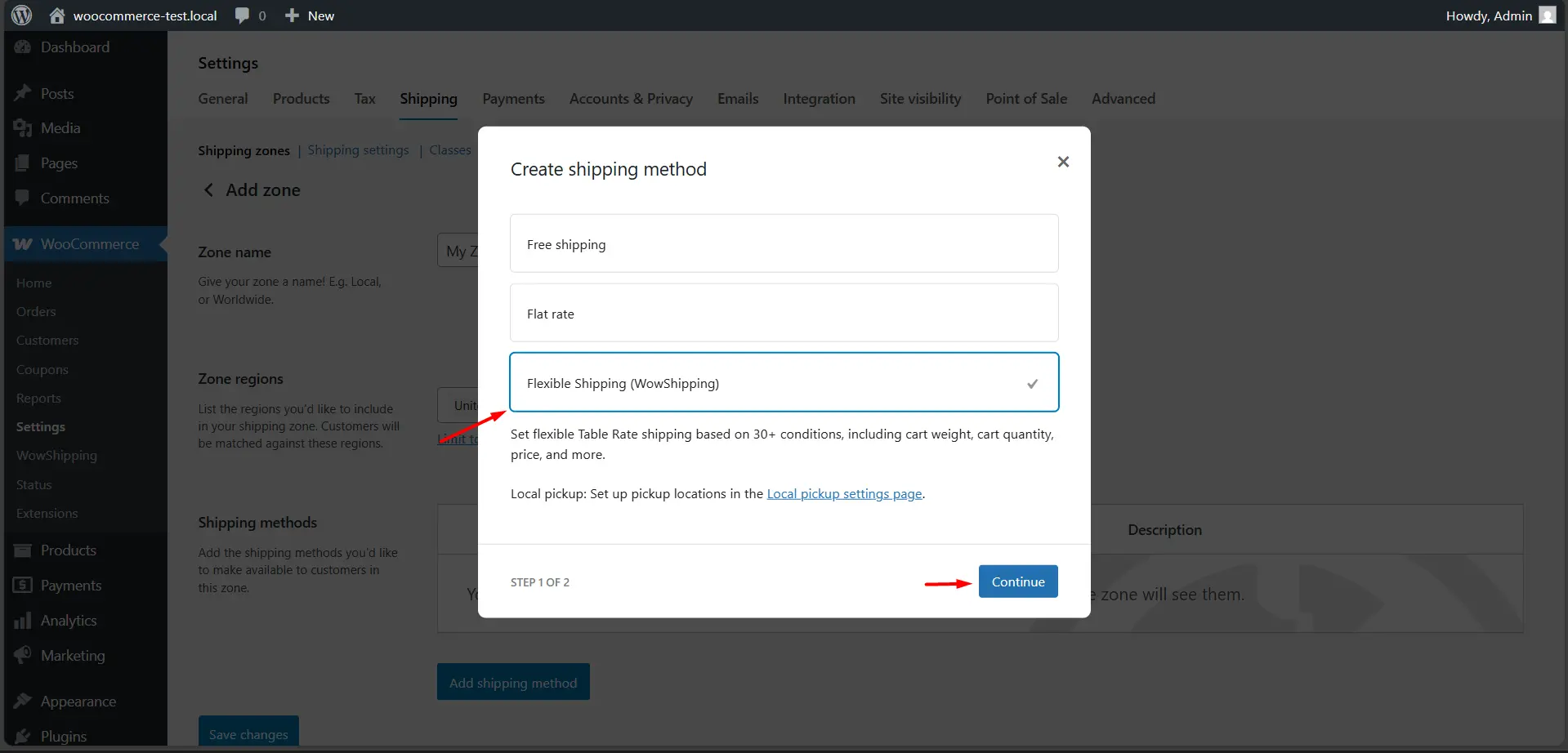
This adds WowShipping as the shipping method for that zone.
If you want a deeper explanation of how WooCommerce shipping methods work overall, you can reference:
Step 4: Create Your First Table Rate Rule
This is where the real table rate logic comes in.
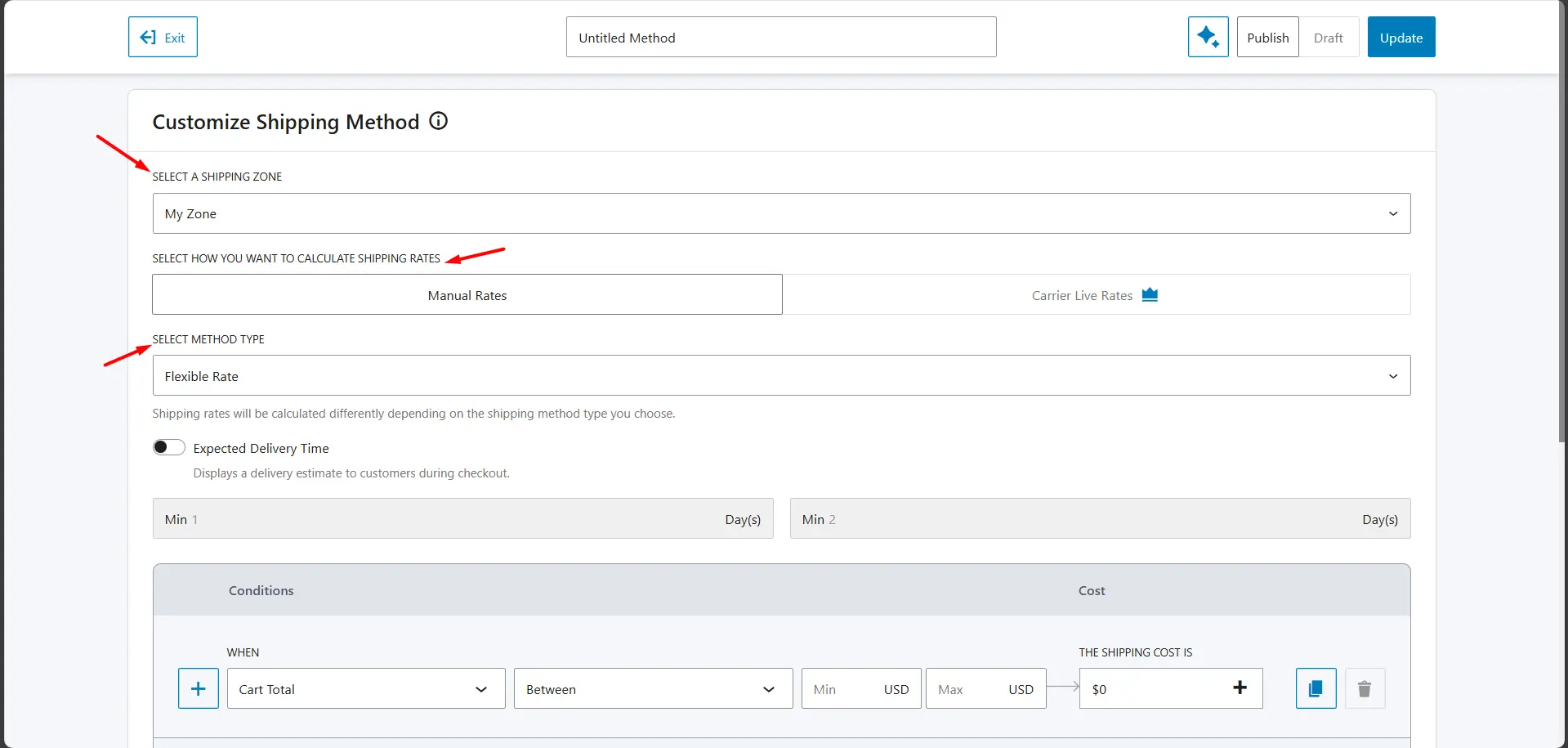
👉 Click Edit on the WowShipping method you just added
👉 Confirm the shipping zone is already selected (WowShipping inherits it automatically)
Under Manual Rate Calculation:
- Select Flexible Shipping
- (Optional) Set an expected delivery time
Create a Weight-Based Table Rate:
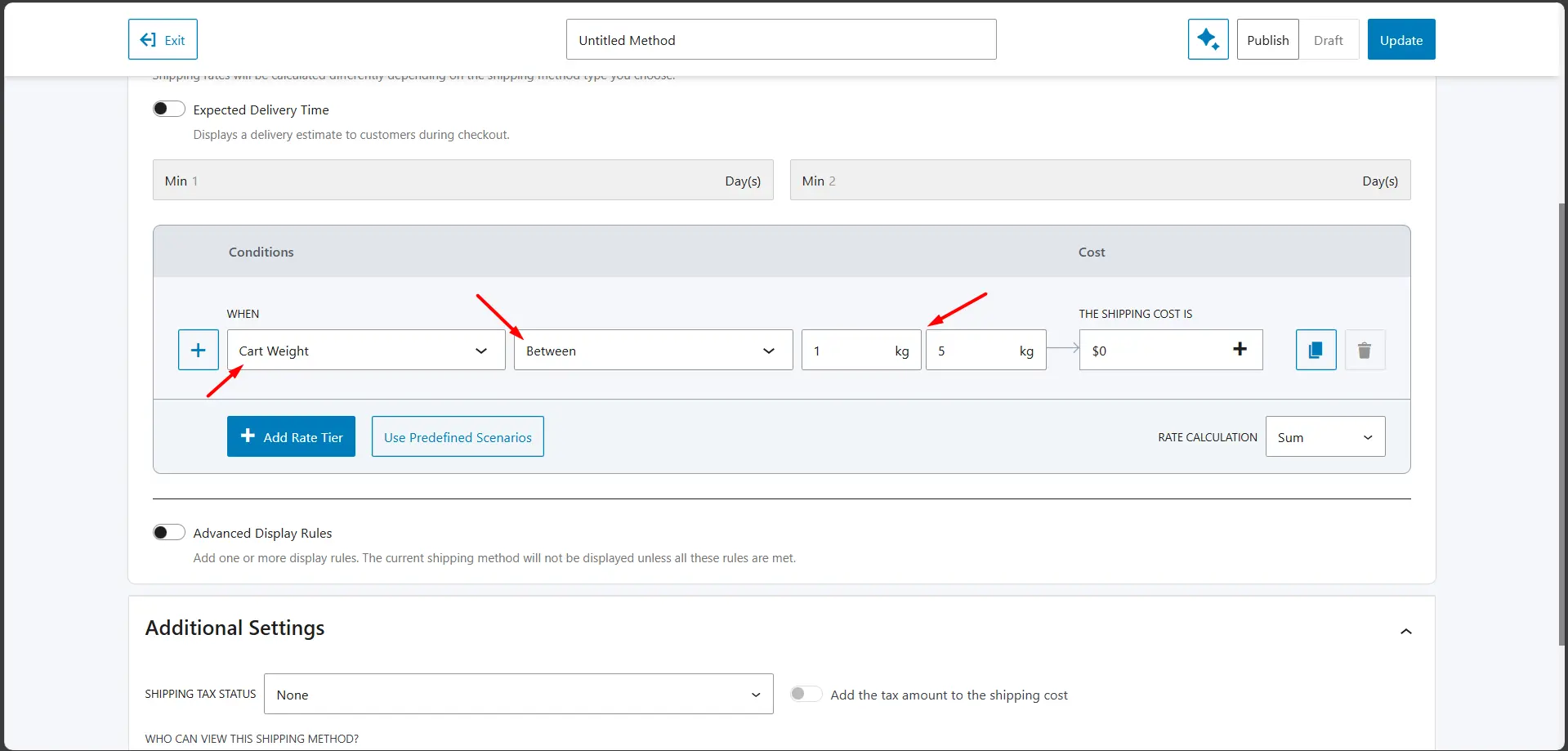
Let’s create a simple weight-based rule.
✅ Choose Cart Weight as the condition
✅ Select Between as the parameter
✅ Enter the minimum and maximum weight range
Next, set the shipping cost.
WowShipping offers three pricing approaches:
- Fixed rate
- Incremental rate
- Base cost + additional charge
To keep things simple, we’ll use a Fixed rate.
✅ Select Fixed rate
✅ Enter your desired shipping cost
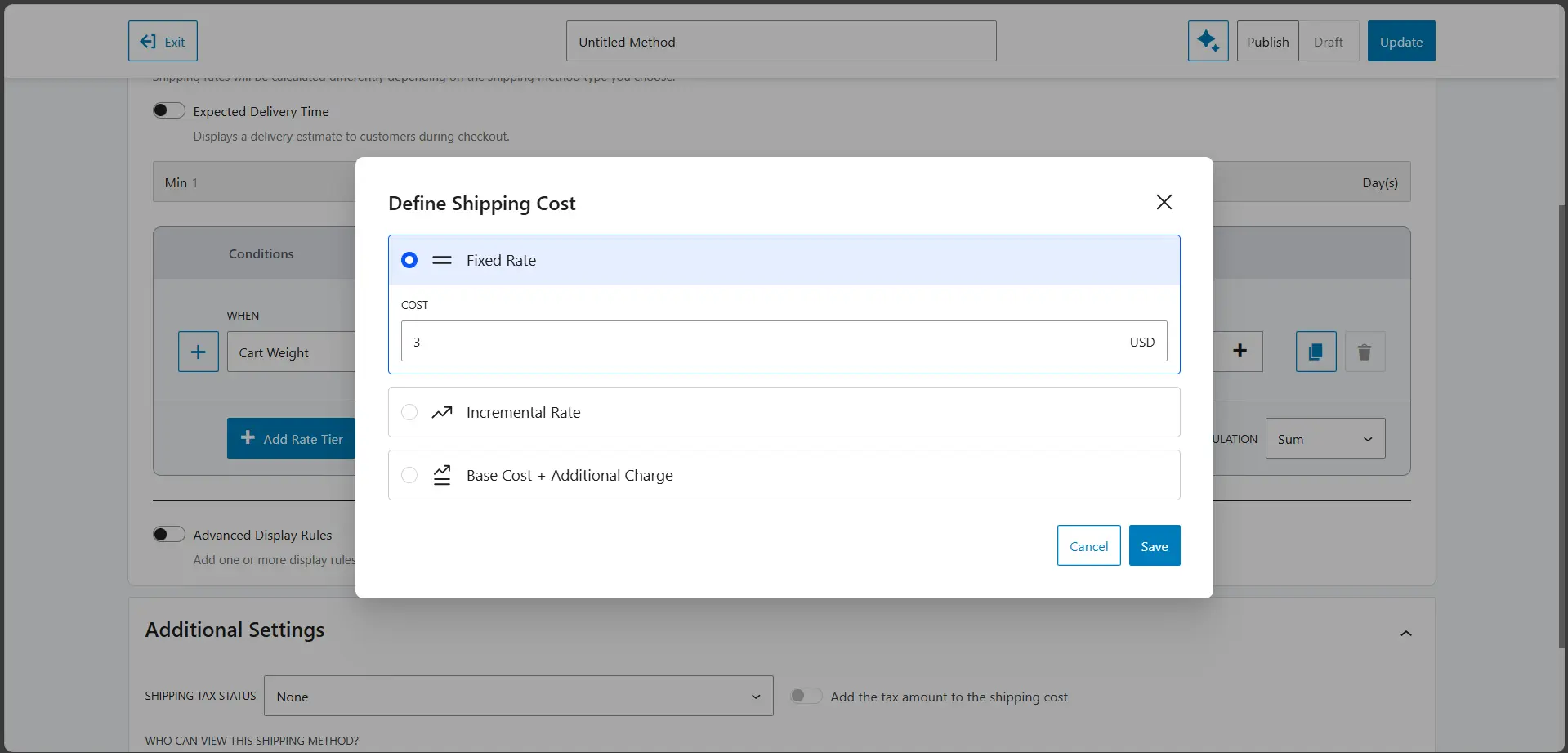
This rule now means: If cart weight is between X and Y, charge $Z for shipping.
Add More Weight Tiers:
To create additional weight ranges:
👉 Click the Copy button to duplicate the rule
👉 Adjust the weight range and shipping cost for each tier
Your final setup will look like this:
- Weight X–Y → $A shipping
- Weight Y1–Z → $B shipping
- Weight Z1+ → $C shipping
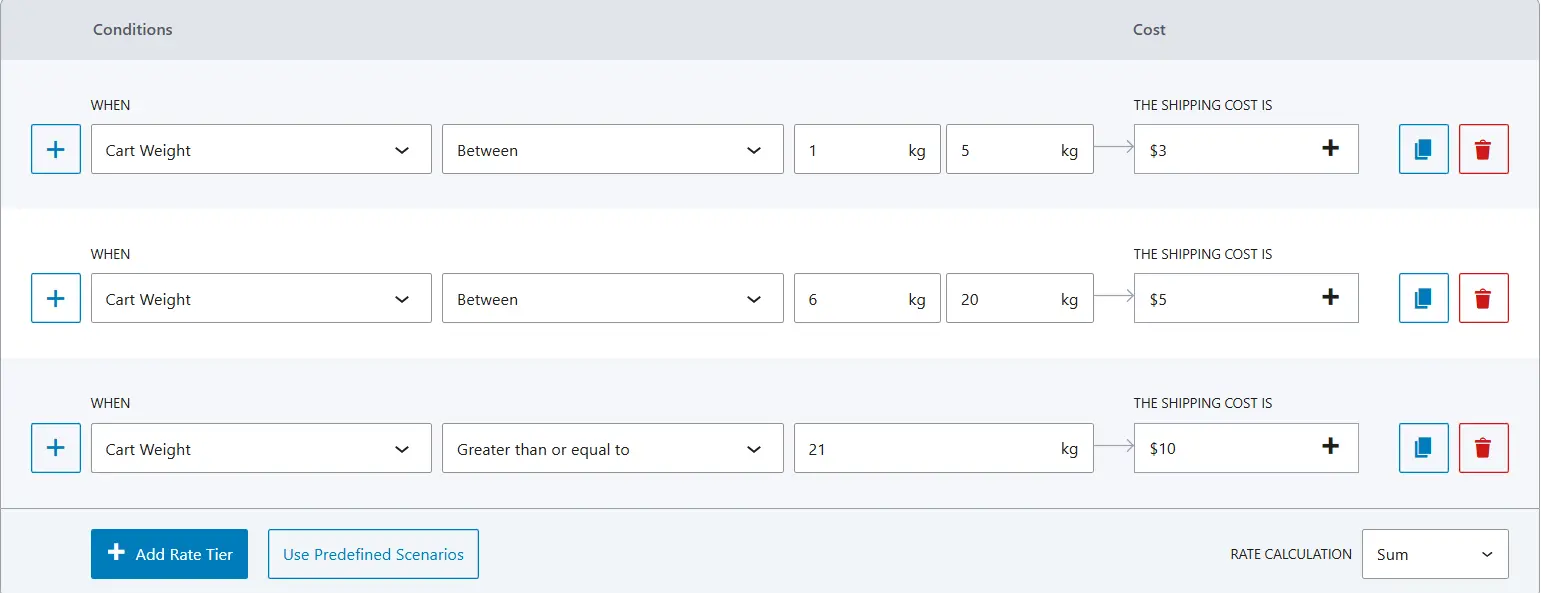
That’s a true table rate shipping structure, without using formulas or shipping classes.
Step 5: Save, Publish & Test
Before finishing:
✅ Give the shipping method a clear, identifiable name
✅ Make sure the method status is Published
✅ Click Save/Update
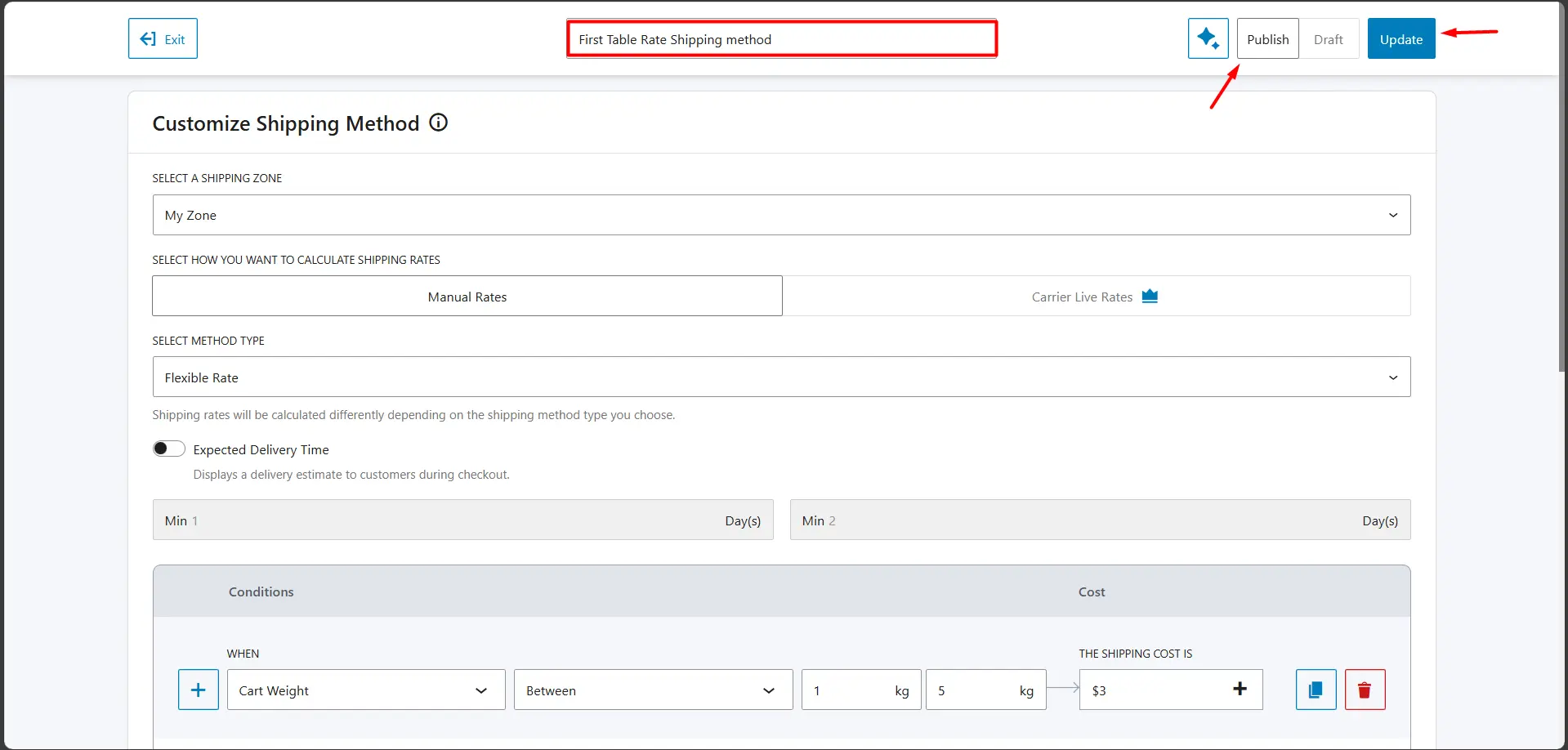
If the method is saved as a draft, it won’t appear at checkout, even if everything else is configured correctly.
Test the Shipping Rate
Now, test it on the front end:
- Add a product to your cart
- Increase the quantity to change the cart weight
- Confirm the shipping cost updates correctly
Done! You’ve successfully set up your first table rate shipping method in WooCommerce – for free 🎉
You can now create additional rules using other conditions like cart total, quantity, etc, following the same steps.
📌 Note:
Make sure your products have a weight assigned; otherwise, weight-based rules won’t work.
Free vs Paid Table Rate Shipping – What’s the Real Difference?
Free table rate shipping plugins are more than enough for many WooCommerce stores, specially when you’re starting out or working with simple shipping logic. But as your store grows, shipping requirements tend to get more specific, layered, and conditional.
When Will You Need the Paid Version?
Free table rate plugins work well for simple setups. You’ll start hitting limits when your shipping logic needs to handle multiple conditions at once.
You’ll likely need a paid version if you want to:
- Combine conditions in a single rule (e.g., weight + user role + destination)
- Apply rules at a deeper level: Such as specific products, variations, categories, or mixed shipping classes
- Control shipping method visibility: Show or hide methods based on cart value, login status, or item count
- Use advanced pricing logic: Like per-item charges, percentage-based costs, or dimensional weight
- Scale your shipping setup cleanly: With many rules, overlapping zones, or reusable rule sets
If maintaining shipping rules starts to feel fragile or overly manual, that’s usually the point where upgrading makes sense.
Why Consider a Paid Plugin
While all five plugins have useful free versions, WowShipping’s paid upgrade unlocks a higher tier of control and automation without complex setups.
With the paid version of WowShipping, you get:
☑️ 30+ condition types you can mix and match for dynamic rate logic
☑️ Carrier integrations (UPS, FedEx, DHL) for live shipping rates
☑️ Rate Calculations (highest, lowest, etc.) in case multiple conditions overlap.
☑️ Handling fee & shipping method visibility
☑️ More ready-to-use predefined scenarios.
This makes complex scenarios like hybrid shipping rules (e.g., combining weight + user role + country logic) far easier to manage compared to other plugins.
👉 If you want even more control with the same easy interface used in this guide, check out WowShipping’s paid plans here:
Table Rate Shipping Use Cases Offered by Plugins
Different WooCommerce stores rely on different shipping logic. Some charge by weight, others by quantity, user role, or even product category.
While many plugins advertise “table rate shipping,” not all of them support these scenarios equally, especially in their free versions.
The table below shows which common table rate use cases are achievable with each plugin, and whether you’ll need to upgrade to a paid plan.
| Use Cases/Features | Flexible Shipping | WowShipping | Weight-Based Shipping | Easy Table Rate | Advanced Table Rate |
|---|---|---|---|---|---|
| Weight-Based Shipping Rates | Free | Free | Free | Free | Free |
| Quantity-Based Shipping Rates | Paid | Free | ❌ | ❌ | Free |
| Price based Shipping rate | Free | Free | ❌ | Free | Free |
| Location-Based Shipping Rates | Paid | Paid | Free | Paid | Paid |
| User Role-Based Shipping Rates | Paid | Paid | ❌ | ❌ | ❌ |
| Product-Based Shipping Rates | Paid | Paid | ❌ | ❌ | ❌ |
| Category-Based Shipping Rates | Paid | Paid | ❌ | ❌ | ❌ |
| Shipping Class-Based Rates | Paid | Paid | ❌ | ❌ | ❌ |
TL;DR – Which Plugin Supports What
- All plugins can handle basic weight-based shipping.
- WowShipping supports all major table rate use cases in the free version, including quantity, location, product, category, and user role–based rules.
- Flexible Shipping works well for weight and shipping classes, but advanced conditions require the paid version.
- Advanced Table Rate (Acowebs) offers strong flexibility, but several key scenarios need a premium upgrade.
- Weight-based shipping and Easy Table Rate are best for simple setups only and don’t scale well for complex shipping logic.
FAQs About Setting Up Table Rate Shipping
Can I set up table rate shipping in WooCommerce without paying for a plugin?
Yes, but only to a limited extent. WooCommerce does not support true table rate shipping natively, so free plugins or workarounds are required to create rule-based shipping costs without upgrading to a paid solution.
Does WooCommerce have built-in conditional table rate shipping?
No. WooCommerce core only provides flat rate, free shipping, and local pickup. While flat rate supports basic cost formulas, it does not offer full table-based or conditional shipping logic.
What’s the difference between flat rate and table rate shipping in WooCommerce?
Flat rate applies a single cost per zone or method, while table rate shipping uses multiple rules based on conditions like weight, cart total, quantity, or destination to calculate shipping dynamically.
Can I create weight-based shipping rates for free in WooCommerce?
Yes. Many free table rate shipping plugins allow you to set shipping costs based on total cart weight, as long as product weights are properly configured.
Why is my table rate shipping method not showing at checkout?
This usually happens due to incorrect shipping zone assignment, unmet rule conditions, or conflicts with other shipping methods. Verifying the customer address and zone setup typically resolves the issue.
Is table rate shipping suitable for small WooCommerce stores?
Yes. Small and medium-sized stores with predictable shipping rules often benefit from table rate shipping, especially when using free plugins with simple weight or price-based rules.
Can table rate shipping conflict with other WooCommerce shipping methods?
Yes. If multiple shipping methods are available in the same zone, customers may see unintended options. Disabling unused methods or adding stricter conditions helps avoid conflicts.
When should I consider upgrading to a paid table rate shipping plugin?
If your store requires complex rule combinations, multiple shipping conditions, or advanced control across regions and product types, a paid plugin may become necessary.
Conclusion
Table rate shipping gives you precise control over shipping costs based on weight, quantity, etc. Set up correctly, it removes guesswork, prevents undercharging, and makes checkout transparent for your customers.
Free table rate plugins are ideal for basic shipping rules, but limitations appear as your store grows. Complex scenarios like multiple conditions, advanced rules, and scalable setups often require a more flexible solution.
Plugins like WowShipping bridge that gap. They let you start simple and scale without rebuilding your setup.
With tiered weight rules, product-specific rates, or role-based pricing, table rate shipping can work with your business, not against it.