
If you sell to business customers (B2B) within the European Union, displaying the customer’s VAT/Tax number on your invoices is a strict legal requirement.
Our EU VAT Support feature allows you to effortlessly collect your customers’ VAT numbers during checkout and display them neatly on your PDF Invoices and Credit Notes.
Note: This feature strictly handles the collection and display of VAT numbers on your documents. If you need live VAT number validation (VIES), you will need to use a dedicated third-party VAT validation plugin. We seamlessly integrate with most popular validation plugins!
EU VAT Compliance Requirements for PDF Invoices
To comply with EU tax laws for cross-border B2B sales, a standard PDF invoice must display the following legal information.
| Official EU Invoice Requirement | Does WowInvoice Provide It? |
|---|---|
| Supplier’s (Your Own) VAT Number | This is handled via the store information settings. |
| Customer’s VAT Identification Number | YES. This EU VAT Support feature collects the number and prints it on the PDF Invoice and Credit Note. |
| Customer’s Complete Address | NO. This is handled by standard WooCommerce checkout fields. |
| Live VAT Number Validation (VIES Check) | NO. This feature does not check if the number is real or legally active. A separate validation plugin is required for verification. |
| Tax Exemptions / “Reverse Charge” Logic | NO. This feature does not alter tax rates, remove VAT from the cart, or automatically apply tax exemption rules. |
By enabling this feature, you ensure that the customer’s VAT number is properly documented, protecting your business during tax audits and keeping your B2B transactions compliant.
In Short: This feature is strictly a VAT number collection and display tool. It ensures the customer’s VAT number appears on your PDFs to satisfy that specific layout requirement, but it does not validate or manage tax calculations.
Show EU VAT ID Number on Invoice
To access these settings, navigate to your PDF Invoice configuration panel and locate the Customer VAT/Tax Number section.
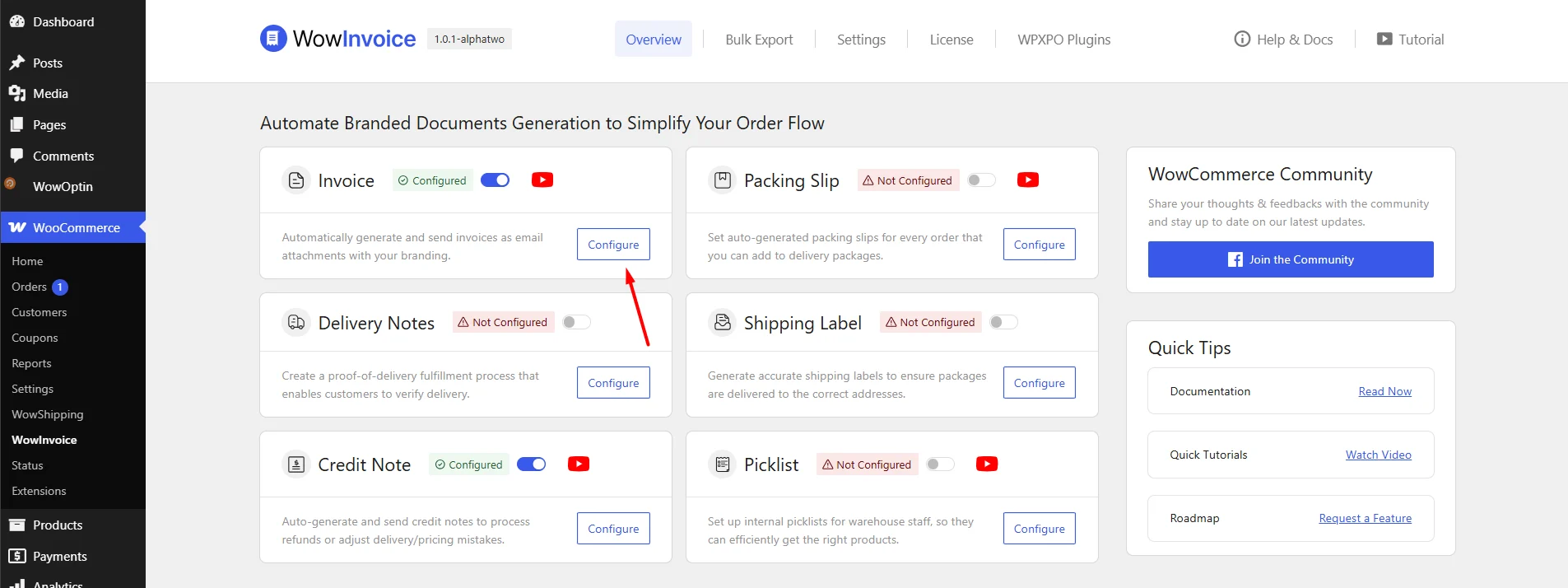
1. Enable the VAT Display
Check the Show Customer VAT/Tax Number box to enable the display of the VAT number on your generated PDF invoices.
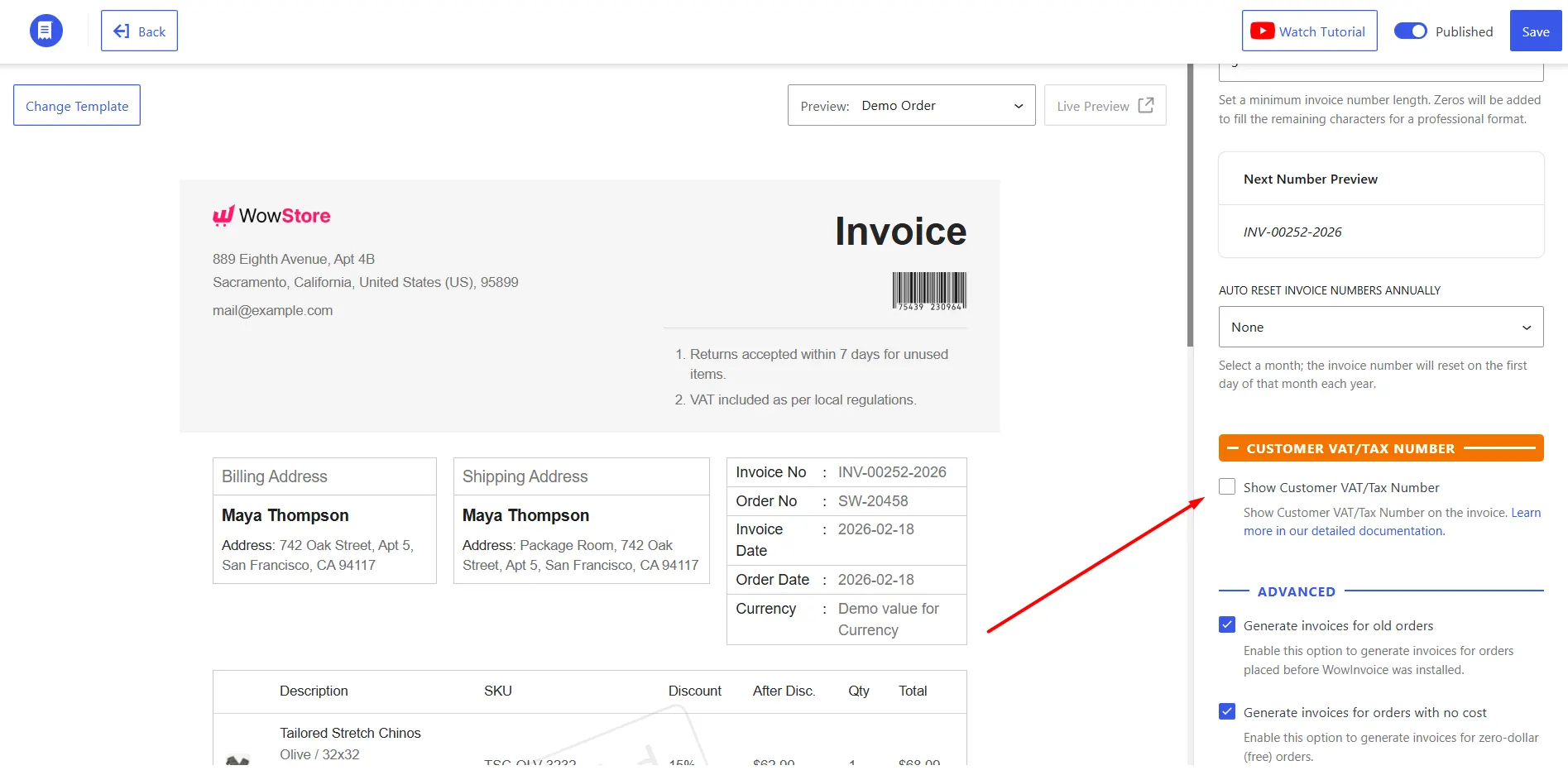
2. Display Settings
Choose where the VAT number should appear on the document. Options include:
- Billing Address
- Shipping Address
- Both
Customer VAT/Tax Number Label: Customize the text prefix that appears before the actual number (e.g., “VAT Number”, “Tax ID”, “TIN”).
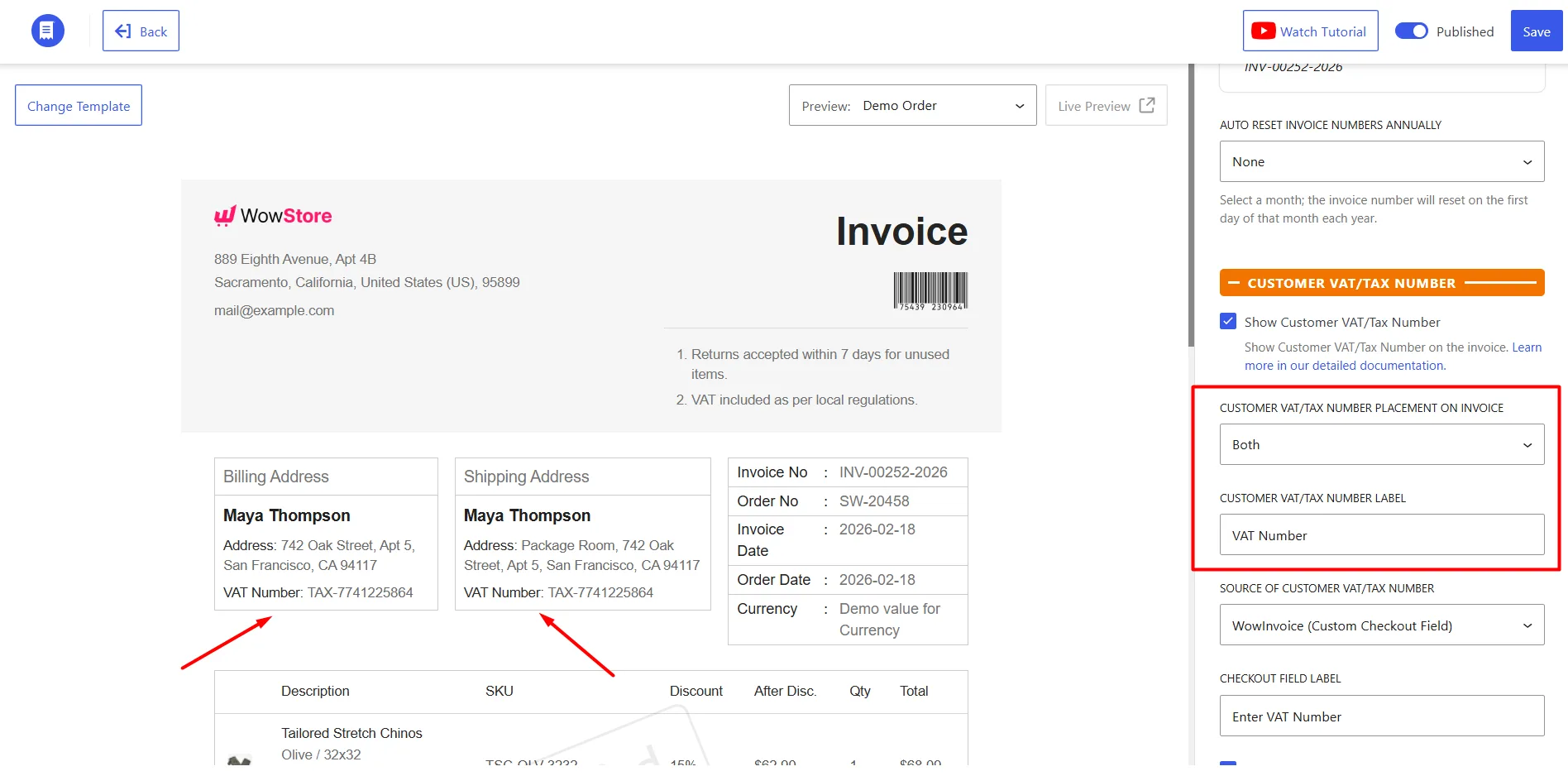
3. Choose the Source of the VAT Number
The “Source” defines where WowInvoice looks to find the customer’s VAT number. We offer three flexible ways to capture this data:
- WowInvoice (Custom Checkout Field)
- Popular Third-Party VAT Plugins
- Germanized for WooCommerce
- EU/UK VAT Validation Manager for WooCommerce
- EU VAT Assistant for WooCommerce
- European VAT Compliance Assistant for WooCommerce
- EU VAT Guard for WooCommerce
- EU VAT Number for WooCommerce
- YITH WooCommerce EU VAT, OSS & IOSS
- Other (/unlisted/Custom Plugins)
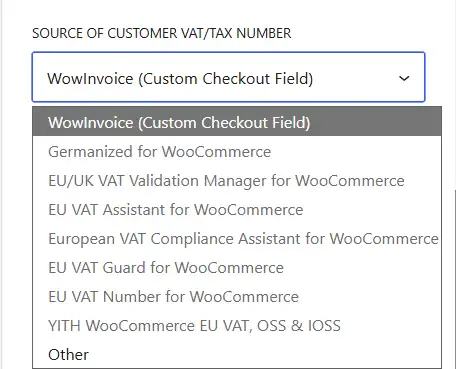
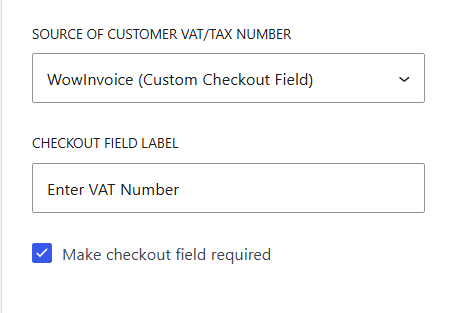
Option A: WowInvoice (Custom Checkout Field)
If you enable this option, a VAT Number field will be added to the WooCommerce checkout page under Additional Information. Customers can enter their VAT number manually during checkout.
This field simply collects the VAT number provided by the customer. WowInvoice does not validate, verify, or check the accuracy of the VAT number entered.
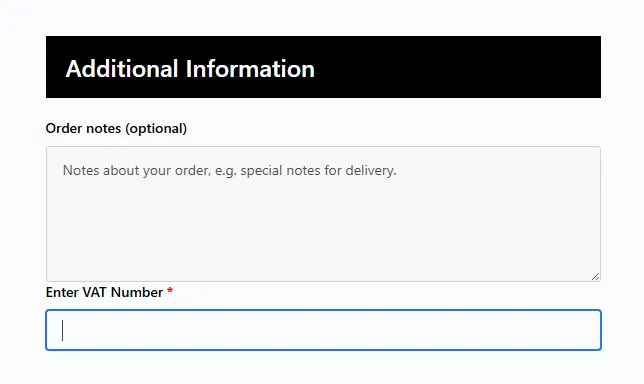
Checkout Field Label: Define what the customer sees on the checkout page (e.g., “Enter VAT Number”).
Make checkout field required:
- Leave Unchecked: If you have an international customer base (outside the EU), leave this unchecked so non-EU customers aren’t forced to enter a VAT number.
- Check: If your store exclusively serves EU B2B customers, check this to make the field mandatory for a successful checkout.
Option B: Popular Third-Party EU VAT Plugins
If you already use a dedicated plugin for EU VAT validation or compliance, simply select it from the dropdown list.
Supported Plugins include: Germanized for WooCommerce, EU/UK VAT Validation Manager, EU VAT Assistant, European VAT Compliance Assistant, EU VAT Guard, YITH WooCommerce EU VAT, and more.
Note: These options will only be active (selectable) if the respective plugin is currently installed and activated on your site. If a plugin is not installed, it will appear grayed out.
Option C: Other (Unlisted/Custom Plugins)
If you’re using a custom-built solution or a VAT plugin that isn’t listed, select Other.
After selecting Other, an additional field will appear. Enter the exact Order Meta Key used to store the VAT/Tax ID. This key is typically provided by the custom or third-party VAT plugin you are using and can usually be found in its documentation or developer resources.
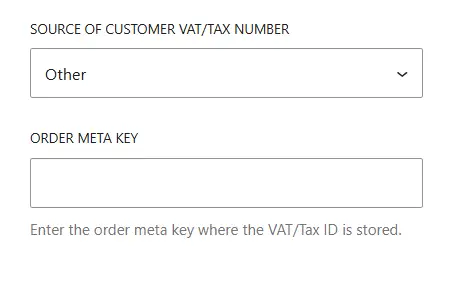
Our plugin will use this Order Meta Key to retrieve the VAT number from the order and display it on your invoices.
Show EU VAT ID Number on Credit Notes
Setting up VAT numbers on Credit Notes is simple. Credit Notes automatically use the same VAT number source configured for your invoices, so you don’t need to set up the data source again.
To display the VAT number on Credit Notes:
- Go to the Credit Note settings tab.
- Find the Customer VAT/Tax Number section.
- Enable Show Customer VAT/Tax Number.
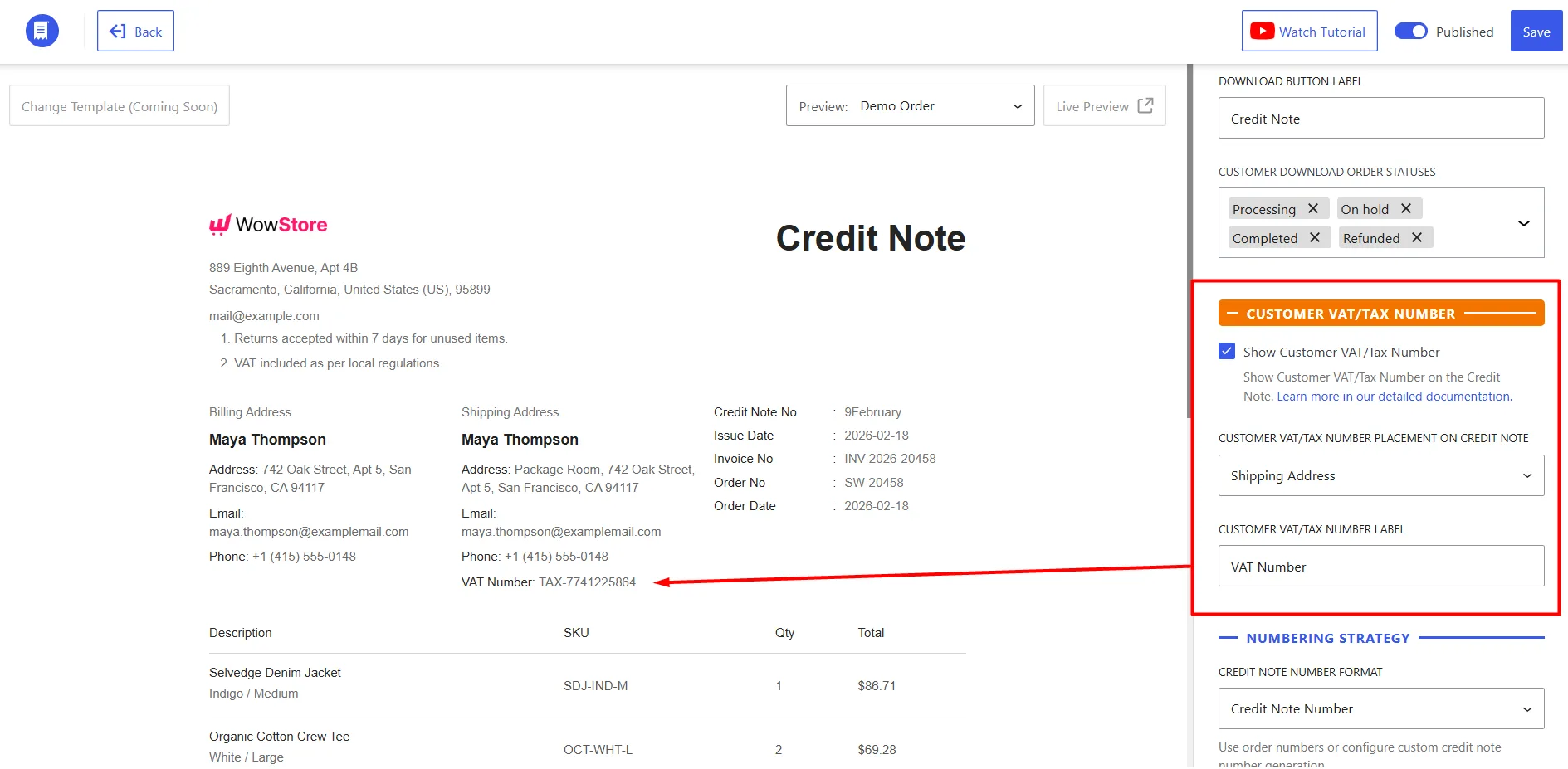
- Choose where the VAT number should appear:
- Billing Address
- Shipping Address
- Both
- Enter your preferred label, such as VAT Number, EU VAT ID, or Tax ID.
Once enabled, the customer’s VAT number will be retrieved from the same source configured in your Invoice settings and displayed on the Credit Note using your selected placement and label.