
With WowInvoice, you can generate professional WooCommerce invoices directly from your store orders.
You can customize invoice layouts, configure invoice numbering, automate invoice generation, and control how invoice PDFs are sent and downloaded.
These settings help store owners create organized, business-ready invoices for customers and internal record management.
In the following sections, we will configure the invoice settings step by step.
Configuration
Most invoice-related automation and numbering settings are available in the right sidebar of the Invoice settings panel.
Follow the steps below to configure your invoice settings.
Step 1: Configure Layout Size and Invoice Generation Status
WowInvoice supports multiple invoice layout sizes. You can choose from:
Next, select the WooCommerce order statuses for which invoices will be generated automatically.
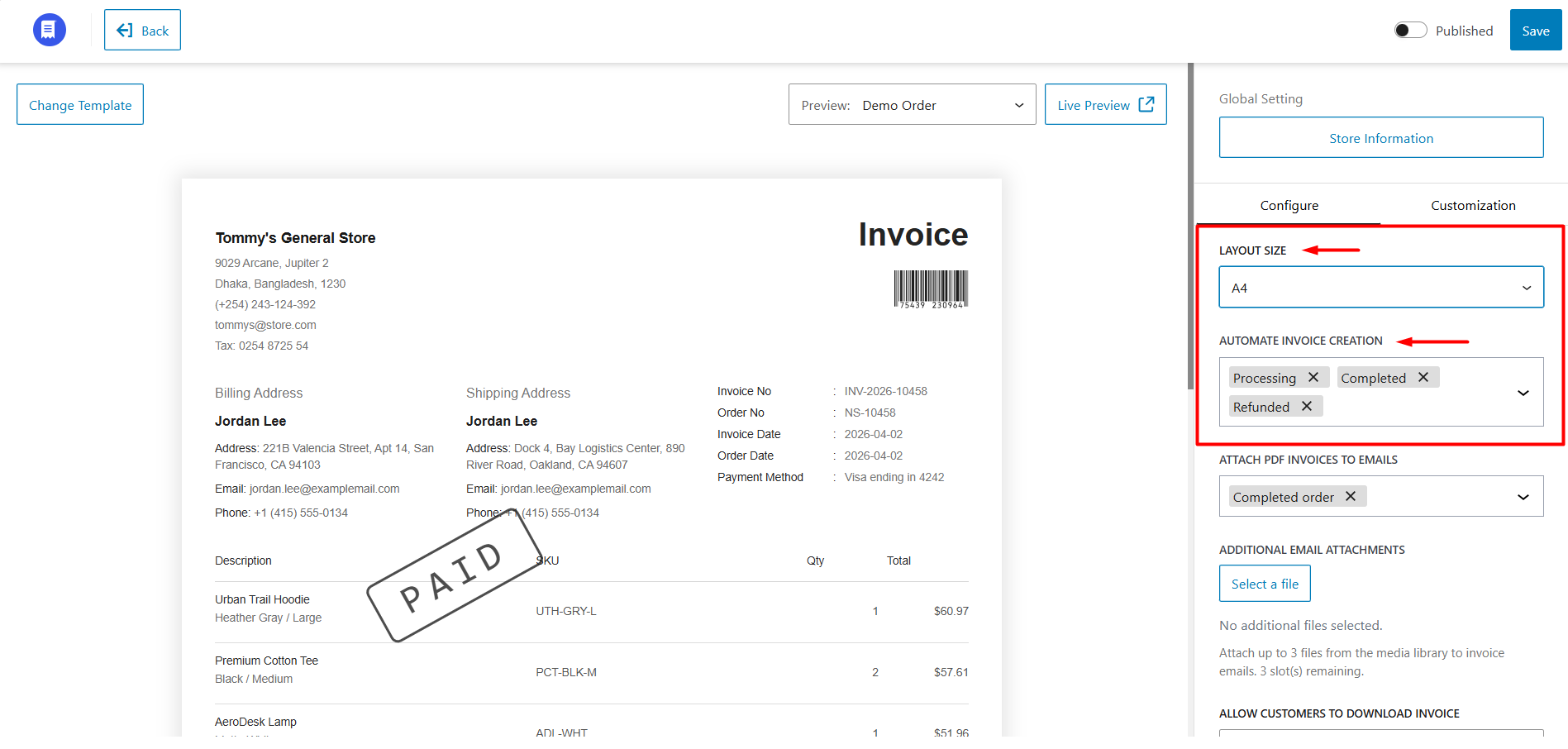
Available order statuses include:
Invoices will be generated automatically when an order reaches the selected status.
Step 2: Configure Email Attachments
WowInvoice allows you to send PDF invoices automatically through WooCommerce emails. You can attach invoices to different WooCommerce email types, including:
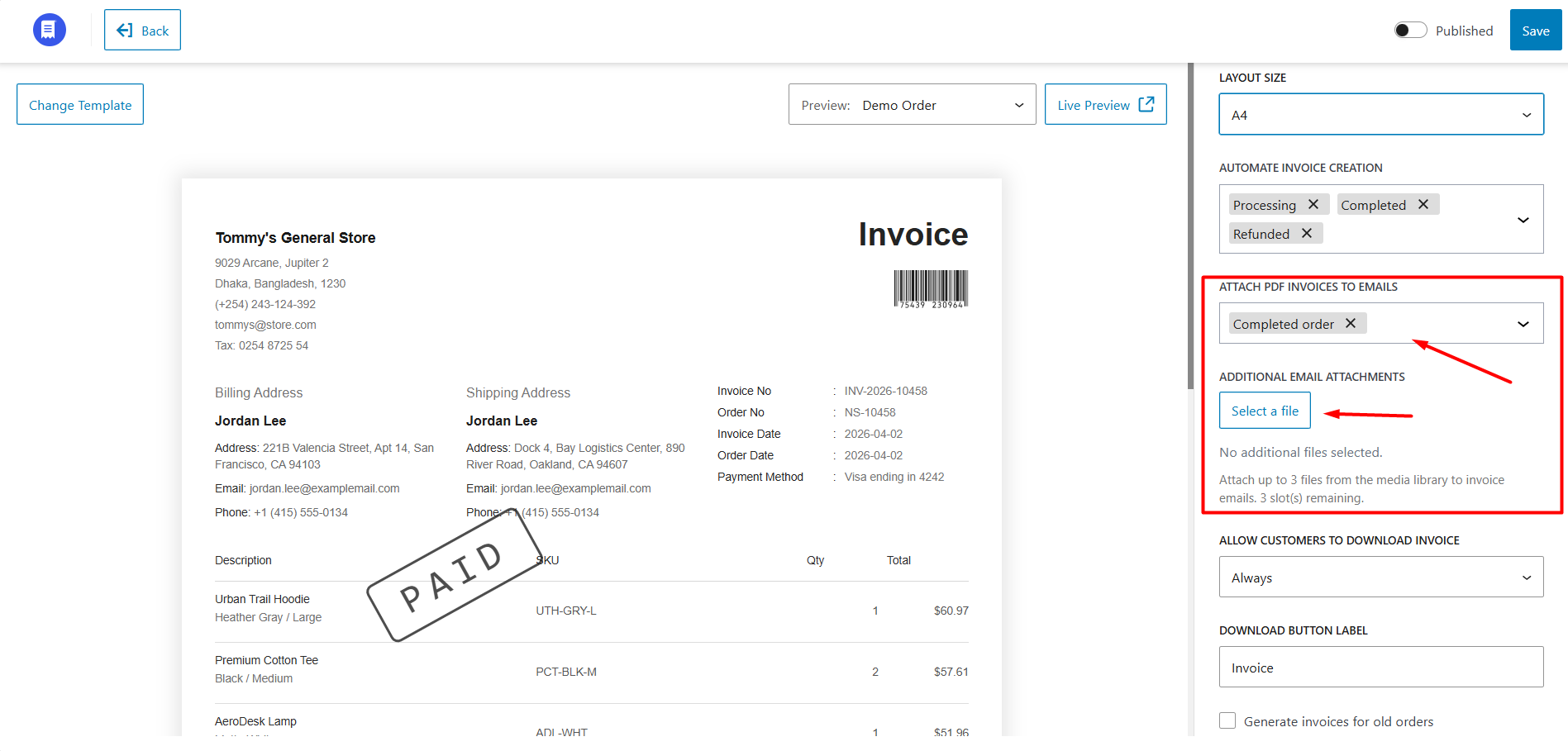
You can also attach additional files to invoice emails. WowInvoice allows you to upload and attach up to 3 files from the WordPress media library.
Step 3: Configure Invoice Download Settings
You can control when customers are allowed to download invoice PDFs from the My Account page.
Available options:
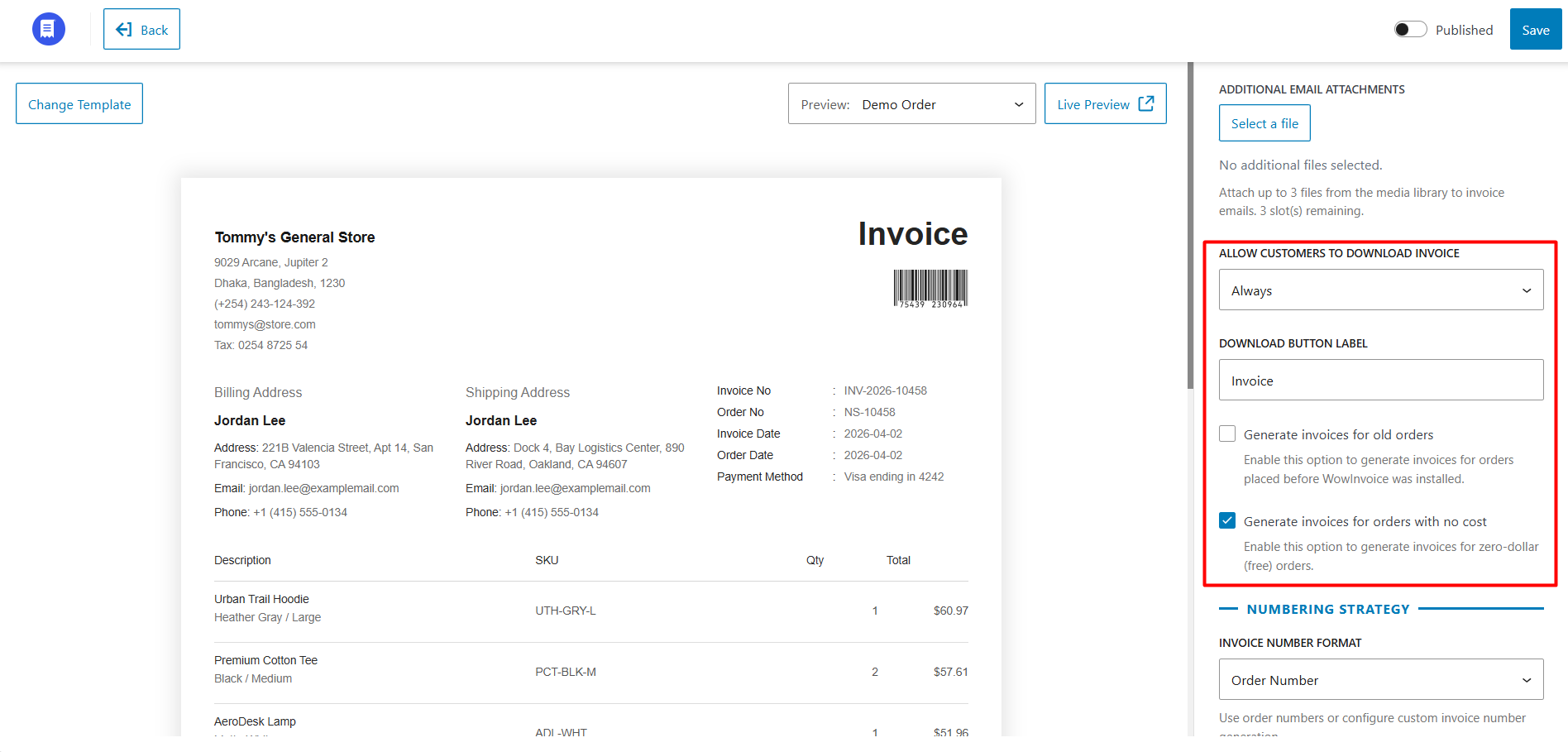
You can also customize the invoice download button label. Additionally, WowInvoice allows you to:
Step 4: Configure Invoice Numbering
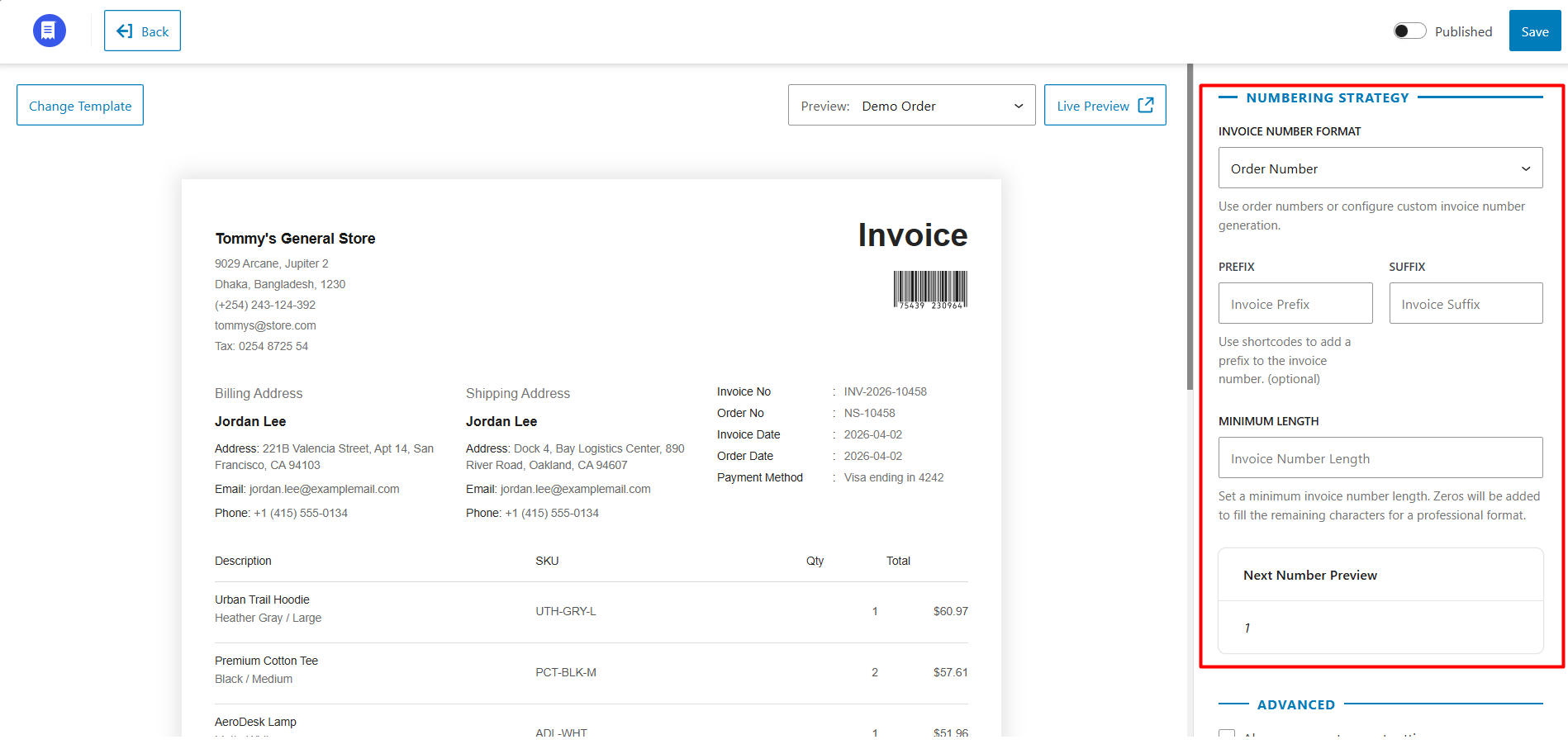
From this section, you can fully customize the invoice numbering strategy.
Invoice Number Format
You can:
Prefix
Add a custom prefix before the invoice number. Dynamic shortcodes for year, month, and day can also be used.
Suffix
Add a custom suffix after the invoice number.
Minimum Length
Set a minimum character length for invoice numbers. If necessary, leading zeros will automatically be added to match the defined length.
You can also preview the next generated invoice number directly from this section.
Step 5: Configure Customer VAT/Tax Number
Enable Show Customer VAT/Tax Number if you want to include the customer’s VAT or tax identification number on the invoice.
After enabling it, you can configure:
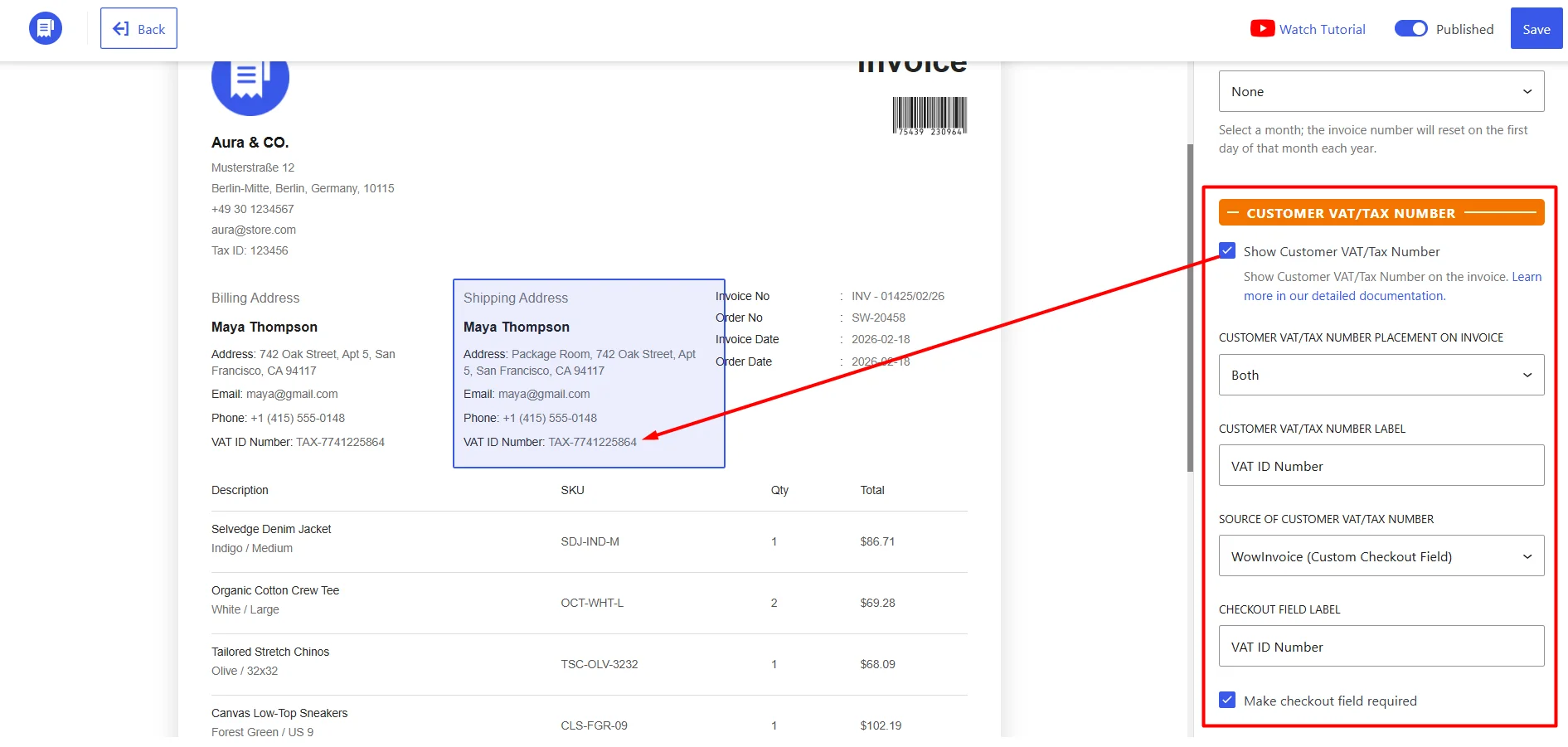
For information about the available VAT sources, supported plugins, custom meta keys, and checkout-field configuration, see the EU VAT Support documentation.
Step 6: Configure Partial Payment Information
The Partial Payment settings are useful when your store accepts deposits through a compatible deposit plugin and you need to show the payment breakdown on invoices.
WowInvoice currently supports partial-payment data from:
Check Enable partial payment to display deposit, final-payment, and outstanding-balance information in the invoice totals section.
You can customize the following labels:
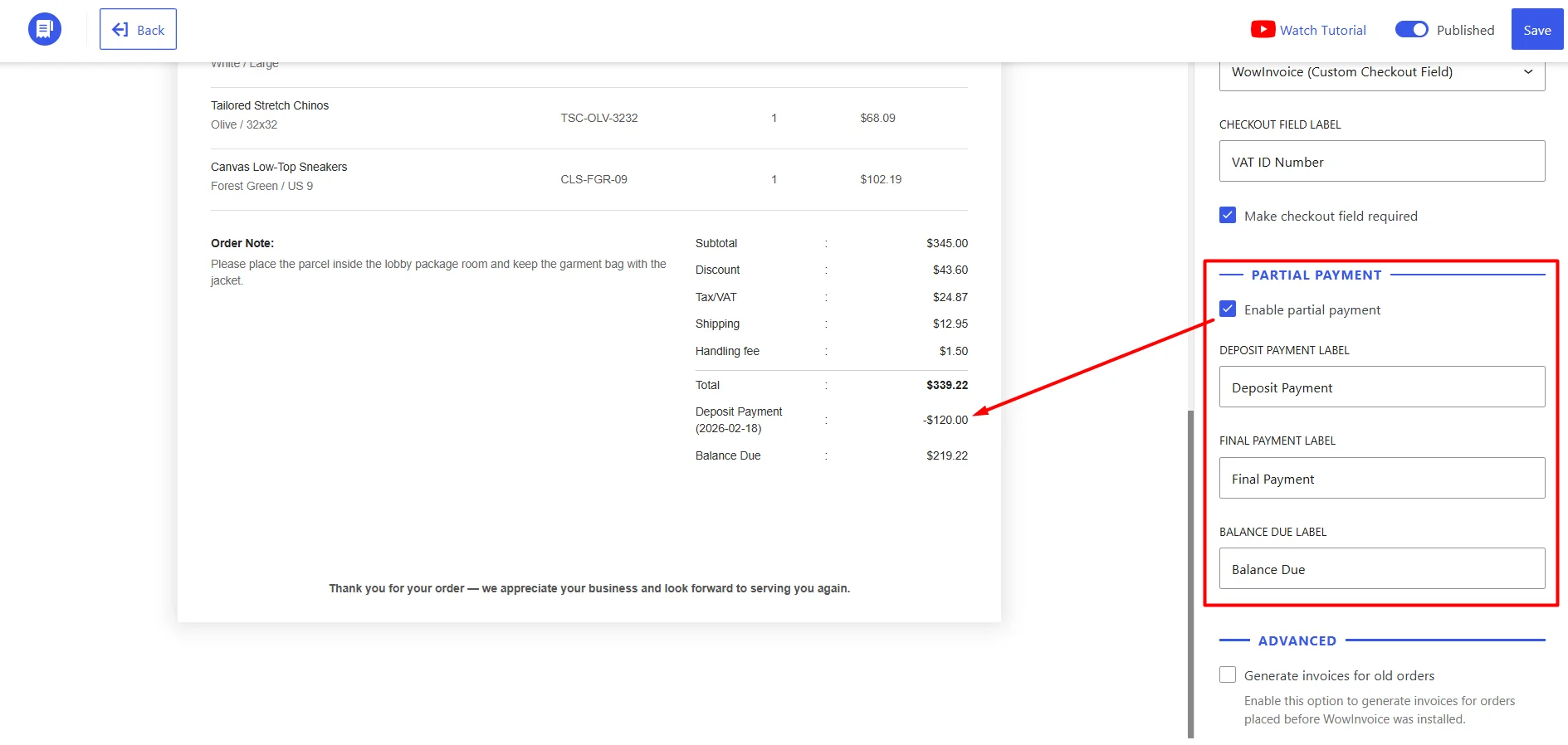
After an initial deposit, the deposit amount is shown as an amount already paid, and the remaining amount appears under Balance Due. After the final payment, both payments are listed in the totals section and the balance due becomes zero.
Advanced Settings
WowInvoice allows you to apply updated settings to previously generated invoices.
To enable this behavior, check the box in Advanced Settings.
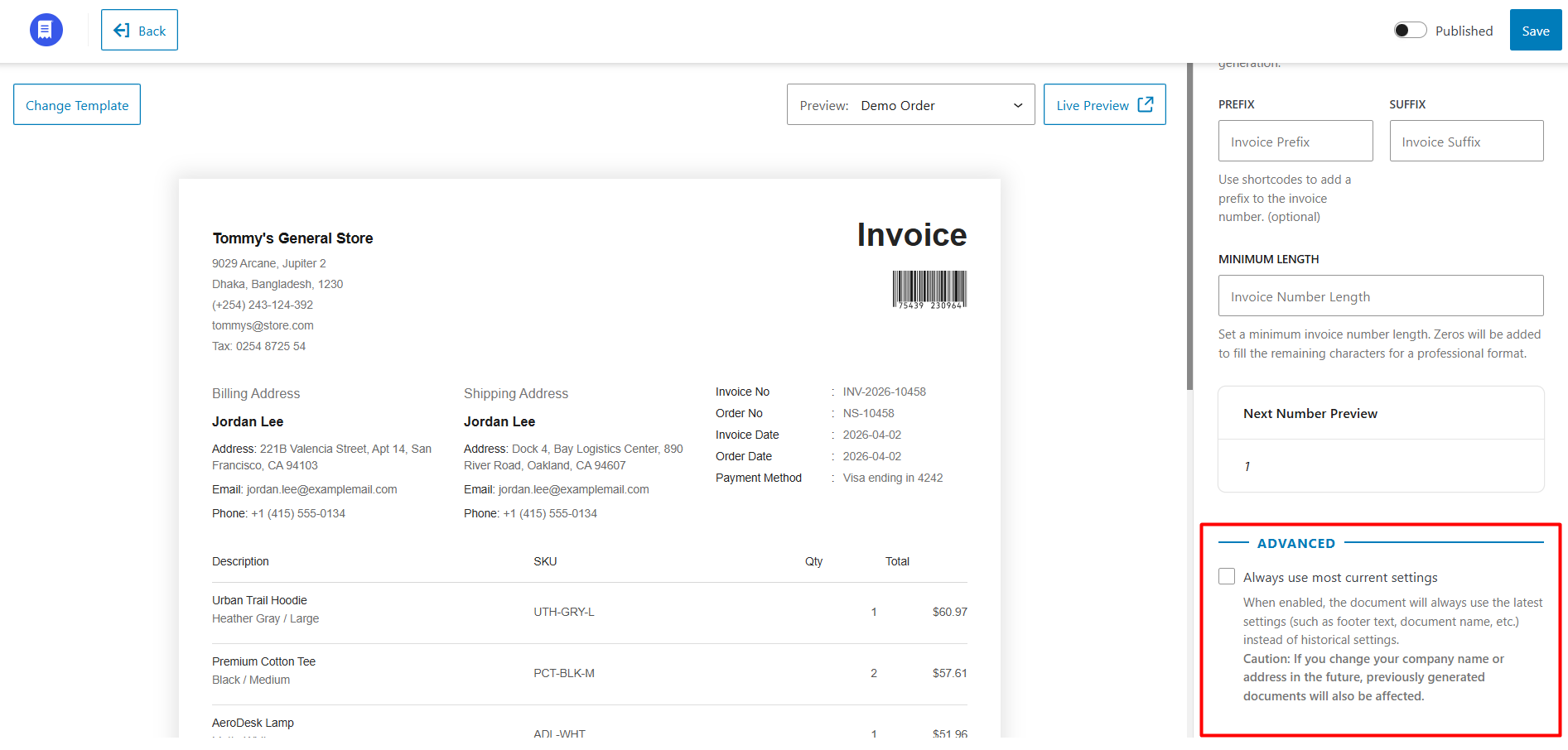
For example, if you update your store name, address, or invoice layout, previously generated invoices will also reflect the latest changes.
If this box is unchecked, new settings will only apply to future invoices, while older invoices will remain unchanged.
Use this setting carefully, especially on live stores with existing invoices.
Customization
WowInvoice provides extensive customization options for WooCommerce invoices. You can control the appearance, displayed information, labels, document structure, and additional invoice elements directly from the customization panel.
The customization settings are divided into multiple sections for easier management.
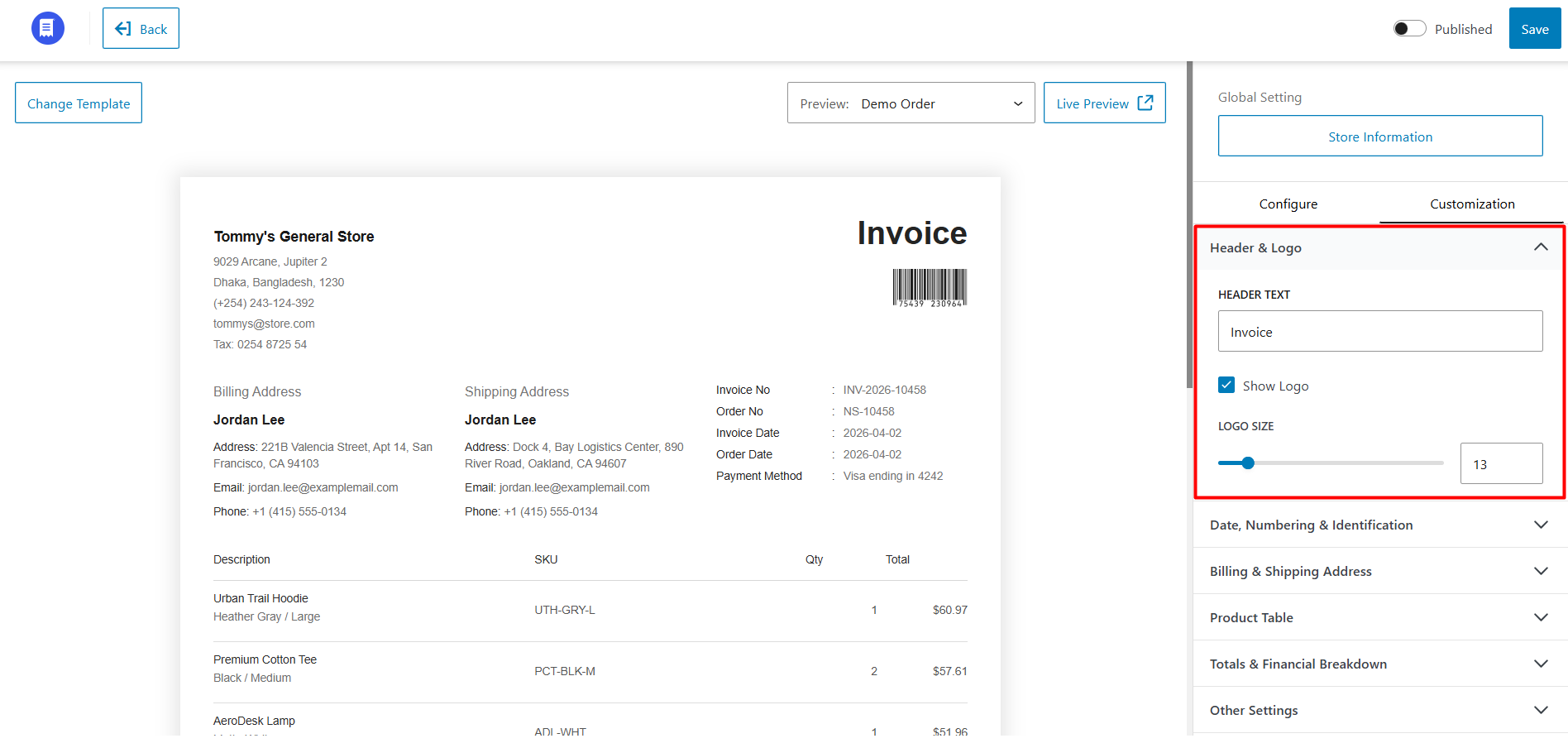
Header & Logo
This section controls the appearance of the invoice header.
You can customize:
Date, Numbering & Identification
From this section, you can customize invoice dates, order information, and identification labels.
Date Settings
You can:
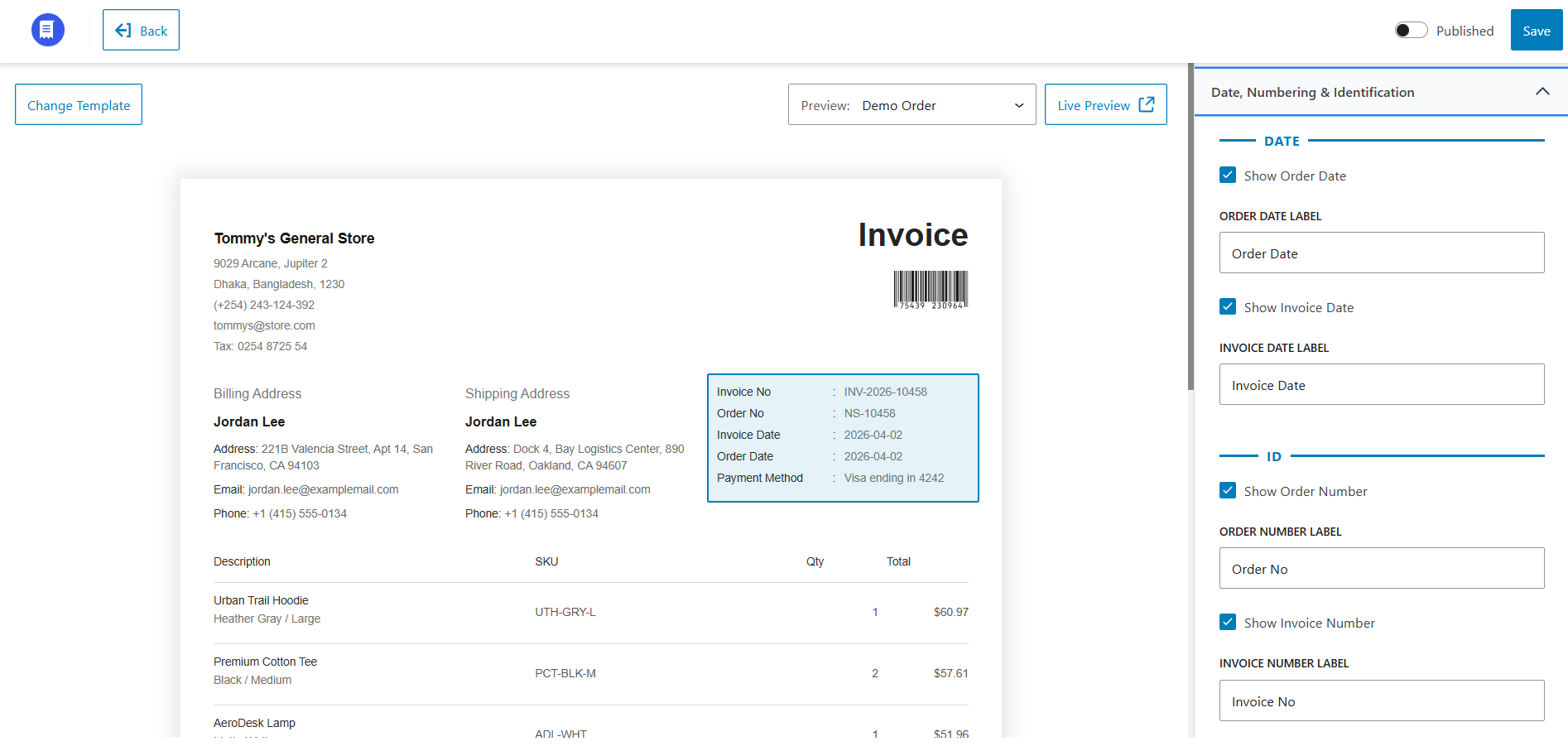
ID Settings
You can:
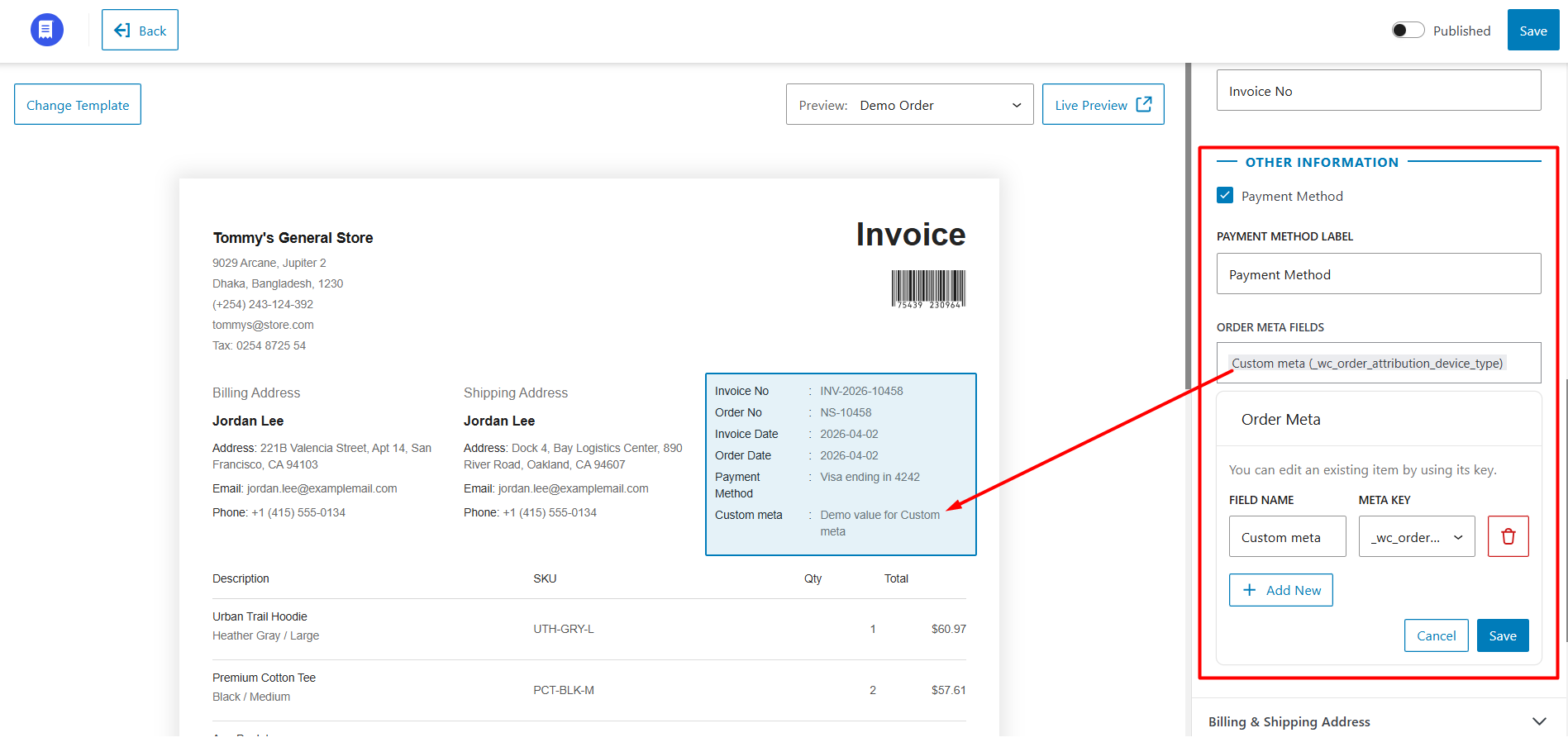
Additional Information
You can also display additional order-related information, including:
Custom order meta fields allow you to fetch and display custom WooCommerce order data using meta keys.
Billing & Shipping Address
This section controls the appearance of billing and shipping information on the invoice.
Billing Address
You can:
Shipping Address
You can:
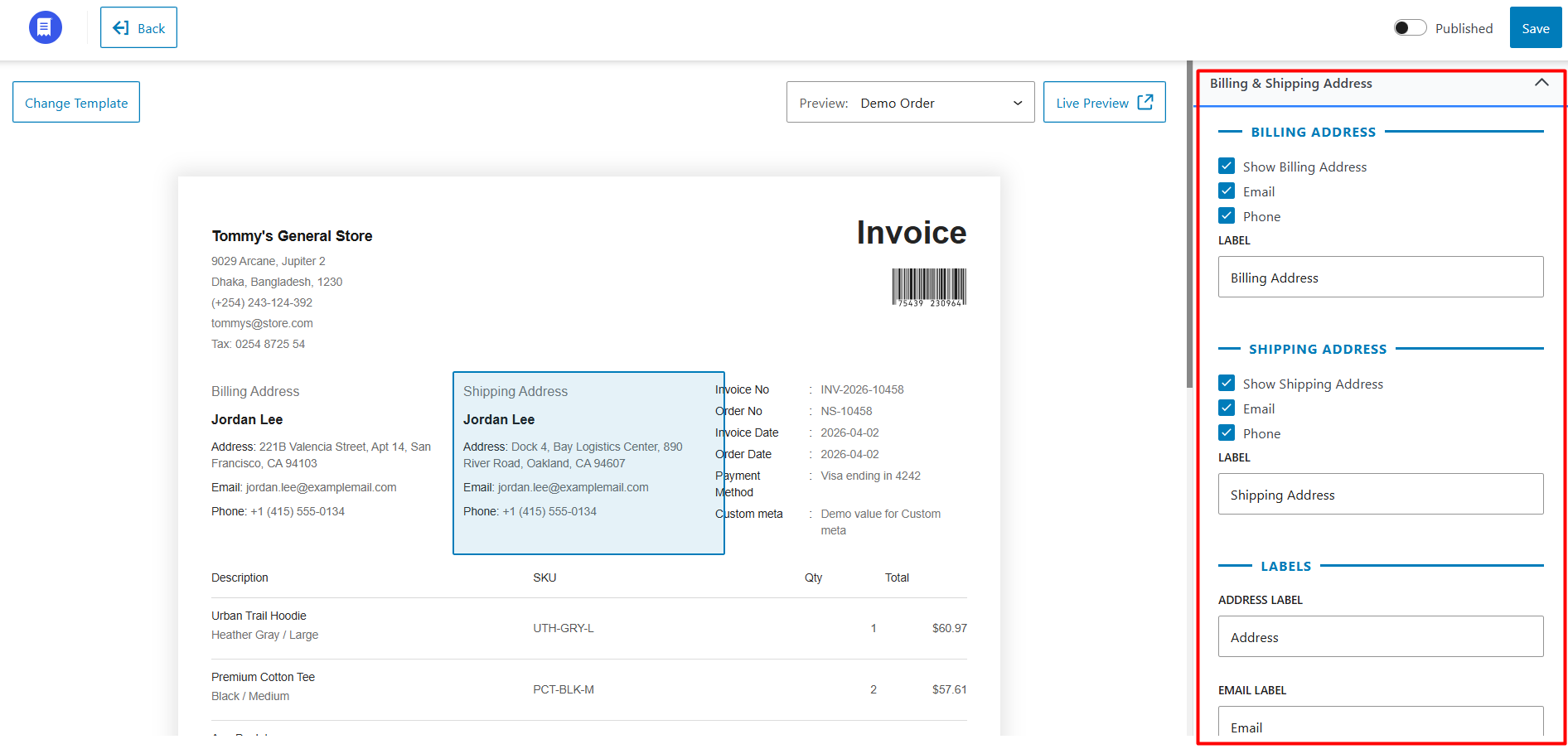
Field Labels
You can customize:
Product Table
This section controls the appearance and data shown inside the invoice product table.
Table Columns
You can customize:
You can also:
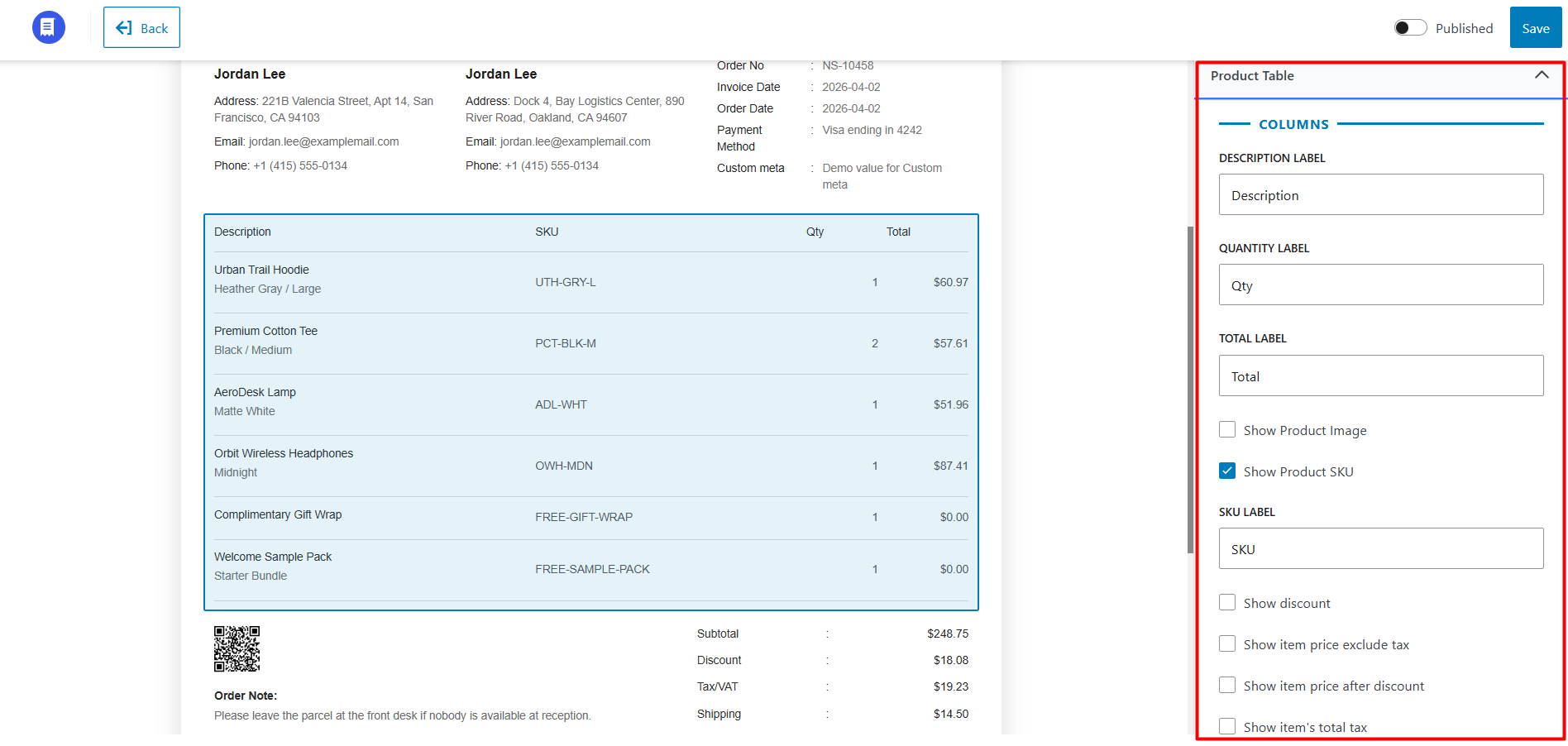
Product Information
Additional options include:
Other Product Table Settings
You can also:
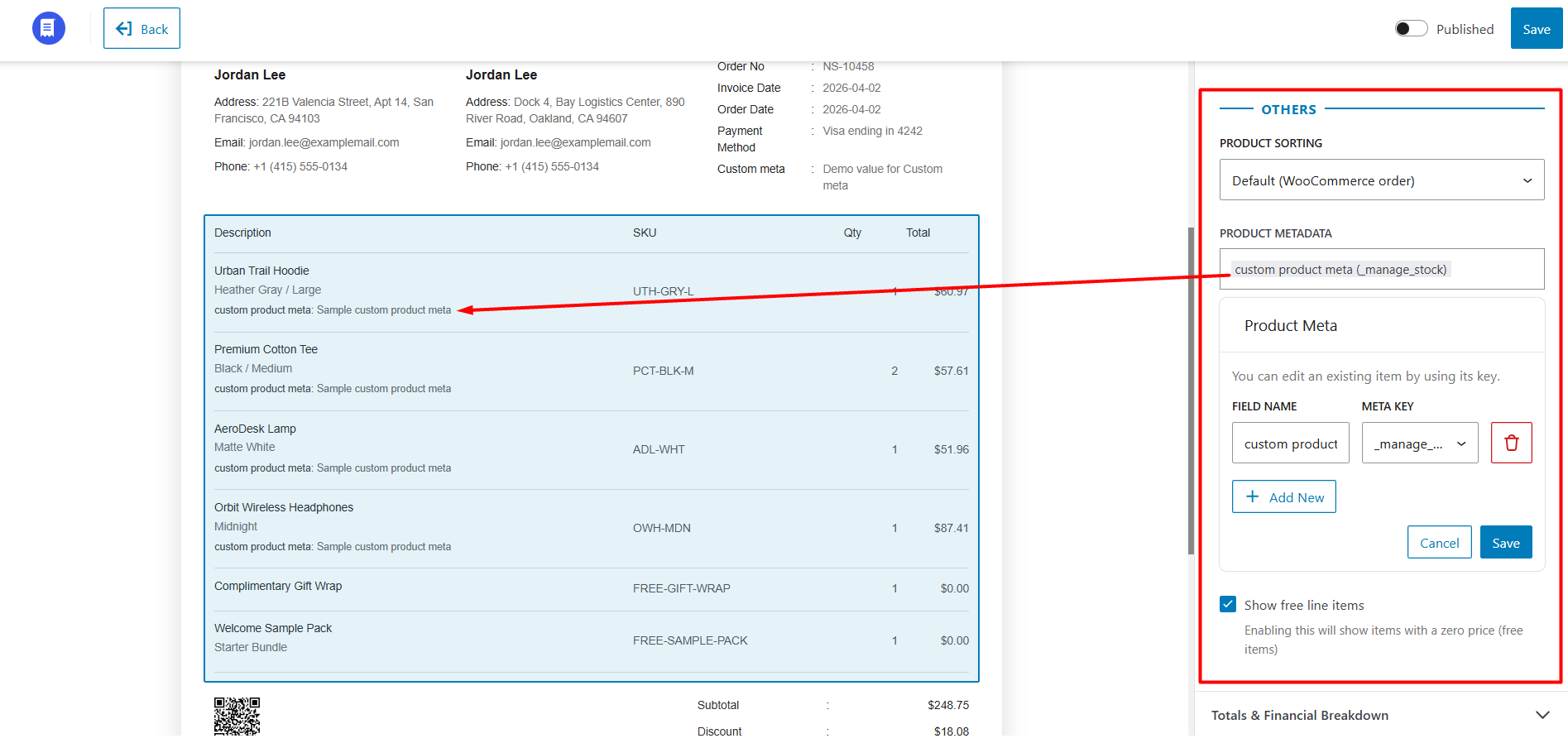
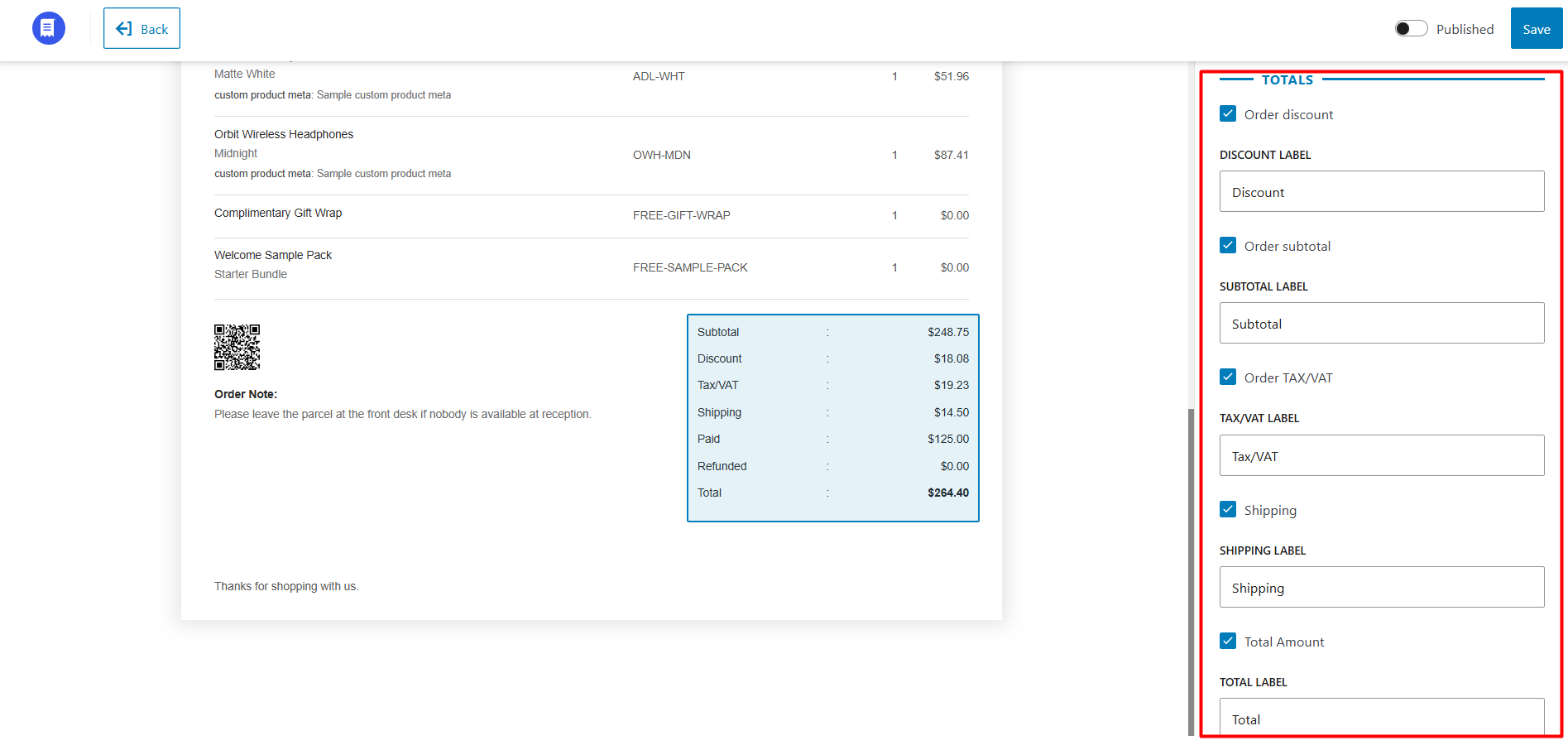
Totals & Financial Breakdown
This section controls the totals area displayed below the product table.
You can show, hide, and customize labels for:
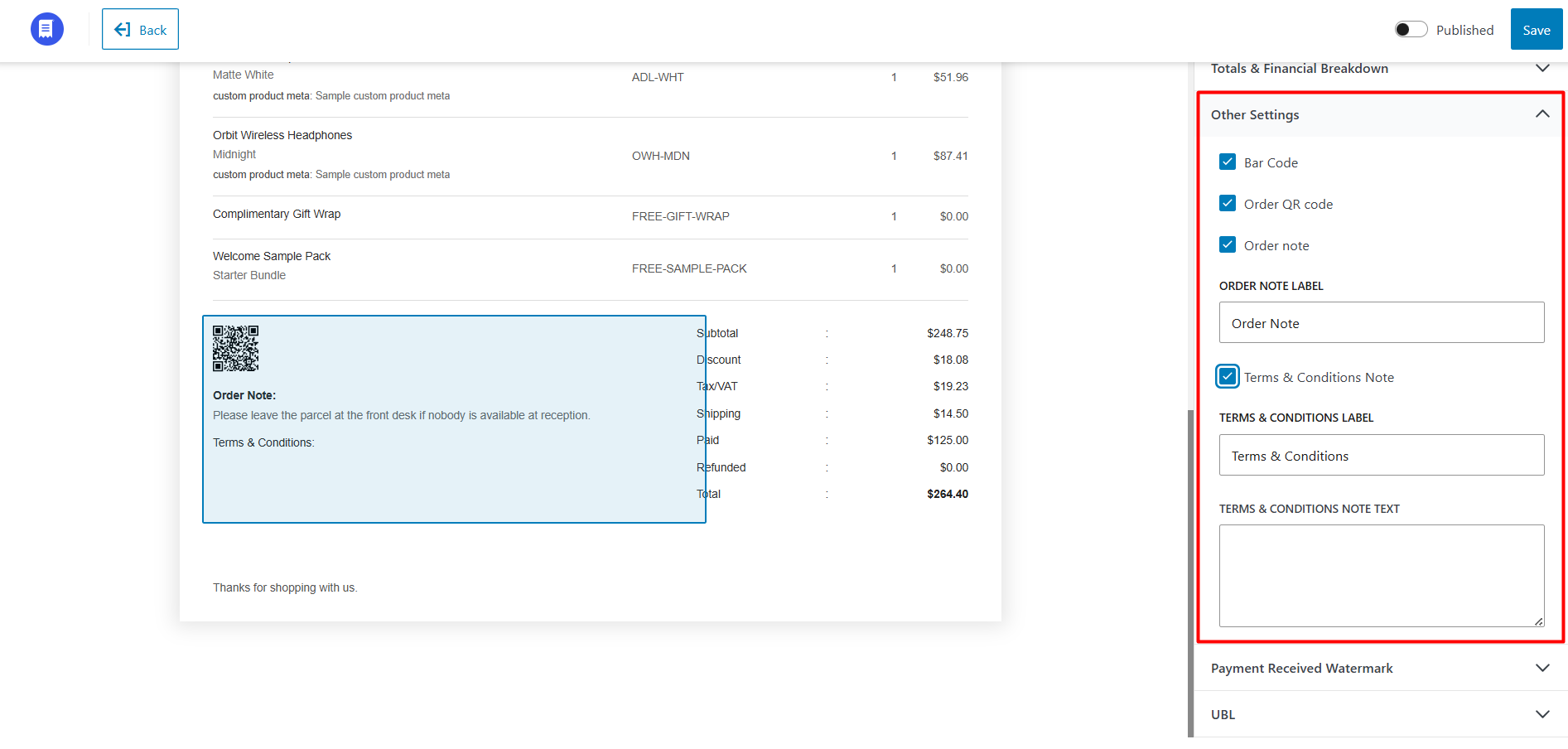
Other Settings
Additional invoice customization options include:
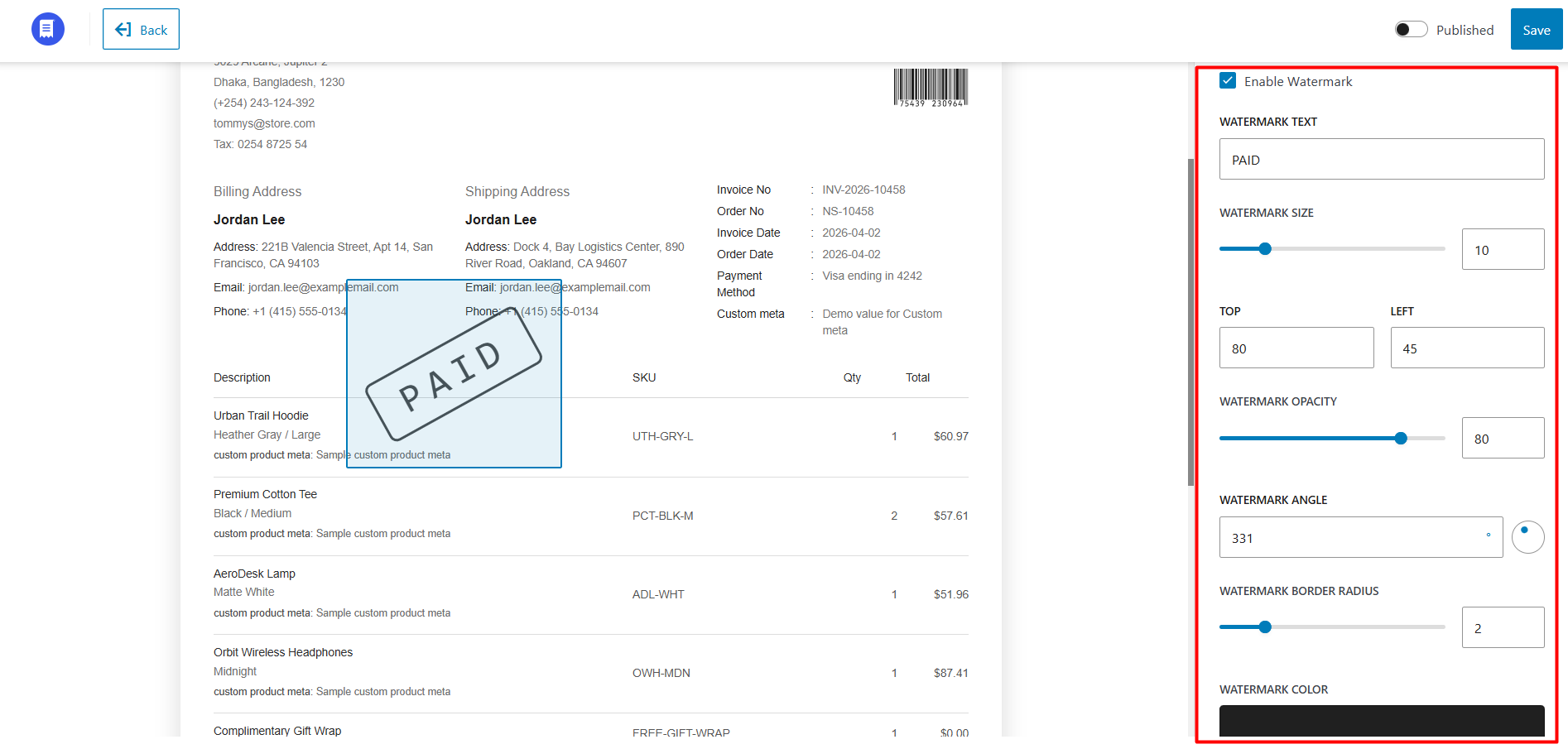
Payment Received Watermark
WowInvoice allows you to display a customizable watermark on invoices.
You can configure:
UBL / XML Support
WowInvoice supports UBL/XML invoice generation.
Enable the UBL option to generate XML versions of invoices alongside PDF invoices.
UBL Configuration Options
You can:
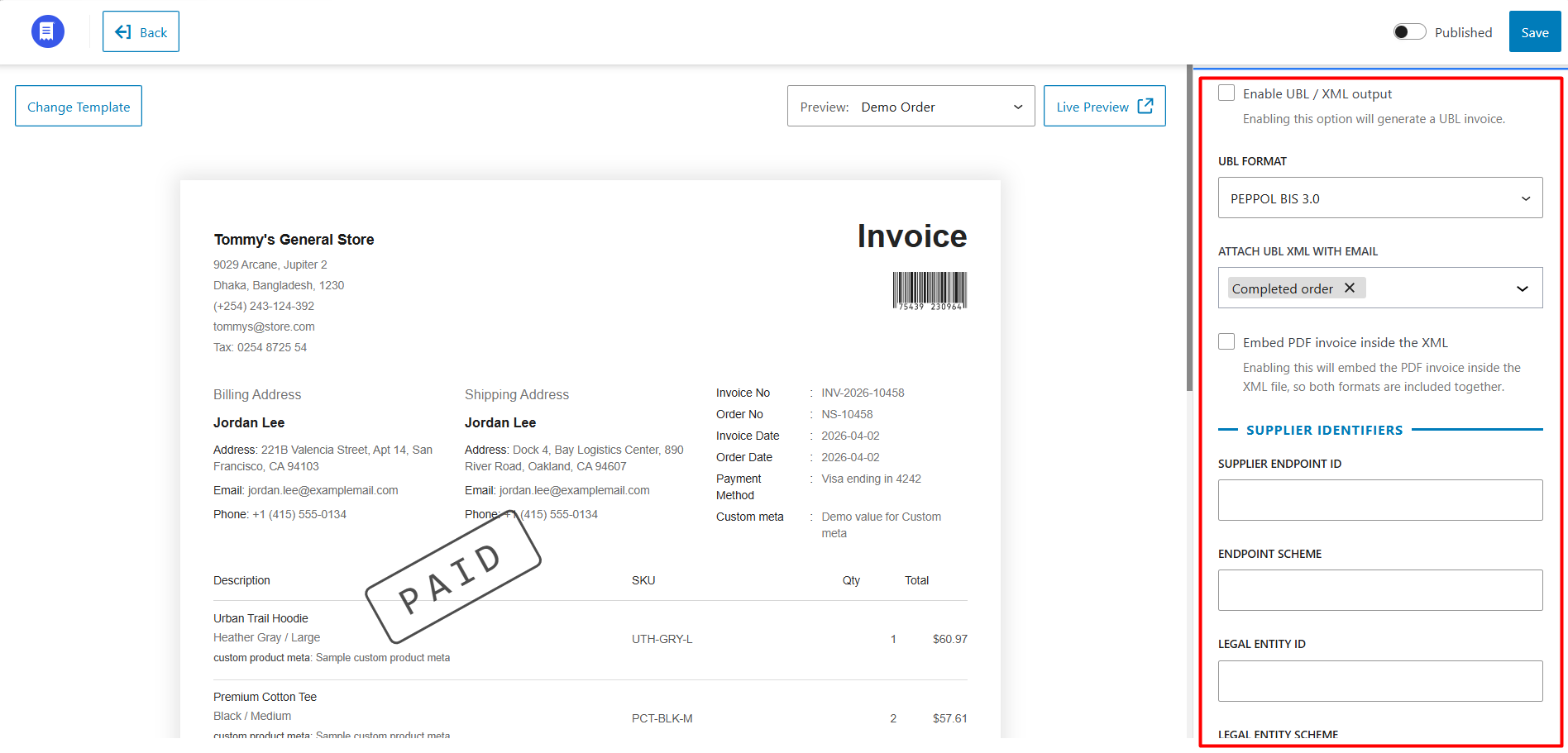
Supplier Identifiers
You can also configure:
These settings help ensure compliance with electronic invoicing standards and integrations.