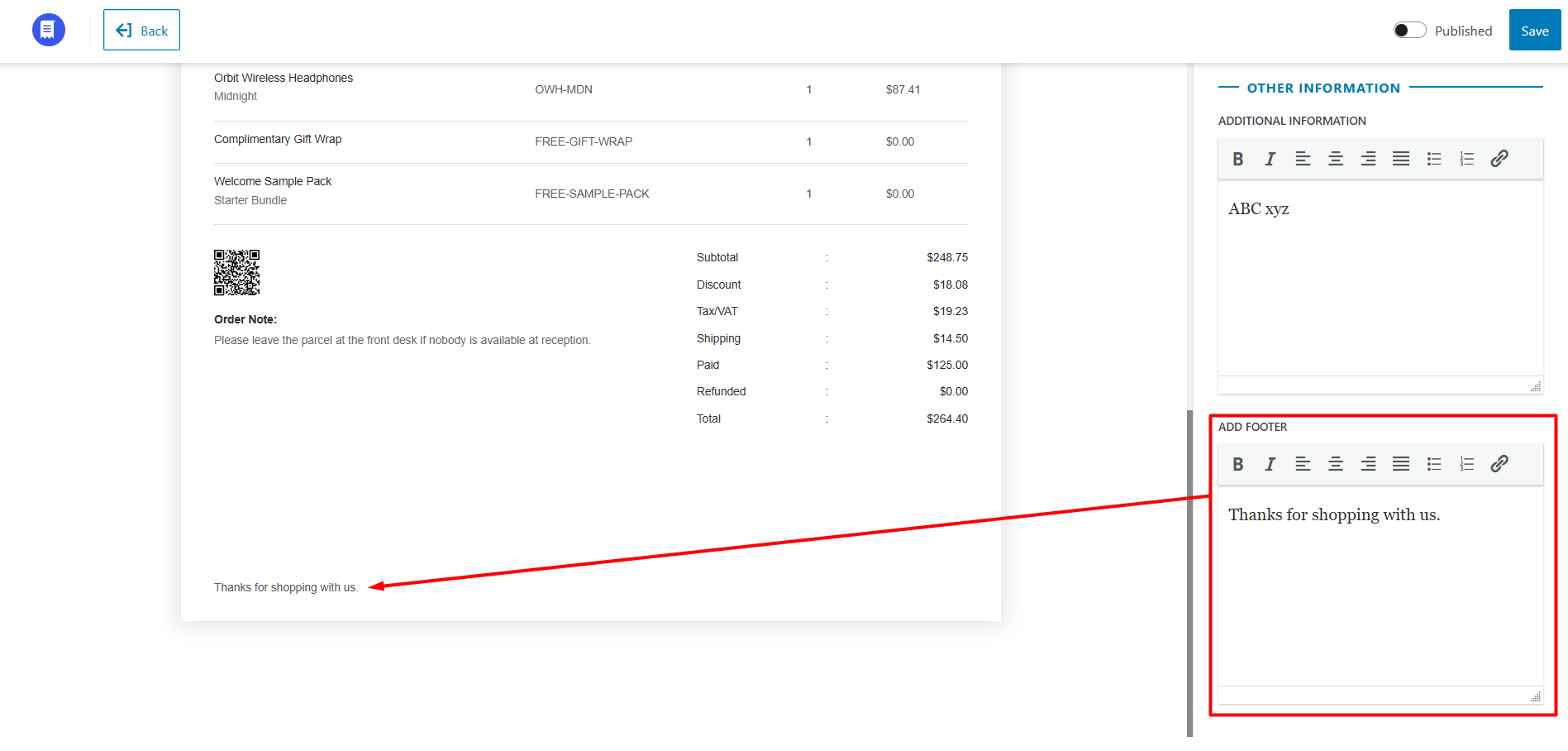
Before generating any document with WowInvoice, you should configure your store information first.
The Global Store Information settings are shared across all document types. This means the same store details will automatically appear on invoices, packing slips, delivery notes, shipping labels, credit notes, and other supported documents.
By default, WowInvoice automatically fetches your store information from WooCommerce settings. However, you can customize and modify the information as needed.
Configuring Store Information
To configure or update your store information:
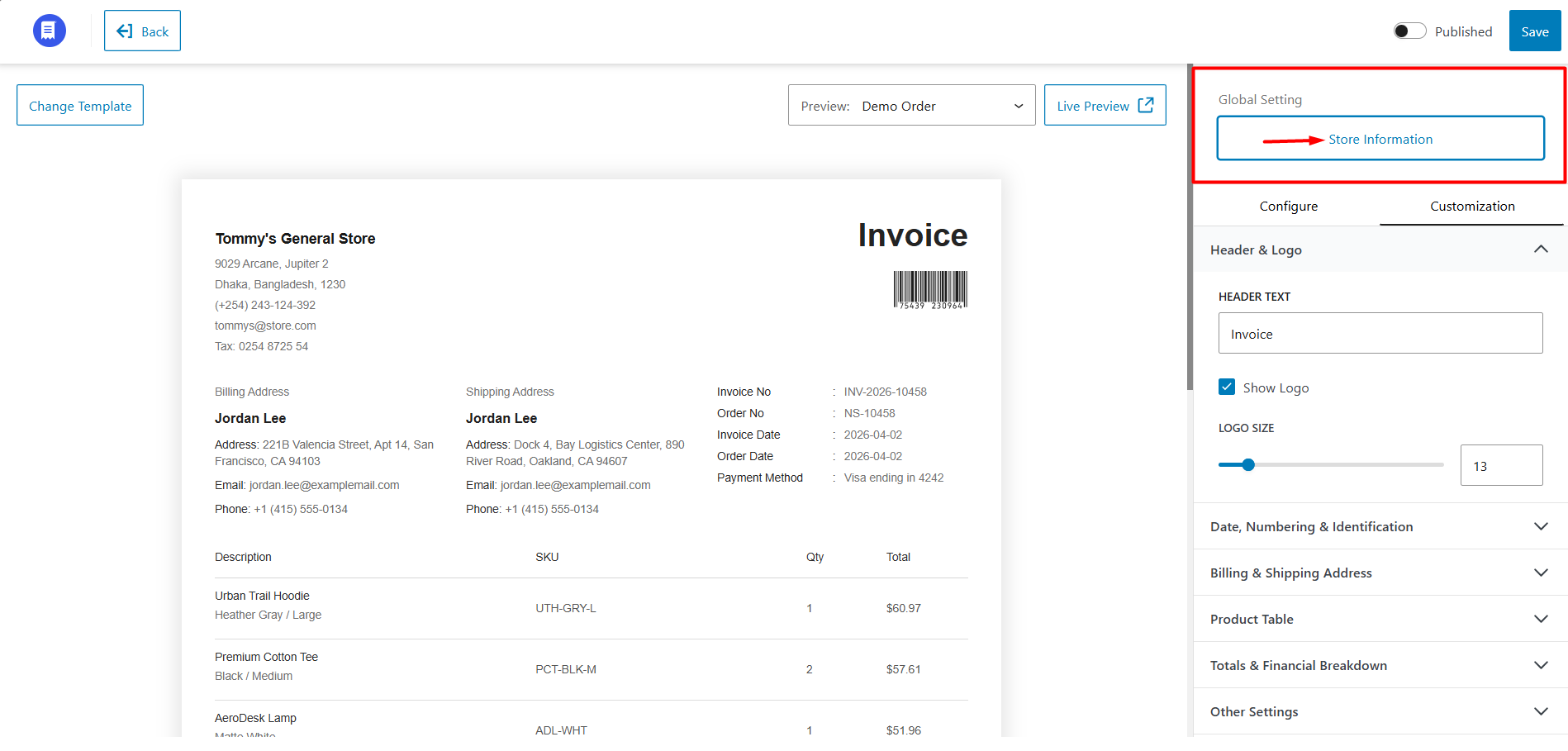
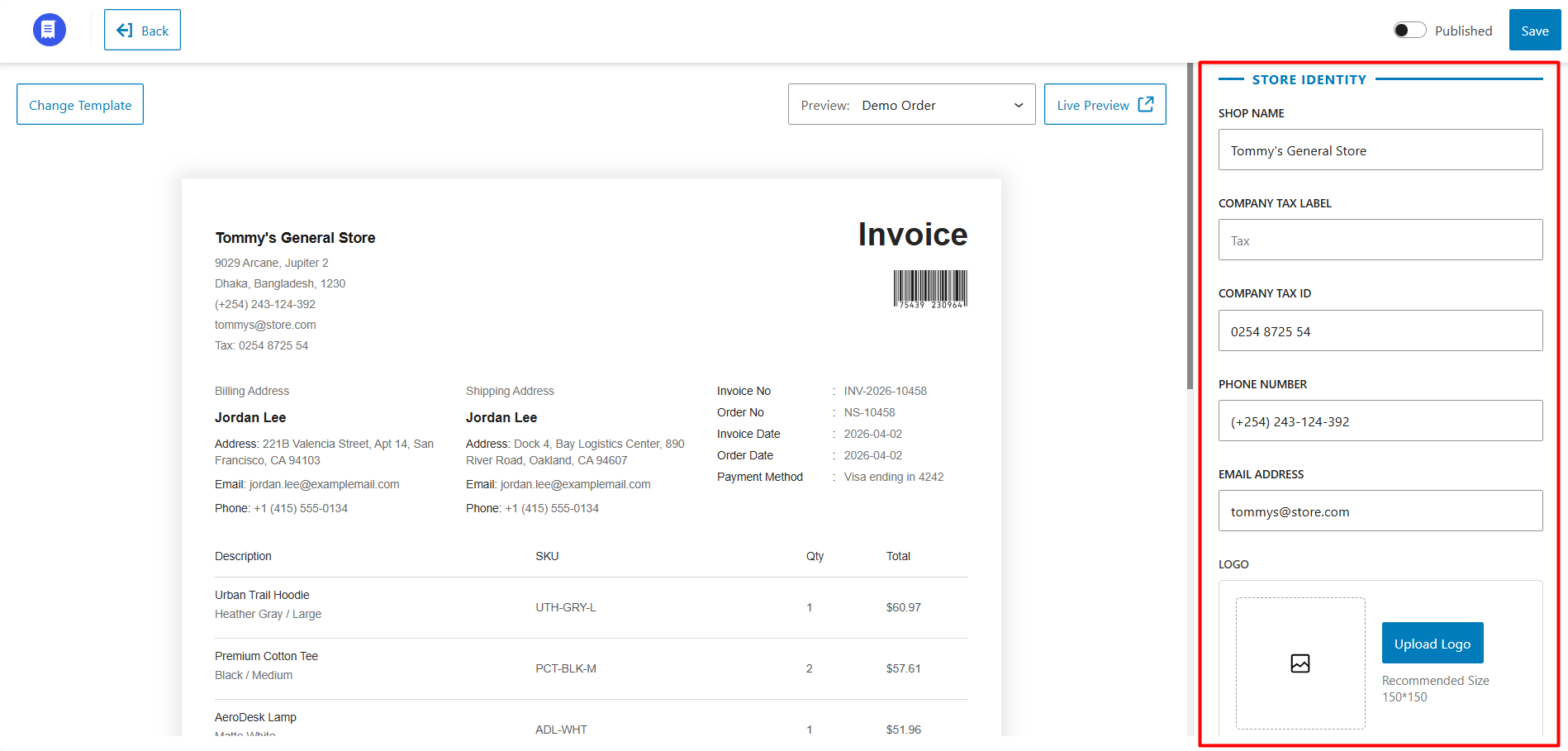
Step 1: Set Store Identity
From this section, you can configure your primary business information, including:
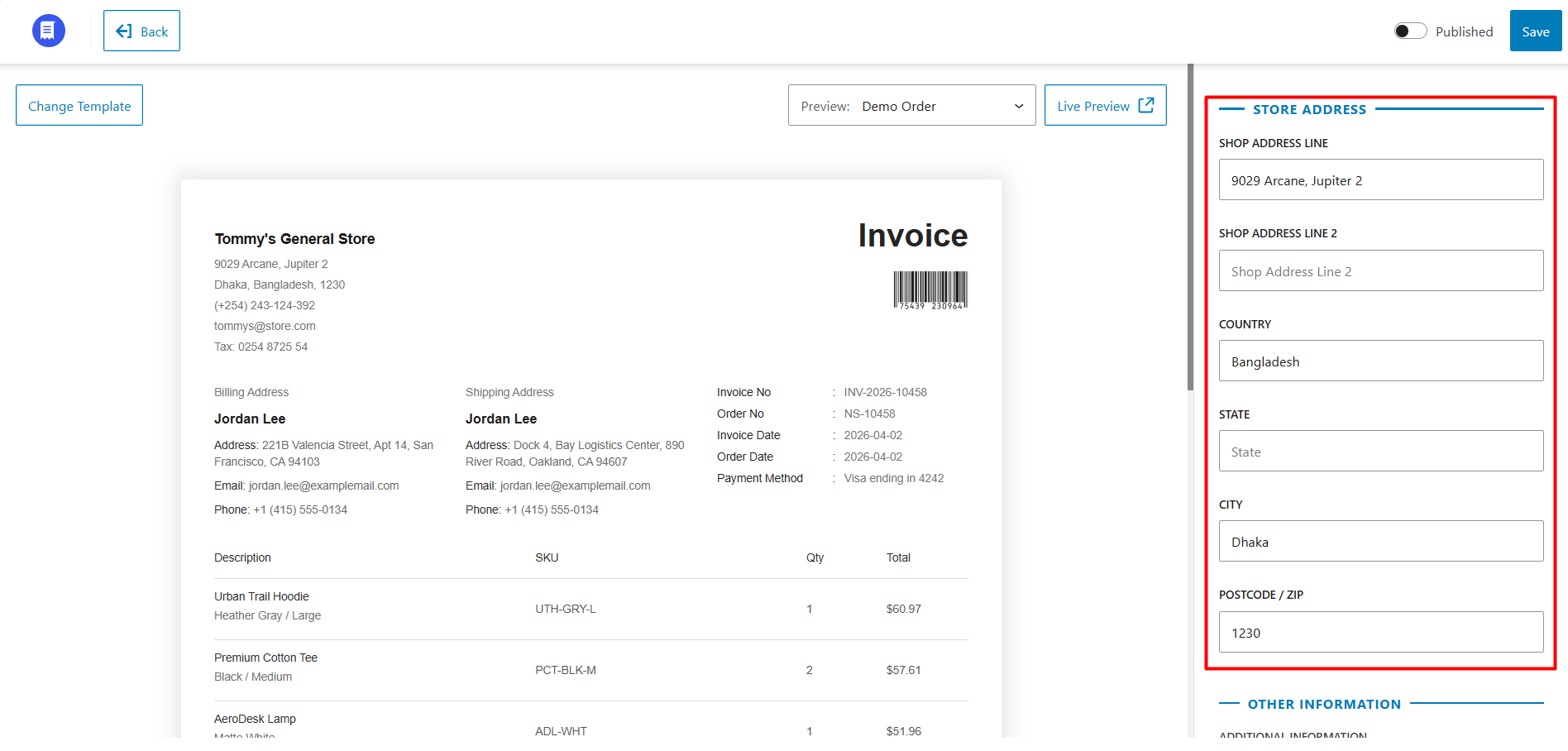
Step 2: Set Store Address
Here, you can configure your complete store address information:
Step 3: Additional Information (Optional)
If you want to display additional business information or a custom message in the document header, you can add it using the provided text field.
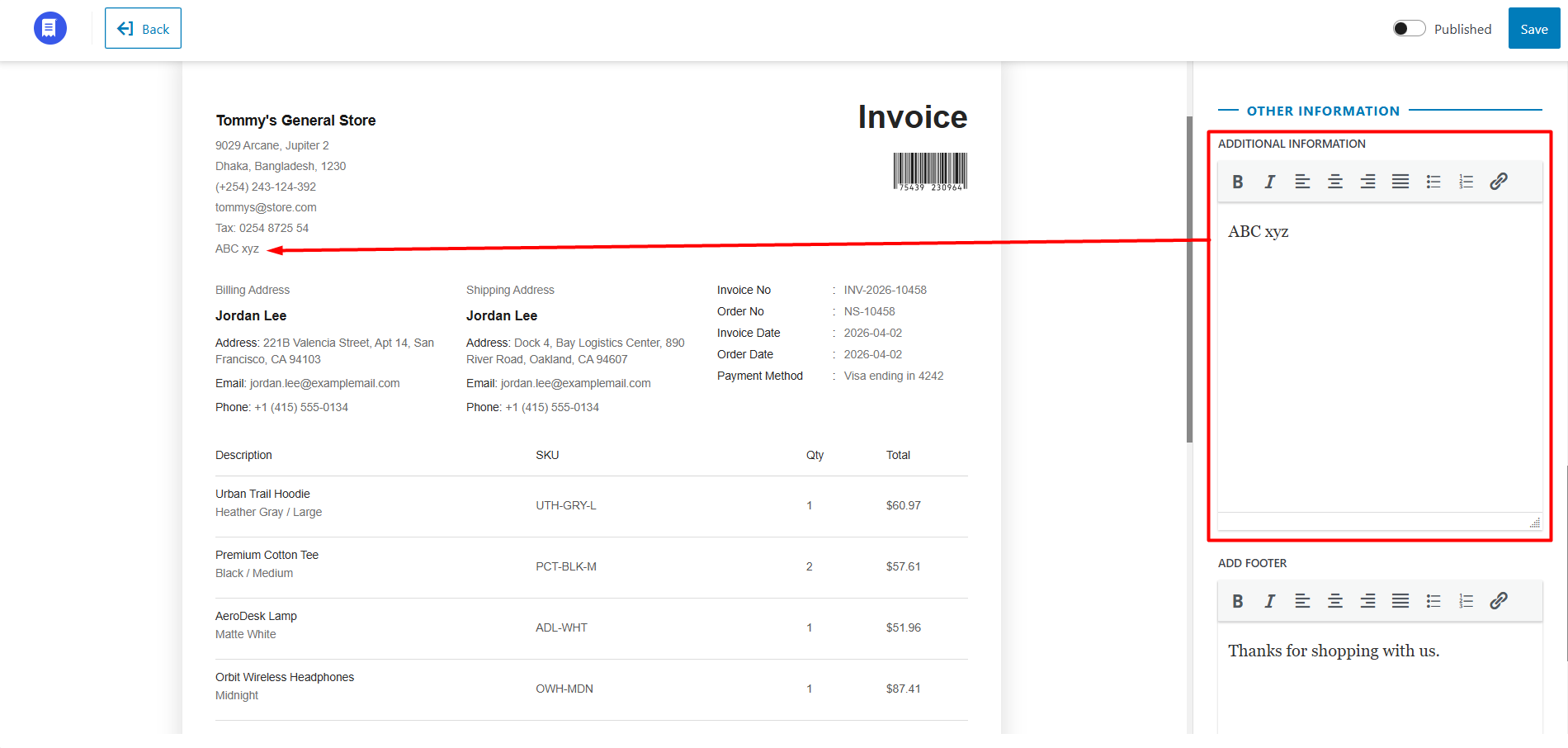
You can also add footer text or custom notes that will appear at the bottom of your documents.