
The Live Checkout Simulator in WowShipping lets you test your shipping rules using products and customer details without going through your storefront checkout.
You can create a sample cart, specify a customer and shipping address, and check which shipping methods are available and how much they charge.
How to Access the Live Checkout Simulator
- Open your WordPress dashboard.
- Navigate to WooCommerce → WowShipping → Shipping Methods.
- Click Add Shipping Method.
- Select Table Rate Shipping and click Continue.
- Choose your shipping zone and configure a Flexible Rate shipping method.
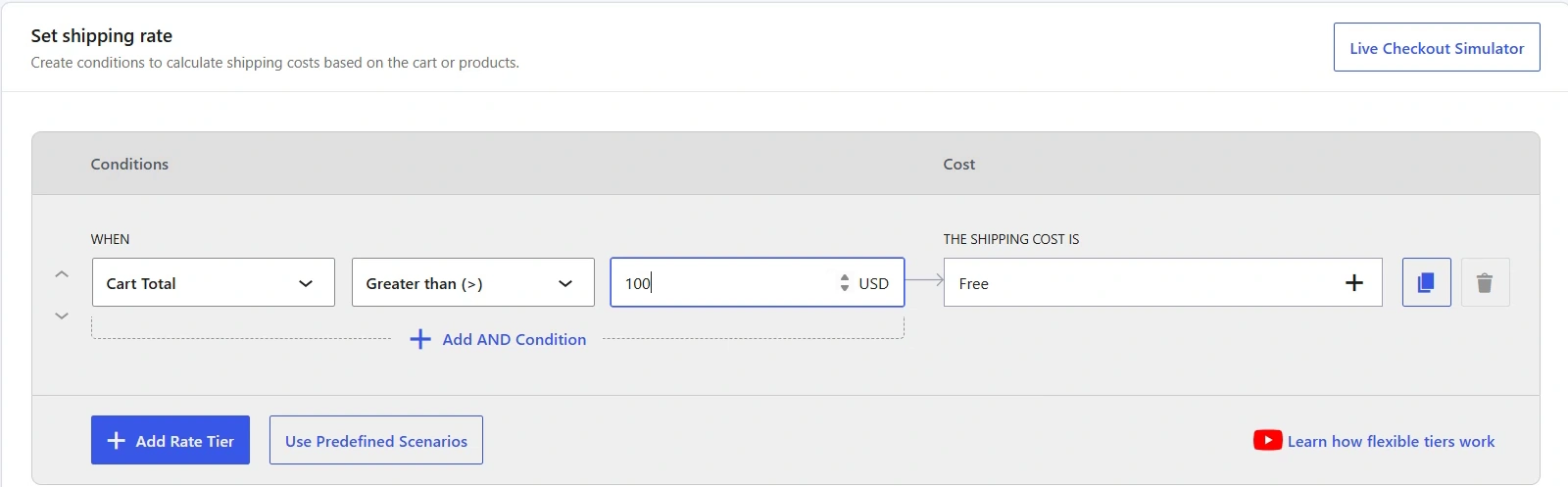
- Under Set shipping rate, click Use Checkout Simulator.
The Live Checkout Simulator window will appear.
How to Test Your Shipping Rules
Step 1: Add products to the simulation
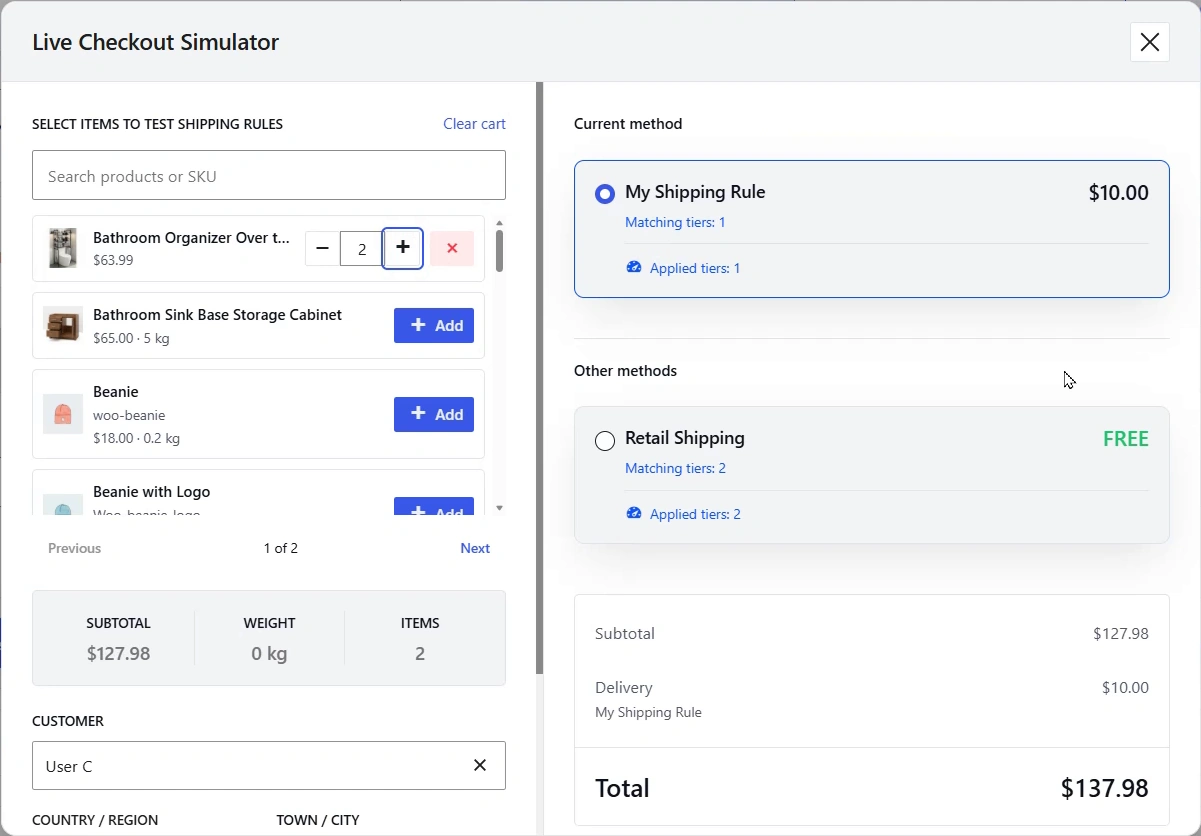
Under Select Items to Test Shipping Rules, search for products by name or SKU.
Click Add beside a product to include it in your simulated cart. Use the quantity controls to increase or decrease the number of items, or remove a product when necessary.
The simulator displays the cart subtotal, weight, and item count.
Step 2: Set customer and shipping details
Use the customer and shipping address fields to set up your test scenario.
The simulator includes fields for:
- Customer
- Country/Region
- Town/City
- State
- ZIP Code
These details help you test shipping methods against different customer and destination scenarios.
Step 3: Check the shipping results
The right side of the simulator displays the shipping results, including:
- Current method: Shows whether the shipping method being configured is available for the simulated cart.
- Other methods: Displays other available shipping methods and their rates.
- Order summary: Shows the subtotal, selected delivery charge, and total.
If the current shipping method does not match the test scenario, the simulator can display “Current method is not available.”
Step 4: Test different scenarios
Change the products, quantities, or customer shipping details to check how the available shipping methods and charges respond.
For example, if you configure a $10 shipping rate for cart totals greater than $100, create a simulated cart above that amount and check whether the method becomes available with the expected rate.
You can repeat the process with different cart values and destinations to verify your shipping conditions.
What to Do If a Shipping Method Is Unavailable
If the simulator doesn’t display your expected shipping method, review the shipping zone, configured conditions, and customer shipping details.
Adjust the test scenario or the shipping configuration as needed, then run the simulation again.