

Black Friday can bring significantly more orders into your WooCommerce store in a short period.
If every order requires someone to generate an invoice, download the PDF, and send it manually, invoicing quickly becomes another repetitive task during an already busy sales period.
A better approach is to set up the process before the campaign starts.
You can connect invoice creation to your WooCommerce order workflow so that when an order reaches a selected status, its invoice is generated automatically and attached to the appropriate WooCommerce email.
Here is how to prepare and automate that workflow before Black Friday.
What Should You Automate Before Black Friday?
Invoice automation involves two separate decisions: when WooCommerce should generate the invoice and which email should deliver it.
Keeping those decisions separate gives you more control over how invoicing fits into your existing order process.
When the invoice should be generated
WooCommerce orders move through statuses such as Pending payment, Processing, Completed, Cancelled, and Refunded. An invoice automation plugin can use these status changes as triggers.
For example, you might generate an invoice when an order reaches Processing if that is the point at which your normal paid-order workflow begins.
Another store may prefer Completed or a different status based on how it handles payment and fulfillment.
There is no single order status that works for every business. Choose a generation point that matches your actual invoicing process and any requirements that apply to your store.
Which email should include the invoice
Generation and delivery do not have to be treated as the same setting.
WooCommerce already sends transactional emails for events such as Processing orders, Completed orders, and Refunded orders. It also provides an Order Details email that can be sent manually.
With an invoice solution, you can decide which of those emails should carry the generated PDF.
For example:
Order reaches Processing → invoice is generated → Processing Order email is sent with the invoice attached
Deciding this before Black Friday helps prevent invoices from being generated correctly but never reaching the customer through the intended email.
Prepare Your Invoice Before Automating It
Automation can speed up invoice handling, but it will also repeat whatever setup is already in place.
Before enabling it, make sure the invoice contains the correct business information, uses a suitable layout, and follows the numbering system you want to maintain during Black Friday.
Verify store information
Start with the business details that appear on the invoice.
Check information such as:
- Store or company name
- Business address
- Contact information
- Logo and branding
- Tax or company identification details where applicable
Review invoice appearance
Open a preview or sample invoice and check how the final document will look to a customer.
Pay attention to the information that actually matters to your order process, such as:
- Store branding and logo
- Billing and shipping information
- Product details
- Order totals
- Tax information where applicable
- Invoice and order identification
Check invoice numbering
Decide how invoice numbers should be generated before enabling automation.
Depending on the invoice system you use, you may be able to:
- Use the WooCommerce order number as the invoice number
- Maintain a separate invoice numbering sequence
- Add prefixes or suffixes
- Set a minimum number length
- Include date-based elements
How the Automated Invoice Workflow Works
Once the preparation is complete, the basic automation is straightforward:
Customer places an order
↓
Order reaches a selected WooCommerce status
↓
PDF invoice is generated automatically
↓
WooCommerce triggers the selected email
↓
Invoice PDF is attached to that email
↓
Customer receives the email and invoice
The exact statuses do not have to match this example. The important part is connecting invoice creation and delivery to events that already happen in your WooCommerce order workflow.
How to Automate WooCommerce Invoices
To put this workflow into practice, we will use WowInvoice, a WooCommerce PDF invoice plugin from WPXPO. It supports automatic invoice generation based on order status and lets you attach generated PDFs to selected WooCommerce emails.
Once WowInvoice is installed and activated, you can configure the automation from the Invoice settings.
Step 1: Enable and configure your invoice
Open the WowInvoice dashboard and select Configure on Invoice.
Configure the document you want customers to receive.
WowInvoice supports A4, A5, and Letter layouts, along with separate customization options for invoice content and appearance.
If you have already completed the preparation above, you should not need to redesign the invoice here. The main objective is to confirm that the document is ready before enabling its automated workflow.
Step 2: Choose the order statuses that generate invoices
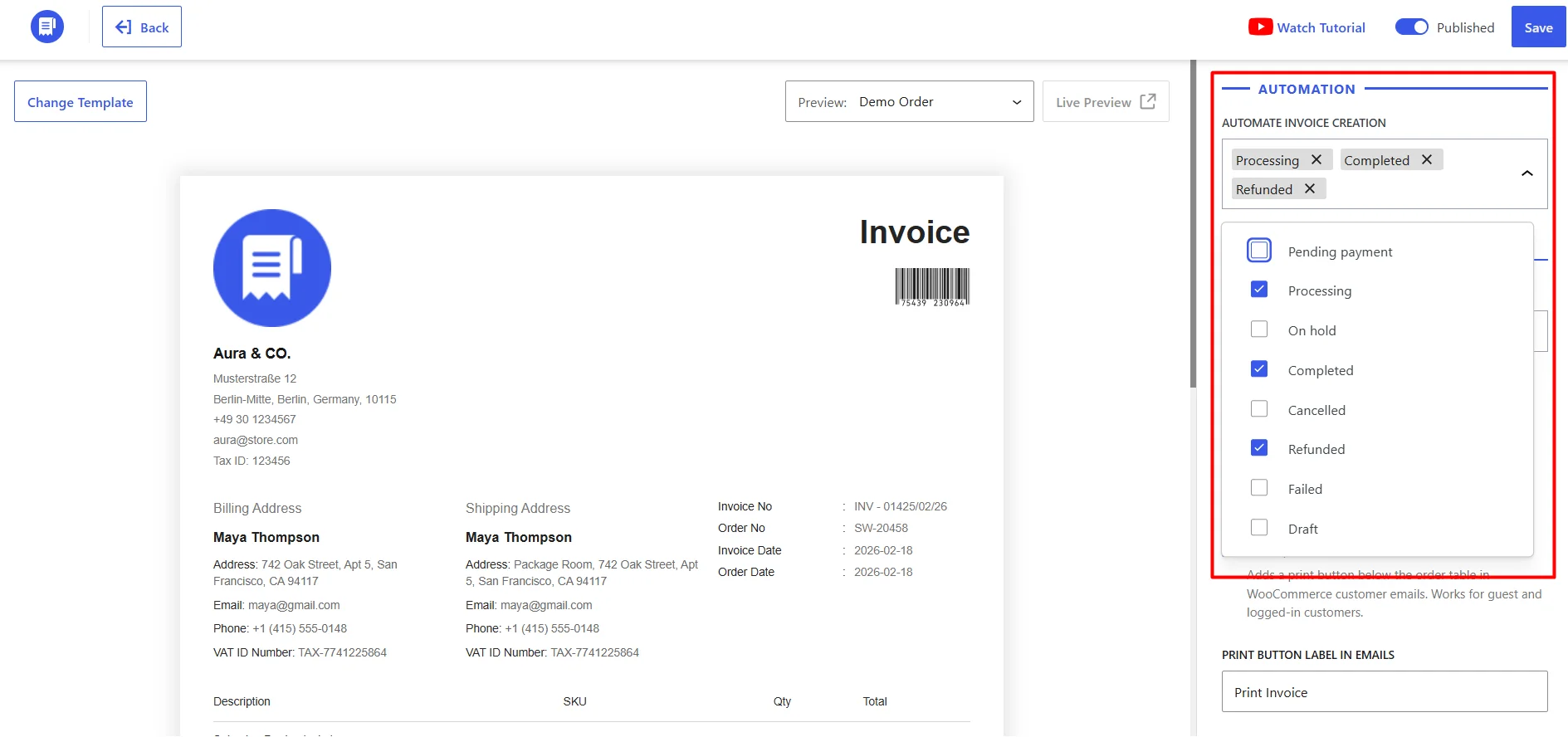
Find the Automate Invoice Creation setting and select the order statuses that should trigger invoice generation.
WowInvoice currently supports:
- Pending Payment
- Processing
- On Hold
- Completed
- Cancelled
- Refunded
- Failed
- Draft
When an order reaches one of the statuses you select, WowInvoice can generate the invoice automatically.
Step 3: Choose which WooCommerce emails receive the PDF invoice
Next, go to the invoice email settings and choose which WooCommerce emails should include the PDF.
WowInvoice supports invoice attachments for email types including
- New Order,
- Cancelled Order,
- Failed Order,
- Order On-Hold,
- Processing Order,
- Completed Order,
- Refunded Order,
- Order Details, and
- Customer Note.
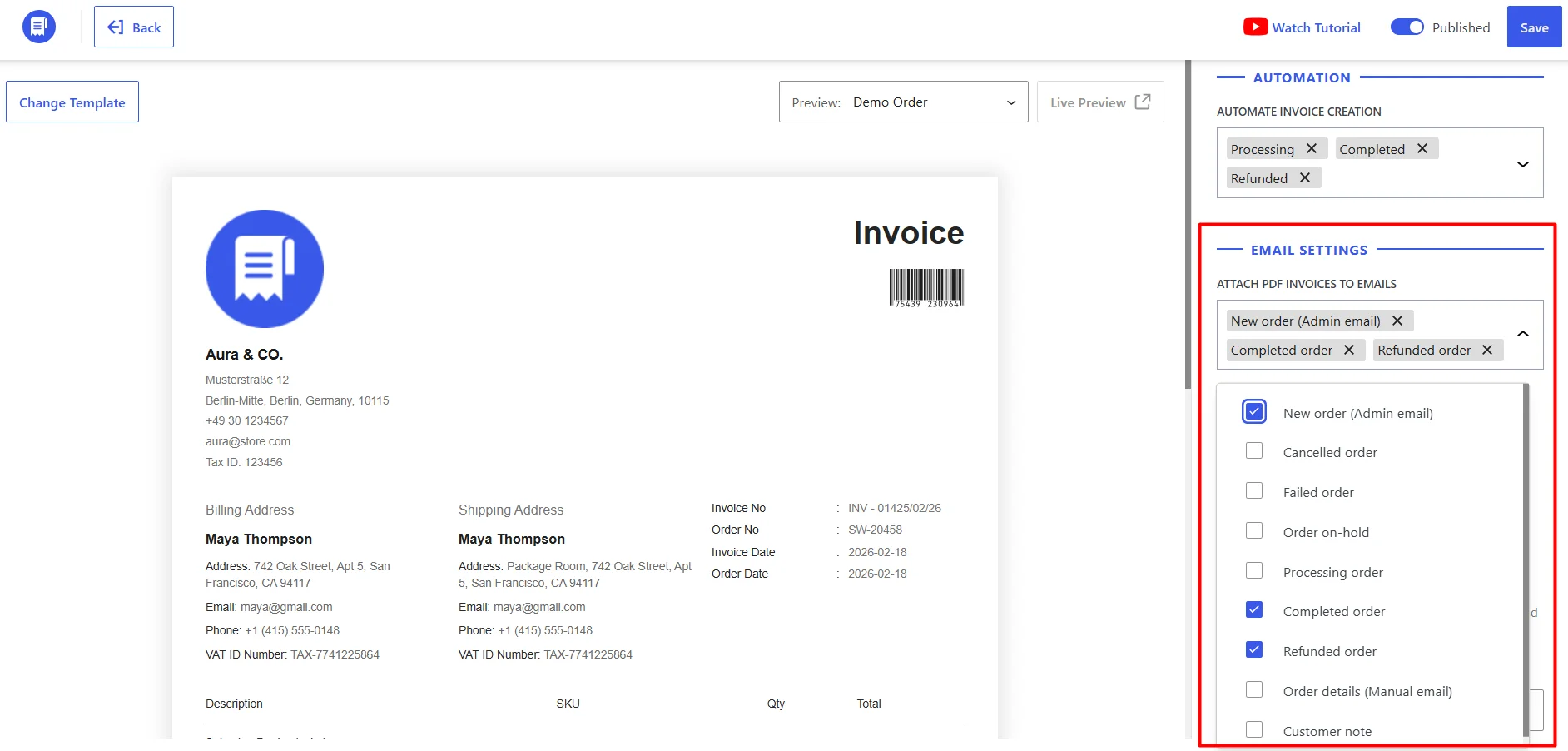
Match this setting to the customer communication you already use.
Step 4: Save the automation
Review the selected generation statuses and email attachment settings, then save your changes.
At this point, the configuration may be complete, but it should not be considered Black Friday-ready until you have tested the entire workflow from the customer’s perspective.
Test the Full Invoice Workflow Before Black Friday
Do not make your first real Black Friday customer the test case.
Run through the same order flow your customers are expected to use and confirm that each part of the automation behaves as intended.
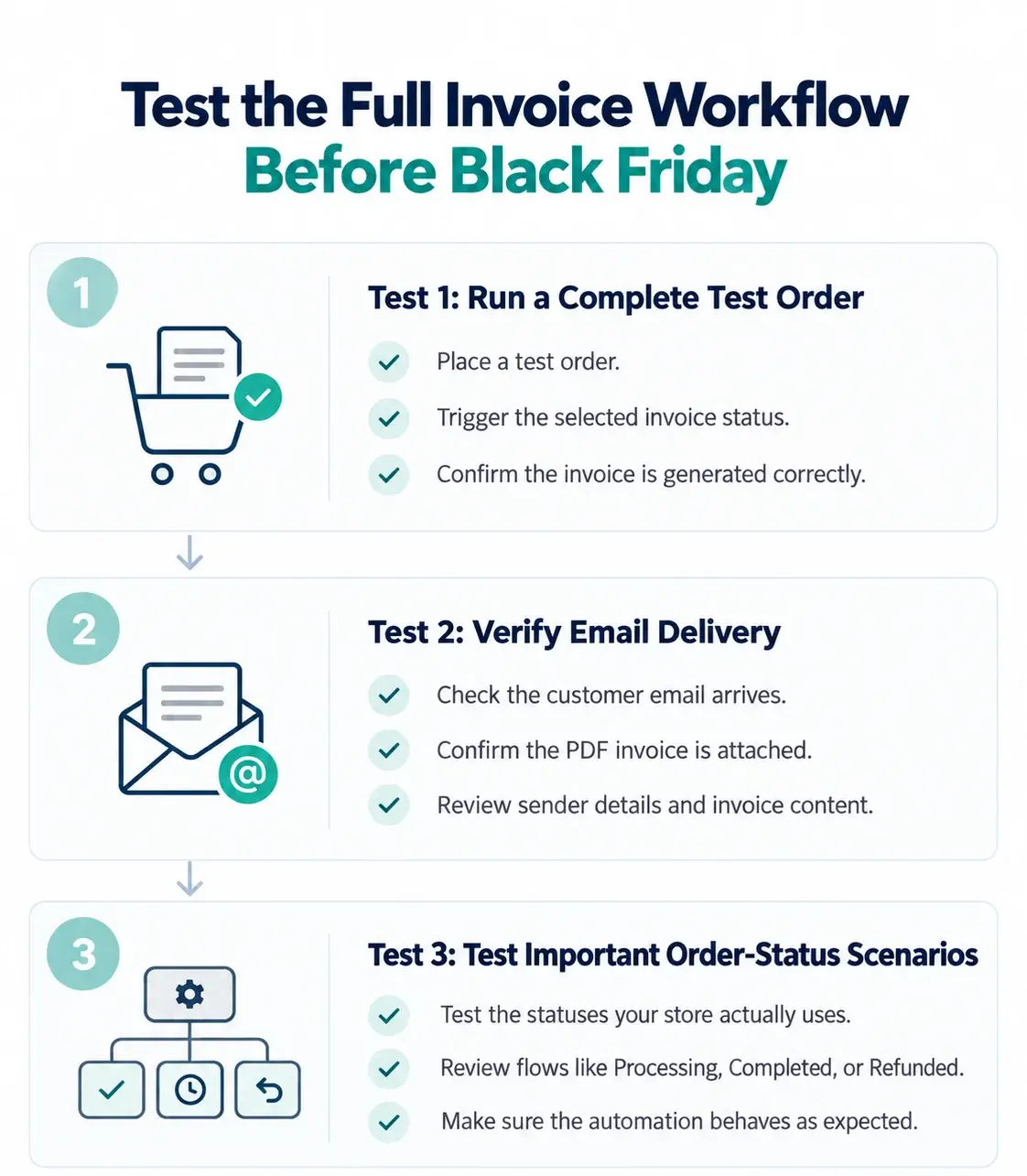
Test 1: Run a complete test order
Place a test order and move it through the status that should generate the invoice.
Confirm that:
- The order reaches the expected status.
- The PDF invoice is generated.
- The correct WooCommerce email is triggered.
- The invoice is attached to that email.
- Store, customer, product, and order information appear correctly.
- The invoice number follows your chosen format.
This verifies the workflow as a whole rather than assuming that each individual setting will work together correctly.
Test 2: Verify email delivery
An automatically generated invoice is not useful to the customer if its email never arrives.
Send the test through the same transactional email workflow you expect to use during the campaign.
Check the inbox, open the attachment, and make sure the message and PDF are delivered correctly.
WooCommerce lets you configure its transactional emails individually, including whether specific notifications are enabled and their sender and template settings.
If your test emails are not arriving reliably, investigate that delivery problem before Black Friday rather than treating it as an invoice-generation issue.
Test 3: Test important order-status scenarios
A successful Processing order may not be the only scenario your store handles during Black Friday.
Test other statuses that matter to the automation you configured. For example, if you selected Refunded as part of your invoice workflow, verify what happens when a test order is refunded.
You do not need to test every WooCommerce status. Focus on the paths customers are realistically likely to encounter during your campaign.
Black Friday Invoice Automation Checklist
| Check before launch | Ready? |
|---|---|
| Store and company information is correct | ☐ |
| Invoice appearance has been reviewed | ☐ |
| Invoice numbering is configured correctly | ☐ |
| Invoice-generation statuses are selected | ☐ |
| Appropriate WooCommerce emails include the PDF | ☐ |
| Additional attachments are correct, if used | ☐ |
| A complete test order generated an invoice | ☐ |
| The customer email arrived with the PDF attached | ☐ |
| Important refund or alternative status flows were tested | ☐ |
Conclusion
Black Friday is a poor time to discover that someone still needs to generate and send invoices order by order. Preparing the workflow beforehand lets invoice creation and delivery happen automatically as orders move through WooCommerce.
WowInvoice is well-suited to this setup because it goes beyond automatic PDF invoices.
You can also generate other order documents such as packing slips, picklists, shipping labels, and credit notes, bulk export invoices when handling larger order volumes, and display customer VAT or Tax IDs when your invoicing workflow requires them.
That gives you one system for handling more of the documentation that comes with a busy Black Friday sales period, instead of adding more manual work as orders increase.