

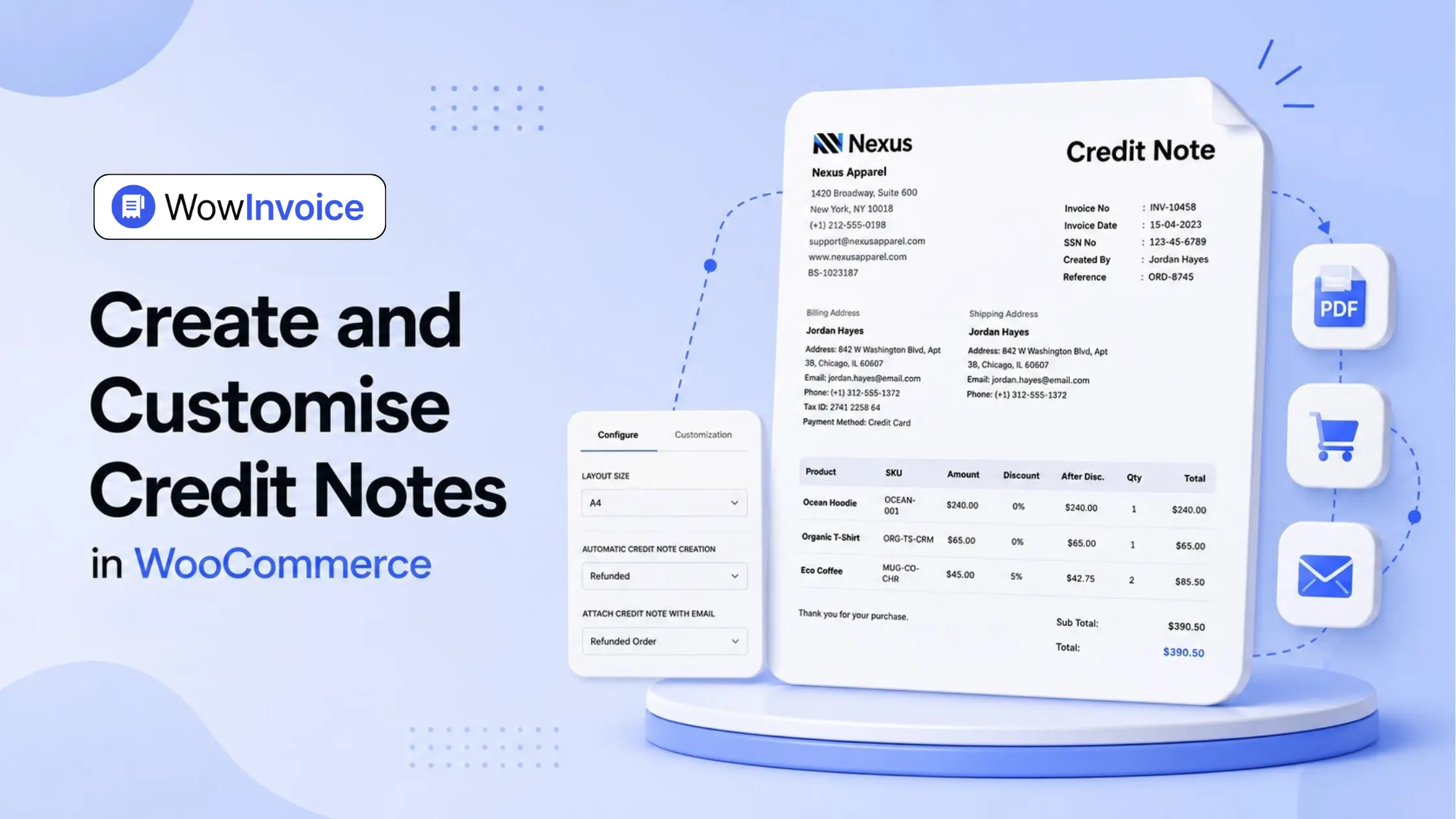
You can create and customise credit notes in WooCommerce by first processing a full or partial refund from the WooCommerce order page, then installing a PDF invoicing and packing slips plugin like WowInvoice to generate a credit note for that refunded order automatically.
After that, you can enable the Credit Note document type in WowInvoice, select the order status that should generate it, create a separate credit note number format, attach it to refund emails, customise the document layout, and download or print it from the order page whenever needed.
📺 Watch the tutorial after reading for a side-by-side credit note setup guide. 👇
What Does a Credit Note Mean in WooCommerce and Why Do You Need It?
A credit note in WooCommerce is a document that records a refund, return, cancellation, or price adjustment after an invoice has already been issued.
It shows that the original order amount has been reduced because of a full refund, partial refund, returned item, overcharge, discount correction, tax correction, shipping adjustment, or another post-purchase change.
HMRC describes credit notes as documents used to amend or correct previously issued invoices and evidence a decrease in the amount charged.
What Information Does a Credit Note Include?
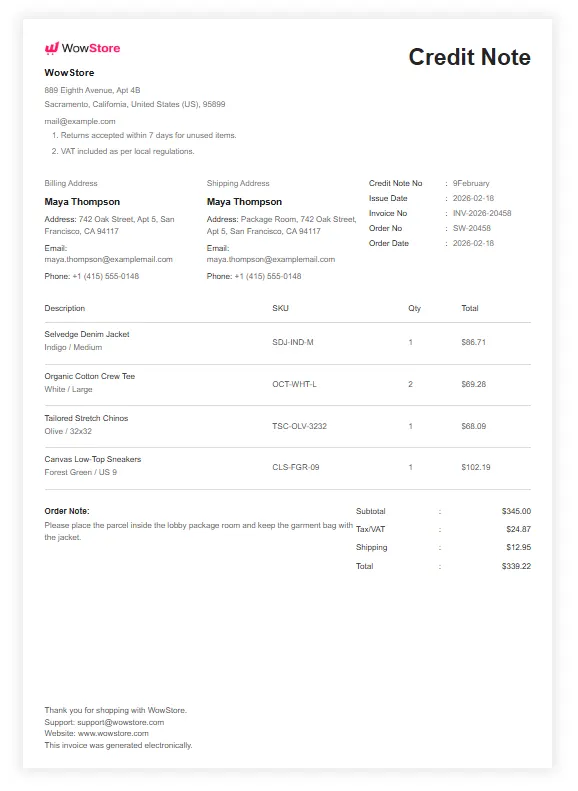
A WooCommerce credit note typically includes:
- Credit note number and issue date
- Original order number and invoice reference
- Store name, address, and contact details
- Customer billing and shipping details
- Refunded product or service name
- Product quantity refunded
- Product price and subtotal
- Discount and tax adjustment, if applicable
- Shipping refund, if applicable
- Total credited or refunded amount
- Refund reason or internal note
- Payment method or transaction reference
These details make the credit note easier to track for refunds, tax records, customer support, bookkeeping, and order history.
When Do You Need a Credit Note in WooCommerce?
Here are the most common situations where you may need a credit note in WooCommerce.
Full Order Refund: Use it when the entire paid order is refunded, and the original invoice needs to be reversed.
Partial Refund: Use it when only part of the order amount is refunded, such as one item, a fixed amount, or a line-item refund.
Damaged, Missing, or Incorrect Item: Use it when the customer receives a damaged, missing, incomplete, or not-as-described product and you offer a refund or price reduction.
Order Cancellation After Payment: Use it when a paid and invoiced order is cancelled, and the payment needs to be reduced or reversed.
Store Credit for Future Purchase: Use it when you want to give the customer credit that they can apply to a future order instead of only recording a cash refund.
Invoice or Pricing Error: Use it when the original invoice has a wrong price, quantity, tax, VAT, shipping charge, duplicate charge, or other billing mistake.
Post-Purchase Discount: Use it when a discount is applied after the invoice, such as a goodwill discount, negotiated price reduction, or coupon correction.
Service or Subscription Adjustment: Use it when a service was not fully provided, a subscription was cancelled, or the customer needs a refund for an unused period.
How to Create a Credit Note in WooCommerce: Step-by-Step Guide
WooCommerce confirms that refunds can be created from the order page using item quantities, refund amounts, taxes, and refund notes.
But it does not give you a formatted PDF credit note with custom numbering, branding, email attachment, and customer download options; for that, you need a plugin. Now, let’s go through the steps to generate and customise a credit note.
Step 1: Choose the Right Plugin for Creating Credit Notes
Several WooCommerce plugins can create credit notes, but for this guide, we will use WowInvoice because it supports multiple WooCommerce document types from one place, including invoices, packing slips, delivery notes, shipping labels, credit notes, and picklists.
WowInvoice Key features for credit notes: automatic credit note generation, custom credit note numbering, PDF email attachments, customer download settings, manual download or print options, and a visual document builder for changing labels, logo, billing details, product table, totals, and notes.
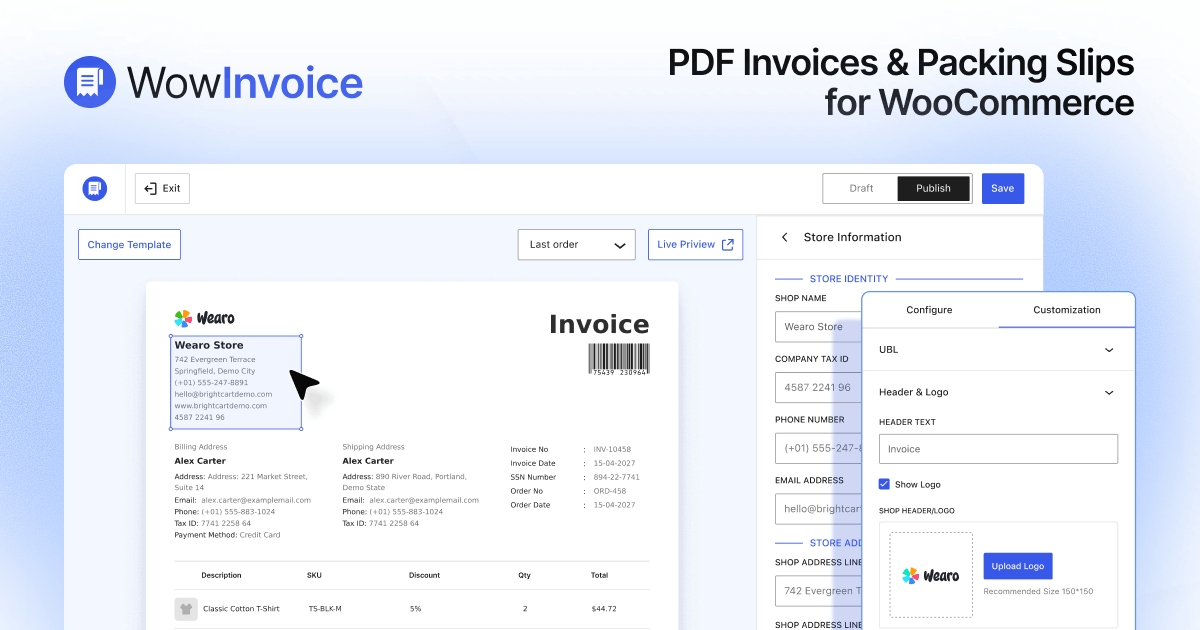
Best for: WooCommerce stores that need an enterprise-ready, reliable, and complete document management solution for automatically generating all the documents from one plugin.
To get started, go to Plugins > Add Plugin from your WordPress dashboard. Search for WowInvoice, install the plugin, and activate it. Then open the WowInvoice dashboard and select the Credit Note document type to start configuring your credit note workflow.
Step 2: Add Store Information
Before creating a credit note, set up your store information.
WowInvoice can fetch store details from WooCommerce settings, but you can also customise them inside the builder. On the right panel, go to the Global Settings section and click Store Information.
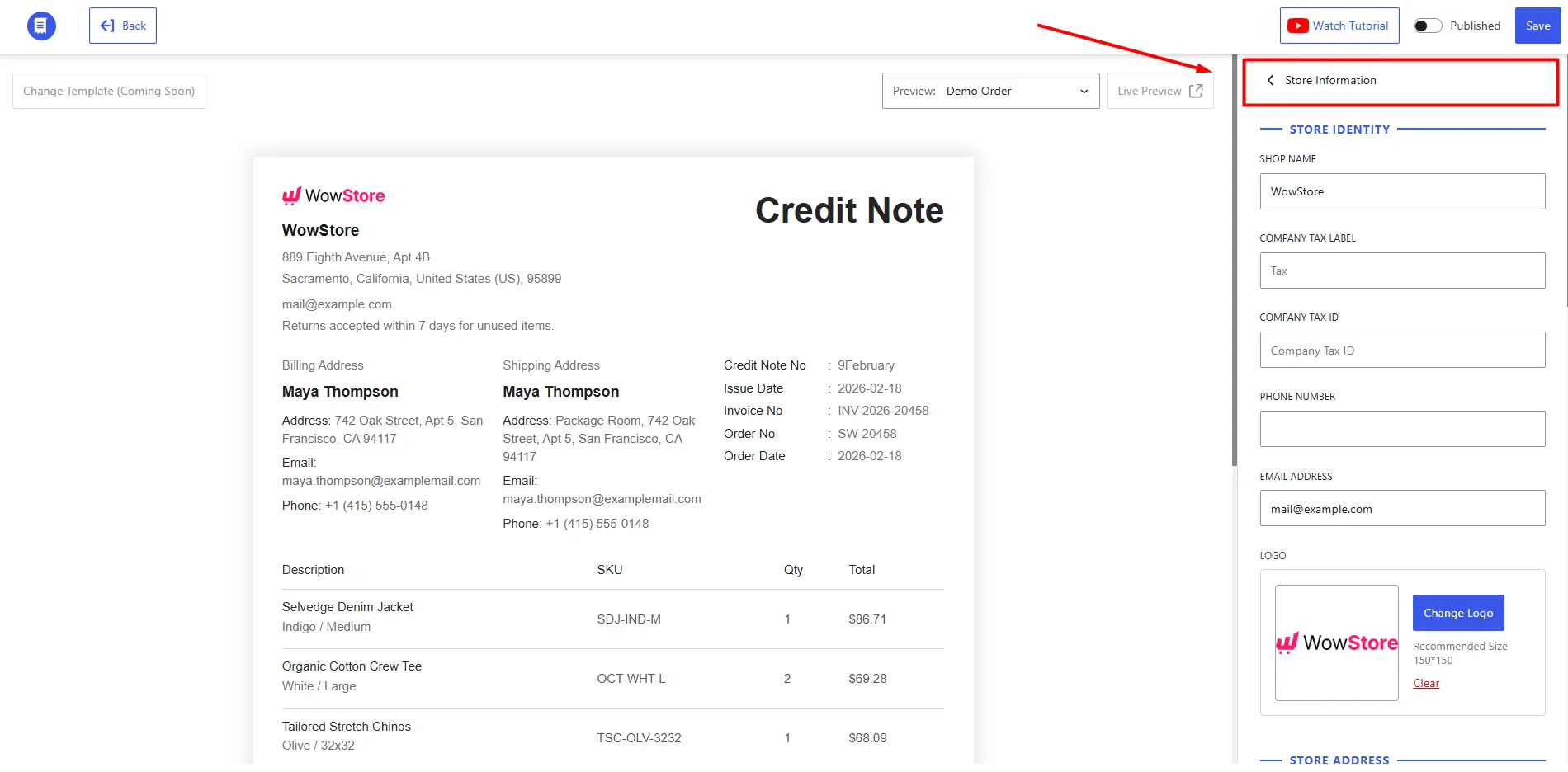
Add your shop name, company tax label, company tax ID, phone number, email address, store logo, and store address. For the logo, a 150 by 150 pixel image is recommended.
You can also add extra header information, footer text, or a custom note for your generated documents. These store details are not only used for credit notes. They can also appear on invoices, packing slips, delivery notes, shipping labels, and other WowInvoice documents.
Once this setup is complete, your credit note will carry the correct store identity.
Step 3: Open the Credit Note Settings
Now go back to the Configure tab and open the Credit Note settings.
This is where you control the credit note layout, generation rules, email attachment settings, customer download options, and numbering format.
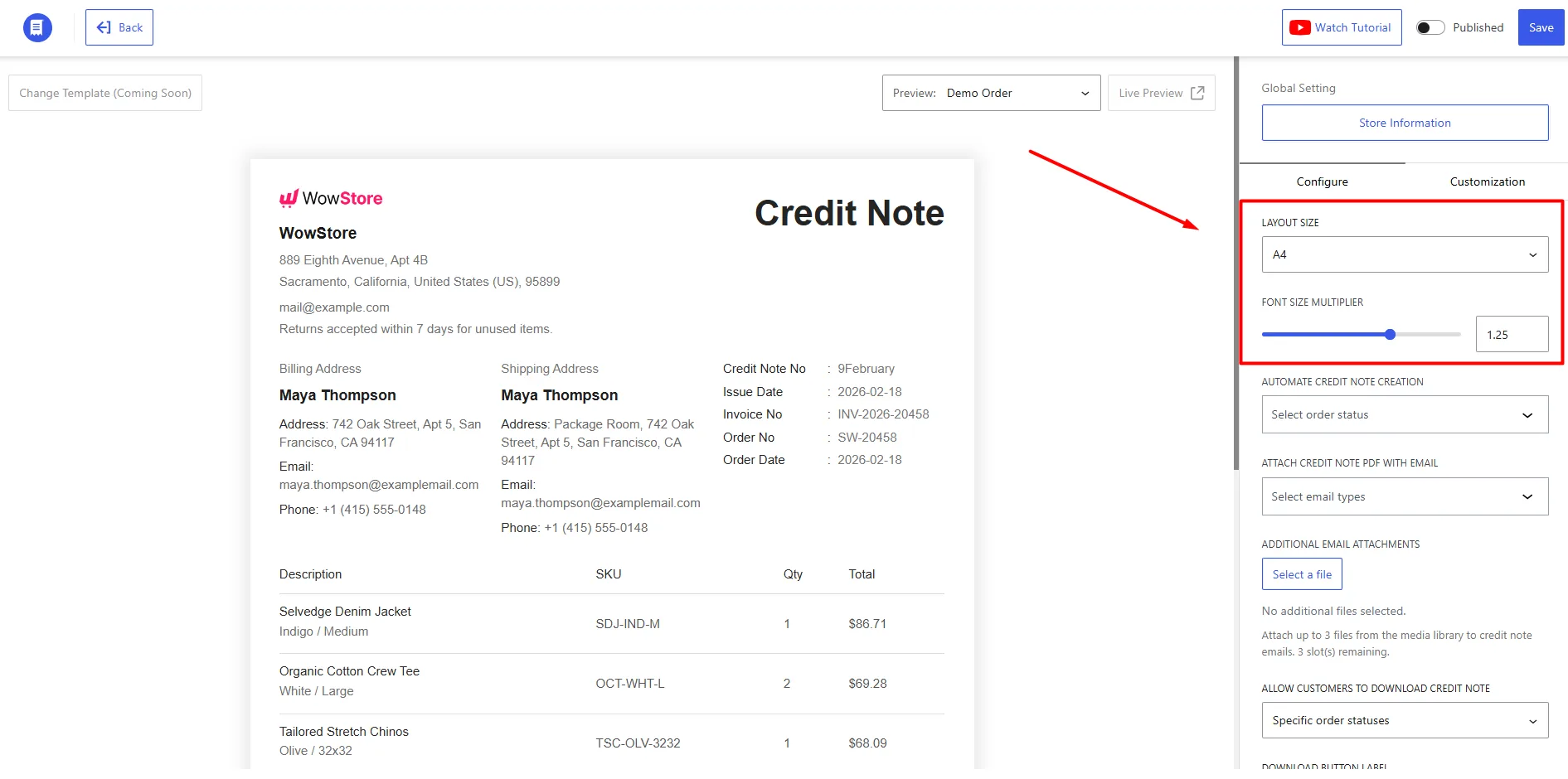
Start by choosing the layout size. WowInvoice supports A4, A5, and Letter formats for credit notes. For most WooCommerce stores, A4 is a practical default because it gives enough space for order details, product items, totals, and notes.
You can also adjust the document font size from the same configuration area.
Step 4: Choose When Credit Notes Are Generated Automatically
Next, choose when WowInvoice should generate credit notes automatically.
WowInvoice can generate credit notes based on selected WooCommerce order statuses, such as Pending Payment, Processing, On Hold, Completed, Cancelled, Refunded, Failed, and Draft.
For a normal refund workflow, select Refunded as the generation status. This means that when an order reaches the Refunded status, WowInvoice can create the credit note automatically.
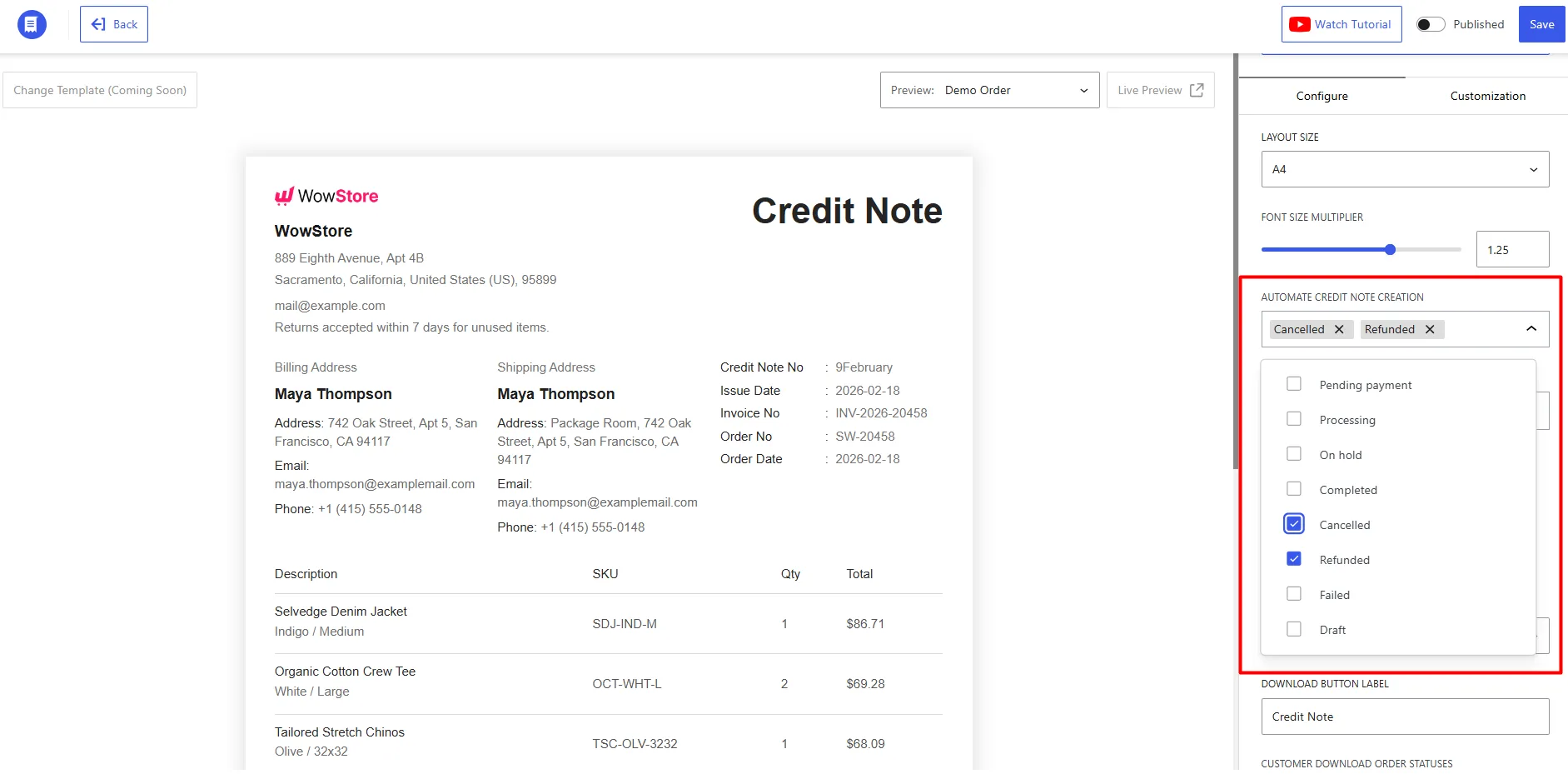
For example, if a customer pays for an order and the store later refunds it, the credit note can be generated as soon as the order status changes to Refunded. This saves the store team from creating refund documents manually every time.
If your store also creates credit notes for cancelled orders, you can include Cancelled as well.
Step 5: Attach the Credit Note PDF to WooCommerce Emails
Now configure the email attachment settings.
WowInvoice can attach the credit note PDF to selected WooCommerce emails. You do not need to enable every email type. Choose the ones that match your refund workflow.
For customer-facing refunds, the most useful option is usually the Refunded Order email. This allows the customer to receive the credit note PDF together with the refund notification.
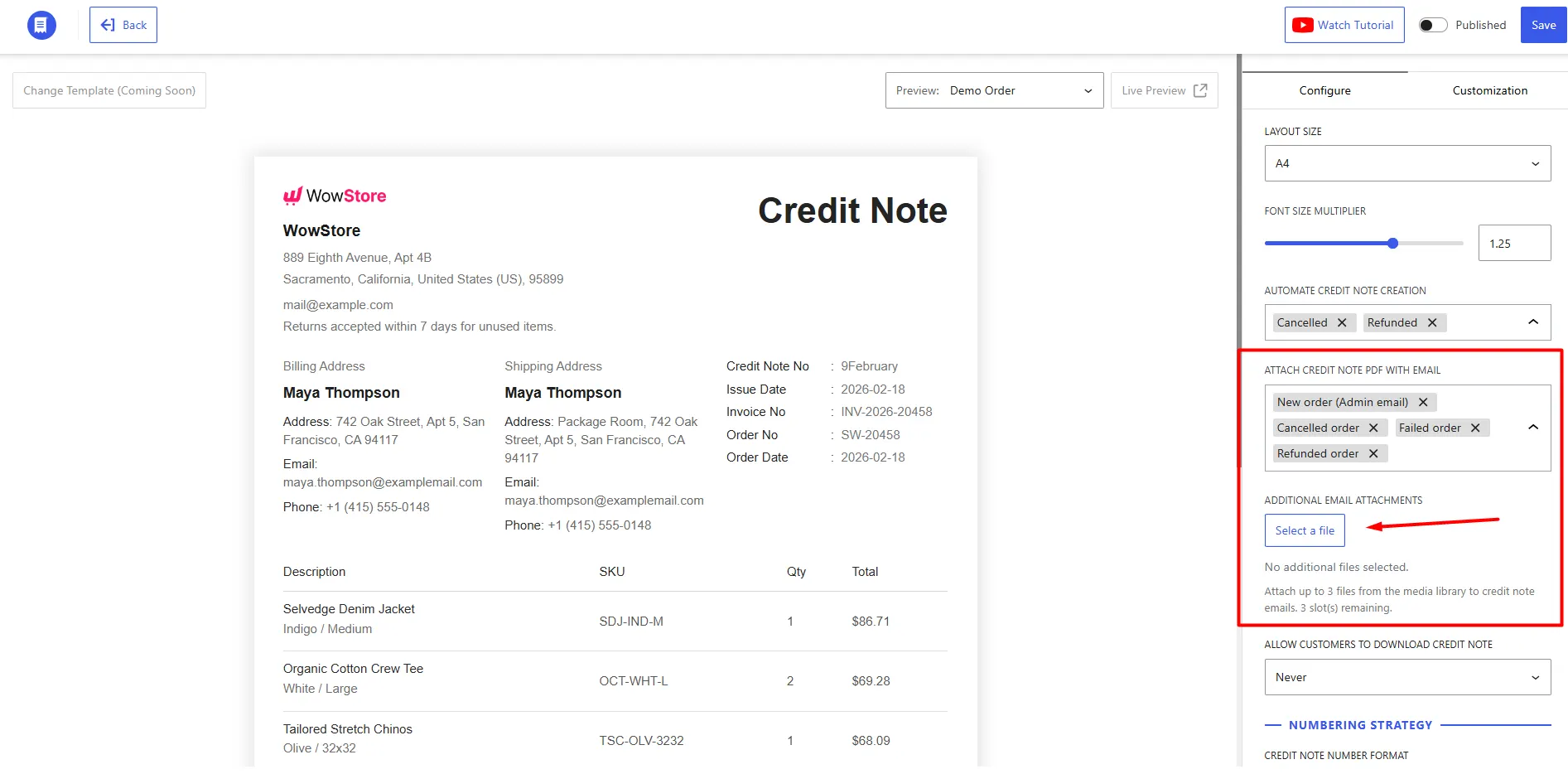
WowInvoice also supports other WooCommerce email types, including New Order admin email, Cancelled Order, Failed Order, Order On-Hold, Processing Order, Completed Order, Order Details manual email, and Customer Note.
You can also attach up to three additional files from the WordPress media library. For example, you can include a return policy PDF or refund terms document with the email.
Step 6: Allow Customers to Download the Credit Note
Next, set up credit note downloads for the customer account area.
WowInvoice gives you three customer download options:
- Always: Customers can download the credit note anytime.
- Specific Order Status: Customers can download it only when the order reaches selected statuses.
- Never: Customers will not see the credit note download option.
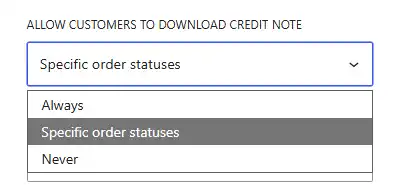
For refund documents, Specific Order Status is usually the cleanest option. Select it, then choose Refunded as the allowed order status.
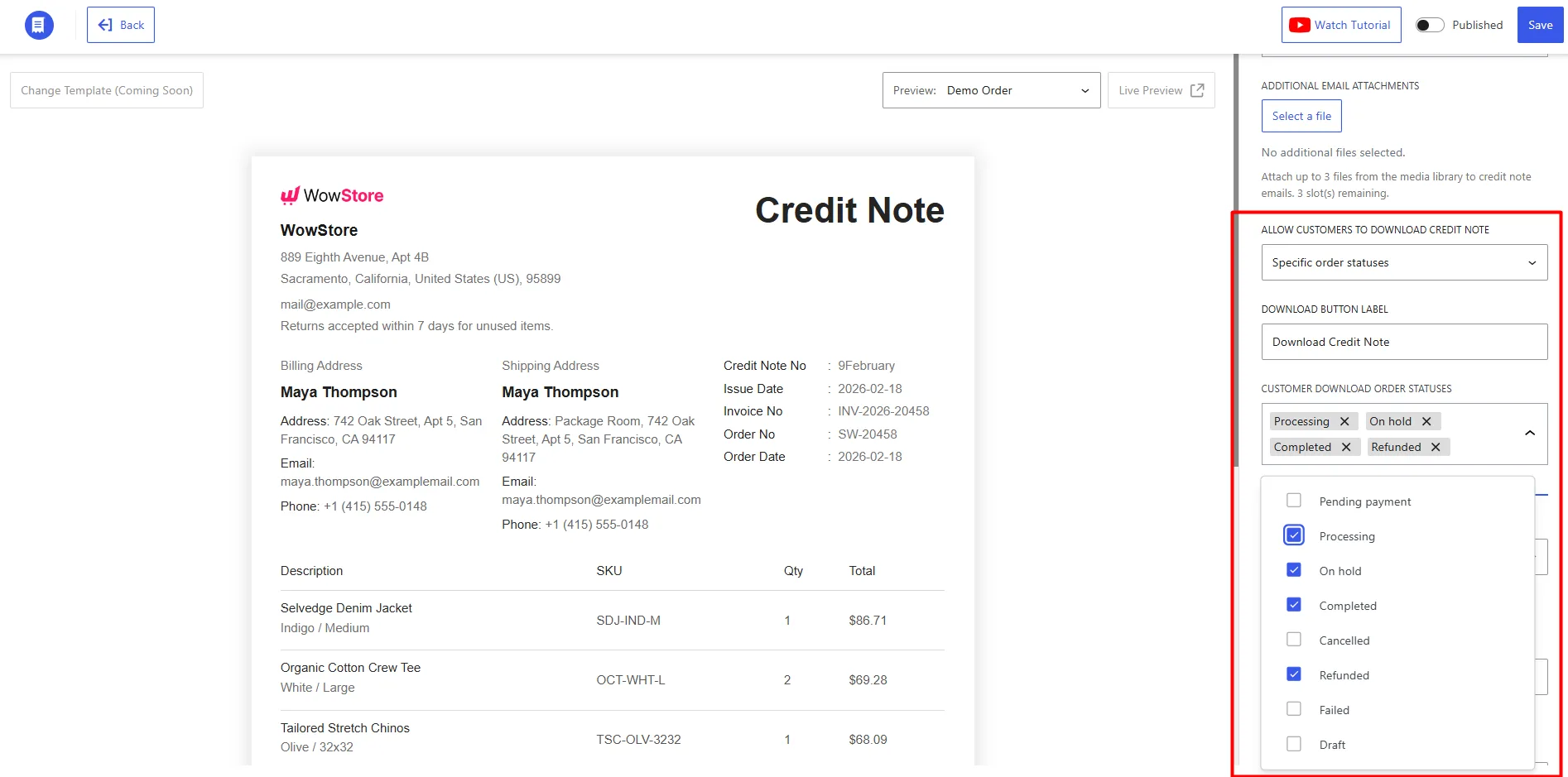
This way, the customer can download the credit note only after the order has actually been refunded.
You can also customise the download button label. For example, use Download Credit Note so customers can clearly separate the credit note from the original invoice.
Step 7: Create the Credit Note Number Format
Now set up the credit note numbering format.
Credit note numbers help customers, store admins, and accounting teams identify refund documents clearly. WowInvoice lets you either use the WooCommerce order number as the credit note number or generate a custom credit note number.
For the simplest setup, you can use the order number. But if you want a separate sequence for refund documents, choose a custom credit note number.
For example, you can use a format like CN-2026-0001.
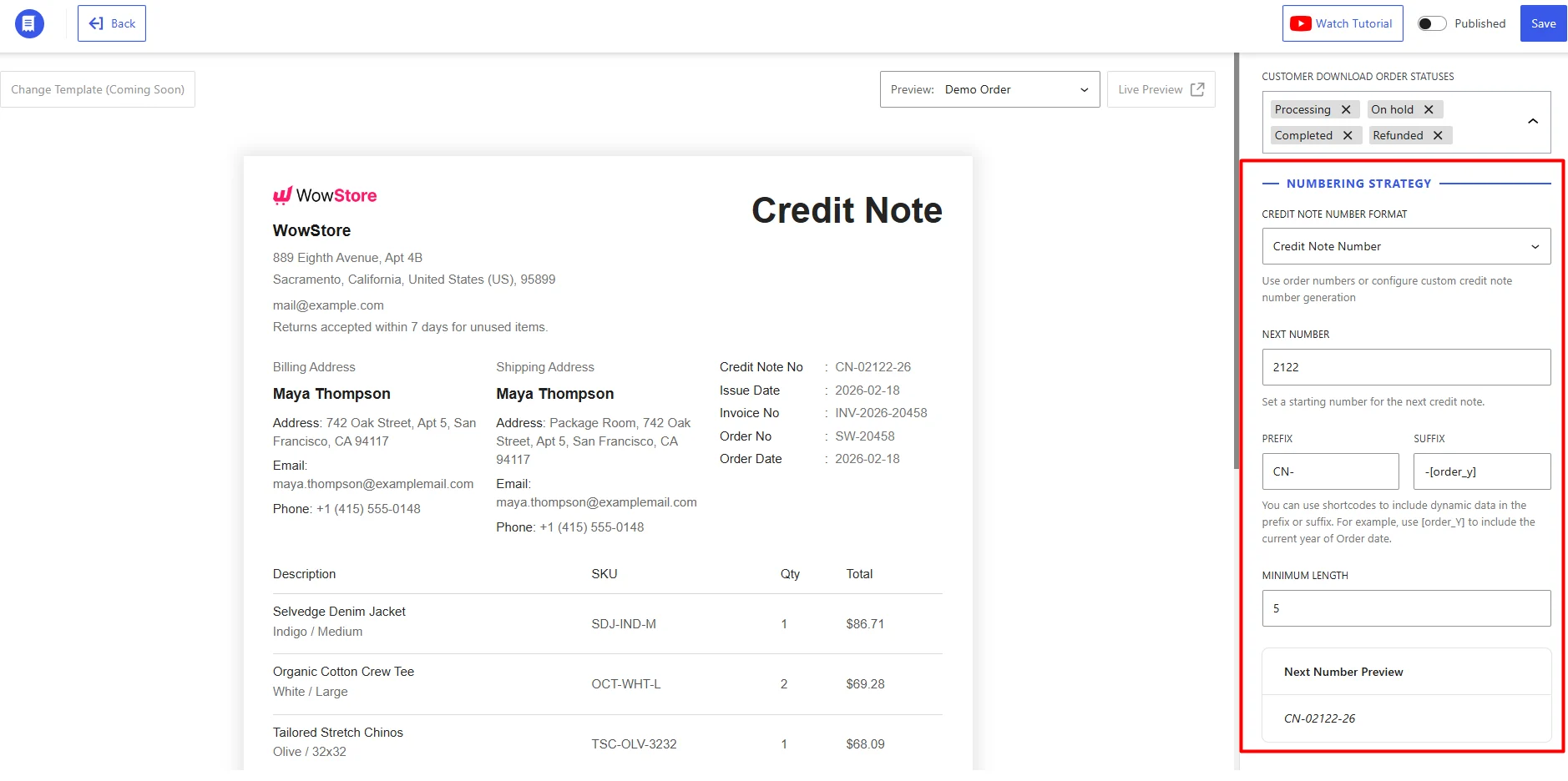
Here, CN identifies the document as a credit note, 2026 shows the year, and 0001 works as the running number. You can also add a suffix if your accounting process requires one.
WowInvoice also supports dynamic shortcodes for the prefix and suffix fields. When you type opening or closing square brackets in those fields, the available dynamic shortcode options will appear.
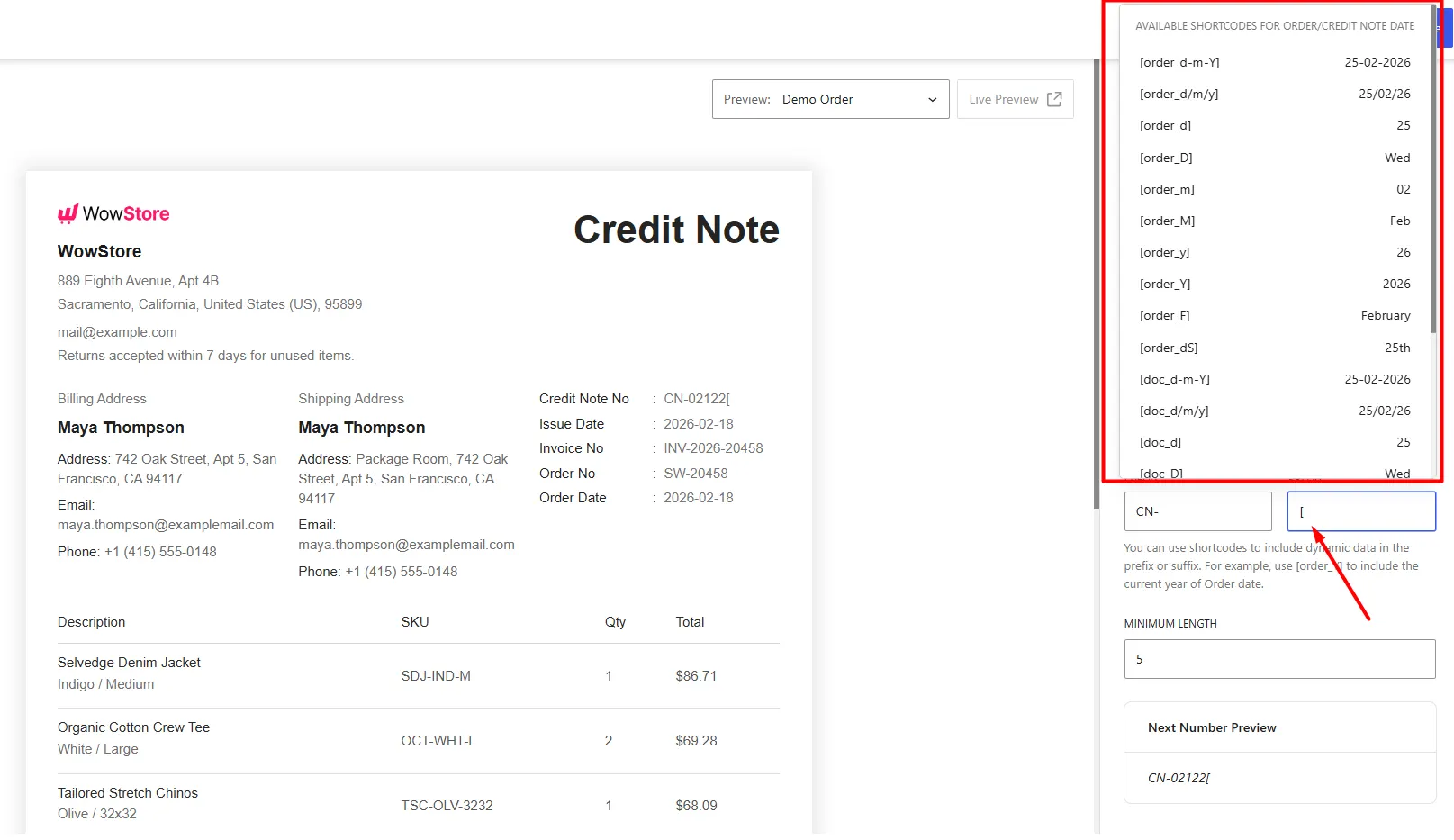
After that, set the minimum number length. If the minimum length is 4, the first credit note numbers can appear as 0001, 0002, 0003, and so on.
Before saving, check the next number preview. This helps you confirm that the format looks clean before real customers receive the document.
You can also customise the credit note layout from the builder, including the header, logo, dates, billing and shipping details, product table, totals, notes, and labels. Keep those settings simple and only show the fields your customers or accounting team actually need.
Final Check
After saving the settings, test the credit note workflow with a sample refunded order. Confirm that the credit note is generated, the number format looks correct, the PDF is attached to the selected email, and the download option appears in the customer account area when the order status matches your rule.
Once everything works properly, your WooCommerce store can generate credit notes automatically for refunds and adjustments using WowInvoice.
Customizing A WooCommerce Credit Note Easily
WowInvoice gives you a visual credit note customisation builder where you can control what appears on the document and how each section is labelled.
Instead of editing code or creating a custom PDF template, you can adjust the credit note from organised settings panels and preview the result beside the builder.
With WowInvoice, you can customise key credit note elements such as:
- Credit note title, header text, and store logo visibility
- Logo size and branding placement
- Order date, credit note issue date, order number, invoice number, and credit note number labels
- Billing and shipping address sections, including email and phone fields
- Product table labels for description, quantity, total, and SKU
- Product image, SKU, tax, metadata, free line item, and product sorting visibility
- Subtotal, tax/VAT, shipping, and total amount labels
- Order note, terms and conditions label, and terms text
- Customer-facing labels without changing the original WooCommerce order data
This makes the credit note easier to match with your store’s branding, refund workflow, and customer communication style.
How to Print Credit Notes in WooCommerce
To print or download a credit note, go to WooCommerce > Orders from your WordPress dashboard.
In the order list, check the Documents column. If a credit note has been generated for a refunded order, you will see the credit note document icon there.
Click the document icon to download the credit note. This lets you access the credit note directly without opening the full order details.
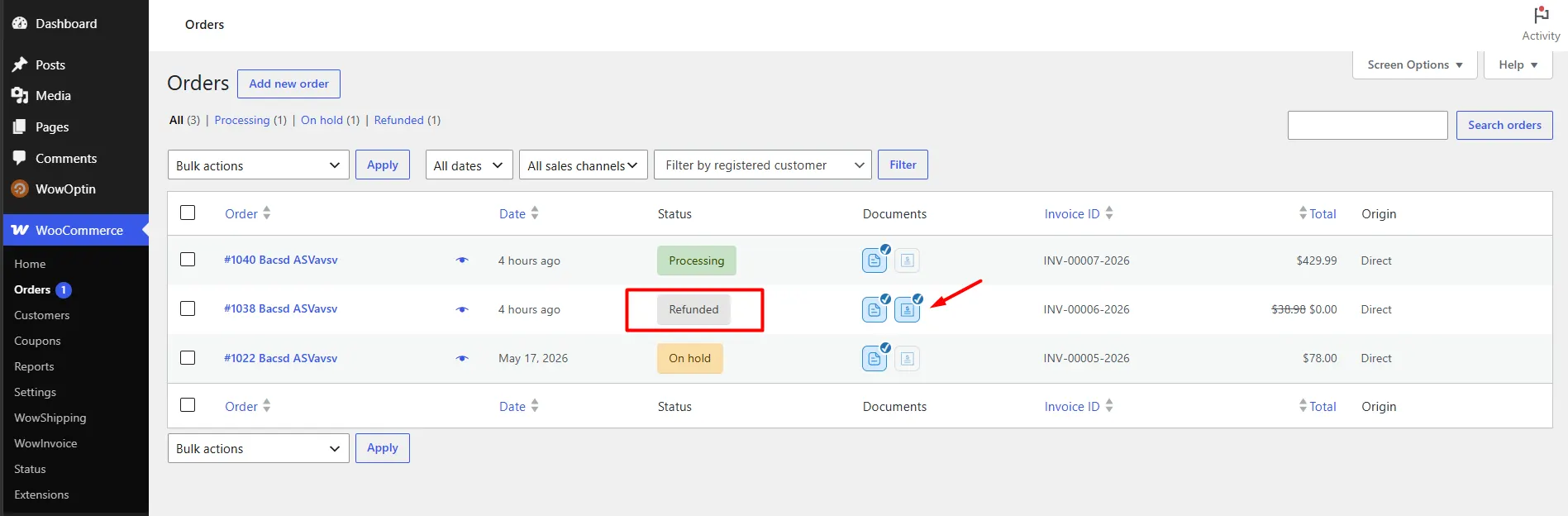
If the Documents column is not visible, click Screen Options at the top of the Orders page, enable Documents, and apply the change. The document icons will then appear beside each supported order.
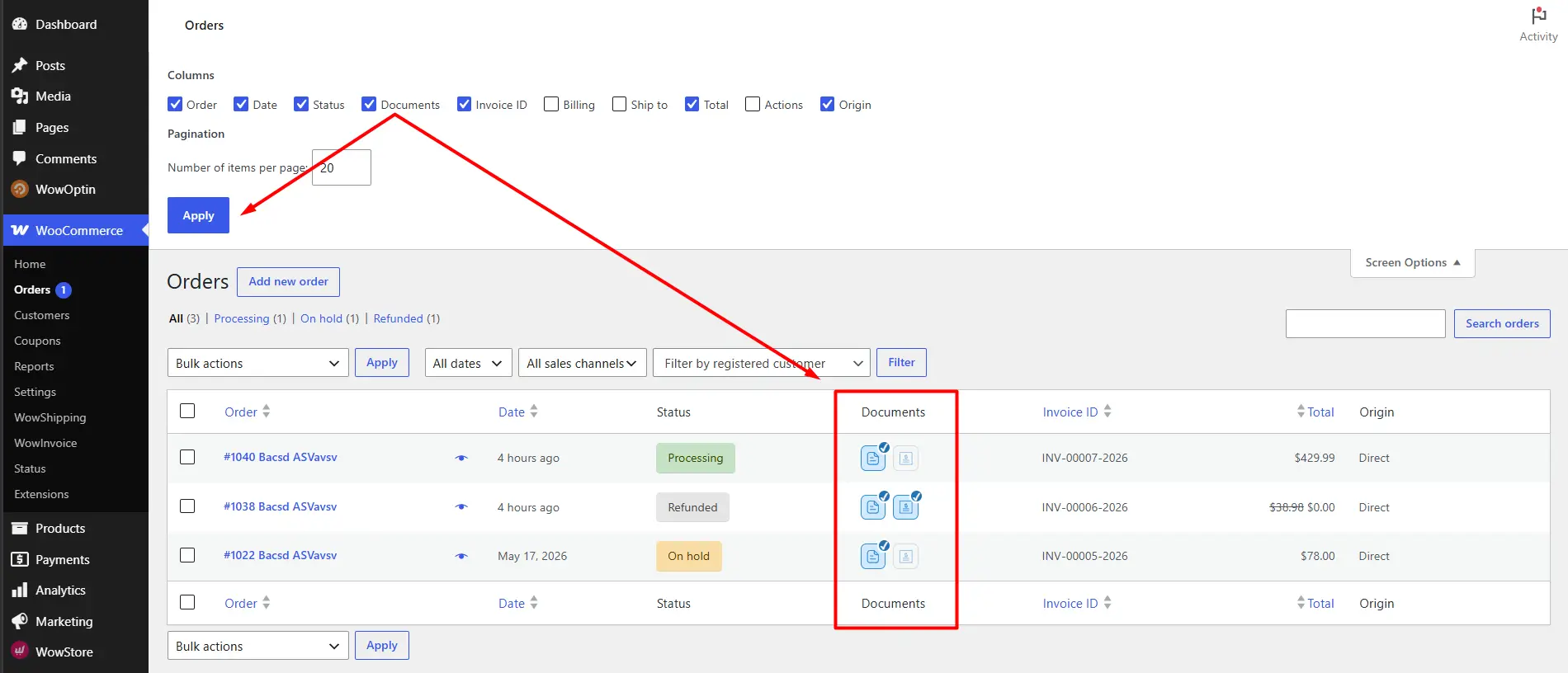
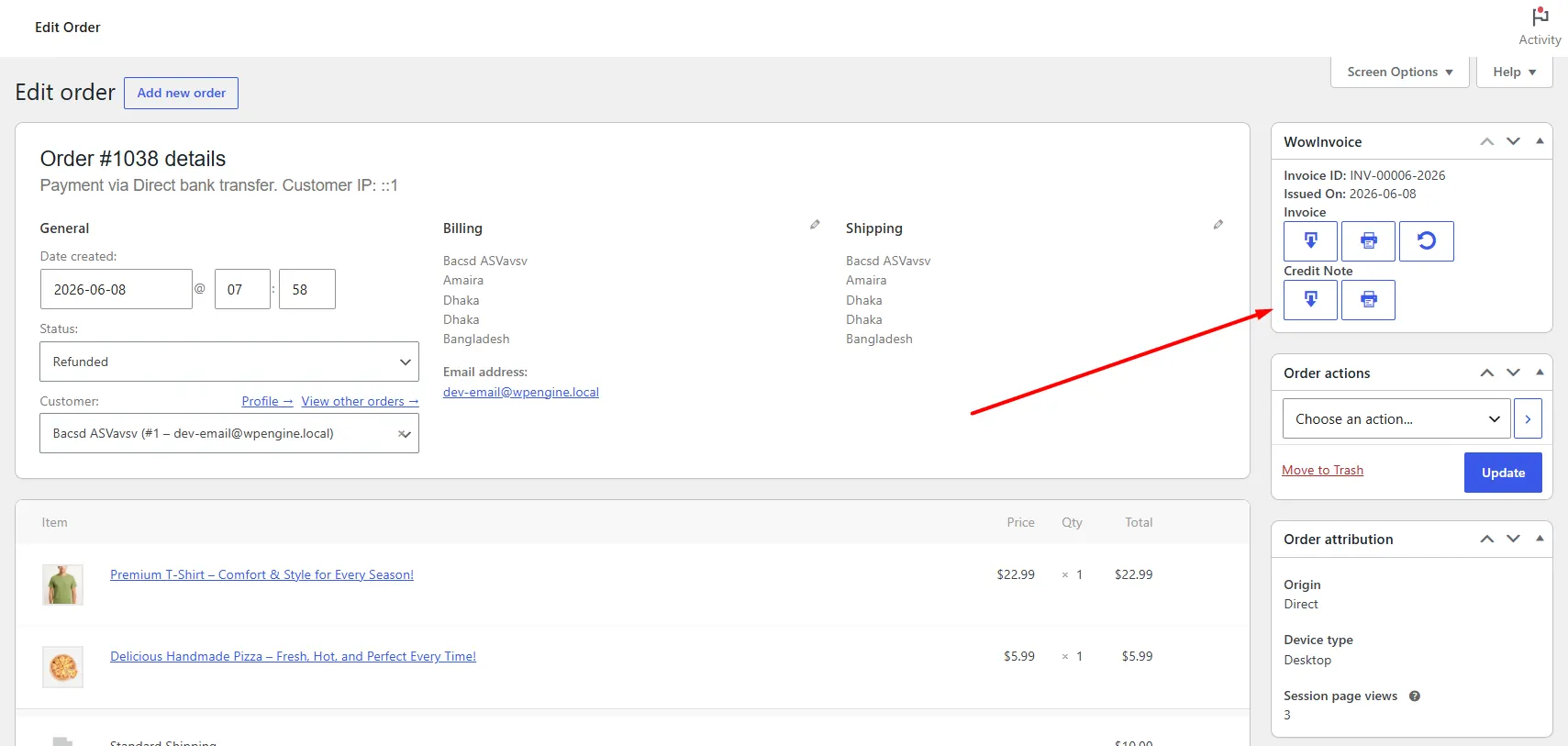
You can also open an individual refunded order and use the WowInvoice panel on the order edit page. From there, you can download or print the credit note manually.
Sample WooCommerce Credit Note After Download or Printing
The sample below shows how a WooCommerce credit note looks after it is generated, downloaded, or printed from WowInvoice.
Benefits of Generating and Printing a WooCommerce Credit Note
Generating and printing a WooCommerce credit note keeps refunds, returns, and order adjustments documented with a clear record for customers, admins, and accounting.
✅ Keeps Refund Records Clear
A credit note shows what amount was reduced from the original invoice, which item or order was refunded, and why the refund was issued. This makes it easier to track full refunds, partial refunds, returned items, shipping refunds, and tax adjustments from one document.
✅ Improves Accounting Accuracy
Refunds reduce the final order value after the invoice has already been issued. A credit note helps accounting records reflect the adjusted amount instead of only showing the original invoice total.
✅ Creates a Clear Customer Document
When customers receive a credit note, they can clearly see what was refunded and how the refunded amount was calculated. This reduces confusion after cancellations, returns, damaged product refunds, or pricing corrections.
✅ Supports Tax and Invoice Corrections
A credit note is commonly used to amend or correct a previously issued invoice when the charged amount decreases. This is useful for tax, VAT, pricing errors, overcharges, and post-purchase adjustments.
✅ Makes Printing and Manual Review Easier
Printed credit notes are helpful when your team needs offline records, warehouse documentation, accounting files, or customer support references. They also make it easier to review refund history without opening every order detail manually.
✅ Keeps the Original Invoice and Refund Separate
A credit note does not replace the original invoice. It explains what changed after the invoice was issued. This gives your store a cleaner document history, especially when an order has both an invoice and a refund record.
Note: Credit notes are one part of WooCommerce document workflow. Along with this, you may also need to know the best plugins for creating PDF invoices. The guide linked should give you a proper overview!
FAQs About Creating and Customising Credit Notes in WooCommerce
These FAQs cover the common questions about WooCommerce credit notes, refunds, numbering, emails, and downloads.
Does WooCommerce create credit notes by default?
WooCommerce lets you process full and partial refunds from the order page, but it does not provide a complete built-in PDF credit note builder by default. To generate, customise, email, or download PDF credit notes, you need a WooCommerce document generator plugin like WowInvoice.
Is a credit note the same as an invoice?
No. An invoice records the original sale. A credit note records a decrease or correction after that invoice has already been issued. Both documents are connected, but they serve different purposes.
Can I create a credit note for a partial refund?
Yes. A credit note can be used for partial refunds, such as refunding one item from a multi-product order, refunding a fixed amount, correcting tax, or returning only the shipping charge.
Can credit notes be generated automatically in WooCommerce?
Yes, with the right plugin. For example, WowInvoice can generate a credit note based on selected WooCommerce order statuses, such as when an order becomes refunded.
Can I attach a credit note PDF to WooCommerce refund emails?
Yes. A WooCommerce credit note plugin can attach the credit note PDF to refund-related WooCommerce emails, so customers receive the document with the refund notification.
Can customers download credit notes from My Account?
Yes, if the plugin supports customer downloads. With WowInvoice, you can control whether customers can download the credit note always, never, or only when the order reaches a selected status, such as Refunded.
Can I customise the design of a WooCommerce credit note?
Yes. With WowInvoice, you can customise the credit note title, logo, labels, dates, billing and shipping details, product table, SKU visibility, tax/VAT labels, totals, order notes, and terms text from the builder.
Can I print WooCommerce credit notes manually?
Yes, if your document plugin supports manual printing or downloading from the order page. This is useful for accounting files, customer support, internal review, or offline record keeping.
Can a credit note include tax or VAT adjustments?
Yes. If a refund changes the taxable amount, the credit note should show the tax or VAT adjustment clearly. This helps keep accounting and tax records aligned with the corrected transaction.
Can I bulk export WooCommerce credit notes?
Some WooCommerce credit note plugins, like WowInvoice, support bulk exporting credit notes, invoices, or document records by date range. This is useful for accounting, reporting, and year-end document collection.
What is the easiest way to create and customise credit notes in WooCommerce?
The easiest way is to use a plugin like WowInvoice. Install the plugin, set your store information, enable the credit note document type, choose when credit notes should generate, attach them to emails, allow customer downloads, and customise the credit note number and layout.
Final Thoughts on WooCommerce Credit Notes
Credit notes are important for keeping WooCommerce refunds, returns, cancellations, and order adjustments properly documented. They show what changed after the original invoice and give both the customer and store team a clear refund record.
With WowInvoice, you can generate credit notes automatically, customise the layout, set a clear numbering format, attach PDFs to refund emails, allow customer downloads, and print credit notes when needed. This makes the refund process easier to manage and keeps your WooCommerce document workflow more organised.