

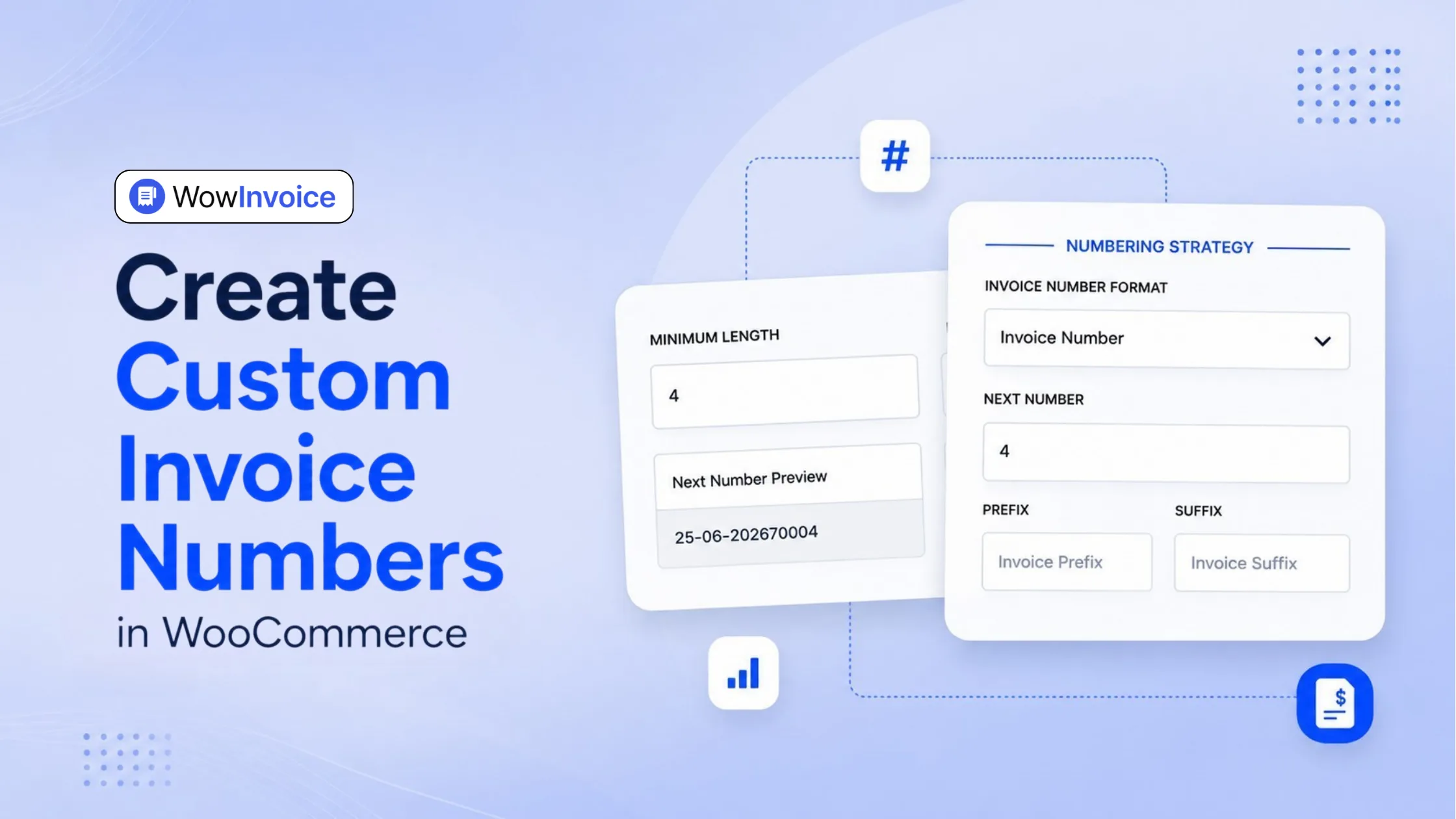
To create custom invoice numbers in WooCommerce, you must bypass the default WordPress database system by installing a dedicated invoice plugin like WowInvoice. Once activated, you can navigate to the plugin settings to establish a dedicated numbering sequence, define a custom starting number, add dynamic prefixes or suffixes, and enforce an automatic annual reset for perfect sequential bookkeeping.
Let’s go through this article and set up your custom numbering system in a few minutes.
What Are Custom Invoice Numbers in WooCommerce?
Custom invoice numbers in WooCommerce are sequential numbers used as an identifier for invoices instead of the default WordPress order IDs.
Here is exactly what custom invoice numbering allows you to do:
- Add Formatting: You can include specific prefixes, suffixes, and dynamic dates.
- Create Sequences: Your numbers will follow a logical, unbroken numerical order.
- Improve Clarity: Instead of a random order ID like “4892”, a custom invoice number can look clean and branded, like “INV-2026-0001”.
Understanding WooCommerce’s Default Invoice Numbering System
Out of the box, WooCommerce does not actually have a dedicated invoice numbering system. It relies entirely on WordPress’s default ID system to generate order numbers.
Here is why that causes a real headache for store owners:
Shared Database Pool: WordPress treats a new WooCommerce order the same way it treats a new blog post, a drafted page, or an uploaded product image. They all pull from the same pool of ID numbers.
The Skipping Effect: If a customer places an order and receives ID 100, and then you upload two new product photos to your media library, those photos will take IDs 101 and 102. The very next customer order will jump straight to ID 103.
Designed for Content, Not Accounting: The native system was built to organise website files and posts efficiently. It was never designed to meet the strict, gapless numbering requirements needed for professional bookkeeping and tax compliance.
Because of this interconnected database structure, WooCommerce doesn’t have sequential invoice numbers by Default.
Why Custom Invoice Numbers Are Essential for WooCommerce Stores
Customising your invoice numbers is crucial for keeping your bookkeeping legally compliant, perfectly organised, and highly professional.
Here are the biggest benefits for your store:
- Legal Compliance: Many countries legally require businesses to use sequential, gapless numbering on their financial documents for accurate tax reporting.
- Easier Tracking: A clear sequence makes it incredibly easy to track your sales volume and quickly resolve customer support tickets.
- Professional Branding: A branded invoice builds immediate trust with your buyers and saves your accountant hours of unnecessary frustration.
- Messy Bookkeeping: Non-sequential order numbers create real problems during tax season, audits, or when reconciling payments. If order 10 is actually your third sale of the month, matching it to bank deposits or refunds becomes tedious.
This random jumping makes maintaining clean financial records nearly impossible without a separate numbering plugin to handle the job.
Ready to Create Custom Invoice Numbers?
WowInvoice lets you generate custom sequential invoice numbers for organised bookkeeping and easier compliance. It brings invoices, packing slips, credit notes, delivery notes, shipping labels, and pick lists together in one plugin, making it a true all-in-one PDF invoicing solution for growing WooCommerce stores.
Creating Custom Invoice Numbers in WooCommerce (Step-by-Step)
Custom invoice numbers keep your store organised, professional, and compliant. In this part, I will show you exactly how to set up custom prefixes, suffixes, and numbering rules without writing a single line of code.
Best Invoice Plugin for Custom Invoice Numbers in WooCommerce
There isn’t a single “best” WooCommerce invoice plugin for every store. The right choice depends on your business size, workflow, and the types of order documents you need. Some of the most popular options include:
- WowInvoice: Best for stores looking for a true all-in-one document solution with invoices, packing slips, credit notes, delivery notes, shipping labels, pick lists, UBL support, flexible invoice numbering, and more.
- PDF Invoices & Packing Slips for WooCommerce (WP Overnight): A reliable choice for automatic PDF invoices, packing slips, and flexible invoice numbering.
- WebToffee WooCommerce PDF Invoices: Best suited for stores that need complete document automation, including invoices, shipping labels, delivery notes, and UBL/XML support.
- Flexible Invoices for WooCommerce (WP Desk): Ideal for businesses that need VAT-compliant invoices and advanced invoicing features.
- And many more…
Each of these plugins lets you create custom invoice number sequences with varying levels of flexibility.
Why We Recommend WowInvoice
If you’re looking for more than invoice numbering, WowInvoice brings six essential WooCommerce order documents into one lightweight plugin.
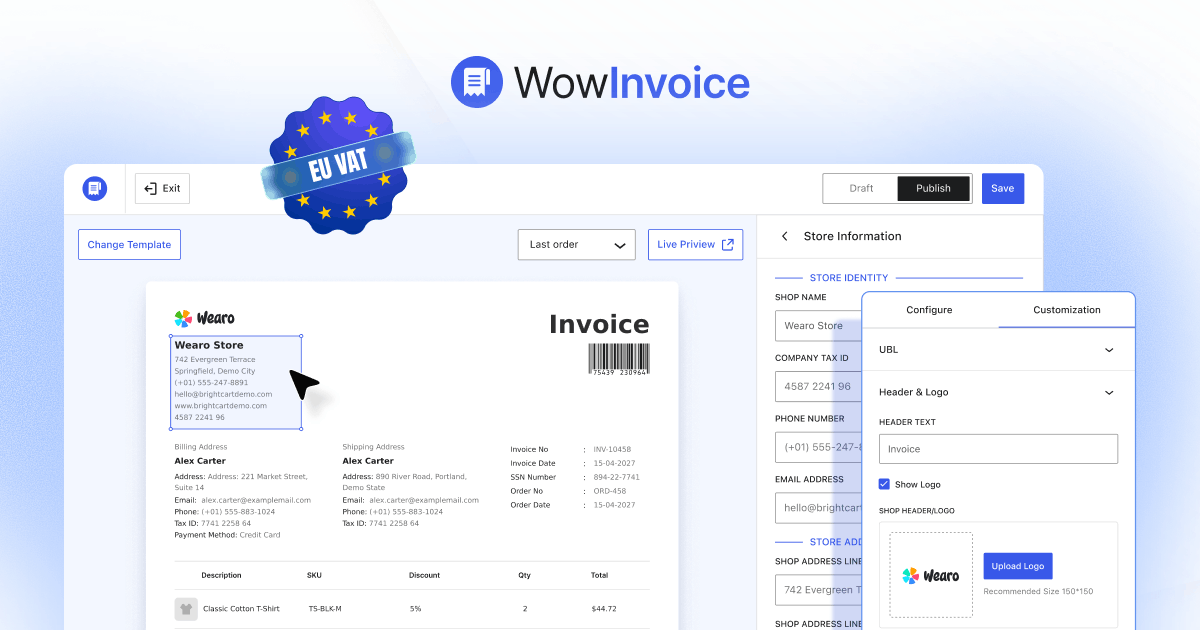
It also gives you complete control over your invoice numbering system. You can:
- Create custom prefixes and suffixes.
- Include dynamic variables such as the current year or month.
- Start numbering from any value.
- Automatically reset invoice numbers yearly.
- Maintain sequential invoice numbering for better bookkeeping and compliance.
If your only requirement is basic PDF invoices, some of the other plugins above may be sufficient. But, if you want a single plugin that manages nearly every order document while providing flexible invoice numbering and room to scale, WowInvoice offers one of the most complete solutions available.
Now, let us dive right in and get your WooCommerce invoice numbers perfectly formatted using WowInvoice.
Step 1: Install and Activate WowInvoice
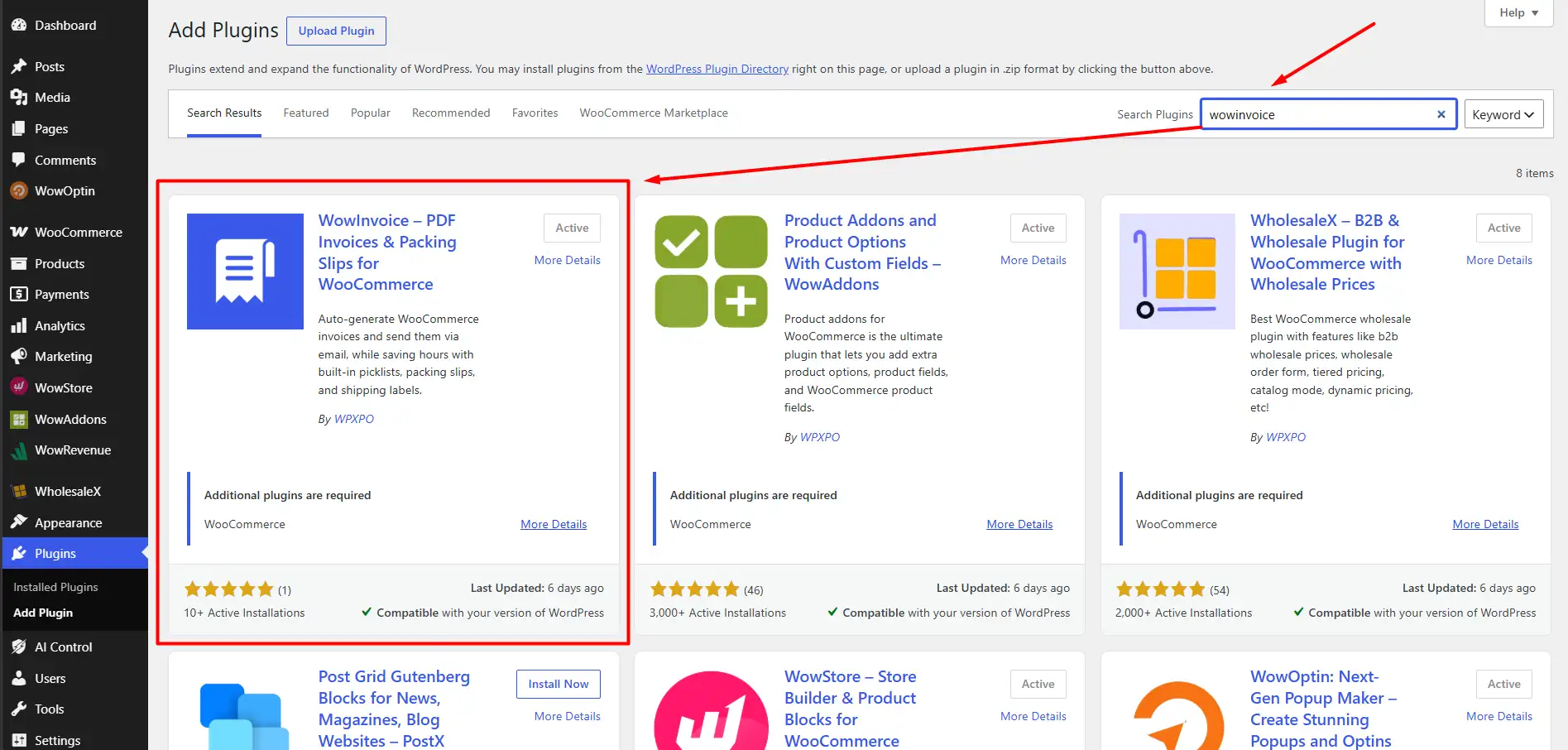
First, head over to your WordPress dashboard. Go to Plugins > Add Plugin, search for the WowInvoice plugin, and click Install. Once that is done, just hit Activate to get the plugin running on your store.
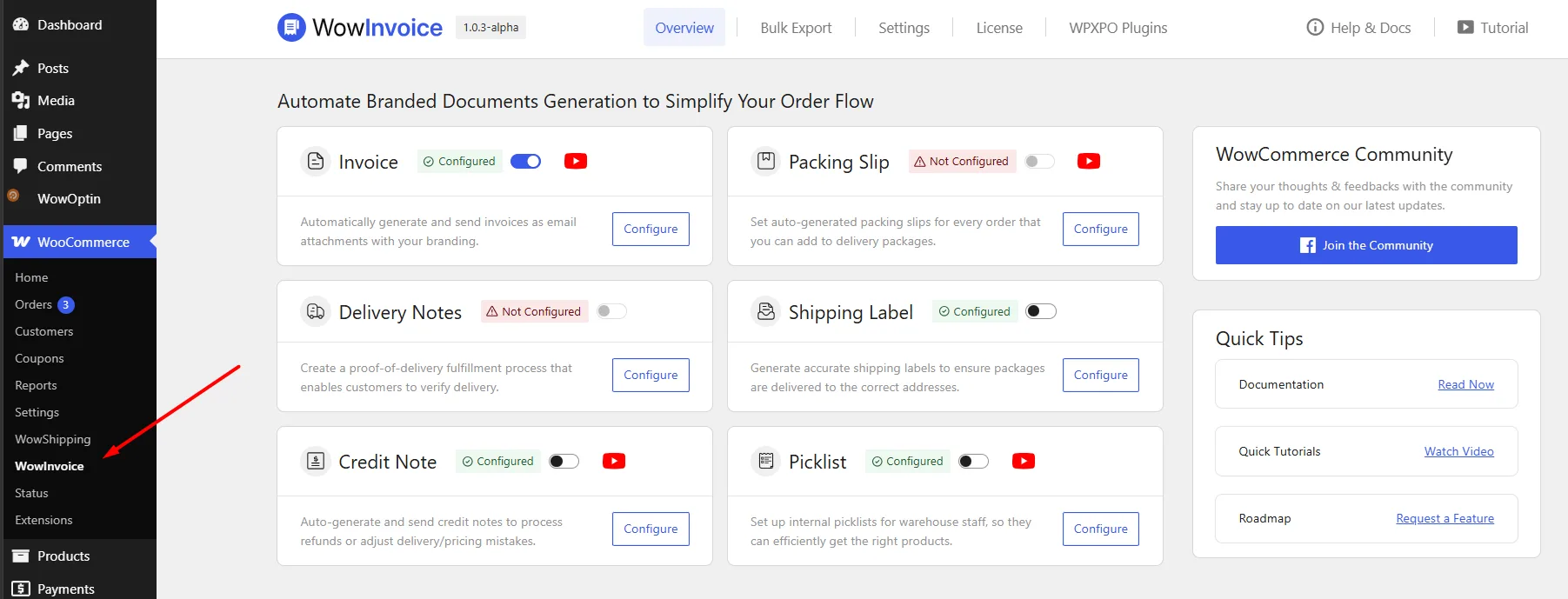
After activation, you’ll find WowInvoice under the WooCommerce menu.
Step 2: Configure Invoice Display Settings
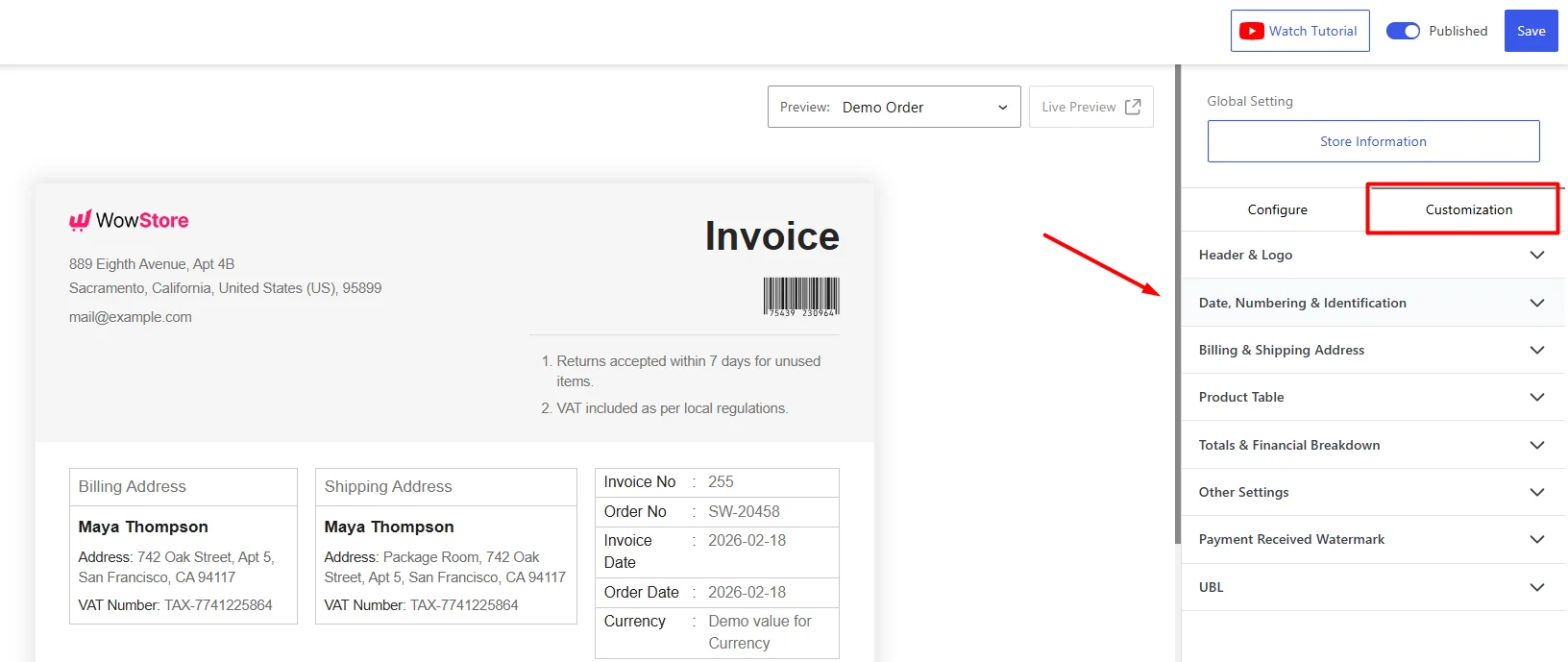
Now, open up the invoice customizer from the WowInvoice dashboard menu by clicking on the Configure button. Look at the right sidebar and click on the Customisation tab. Scroll down a bit and click on Date, Numbering & Identification to open up the numbering display options.
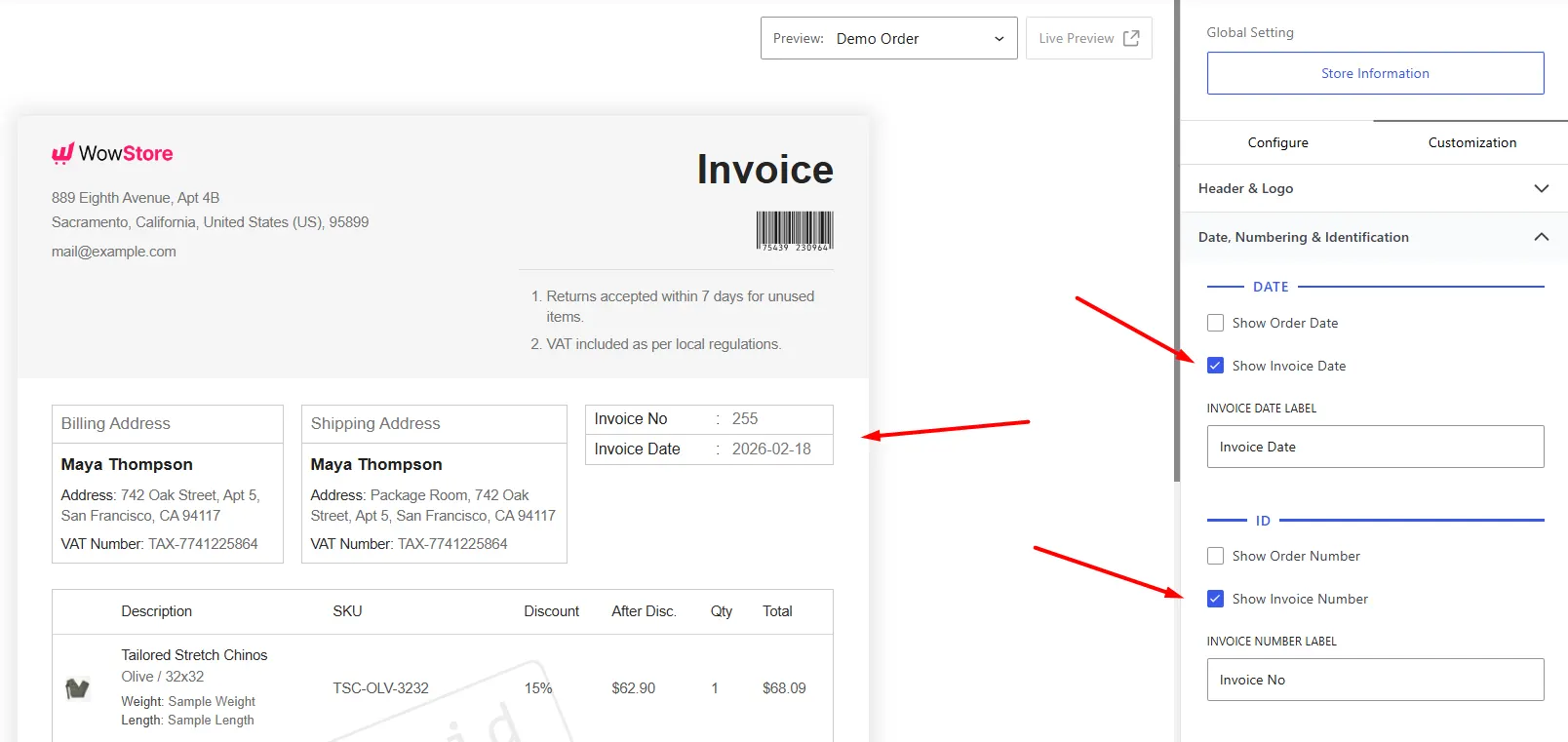
From here, you can easily decide whether you want to display the Invoice Number and Invoice Date by simply toggling the corresponding checkboxes. Furthermore, you can change the default labels for these fields to match your business terminology or local language.
Step 3: Select an Invoice Number Format
Now, get back to the Configure tab and look for the Numbering Strategy section.
Here you can choose between two options. You can either use your WooCommerce order numbers as the invoice numbers or select a separate Invoice Number system to create a dedicated numbering sequence.
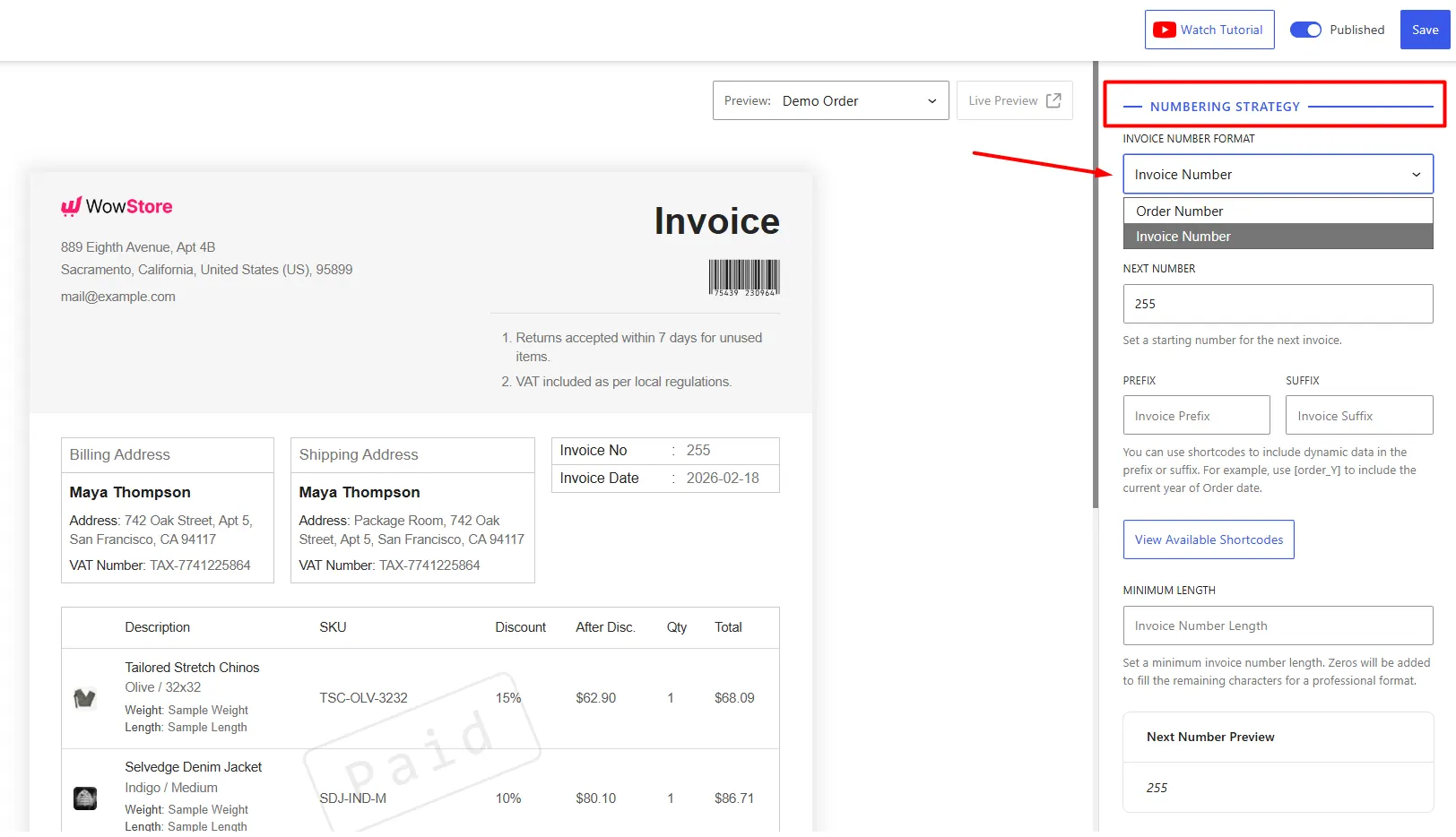
Since we’re focusing on creating custom invoice numbers rather than using order numbers as the invoice reference, the next steps will be based on the Invoice Number format option, not the order number format.
Step 4: Define the Starting Invoice Number
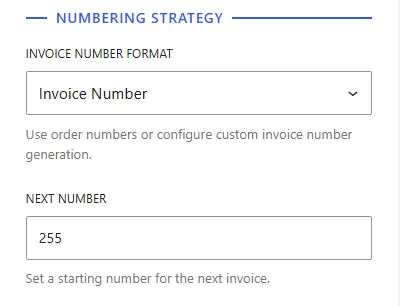
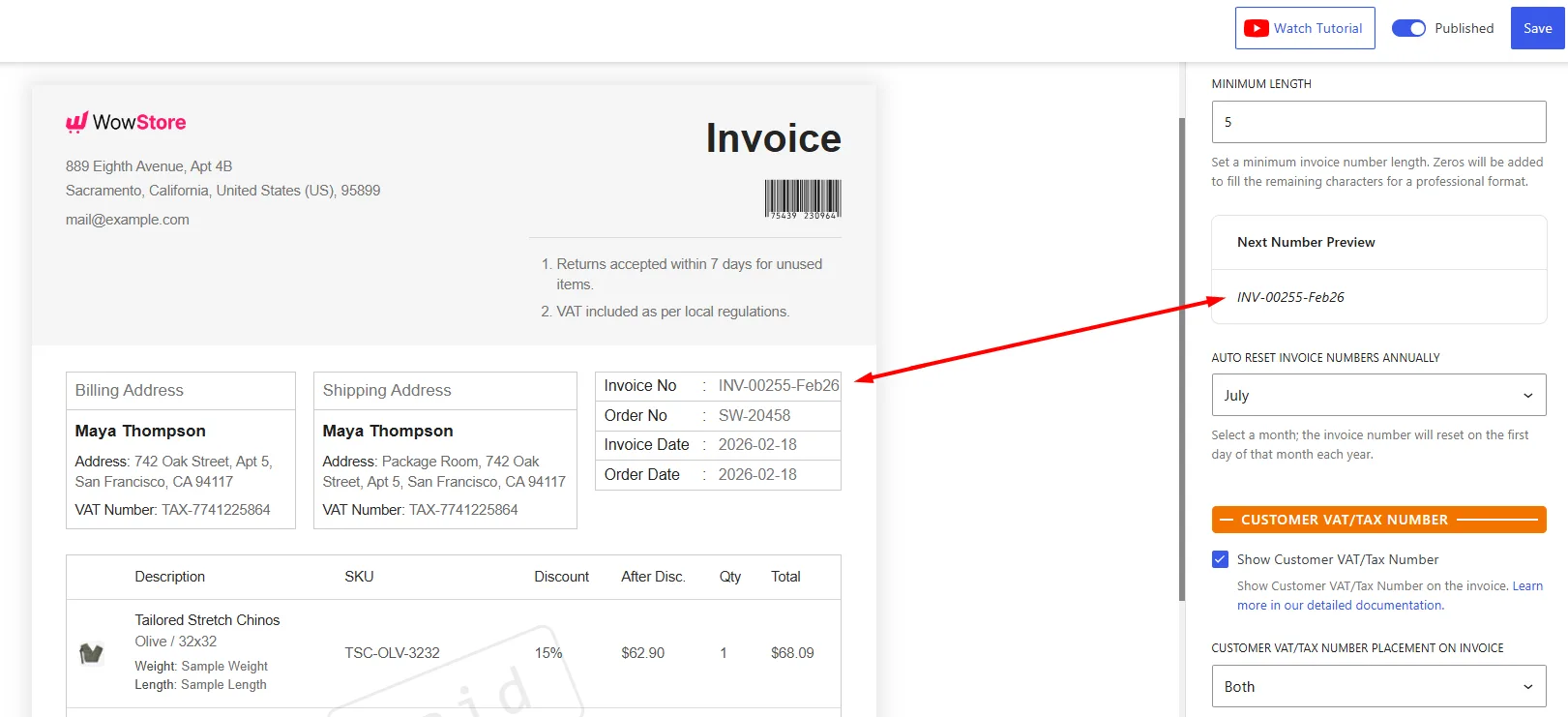
The Next Number box is specifically designed to give you complete control over your invoice counting. If you have been running your business for a while, you probably do not want to reset your invoice count back to 1. Or, maybe you are moving your store from a different platform and want to pick up exactly where you left off.
Whatever your situation, simply type in the exact number you want your next generated invoice to start with, like 255, for example. This feature is a lifesaver for keeping your financial records perfectly aligned with your historical data.
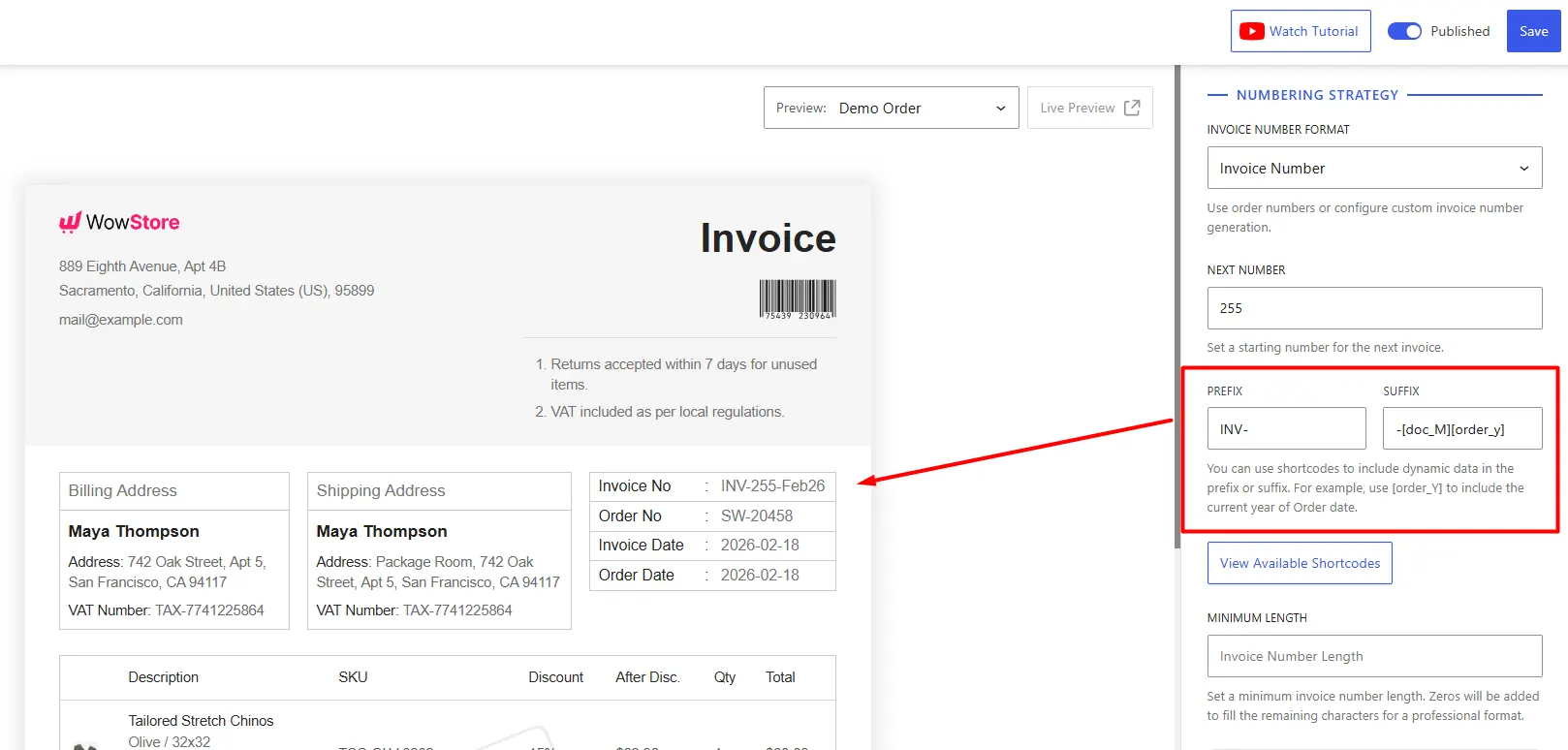
Step 5: Add Suffix or Prefix to the Invoice Number
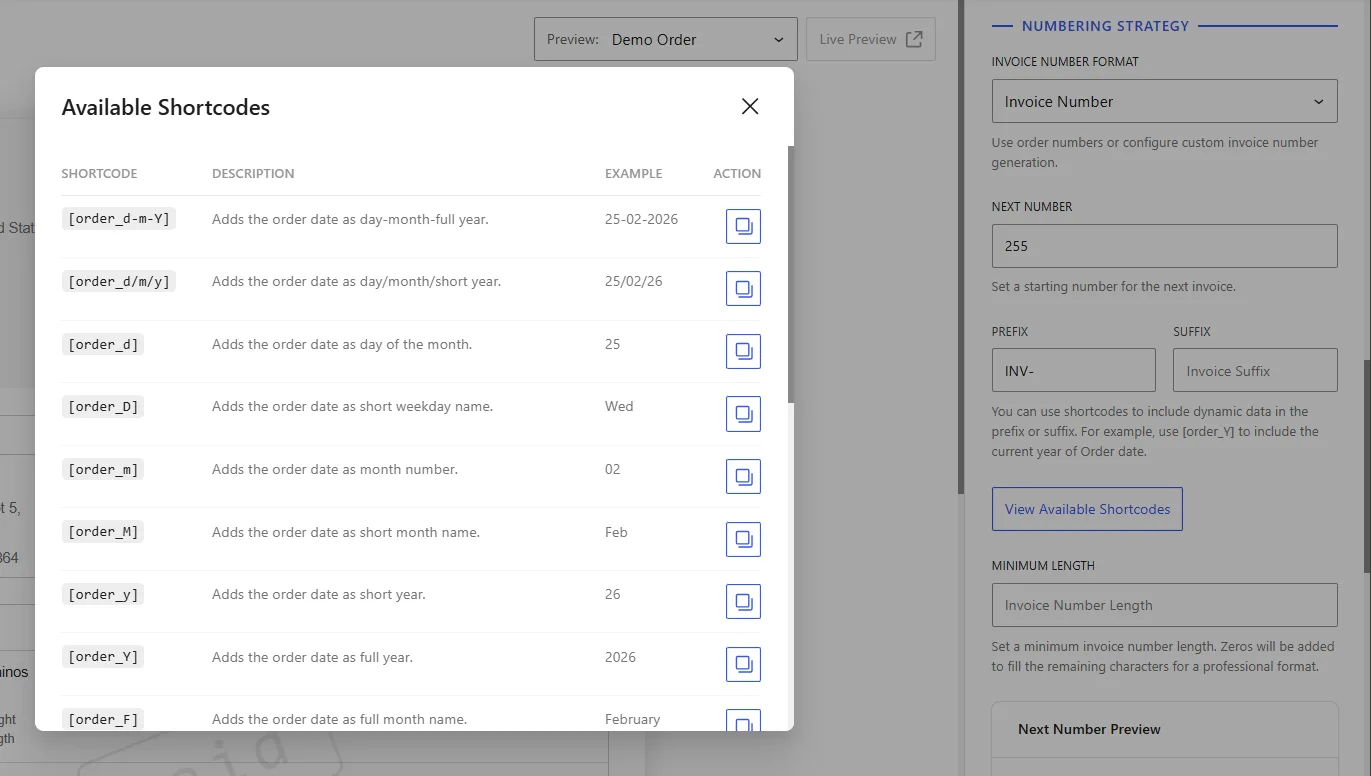
To make your invoices stand out, you can use the Prefix and Suffix boxes. You can type in regular text like “INV” or click the View Available Shortcodes button to add dynamic details. For example, adding shortcodes for the month and day will automatically attach the current date to the end of every invoice.
Step 6: Set the Minimum Invoice Number Length
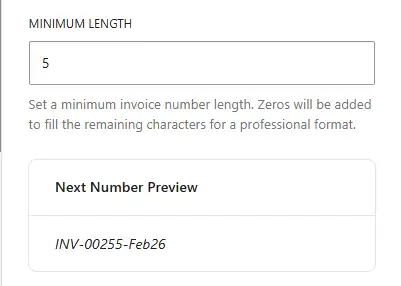
To keep all invoice numbers consistent and visually aligned, enter a value in the Minimum Length field. For example, if you set it to 5, shorter numbers will be padded with zeros, so 255 becomes 00255.
Step 7: Enable Yearly Auto-Reset
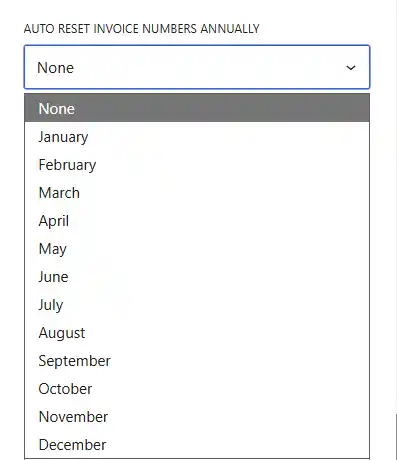
Many businesses need their invoice numbers to restart at the beginning of the financial year. To set this up, use the field labelled “Auto Reset Invoice Numbers Annually”.
From the dropdown, select the month for resetting invoice numbers. The system will then automatically reset the invoice counter to zero on the first day of that month each year.
Before you finish, take a quick look at the Preview. It shows you exactly what your new invoice numbers will look like. If everything looks good to go, hit the Save button at the top right of your screen to lock in your new settings.
How to Choose the Right Invoice Number Format for Your Business
A smart invoice numbering system keeps your operations smooth and your accountant happy. Here is how to structure yours perfectly:
☑️ Include a Year Indicator: Add the current year (like INV-2026) to instantly identify the fiscal period.
☑️ Use Number Padding: Set a minimum length with leading zeros (like 00001). This ensures your files sort properly in spreadsheets and prevents major bookkeeping headaches.
☑️ Keep Prefixes Short: Stick to two to five characters. Long prefixes are hard to read and might get cut off on printed labels.
☑️ Check Local Tax Laws: Many regions strictly require gapless, sequential numbering. Always verify your local regulations to stay compliant.
☑️ Set Up Automatic Resets: Configure your system to restart annually or monthly. This makes tracking your sales volume per period a breeze.
☑️ Segment Sales Channels: If you run multiple stores, give each a unique prefix to prevent messy number collisions.
Start Creating Custom Invoice Numbers
Setting up custom invoice numbers ensures your store remains legally compliant, protects your professional brand image, and makes reconciling payments incredibly easy.
With a tool like WowInvoice, you can handle this entire process without writing any code. You get total control over your starting numbers, custom prefixes, minimum length padding, and automatic yearly resets.
Ready to get your financial documents perfectly organised? Download & Install WowInvoice today and set up your custom WooCommerce invoice numbers in just a few clicks!
Also, check out the difference between WowInvoice and the WebToffee PDF Invoice plugin for a better understanding of which invoicing solution is right for you.
FAQs About Creating Custom Invoice Numbers in WooCommerce
Find answers to the most common questions about creating custom invoice numbers in WooCommerce below.
Why do tax authorities care about sequential invoice numbers?
Many tax authorities require invoice numbers to follow a continuous sequence with no unexplained gaps. This helps create a clear audit trail and makes it easier to track transactions, prevent duplicate invoices, and detect fraud.
Since WooCommerce uses WordPress post IDs by default, a dedicated invoice numbering system is often needed to meet these requirements.
Why did my invoice numbers stop being sequential?
In most cases, this happens because the invoice numbering settings were changed manually. For example, modifying the “Next Invoice Number” value can create gaps or unexpected jumps in the sequence.
Sequential invoice plugins, like WowInvoice, typically generate numbers correctly unless the numbering configuration is altered.
Can I auto-reset invoice numbers monthly instead of yearly?
Yes, but most invoice plugins only support yearly resets out of the box because that is the most common accounting requirement. If you need monthly resets, you may need a plugin that specifically supports this feature or a custom development solution.
Can I start numbering from something other than 1 when switching plugins?
Yes. Most PDF invoice plugins, including WowInvoice, let you set a custom start number so you can continue the sequence from your previous system.
Can I regenerate invoice numbers after I have already started?
Yes, but for legal compliance and consistent record-keeping, the invoice numbers themselves will remain unchanged. If you regenerate invoices after making changes to the invoice layout, prefixes, suffixes, or other display settings, those updates will be applied, but the original invoice numbers will stay the same.
Can I have a different invoice number series per product?
Not by default. Most invoice plugins use a single numbering sequence for all invoices. Creating separate numbering series based on specific products usually requires custom development.
Can I prefix invoice numbers based on product categories or SKUs?
Yes, this is possible with custom code. Developers can use WooCommerce or invoice plugin hooks to dynamically apply prefixes based on product categories, SKUs, or other order details.
Can I change an already-issued invoice number?
In most cases, you should not change an issued invoice number. Many tax regulations require invoice records to remain unchanged once issued. If a correction is needed, it is generally better to issue a credit note or a replacement document according to local regulations.
Do credit notes need a separate numbering sequence?
Yes, in most cases, credit notes should have their own numbering sequence separate from invoices.
This makes financial records easier to track and helps meet accounting and tax requirements. Most invoice plugins, including WowInvoice, allow credit notes to use a dedicated numbering sequence.
Do these plugins have formal invoicing compliance certification for France?
No formal certification, but they are widely used in France and considered usable for French invoicing purposes.