
The Section field lets you group multiple custom fields together on the product page. It helps you organize related options, show them in a clean layout, and make complex product forms easier for customers to complete.
The Section field also supports Repeater, which lets customers repeat the same group of fields multiple times. This is useful when customers need to provide the same type of information for more than one person, item, student, car, guest, or entry.
If you need assistance, kindly contact our support team. They will be able to assist you with certain issues.
To use the Section field, you need to:
Click on the “+” plus icon > search for the section field > drag it in the field section to the left.
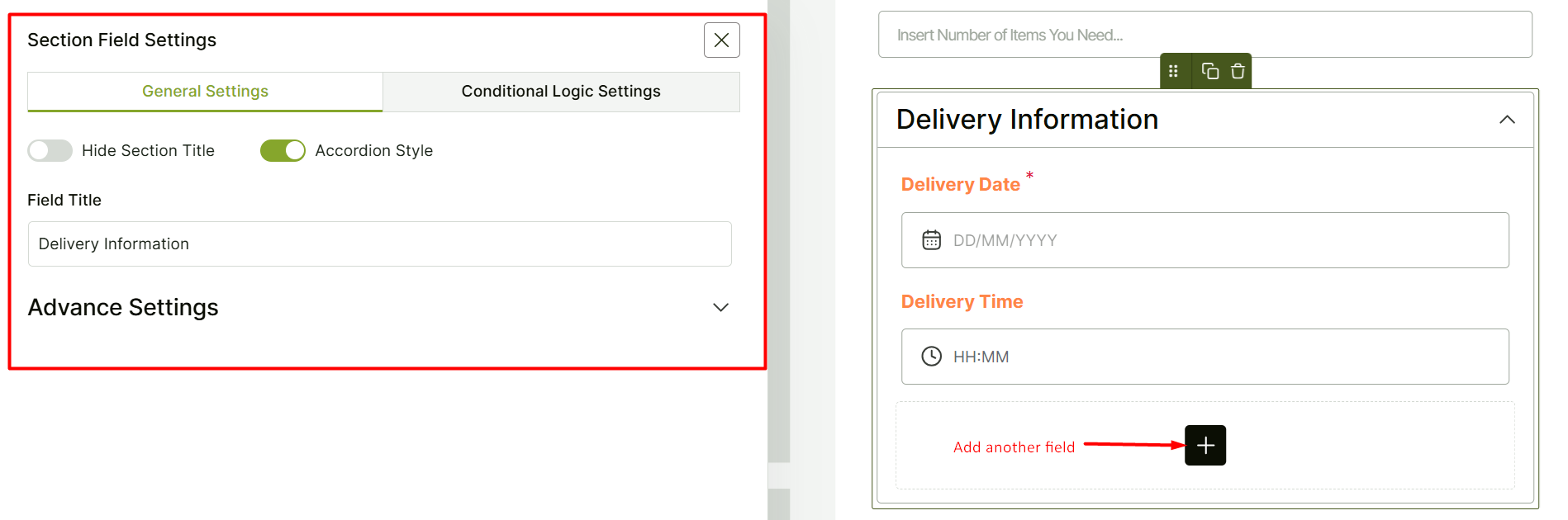
You can hide the section title if you want. And if you want to use it in accordion style, you can simply enable the accordion style toggle.
There’s simply a field title option here. The rest of it will depend on the custom addons you use within the section field.
Conditional logic and advanced settings are available for this field.
Find out about the different product fields below:
Repeater Settings
The Repeater option lets customers repeat the same fields multiple times on the product page.
For example, if your section contains these fields:
NameAgeClass
Customers can repeat the section to add:
Student 1Student 2Student 3
This helps customers submit multiple sets of information without you creating the same fields manually again and again.
When to Use Repeater
Use Repeater when customers may need to add more than one set of the same information.
| Scenario | Repeated Section Example |
|---|---|
| Event registration | Guest 1, Guest 2, Guest 3 |
| Course enrollment | Student 1, Student 2, Student 3 |
| Car service booking | Car 1, Car 2, Car 3 |
| Custom product order | Entry 1, Entry 2, Entry 3 |
| Team order | Member 1, Member 2, Member 3 |
How to Enable Repeater
To enable Repeater for a Section field:
- Open the Section field settings.
- Enable Repeatable Section.
- Choose how customers will add repeats.
- Set the repeat label.
- Set the button label if you are using the add button method.
- Set the maximum number of repeats if needed.
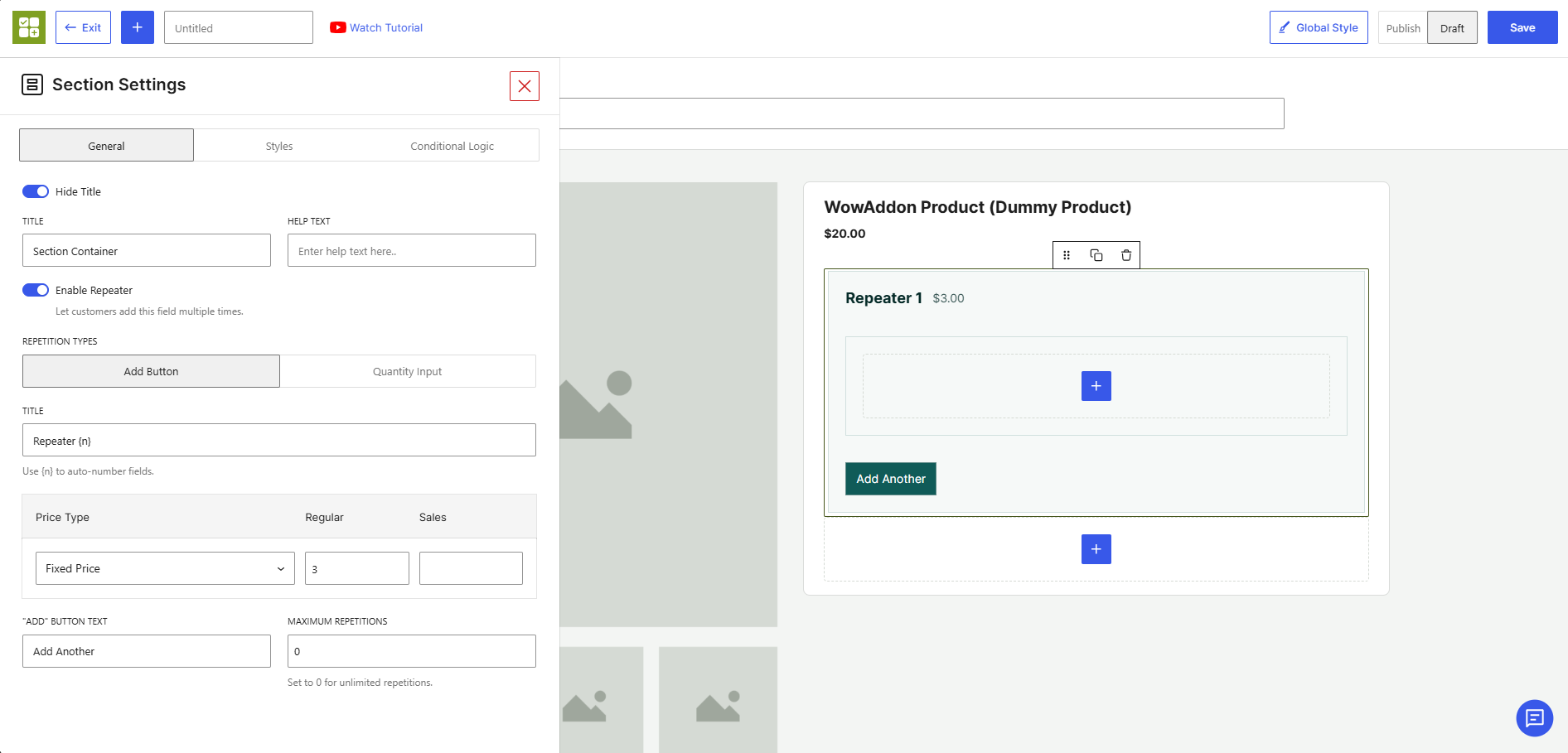
Repeatable Section
Enable this option to let customers repeat the same fields multiple times on the product page.
Repeat Using
Choose how customers will add repeated sections. You can choose one of the following options:
| Option | Description |
|---|---|
| Add Button | Customers click a button to add another repeated section. |
| Quantity Selector | Customers choose the number of repeated sections using a quantity field. |
Repeat Label
Set the label for each repeated section. You can use {n} to auto-number each repeat. Example:
| Person {n} | becomes Person 1, Person 2, Person 3 |
| Student {n} | becomes Student 1, Student 2, Student 3 |
| Car {n} | becomes Car 1, Car 2, Car 3 |
Button Label
Set the text shown on the button that customers click to add another repeat. Example:
Add AnotherAdd GuestAdd StudentAdd Car
This option is only needed when the Add Button is selected as the repeat method.
Maximum Repeats
Set the maximum number of times customers can repeat the section. For example, if you set the maximum repeats to 5 Customers can add up to five repeated sections. Use 0 if you do not want to set a limit.
Example Setup
Suppose you sell event tickets and need customer details for each attendee.
Create a Section field named: Attendee Details
Add these fields inside the section:
Attendee NameEmail AddressMeal Preference
Then enable Repeater and set:
| Setting | Value |
|---|---|
| Repeatable Section | Enabled |
| Repeat Using | Add Button |
| Repeat Label | Attendee {n} |
| Button Label | Add Attendee |
| Maximum Repeats | 0 |
On the product page, customers can add multiple attendee details without filling out a separate product form.
Advanced Settings
The Section field supports conditional logic and advanced settings.
You can use conditional logic to show or hide the section based on customer choices. For example, you can show a repeated guest information section only when the customer selects “Group Booking.”