
WowShipping includes a Debug Mode that helps troubleshoot shipping configuration issues in WooCommerce.
When enabled, Debug Mode disables caching and records detailed shipping logs and error messages. These logs can help you investigate why a shipping method is not appearing or why a shipping rule is not working as expected.
Important: While Debug Mode is enabled, WowShipping shipping methods are visible only to Administrators and Shop Managers. Disable Debug Mode after troubleshooting, especially on a live store.
When Should You Use Debug Mode?
Debug Mode can be useful when troubleshooting issues such as:
- Shipping methods not appearing
- Shipping rules not working as expected
- Conditional shipping configurations not matching
- Unexpected shipping-rate behavior
- Errors related to shipping calculations or configuration
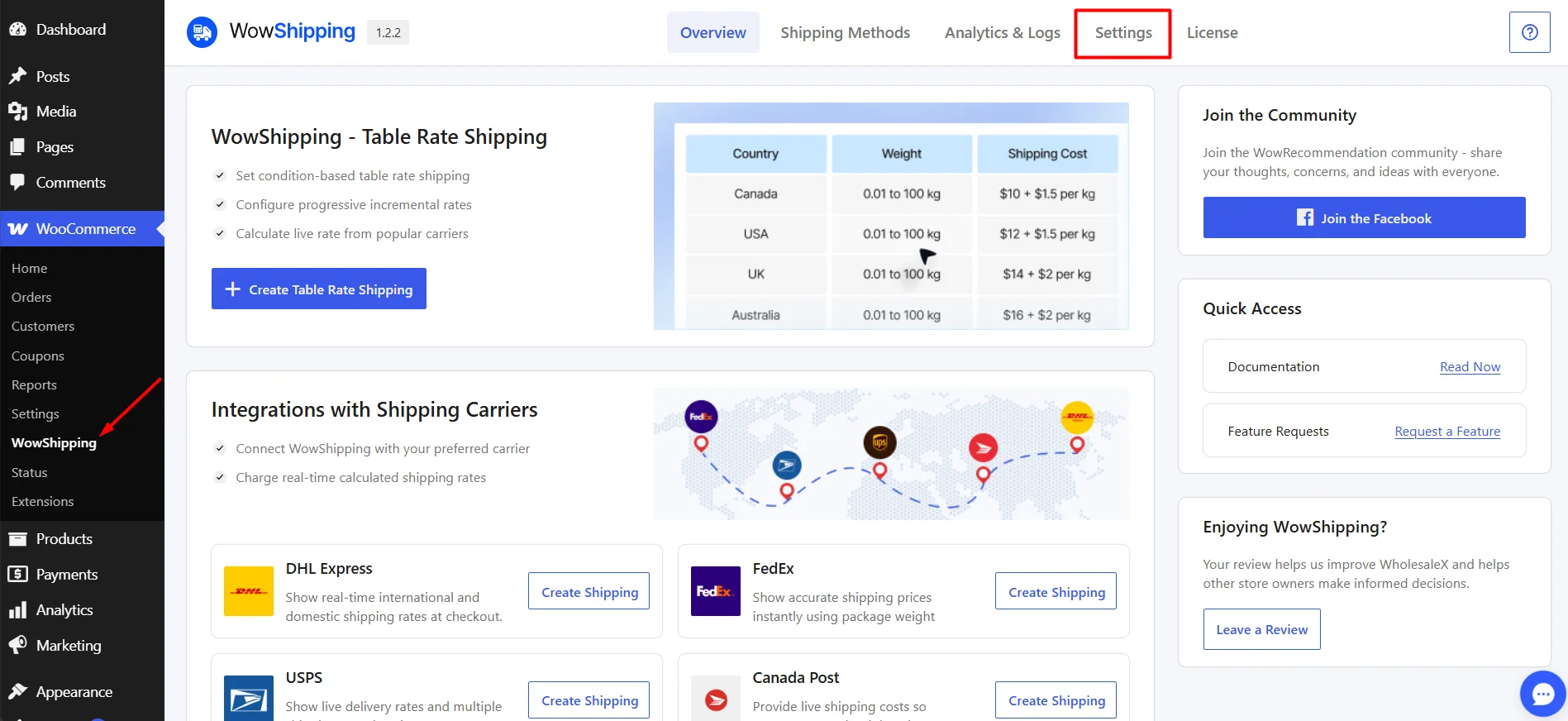
Step 1: Go to WowShipping Settings
Log in to your WordPress Admin Dashboard.
Go to: WooCommerce → WowShipping. Open the Settings tab.
Step 2: Enable Debug Mode
In the WowShipping settings, locate Debug Mode under the General Settings.
Enable Debug Mode.
Then click Save to apply the changes.
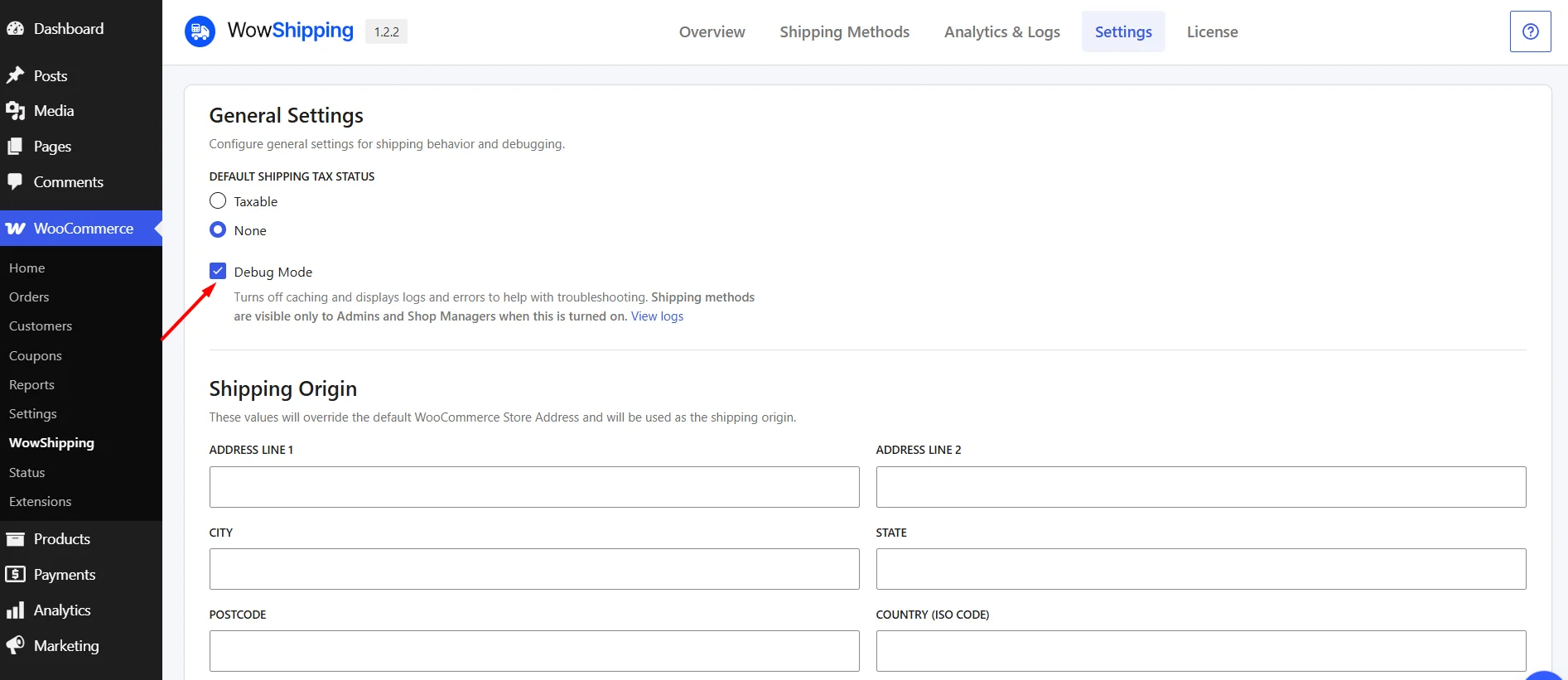
Once Debug Mode is enabled:
- WowShipping caching is disabled.
- Detailed shipping logs and error messages are recorded.
- WowShipping shipping methods are shown only to Administrators and Shop Managers.
You can now reproduce the shipping issue you want to investigate.
For example, go to the cart or checkout page and perform the action that causes the shipping method or rate issue. This gives WowShipping an opportunity to record information related to that request.
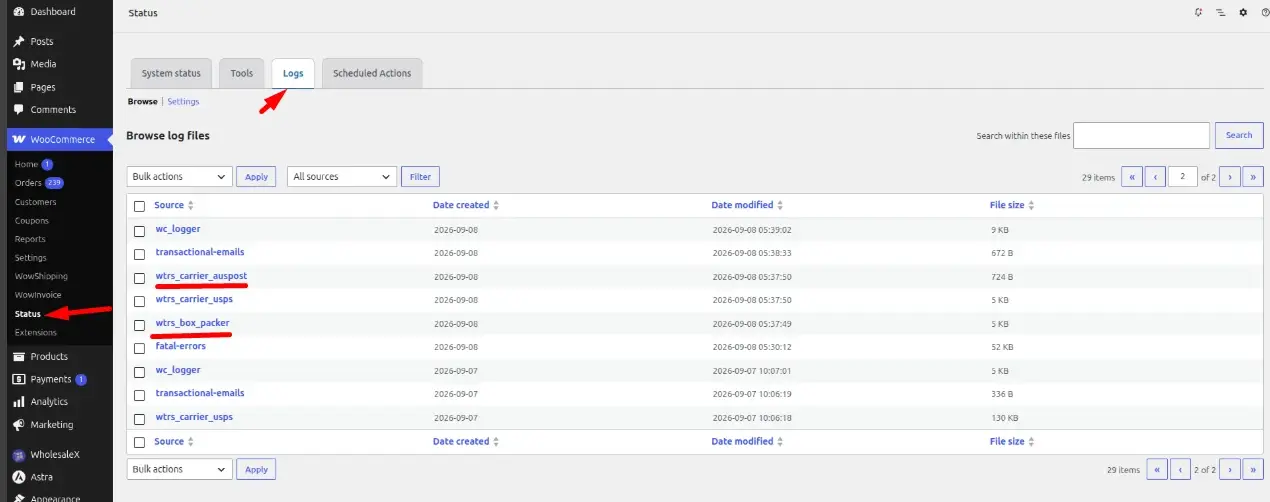
Step 3: View the Shipping Logs
To access the logs, go to: WooCommerce → Status → Logs.
Open the relevant WowShipping log from the available log entries or sources.
Review the recorded information to help identify what happened during the shipping calculation.
Depending on the issue, the logs can provide information related to shipping configuration, calculations, or errors encountered while processing the request.
Step 4: Reproduce and Review the Issue
If the relevant information is not immediately available:
- Keep Debug Mode enabled.
- Open the cart or checkout page as an Administrator or Shop Manager.
- Reproduce the shipping issue.
- Return to WooCommerce → Status → Logs.
- Open the relevant WowShipping log again and review the latest entries.
This helps ensure that the log contains information from the specific shipping request you are troubleshooting.
Step 5: Disable Debug Mode After Troubleshooting
Once you have finished troubleshooting, return to: WooCommerce → WowShipping → Settings
Disable Debug Mode and save the settings.
Keeping Debug Mode enabled is not recommended for normal operation, particularly on a live WooCommerce store, because it disables caching and limits WowShipping shipping-method visibility to Administrators and Shop Managers.