

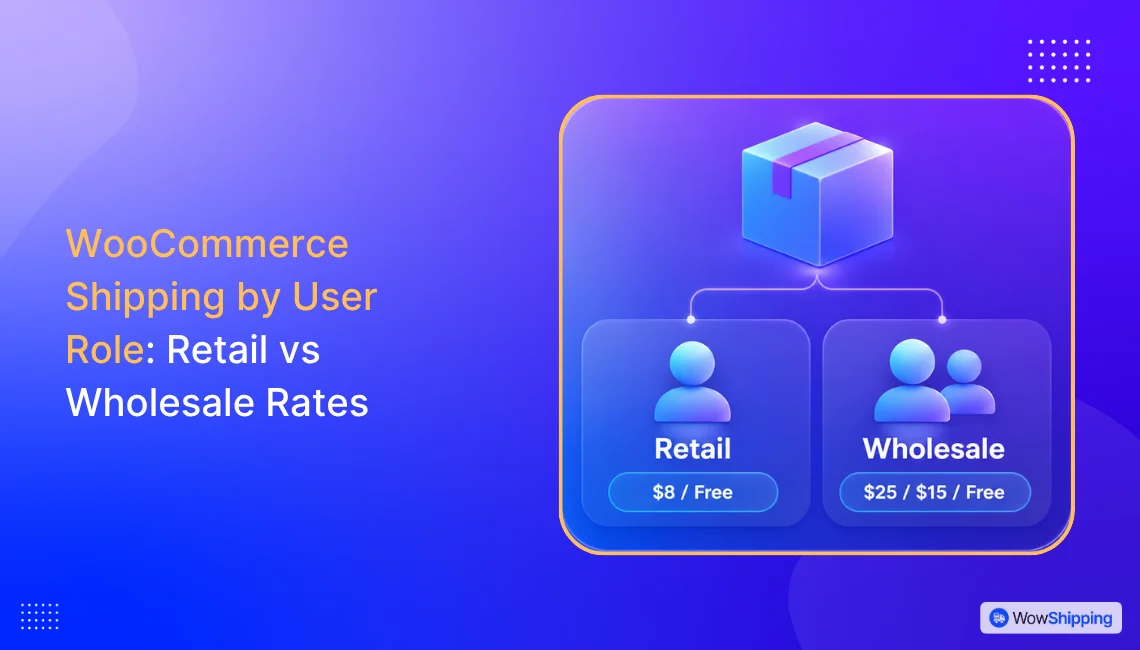
You can set WooCommerce shipping by user role by creating separate shipping rules for retail and wholesale customers. This lets each customer group see the rates, free shipping thresholds, and delivery methods that apply to them.
This setup is useful for stores that serve individual buyers and wholesale customers from the same website. The same method also works for B2B-only stores with several customer tiers.
Retail orders may be smaller and qualify for promotional free shipping. Wholesale orders may need higher thresholds, bulk delivery rates, or different shipping methods.
Default WooCommerce can handle basic shipping zones and rates, but it does not offer the full conditional setup needed for this use case. With WowShipping, you can combine user roles with cart conditions and control which methods appear at checkout.
In this guide, we will create a complete role-based shipping setup for retail and wholesale customers. We will also test the rules to make sure each group sees the correct options.
Why Retail and Wholesale Customers Need Different Shipping Rates
Retail and wholesale orders often need different shipping rules. Retail customers usually place smaller orders, while wholesale buyers may order in bulk, need extra handling, or qualify for different delivery terms.
Using one policy for both groups can lead to incorrect rates. A retail free-shipping offer may not suit a large wholesale order, while wholesale customers may expect reduced rates after reaching a higher order value.
Separate rules help you:
- Protect shipping margins
- Set different rates and thresholds
- Show only relevant delivery methods
- Manage retail and wholesale orders in the same store
How WooCommerce Shipping by User Role Works
Each logged-in customer has an assigned user role. A shipping plugin can check that role and apply the matching shipping rule.
For example, a retail customer can see standard and free shipping options. A wholesale customer can see separate bulk delivery rates. You can also combine the user role with cart value, weight, quantity, or other conditions.
A Sample Role-Based Shipping Policy
A role-based shipping policy should define three things for each customer group:
- Which shipping method they can use
- How much they need to pay
- When they qualify for free or reduced shipping
For this guide, we will use an office supply store that sells to both retail shoppers and wholesale buyers.
The store follows this example policy:
| Customer role | Cart subtotal | Shipping method | Shipping cost |
|---|---|---|---|
| Retail customer | Below $100 | Standard Retail Shipping | $8 |
| Retail customer | $100 or more | Free Retail Shipping | Free |
| Wholesale customer | Below $500 | Standard Wholesale Delivery | $25 |
| Wholesale customer | $500–$999.99 | Reduced Wholesale Delivery | $15 |
| Wholesale customer | $1,000 or more | Free Wholesale Shipping | Free |
These values are only examples. Stores operating in the real world have their own rates that suit them.
What You Need Before Setting Up Role-Based Shipping
WooCommerce includes basic methods such as Flat Rate, Free Shipping, and Local Pickup. These work when all customers follow the same shipping policy.
For this use case, the store must check both the customer role and cart subtotal. It must also keep retail and wholesale methods separate. We will use WowShipping to handle those conditions.
Before starting, prepare the following.
Retail and Wholesale User Roles
Each customer group needs its own WordPress user role.
Retail shoppers can use the default Customer role. Wholesale buyers need a custom role, such as Wholesale Customer or B2B Regular.
WowShipping uses existing roles as shipping conditions. It does not create or assign them. You can use a wholesale plugin like WholesaleX or a user-role plugin for that.
A Defined Shipping Zone
Create or select the WooCommerce shipping zone where these rates will apply.
For this example, both retail and wholesale methods will use the same domestic zone.
Defined Rates and Thresholds
Decide the following before opening the plugin settings:
- Standard shipping cost
- Cart subtotal ranges
- Free-shipping threshold
- Methods each role should see
Make sure the ranges do not overlap or leave gaps. For example, one rule can end at $499.99 and the next can start at $500.
Step 1: Set Shipping Rates for Retail Customers
First, create one shipping method for regular retail customers.
This method will contain two rate tiers:
- A standard flat rate for orders below $100
- Free shipping when the cart subtotal reaches $100
The values used here are examples. You can replace them with the rates and minimum order amount that fit your store.
Learn: The difference between flat rate and free shipping.
1.1 Create Standard Retail Shipping
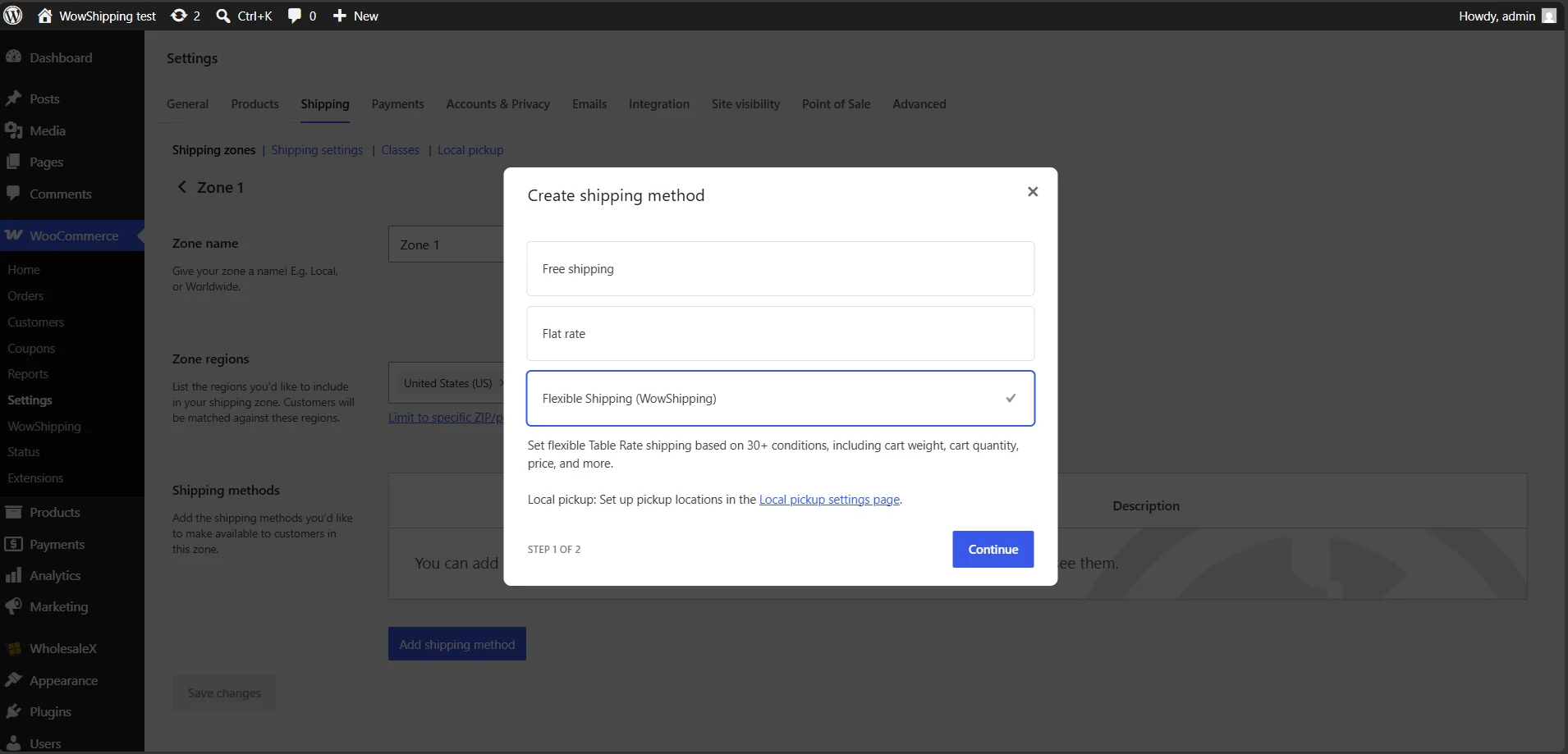
Go to WooCommerce → Settings → Shipping → Shipping Zones
Open the shipping zone where you want to offer the retail rates. Then click Add shipping method and select Flexible Shipping (WowShipping).
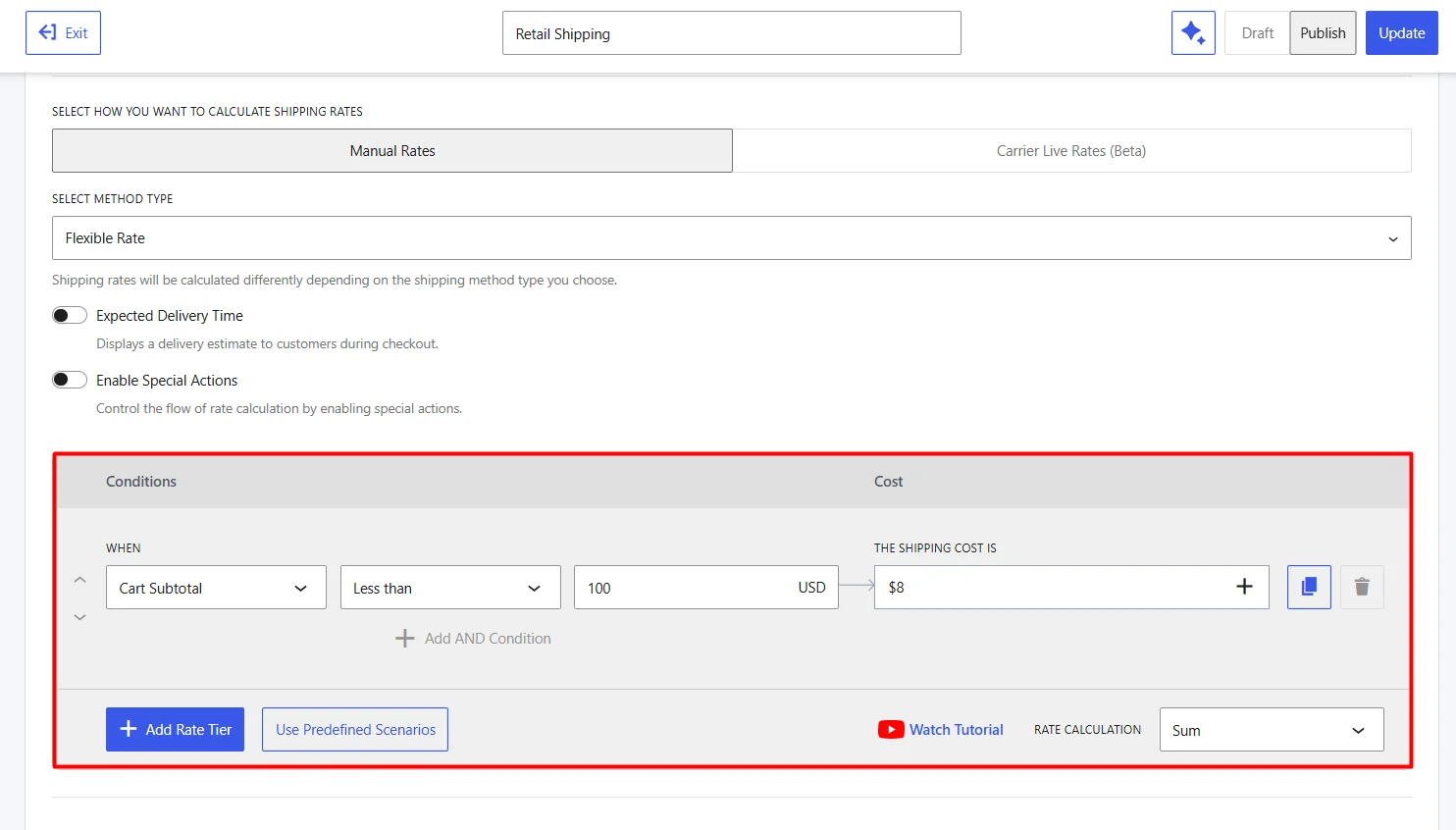
Open the new method and choose Manual Rates. Select Flexible Rate as the method type.
Give the method a clear title, such as: Retail Shipping
For the first rate tier, use these settings:
| Setting | Value |
|---|---|
| Condition | Cart Subtotal |
| Operator | Less Than |
| Value | $100 |
| Cost Type | Fixed Rate |
| Shipping Cost | $8 |
This creates a standard $8 shipping charge for retail orders below $100.
1.2 Offer Free Shipping When the Retail Threshold is Met
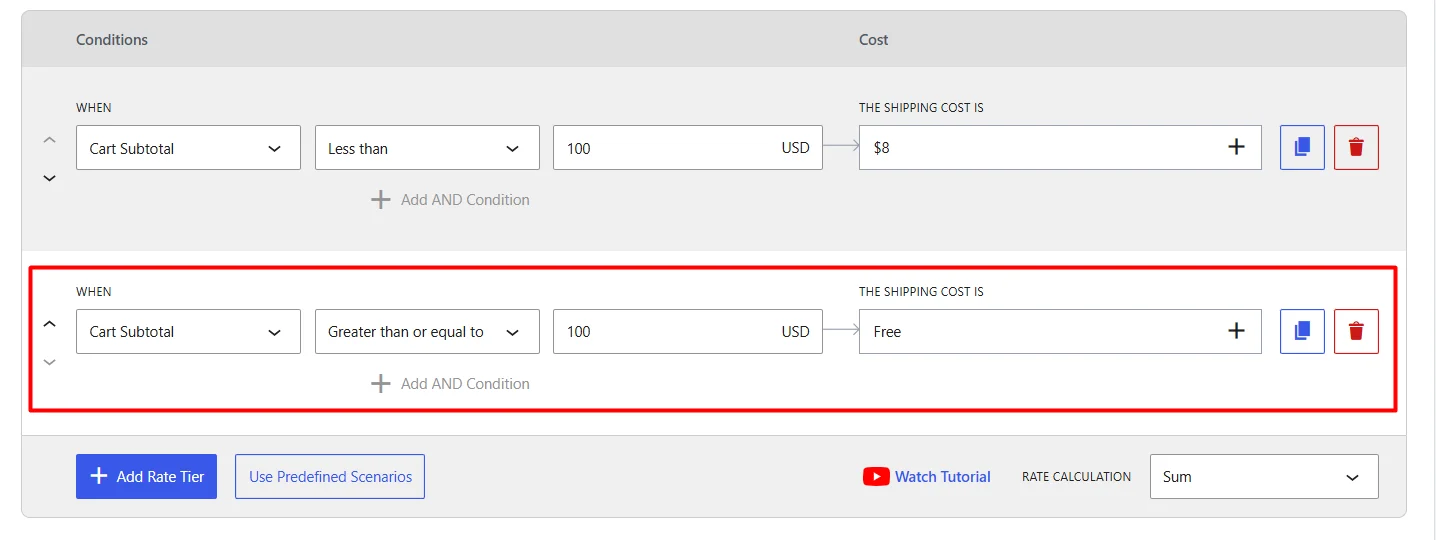
You do not need to create a separate shipping method for free shipping. Add another rate tier inside the same Retail Shipping method.
Click Add Rate Tier and use these settings:
| Setting | Value |
|---|---|
| Condition | Cart Subtotal |
| Operator | Greater Than or Equal To |
| Value | $100 |
| Cost Type | Fixed Rate |
| Shipping Cost | $0 |
Now retail customers will receive free shipping when their cart subtotal reaches $100.
WowShipping checks the cart subtotal before coupon discounts. For example, a cart with a $105 subtotal will qualify for free shipping even if a coupon later reduces the payable amount below $100.
1.3 Limit the Method to Retail Customers
Next, enable Advanced Display Rules for the retail shipping method.
Add the following rule:
| Setting | Value |
|---|---|
| Condition | User Role |
| Operator | Equals |
| Value | B2C User |
This ensures that only logged-in customers with the standard B2C User role can see the retail shipping method.
Publish & save the method when the setup is complete.
The final result will be:
- Retail orders below $100 receive the $8 flat rate.
- Retail orders of $100 or more receive free shipping.
- Wholesale and guest users do not see this retail method.
Learn: How to set up shipping rates in WooCommerce.
Step 2: Set Different Shipping Rates for Wholesale Customers
Now create a separate shipping method for wholesale customers.
This method will contain three rate tiers:
- A standard delivery rate for orders below $500
- A reduced rate for orders between $500 and $999.99
- Free shipping for orders of $1,000 or more
The rates below are examples. Replace them with the values that match your wholesale policy.
2.1 Create the Standard Wholesale Delivery Rate
Go to WooCommerce → Settings → Shipping → Shipping Zones
Open the same shipping zone used for retail customers. Add another Flexible Shipping (WowShipping) method.
Open the method and select:
- Manual Rates
- Flexible Rate
Name the method something clear, such as Wholesale Shipping
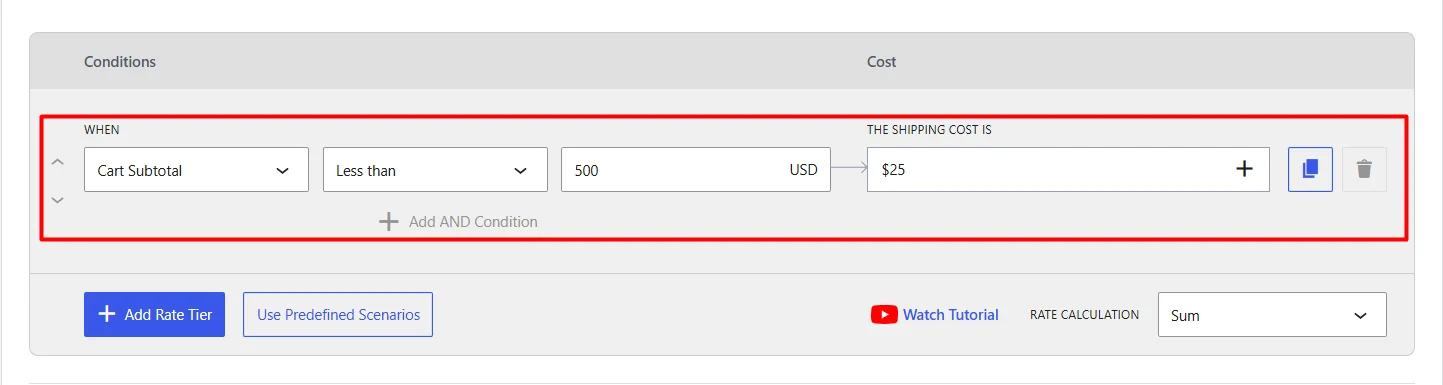
For the first rate tier, use these settings:
| Setting | Value |
|---|---|
| Condition | Cart Subtotal |
| Operator | Less Than |
| Value | $500 |
| Cost Type | Fixed Rate |
| Shipping Cost | $25 |
This applies a $25 shipping charge to wholesale orders below $500.
2.2 Create a Reduced Rate for Larger Wholesale Orders
Click Add Rate Tier inside the same wholesale shipping method.
Use these settings:
| Setting | Value |
|---|---|
| Condition | Cart Subtotal |
| Operator | Between |
| Minimum Value | $500 |
| Maximum Value | $999.99 |
| Cost Type | Fixed Rate |
| Shipping Cost | $15 |
Wholesale customers will now receive a reduced $15 rate when their cart subtotal falls within this range.
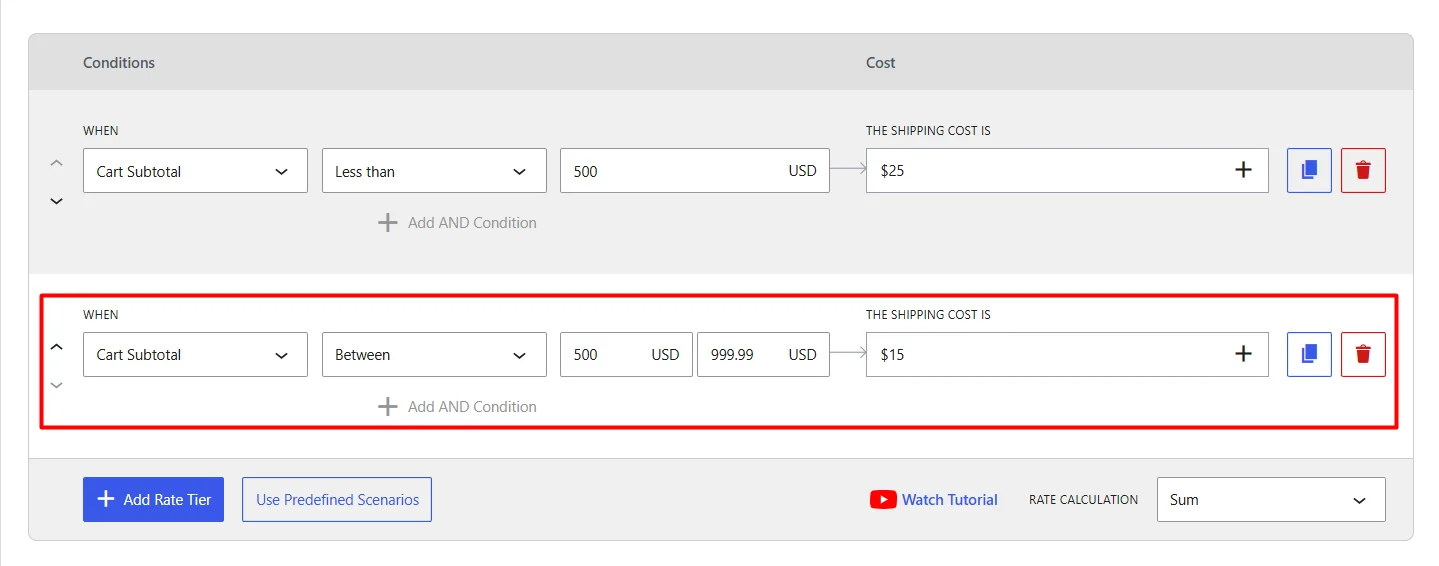
Make sure the tiers do not overlap. This prevents more than one rate from matching the same order.
Learn: How to add multiple classes in a shipping rule.
2.3 Offer Free Shipping to High-Value Wholesale Orders
Add one more rate tier.
Use these settings:
| Setting | Value |
|---|---|
| Condition | Cart Subtotal |
| Operator | Greater Than or Equal To |
| Value | $1,000 |
| Cost Type | Fixed Rate |
| Shipping Cost | $0 |
This gives wholesale customers free shipping when the cart subtotal reaches $1,000.
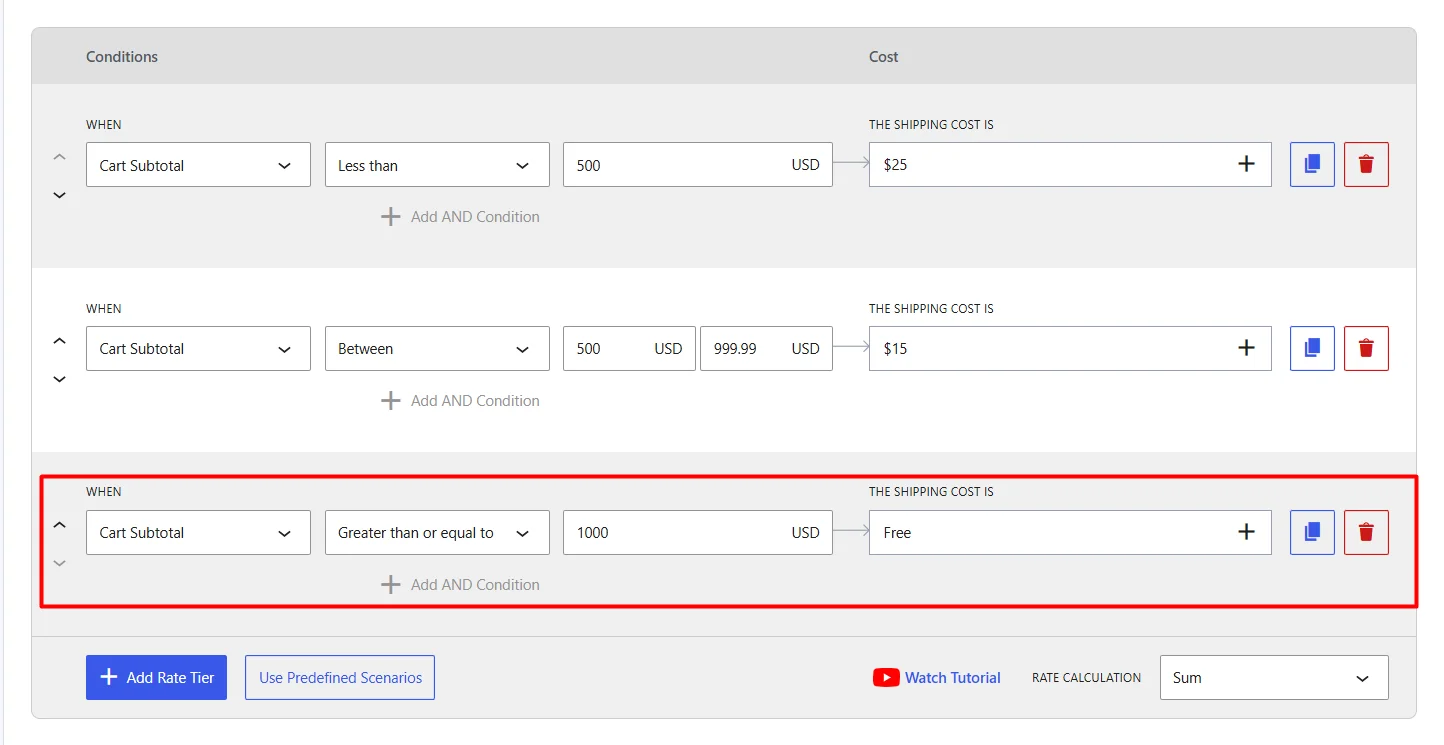
WowShipping checks the subtotal before coupon discounts when matching these tiers.
2.4 Limit the Method to Wholesale Customers
Enable Advanced Display Rules for the wholesale shipping method.
Add this rule:
| Setting | Value |
|---|---|
| Condition | User Role |
| Operator | Equals |
| Value | Your wholesale role |
Choose the wholesale role used on your store, such as Wholesale, B2B Regular, or another custom role.
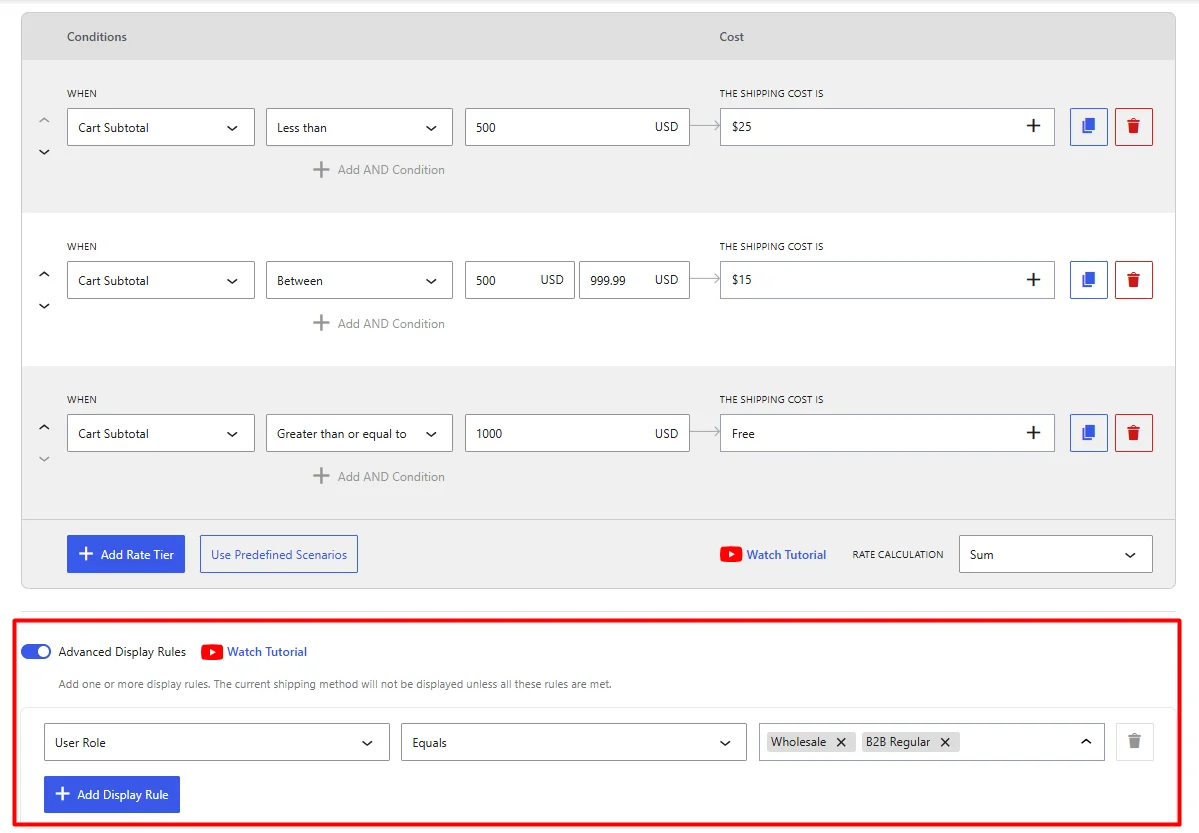
Publish & save the method after adding the rules.
The final result will be:
- Wholesale orders below $500 receive the $25 rate.
- Orders between $500 and $999.99 receive the $15 rate.
- Orders of $1,000 or more receive free shipping.
- Retail and guest users do not see the wholesale method.
Learn: How to set international shipping rates with live carriers.
Step 3: Test the Retail and Wholesale Shipping Rules
After saving the methods, test each customer role before using the setup on a live store.
Make sure you are logged in and assigned to the correct role. Then add products to the cart and change the subtotal to test each rate tier.
Use the following test cases:
| Customer type | Cart subtotal | Expected result |
| Retail customer | Below $100 | $8 Retail Shipping |
| Retail customer | $100 or more | Free Retail Shipping |
| Wholesale customer | Below $500 | $25 Wholesale Shipping |
| Wholesale customer | $500–$999.99 | $15 Wholesale Shipping |
| Wholesale customer | $1,000 or more | Free Wholesale Shipping |
| Guest customer | Any amount | No role-based shipping method |
3.1 Test the Retail Shipping Rules
Log in as a customer assigned to the standard B2C User role.
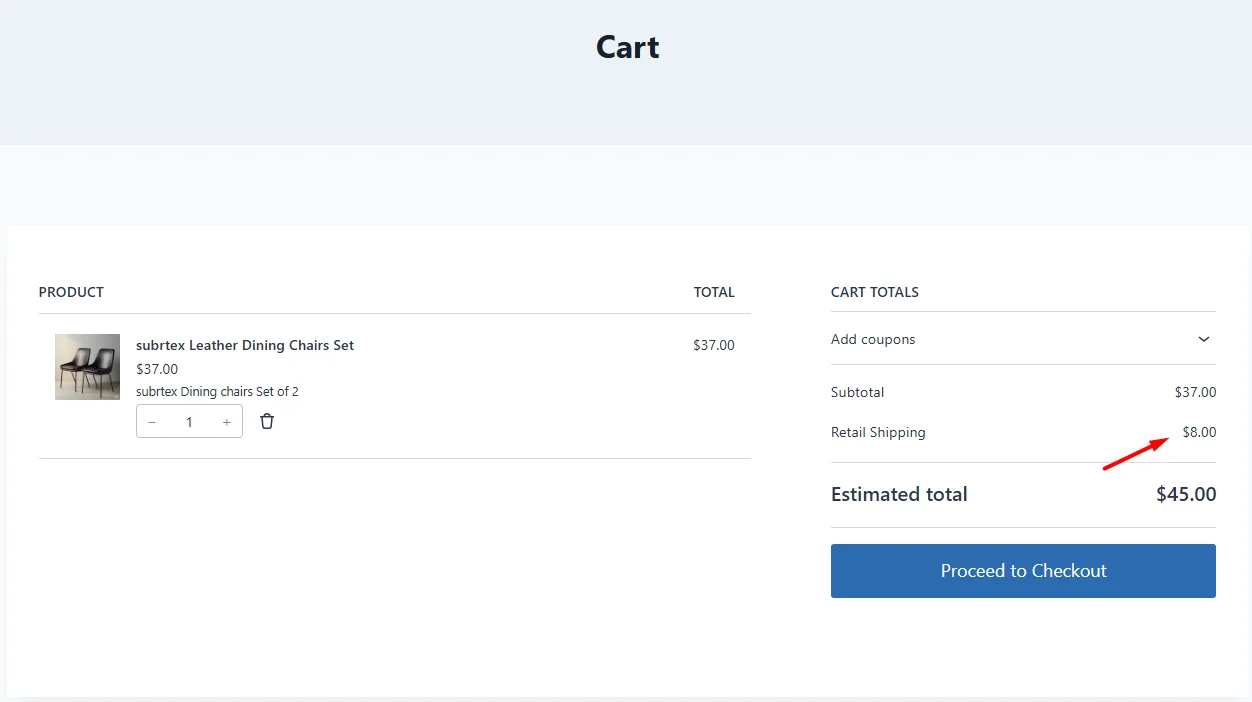
First, keep the cart subtotal below $100. The checkout should show the $8 retail rate.
Next, increase the subtotal to $100 or more. The same retail method should now show free shipping.
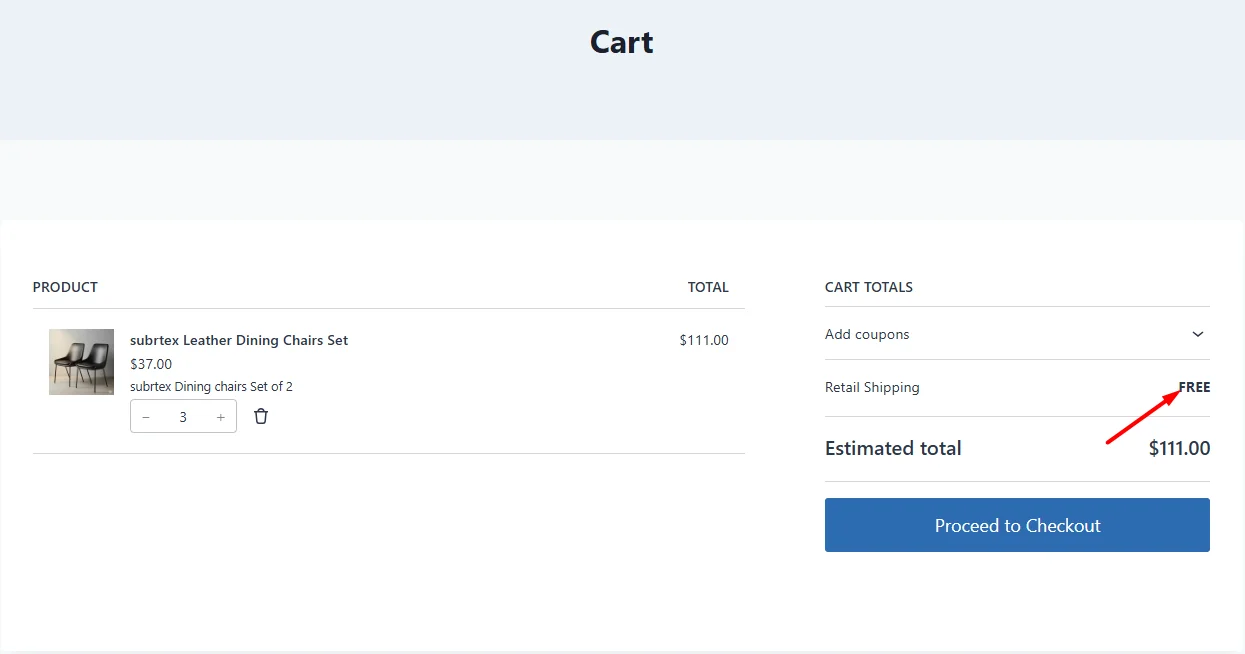
The wholesale method should not appear in either test.
3.2 Test the Wholesale Shipping Rules
Log out and sign in as a customer assigned to your wholesale role.
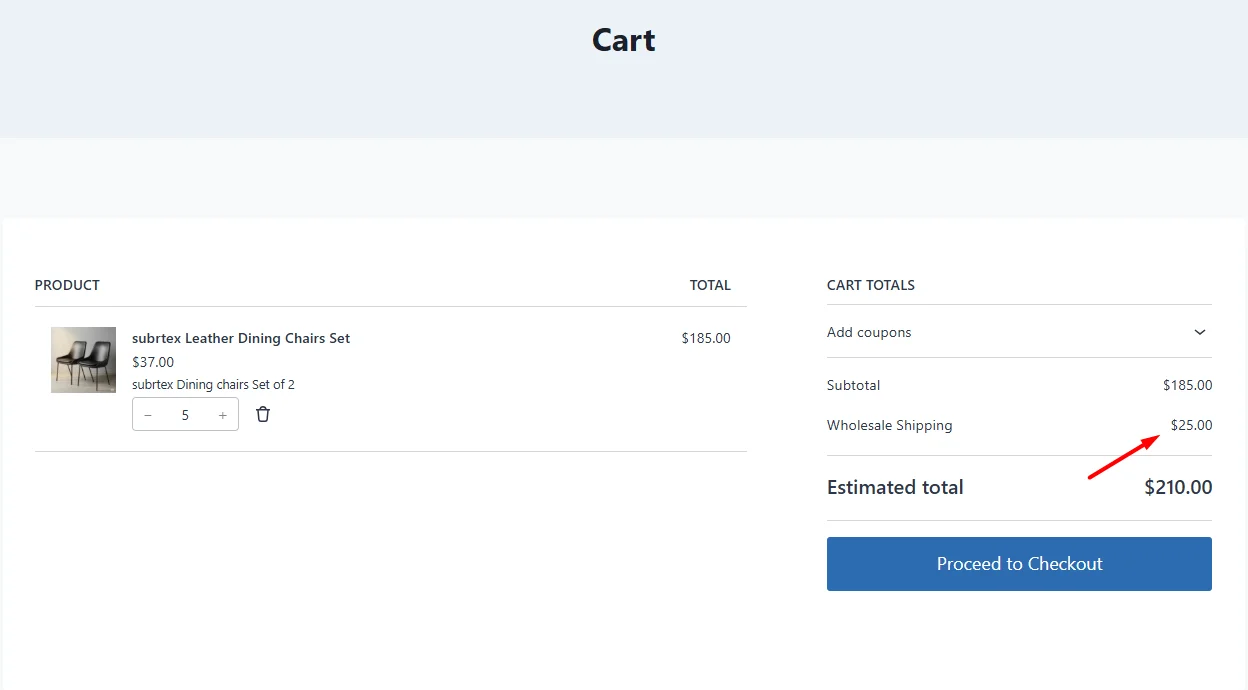
Test an order below $500. The checkout should show the $25 wholesale rate.
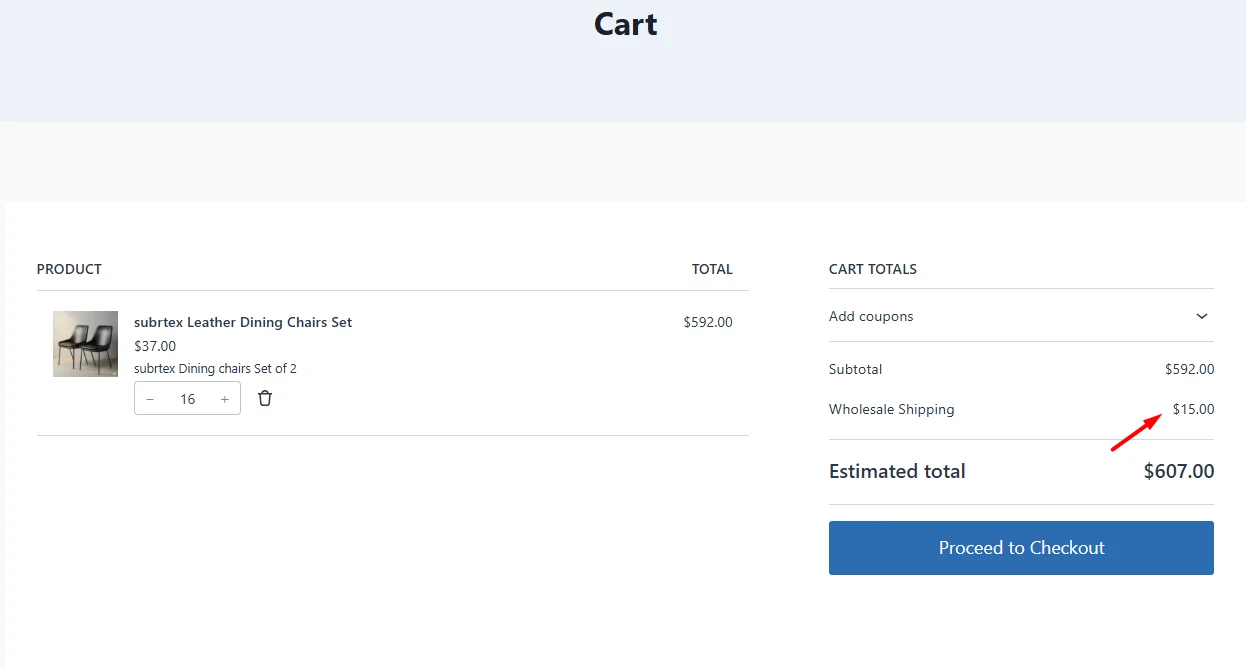
Then test a subtotal between $500 and $999.99. The rate should change to $15.
Finally, increase the subtotal to $1,000 or more. The customer should receive free wholesale shipping.
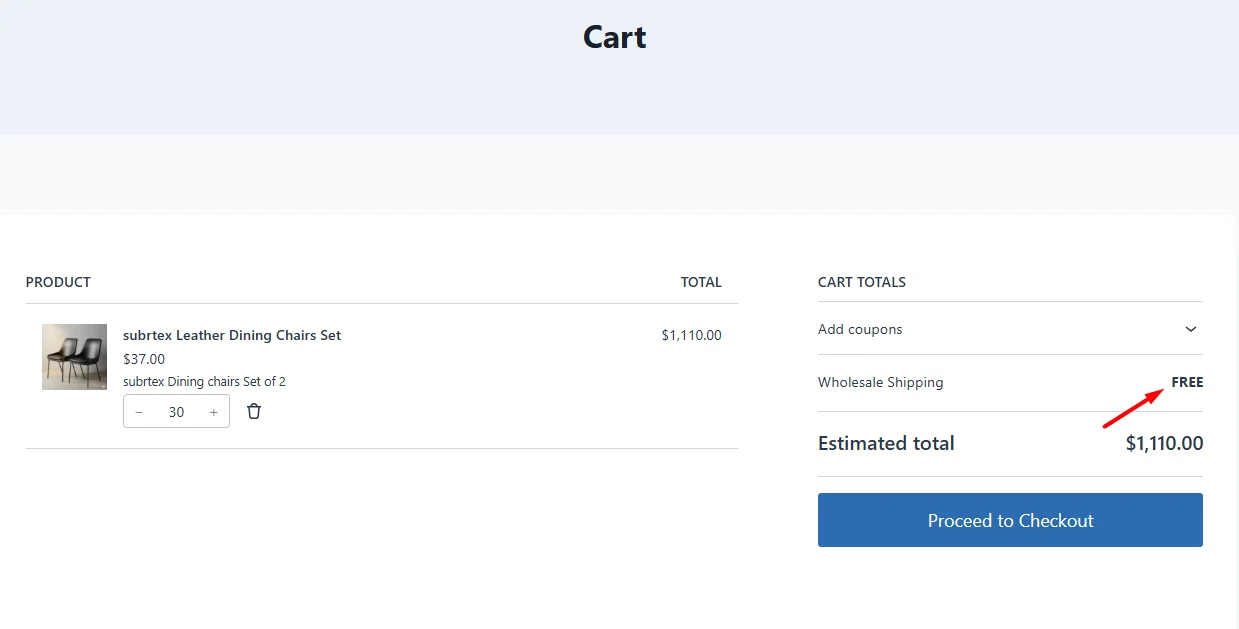
The retail method should remain hidden throughout these tests.
Learn: How to set shipping rates for Furniture stores.
Practical Role-Based Shipping Use Cases
The retail and wholesale setup used in this guide is only one way to use customer roles. The following examples show how different stores can combine user roles with cart, product, weight, and location conditions.
How Can a Food and Beverage Store Set Different Rates for Retailers and Restaurants?
A food and beverage supplier sells individual products to retail customers and bulk cartons to restaurants.
The store wants to offer:
- $10 standard shipping for retail customers
- $30 delivery for restaurant orders below $500
- $15 delivery for restaurant orders from $500 to $999.99
- Free shipping for restaurant orders of $1,000 or more
- A separate method for chilled products
How WowShipping can handle it:
The store can create separate methods for the Retail Customer and Restaurant Buyer roles. Cart subtotal tiers can control the delivery cost for each group.
For chilled products, the store can combine the restaurant role with a product category or shipping class condition. Advanced Display Rules can hide the normal method when the cart requires chilled delivery.
How Can an Electronics Store Offer Different Shipping to Retail Buyers and Resellers?
An electronics store sells laptops, accessories, and computer parts to individual customers and approved resellers.
The store wants to offer:
- Standard parcel shipping for retail customers
- A reduced rate for approved resellers
- Free shipping for reseller orders above $2,000
- A separate insured delivery method for high-value products
- Higher rates for heavy equipment
How WowShipping can handle it:
The store can restrict reseller methods to the Reseller role and add subtotal tiers for standard, reduced, and free shipping.
It can also combine the user role with product category, cart weight, or selected products. For example, server equipment can trigger a higher rate, while an insured method can appear only when the cart contains high-value electronics.
How Can a Packing Box Supplier Charge Wholesale Customers by Quantity?
A packaging supplier sells boxes, labels, and packing materials to small retailers and large wholesale buyers.
The supplier wants to charge wholesale customers:
- $15 for orders of up to 50 items
- $30 for orders from 51 to 200 items
- $50 for orders from 201 to 500 items
- Free shipping for more than 500 items
Retail customers should continue using the standard retail shipping method.
How WowShipping can handle it:
The supplier can create a method restricted to the Wholesale Customer role. Inside that method, cart quantity tiers can apply the correct shipping cost.
The retail method remains limited to the retail role, so regular shoppers do not see the wholesale quantity-based rates.
How Can a Membership Store Offer Shipping Benefits by Membership Level?
A membership store has Standard, Premium, and VIP customer roles. Each level includes different shipping benefits.
The store wants to offer:
- $8 shipping for Standard members
- Free shipping above $100 for Premium members
- Free shipping on every order for VIP members
- An express delivery option available only to VIP members
How WowShipping can handle it:
The store can create separate methods for each membership role. The Premium method can use a cart subtotal threshold, while the VIP method can use a zero fixed rate for every eligible order.
Advanced Display Rules can restrict the express method to VIP members. Standard and Premium customers will not see it at checkout.
These examples follow the same process used in the main setup: select the customer role, add the required conditions, define the rate, and control which methods appear.
Learn: The possible shipping use case scenarios with WowShipping
Common Role-Based Shipping Mistakes to Avoid
Before using the rules on a live store, check these common issues:
- Leaving gaps between thresholds: Avoid ranges such as “up to $500” and “from $501.” A subtotal like $500.50 may not match either rule.
- Creating overlapping tiers: Do not let two rules include the same value. Each subtotal should match only one rate tier.
- Selecting the wrong user role: Make sure retail and wholesale customers have the roles used in the display rules.
- Forgetting the user role condition: Subtotal tiers set the price, but the Advanced Display Rule controls who can see the method.
- Using the wrong shipping zone: The customer’s address must match the zone where the method is added.
- Ignoring guest users: Guests will not match the retail or wholesale roles in this setup. Add a separate guest method when needed.
- Misreading the subtotal value: WowShipping checks the cart subtotal before coupon discounts. Set the thresholds with this behavior in mind.
WowShipping manages the shipping logic in this setup. It can apply rates by user role, create subtotal-based tiers, offer different free-shipping thresholds, and control which methods appear at checkout.
However, it does not create wholesale roles, assign customers to those roles, or manage wholesale pricing and account rules. For those tasks, you need a wholesale or user-role plugin, such as WholesaleX, while WowShipping uses the assigned roles to manage shipping.
Frequently Asked Questions
Can I set different WooCommerce shipping rates for wholesale customers?
Yes. You can create a separate WowShipping method for wholesale users and restrict it to a specific wholesale role. You can then add different rate tiers based on cart subtotal, weight, quantity, or other conditions.
Can wholesale customers have a separate free-shipping threshold?
Yes. You can set a higher or lower free-shipping threshold for wholesale users. For example, retail customers may receive free shipping at $100, while wholesale customers qualify at $1,000.
What happens when a customer is not logged in?
A guest customer does not match the retail or wholesale user roles used in this setup. As a result, they will not see either role-based shipping method. Create a separate guest shipping method if your store allows guest checkout.
Does WowShipping create wholesale user roles?
No. WowShipping uses existing WordPress user roles as shipping conditions. You need a wholesale plugin, user-role plugin, or custom code to create and assign wholesale roles first.
Can I combine user roles with cart subtotal, weight, or quantity?
Yes. WowShipping can combine a user role with other conditions. For example, you can create shipping rules for wholesale customers based on Cart subtotal, Cart weight, Cart quantity, Product or category, and shipping destination.
Can I create different shipping rates for several wholesale tiers?
Yes. Create a separate shipping method for each wholesale role, such as Regular Wholesale, Premium Wholesale, or Distributor. Each role can have its own shipping rates, subtotal tiers, and free-shipping threshold.
Automate Your Role-Based Shipping Efficiently with WowShipping
Managing retail and wholesale shipping manually can become difficult as your rules grow. WowShipping lets you create role-based methods, set different rate tiers, and control which options appear at checkout.
Once the rules are configured, WowShipping checks the customer role and cart conditions automatically. It then applies the correct shipping rate for that order.
You can start with the retail and wholesale setup used in this guide, then adjust the roles, thresholds, and conditions to match your store.