

TL;DR: WooCommerce International Shipping helps stores sell globally using shipping zones, international rates, taxes, and customs rules. Most stores should start with simple country-based shipping rates, then add live carrier pricing and automation as international orders grow.
International shipping in WooCommerce gets complicated fast. Every country changes the cost, tax, customs process, and delivery promise.
The good news is WooCommerce gives you the core tools to handle this properly. You can create shipping zones by country or region, assign flat rate or carrier-calculated methods, and set rules around weight, product class, and destination.
The key is being deliberate about it: decide where you will ship, how you will price it, what documents are required, and how those costs appear to customers before they pay.
This guide walks you through the full setup, from zones and methods to taxes, customs, and the common mistakes that quietly hurt margins.
What Is WooCommerce International Shipping?
WooCommerce international shipping is the ability to sell and ship physical products to customers outside your home country. Out of the box, WooCommerce lets you define where you ship, what you charge, and which methods appear at checkout.
That’s the simple part. Once a package crosses a border, you are also dealing with customs declarations, import duties, VAT or GST, carrier restrictions, and delivery timelines that are harder to guarantee. None of that is automatic, and in many cases, you will need a plugin to handle it properly.
The reason it matters is straightforward.
- Misconfigured zones mean you might charge a customer in Germany the same rate as someone in the next city.
- Missing tax rules create compliance problems.
- You might promise a delivery window that your carrier cannot meet.
These are the kinds of mistakes that cost money and damage trust.
Why International Shipping Is Important for WooCommerce Businesses
International shipping gives your WooCommerce store access to customers who are already looking for what you sell, just not in your local market. For niche, branded, or high-margin products, that difference in reach can be significant.
☑️ Reach customers outside your local market
If people in other countries already search for your products, follow your brand on social media, or ask whether you ship to their location, global shipping can turn that demand into real orders.
This matters most for stores selling niche products. A local market may be too small for specialty items, but the global market can include thousands of customers looking for that exact product.
☑️ Increase revenue without creating new products
Expanding shipping regions can increase sales without changing your product catalog. Instead of launching a new product line, you can sell existing products to more countries.
This works best when the product has enough margin to absorb international shipping costs, packaging, carrier fees, customs handling, and possible returns.
☑️ Build a more serious e-commerce brand
Customers often see international shipping as a sign that a store is established, trusted, and ready to serve a wider audience. Even if a customer does not order from another country, seeing clear shipping zones, delivery estimates, and country options can make the store feel more professional.
☑️ Serve demand from social media, SEO, and marketplaces
Many WooCommerce businesses now get traffic from global channels: Google, TikTok, Instagram, YouTube, Pinterest, affiliate blogs, and international communities. If your content reaches buyers in other countries but your checkout does not support them, you lose that demand at the final step.
International shipping is especially useful for brands with strong content marketing or personal branding.
☑️ Learn which countries are worth investing in
International shipping also gives store owners useful market data. You can start with a few countries, monitor orders, track abandoned carts, and see where demand is strongest.
For example, if customers from Canada and Australia regularly reach checkout, those countries may deserve dedicated shipping zones, better carrier rates, country-specific landing pages, or localized delivery information.
Setting Up an International Shipping Strategy for Your WooCommerce Store
International shipping should be treated as a business strategy, not a WooCommerce setting you turn on once and forget. The goal is to ship to the right countries, price orders correctly, avoid customs problems, protect your margins, and give customers a clear buying experience.
Here is how I approached it, broken into seven decisions I had to make before I opened global checkout.
01 – Decide which countries to ship to first
Do not start by shipping worldwide. Start with countries where the numbers make sense.
Look at your store analytics, abandoned carts, and social traffic to find countries where demand already exists. Then weigh that against shipping cost, delivery reliability, and customs complexity.
If customers from Canada are already visiting product pages or asking about delivery, those countries should move higher on your list. For WooCommerce stores, the safest approach is to create shipping zones in phases:
• Phase 1: Nearby or low-risk countries
• Phase 2: Countries with proven demand from traffic or customer requests
• Phase 3: Higher-complexity regions after you understand cost, duties, returns, and support needs
02 – Check prohibited and restricted products
Before you sell internationally, confirm whether your products can legally enter each destination country. This is not optional. A product that is normal in your home country may be restricted, delayed, returned, destroyed, or fined in another market.
This affects many WooCommerce categories:
• Beauty products may contain alcohol or aerosols
• Supplements may face ingredient restrictions
• Electronics may include lithium batteries and more
The strategy here is simple: check restrictions before creating the shipping zone.
03 – Measure product weight and dimensions accurately
International shipping is often priced by the space a package takes, not only by how much it weighs.
This is why a lightweight but bulky product can be expensive to ship internationally. A hoodie or pillow may weigh very little, but the carrier can rate it like a heavier shipment. For WooCommerce, this means your product data needs to be accurate:
• Product weight
• Product length, width, height
• Shipping class and Packaging size, etc
Do not guess these numbers. Measure the final packed product, not just the product itself.
04 – Choose packaging based on cost, protection, and customs handling
The cheapest package is not always the best one. The right packaging protects the product while keeping the dimensional weight as low as possible. Oversized boxes inflate shipping costs. Weak packaging leads to damage claims. Branded packaging improves experience but adds size and weight.
For international orders, packaging should be tested against four criteria:
• Can the product survive longer transit times?
• Can the package handle multiple sorting centers?
• Is the box small enough to avoid unnecessary dimensional weight charges?
• Can the customs label and documents be attached clearly?
A practical approach is to define packaging by product type. Small accessories can go in padded mailers. Premium items need rigid boxes. Fragile products need double-wall cartons or internal inserts.
05 – Understand duties, taxes, and customs before checkout
Duties and taxes are one of the biggest reasons international shipping creates customer frustration.
Before taking international orders, know whether the destination charges import duty, whether VAT or GST applies, whether your products need HS codes, and whether customs documents require a declared value and country of origin.
For smaller stores, start with transparency. If you cannot calculate duties at checkout yet, state clearly that customers may be responsible for import fees. As volume grows, tools like Zonos or Avalara can calculate duties upfront so customers see the full cost before they pay.
06 – Create a clear shipping policy
Your international shipping policy should answer the questions customers have before they buy, not read like legal filler. Baymard found that 21% of shoppers abandon checkout because delivery is too slow, and 15% leave because the return policy is unclear. A clear policy reduces both.
Cover the essentials: countries you ship to, estimated delivery times by region, processing time, tracking availability, who pays duties and taxes, and what happens with lost, damaged, or refused packages.
07 – Decide who pays duties: customer or store
This is one of the most important decisions in international shipping, and it needs to be made before you take your first order.
When the customer pays duties at delivery, the merchant’s setup is simpler, but the risk of surprise charges is higher. When the store collects duties upfront, the customer sees the full cost before paying, which reduces refusals and builds trust.
For premium products, collecting duties upfront is worth the added complexity. For stores testing a new market, making customers responsible is acceptable as a starting point, but the policy must be stated clearly before checkout, not hidden in a FAQ.
How to Set Up WooCommerce International Shipping Step by Step
Before touching any shipping settings, make sure your store location is accurate, and you have a clear picture of where you want to sell. Everything in WooCommerce shipping flows from these two decisions.
Step 1 – Configure Store Location and Selling Locations
Go to WooCommerce > Settings > General. The first thing to confirm is your store’s base location, the country, and the state your business operates in. WooCommerce uses this to calculate taxes and set default shipping behavior.
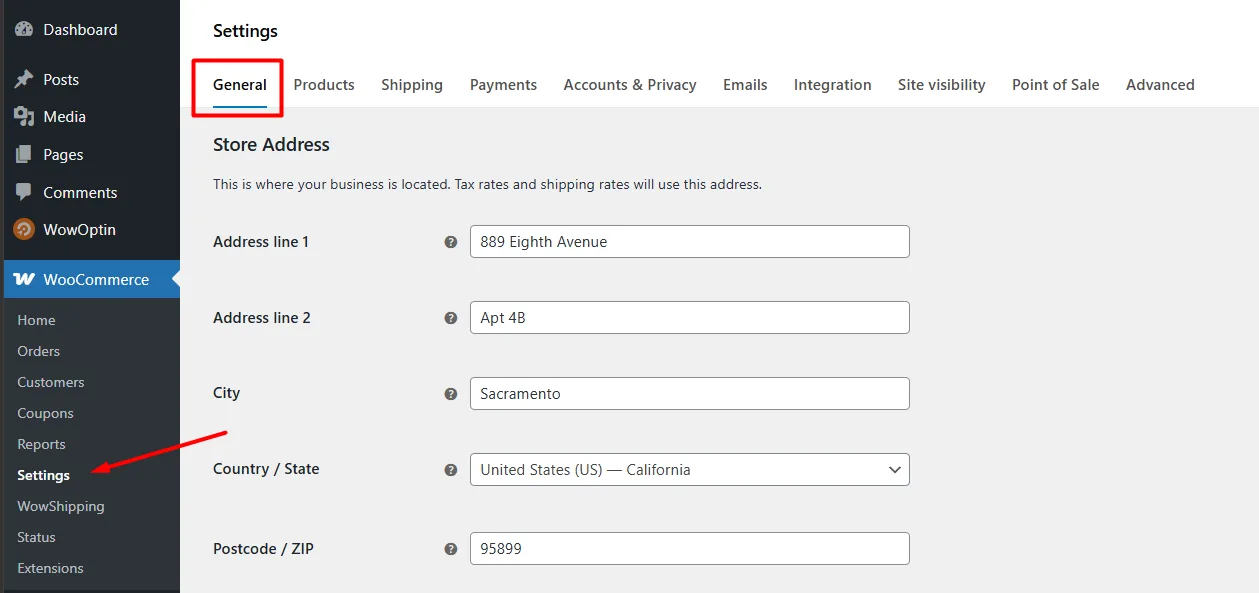
Below that, you will find the Selling Locations and Shipping Locations settings. By default, WooCommerce ships to all countries, which sounds convenient but gives you no control.
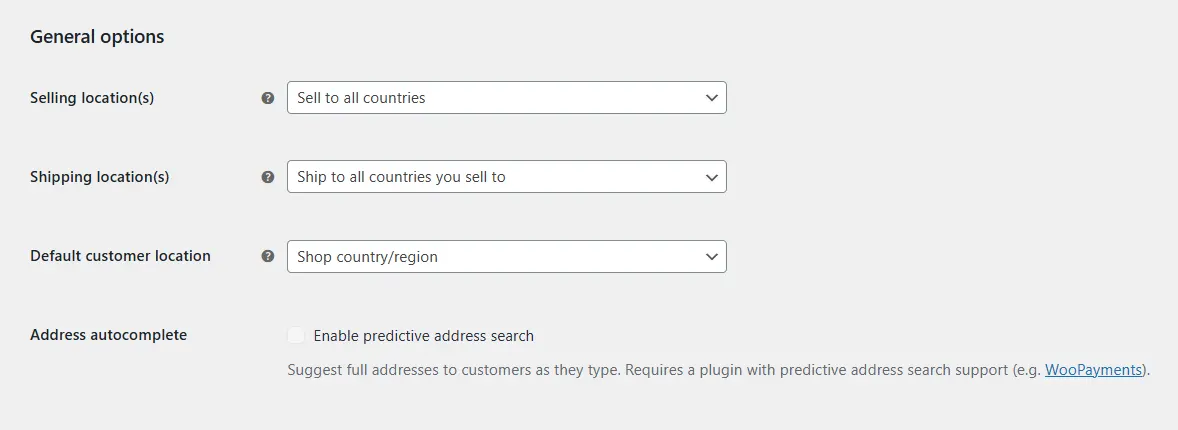
A better approach is to select “Ship to specific countries only” and manually choose the markets you are ready to serve. This keeps your checkout clean and prevents orders from destinations you are not equipped to fulfill.
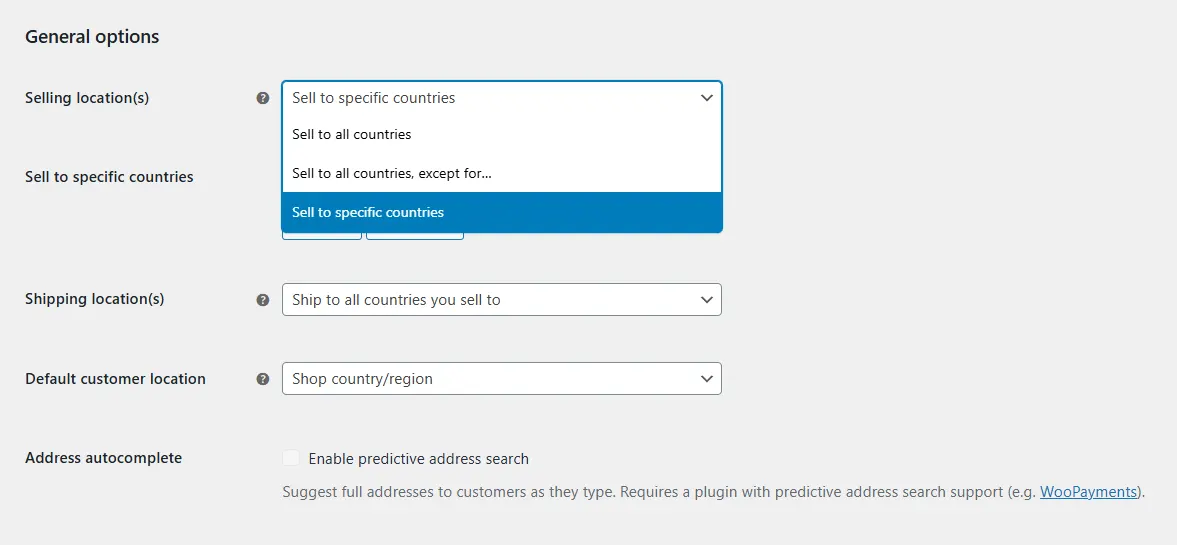
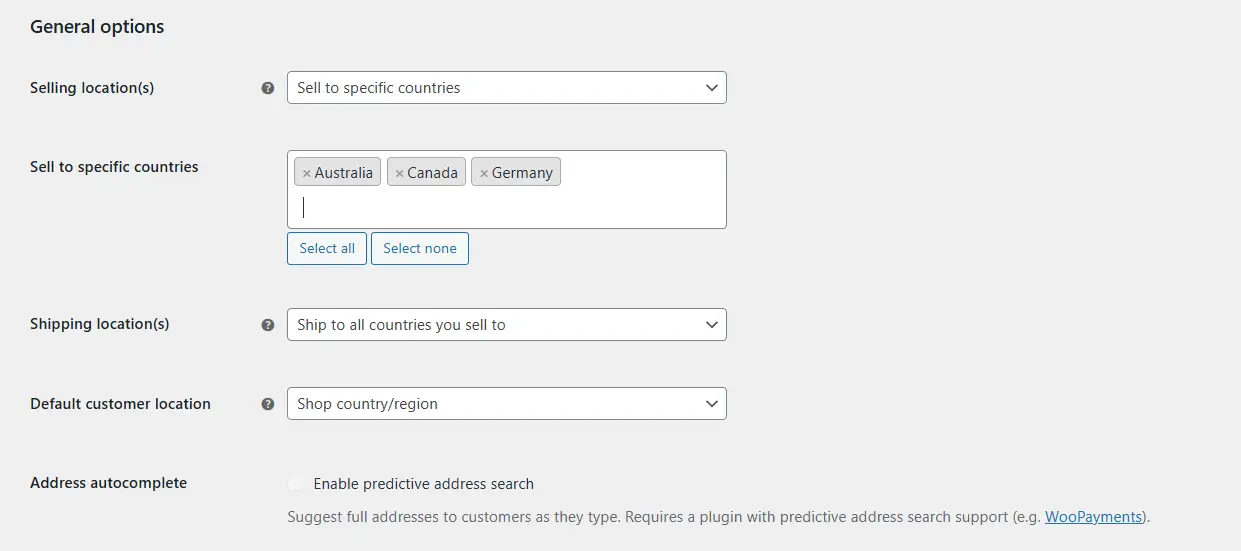
Save your changes before moving on.
Step 2 – Enable International Shipping Taxes
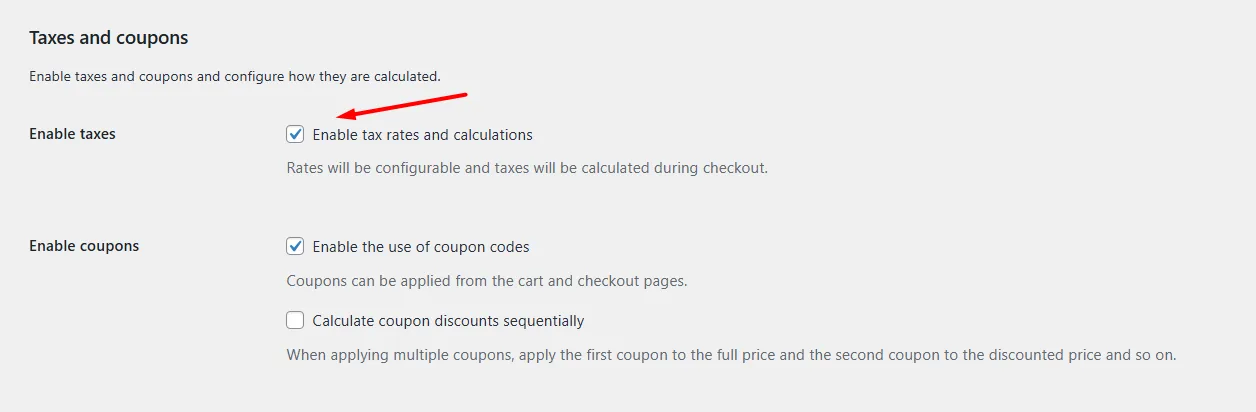
Head back to WooCommerce > Settings > General and check the “Enable tax rates and calculations” box. Once enabled, a Tax tab will appear in your settings menu.
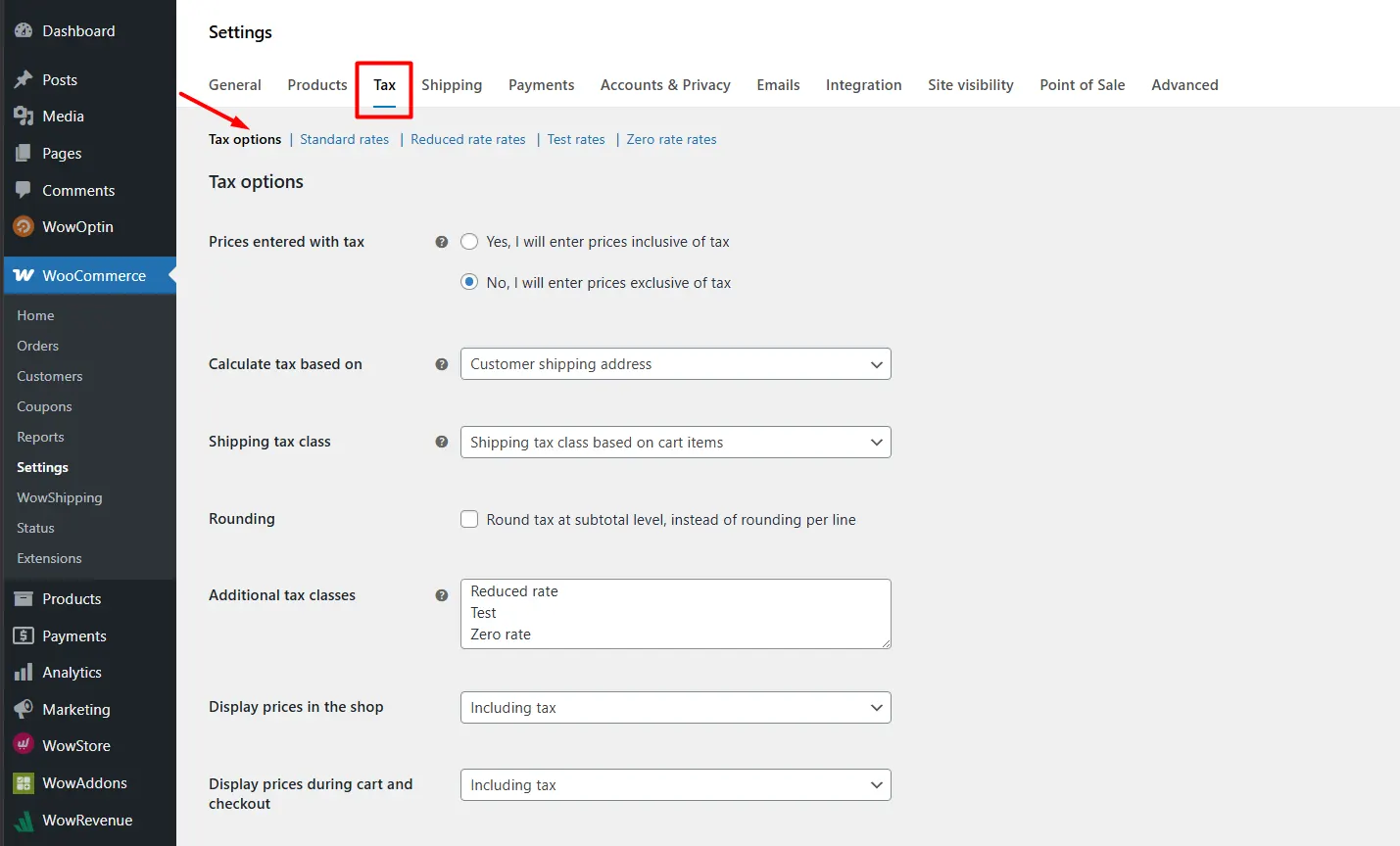
Go to that Tax tab and open Standard Rates. This is where you add tax rules for each country you ship to. For each entry, you will need the two-letter country code, the tax rate as a percentage, a label that customers will see at checkout, and a checkbox to confirm that the rate applies to shipping as well as products.
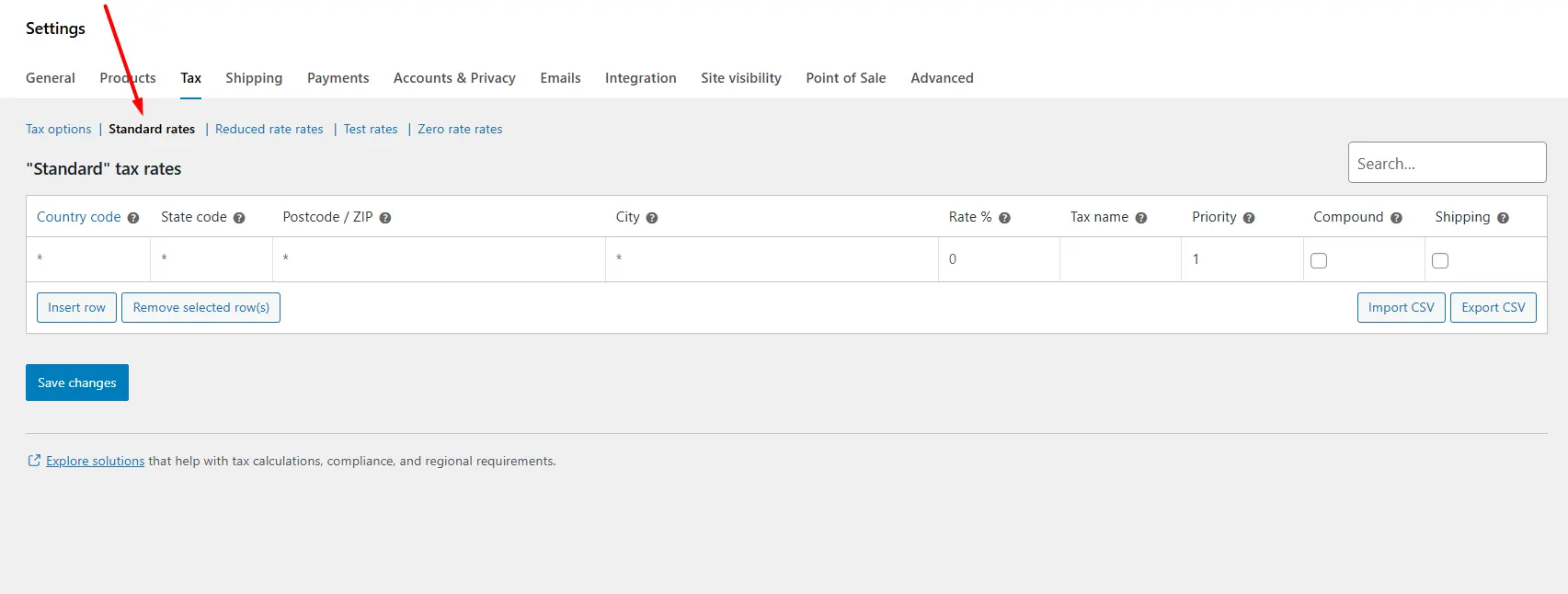
If you sell to the EU, WooCommerce supports importing tax rates via CSV, which saves a significant amount of manual work given how many member states are involved.
Step 3 – Create International Shipping Zones
Go to WooCommerce > Settings > Shipping > Shipping Zones and click Add Shipping Zone.
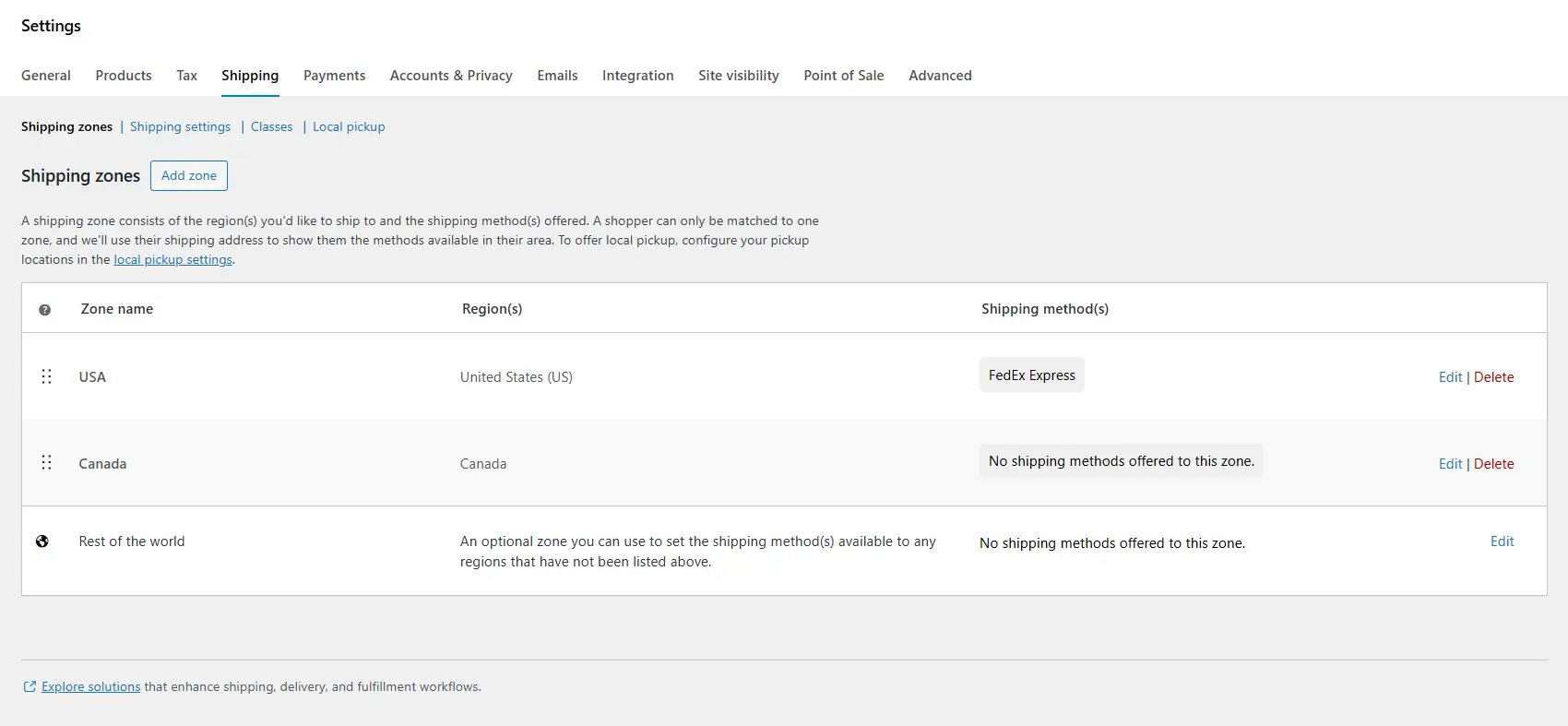
A shipping zone is a geographic area that shares the same shipping rules. Give the zone a clear name, something like “Western Europe” or “Southeast Asia,” then define the region it covers.
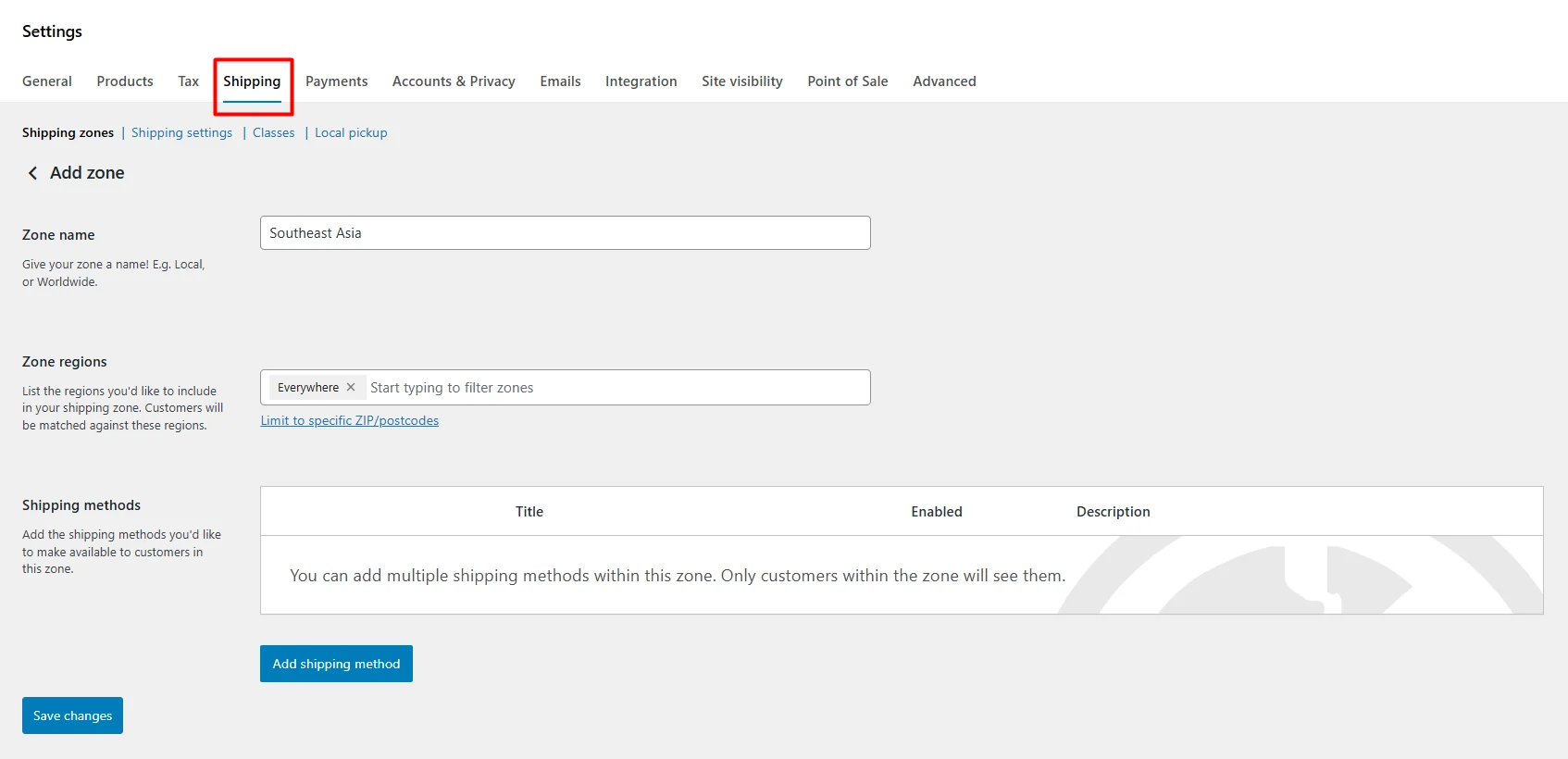
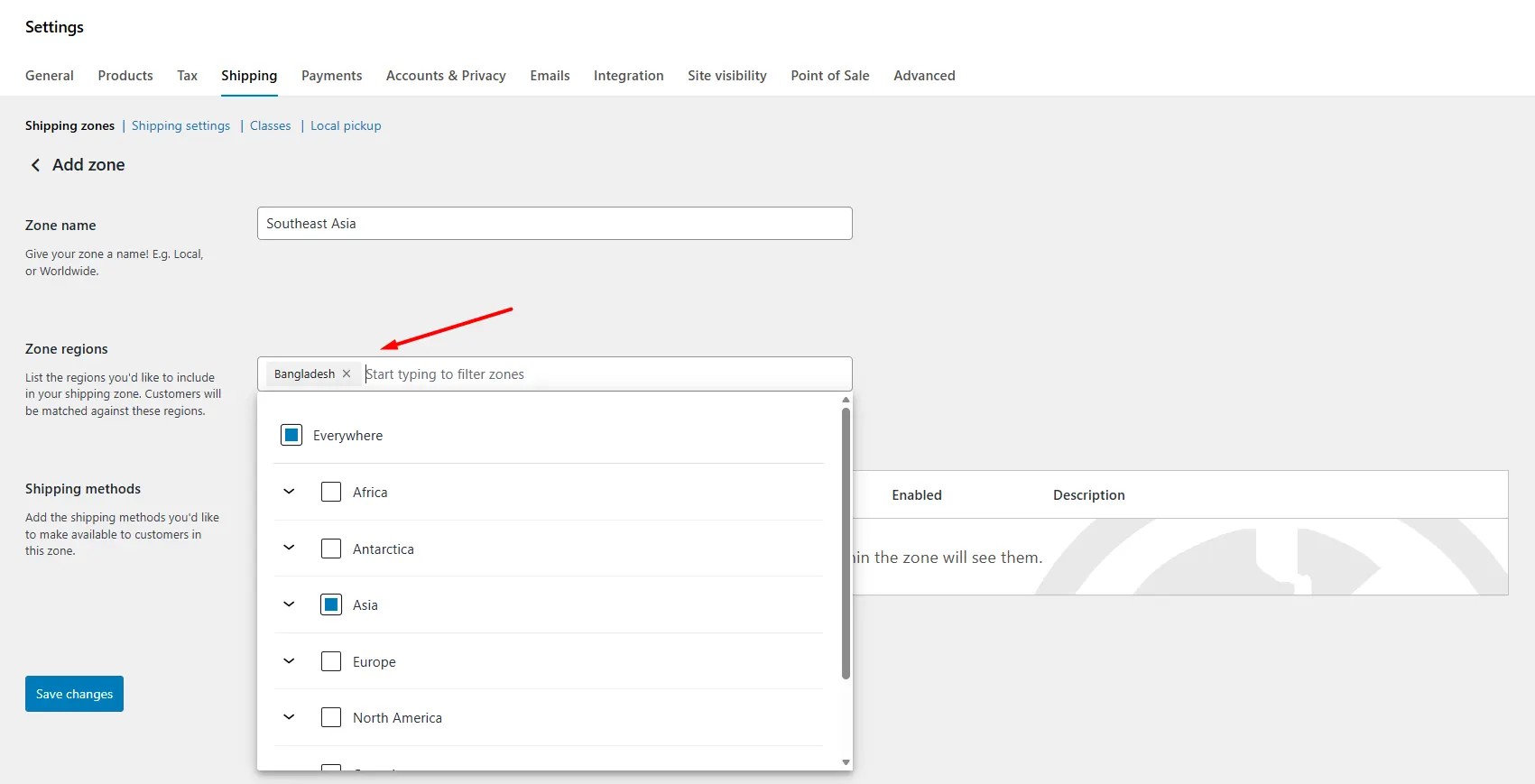
WooCommerce lets you target by continent, country, state, city, or even postcode, so you can be as broad or as specific as your pricing strategy requires.
Create a separate zone for each region where your rates or methods differ. If a customer’s address does not match any zone you have created, WooCommerce falls back to the “Rest of the World” zone, so it is worth setting that up as a catch-all with at least one method attached.
Step 4 – Add Shipping Methods
Inside each zone, click Add Shipping Method. WooCommerce gives you three native options: Flat Rate, Free Shipping, and Local Pickup.
For most international zones, Flat Rate is the practical starting point. You set a fixed cost per order or per item, and that is what customers see at checkout. It is simple to manage and easy for customers to understand.
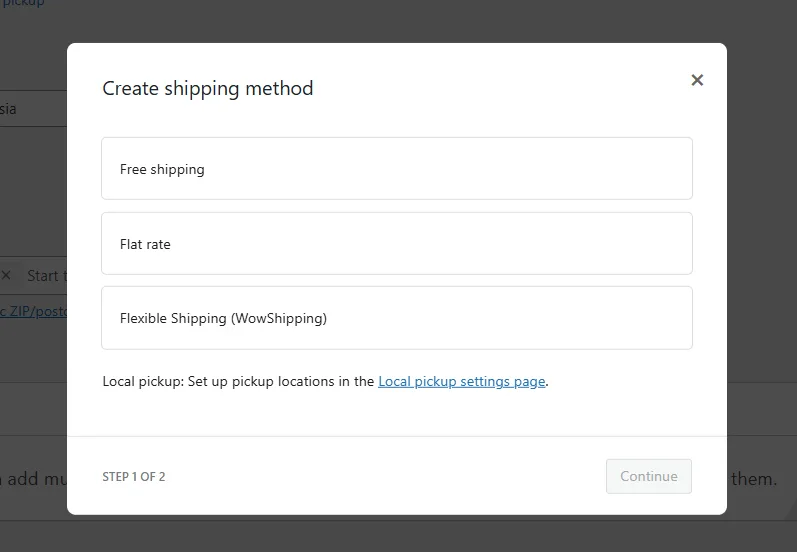
If you want real-time carrier rates based on actual weight and destination, you will need a plugin. Options like WooCommerce Shipping, Shippo, or ShipStation connect to carriers like UPS, FedEx, and DHL and pull live quotes at checkout. This takes more setup but eliminates the guesswork on pricing and reduces the risk of undercharging on heavier international shipments.
Once your methods are configured and saved, your store is technically ready to take international orders. What comes next is making sure the experience is clean, the costs are accurate, and customers know exactly what they are paying before they hit the buy button.
Step 5 – Best Plugins for Implementing International Shipping
Before choosing a WooCommerce international shipping plugin, check what problem you are solving first. Some plugins are better for checkout rate logic, some are better for carrier labels and fulfillment, and some are better for duties, taxes, and cross-border delivery options.
| Criteria | WowShipping | Easyship for WooCommerce | ShipStation / ShippingEasy |
|---|---|---|---|
| Best For | WooCommerce Stores needing flexible, condition-based international rate logic at checkout | Stores prioritizing courier comparison, duties, taxes, and customs at checkout | High-volume stores needing fulfillment automation across multiple channels |
| Main Strength | Advanced table rate + live carrier rates | Cross-border platform with duties and courier comparison | Post-order fulfillment workflow automation |
| International Shipping Fit | Strong for country, zone, product, weight, class rules, and live carrier rates | Strong for delivery options, import tax, customs docs, DDP/DDU | Strong for shipping ops; less focused on WooCommerce checkout rate logic |
| Carrier Support | UPS, USPS, FedEx, DHL, Australia Post, Canada Post, Sendle | 250+ global courier services | Wide carrier network via ShipStation account |
| Duties, Taxes, and Customs | Rules by destination, product type, weight, and courier | Strong: shows VAT, GST, import tax upfront; supports DDP and DDU | Customs forms and international labels are supported |
| Label Printing | Not the main focus | Yes, labels and shipping documents | Yes, strong batch label printing |
| Tracking | Not the main focus | Yes, branded tracking pages and updates | Yes, strong tracking and branded notifications |
| Shipping Rules | 30+ conditions: weight, quantity, location, dimensions, subtotal, product, category, role, date | Rules by destination, product type, weight, courier | Rules by destination, product type, weight, and courier |
| Packaging and Dimensional Weight | Yes, directly from the WooCommerce orders page | Stores dimensions and volumetric weight | Good for fulfillment; checkout packaging depends on setup |
| WooCommerce Native Feel | ✅ High: built around WooCommerce zones and checkout | Medium: connects WooCommerce to the Easyship platform | Medium: syncs orders to the external ShipStation platform |
| Rating / Reviews | ⭐ 5.0/5 (9 reviews) | ⭐ 4.2/5 (53 reviews) | ⭐ ⭐ 3.3/5 (13 reviews) |
| Main Limitation | Newer plugin with a smaller install base | Origin limited to US, UK, Canada, HK, Singapore, and Australia | No native checkout rate quotes without an extra extension |
Quick recommendation
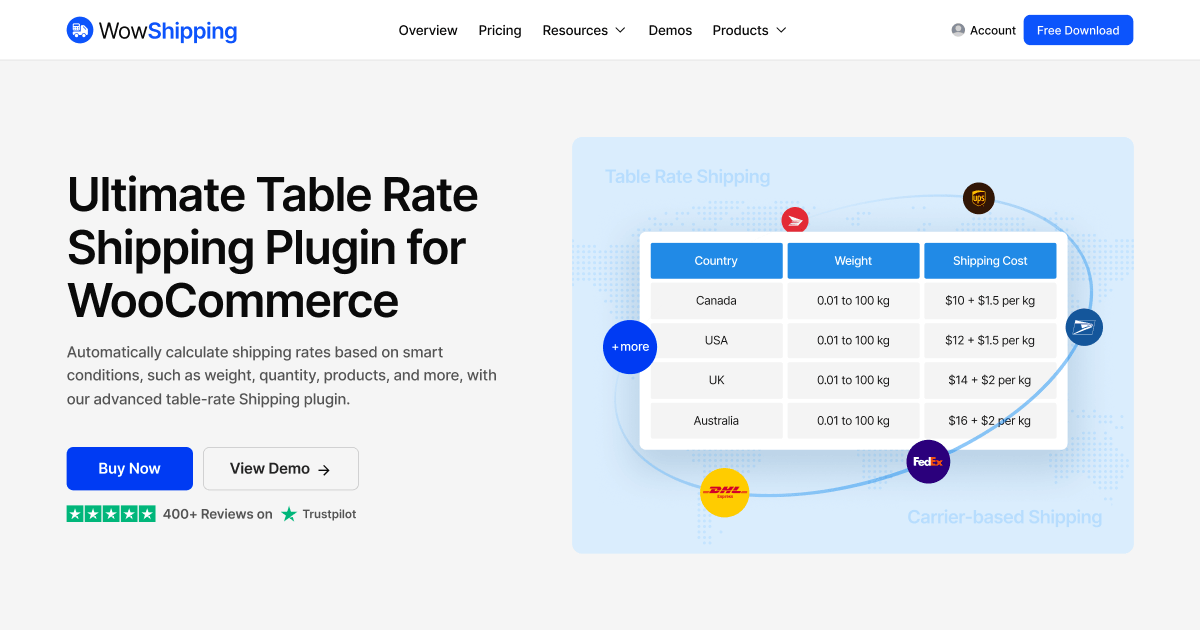
👉 Choose WowShipping, the all-in-one table rate shipping plugin for WooCommerce if your main goal is to set up accurate international shipping rates at checkout. It is the cleanest fit for country-based zones, weight rules, shipping classes, product rules, free shipping conditions, and live carrier rates.
👉 Choose Easyship if your store needs international courier comparison, customs documents, and clearer duties and taxes handling.
👉 Choose ShipStation or ShippingEasy if your shipping problem is mainly fulfillment: importing orders, printing labels in batches, updating tracking, managing returns, and handling multichannel shipping.
How International Shipping Best Practices Helped Me Fix Common Problems
International shipping started working better for me when I stopped treating it like a simple delivery option and started treating it like a checkout, pricing, and customer trust problem.
The biggest issue was not demand. Demand was there. DHL’s 2024 Cross-Border Buying Report found that 55% of global shoppers buy from retailers in other countries. The real problem was making the international buying experience clear enough that customers trusted the final cost and delivery process.
Here are the main problems I faced and the best practices that fixed them.
Shipping costs were hurting conversions
High shipping costs are one of the fastest ways to lose an international customer. Baymard’s checkout research found that 39% of shoppers abandon checkout because extra costs are too high, including shipping, taxes, and fees.
The fix was to stop guessing rates. I started checking product weight, packed dimensions, country-based zones, and carrier pricing before offering shipping to a new market. For some countries, flat-rate shipping worked. For others, live carrier rates made more sense.
Unclear Costs and Surprise Duties Kill International Orders
International customers want to know the full cost before they commit. Baymard found that 14% abandon checkout when they cannot see the total upfront, and Avalara’s 2024 survey found that 58% of cross-border buyers experienced surprise customs charges, with 75% saying they would not buy from that store again.
The fix is simple: decide who pays duties before you take international orders, make shipping costs visible early, and communicate it clearly before checkout.
Delivery expectations were too vague
International shipping takes longer, and vague delivery promises create support problems. Baymard found that 21% of shoppers abandon checkout because delivery is too slow.
The fix was to avoid using broad promises. Customers do not need a perfect promise. They need a realistic one.
Returns were not planned properly
Returns get harder across borders, and they directly impact buying decisions. DHL reports that around 48% of shoppers say free returns encourage cross-border purchases. The fix was to create a separate international returns policy. I made it clear who pays return shipping, whether duties are refundable, and which products are final sale.
💡 The practical lesson
International shipping works best when customers know three things before they pay:
- How much does shipping cost
- Who pays duties and taxes
- When the order is likely to arrive
Once those points were clear, international shipping became easier to manage.
FAQs About WooCommerce International Shipping
Here are the common questions answered for your convenience:
01 – Does WooCommerce support international shipping out of the box?
Yes, WooCommerce includes basic international shipping support by default. You can add shipping zones for different regions and assign methods like flat rate or free shipping to each one.
That said, the native options are fairly limited. If you need real-time carrier rates, automated customs documentation, or multi-currency support, you will need a dedicated plugin to handle those things properly.
02 – How do I add a new country to WooCommerce shipping?
Go to WooCommerce > Settings > Shipping and create or edit a shipping zone. Each zone lets you define a geographic region, and you can select specific countries from the zone region dropdown.
Once the country is added to a zone, assign a shipping method to it, such as flat rate, free shipping, or local pickup. If a country is not covered by any zone, WooCommerce applies the “Rest of the World” zone as a fallback.
03 – Can I restrict checkout to certain countries?
Yes. Head to WooCommerce > Settings > General and look for the “Sell to specific countries” option. You can choose to sell to all countries, only to specific ones you select, or to all countries except a list you define.
This controls which countries appear at checkout, so customers outside your allowed regions simply cannot complete a purchase.
04 – How do I charge different rates for different countries?
The cleanest way is to set up separate shipping zones for each country or region, then assign different shipping rates to each zone. For example, you might have one zone for the US at $5, another for Europe at $12, and a catch-all Rest of the World zone at $20.
If you want live carrier rates based on package weight and dimensions, plugins like WowShipping can pull those in automatically.
05 – Who pays import duties on international WooCommerce orders?
By default, the customer pays any import duties and taxes when the package arrives in their country. This is known as Delivered Duty Unpaid (DDU). Many shoppers find this frustrating because they get an unexpected bill at delivery.
If you want to offer a smoother experience, some shipping plugins support Delivered Duty Paid (DDP), where duties are calculated and collected at checkout so the customer has no surprise charges on their end.
06 – What is the best WooCommerce plugin for international shipping?
It depends on your volume and needs. For most store owners, WooCommerce Shipping (the official plugin) covers the basics well, especially if you are primarily shipping from the US.
For more complex international operations, WowShipping is popular because it connects to multiple carriers. If you sell globally and want to handle duties and taxes at checkout, Zonos or Avalara AvaTax are worth looking at.
You can start with the balanced one, like WowShipping, to get a really fair value from the start.
Wrapping Up!
WooCommerce International Shipping works best when you build it around clear shipping zones, accurate product data, and realistic delivery rules.
Throughout this guide, we covered the essential steps: choosing the countries you actually want to serve, then creating zones for those regions inside WooCommerce. Add shipping methods that match your current stage: flat rate for simple testing, table rate for more control, and carrier-calculated rates when you need live pricing.
The goal is not just to ship globally. The goal is to make international orders profitable, predictable, and clear for the customer.
Your next step: create your first international shipping zone in WooCommerce, test one real product against one real destination, and confirm the final checkout cost before opening it to customers.
For more helpful tips, stay connected with our LinkedIn Newsletter.