

Key Summary: What’s New in WordPress 6.9
- Collaboration gets easier with Notes – Leave comments directly on individual blocks inside the editor, reply to feedback, resolve notes, and keep everyone aligned without external tools.
- Work faster with the Command Palette – Press Ctrl/Cmd + K anywhere in the dashboard to jump between screens and navigate like you would in modern productivity apps.
- New creative blocks built in – Accordion, Time-to-Read, Math, Term Query, and improved comment-related blocks give you more layout and content options without relying on plugins.
- Smarter content management – Hide or show blocks without deleting them, and control which blocks can be placed inside specific layout containers.
- Better drag-and-drop experience – Drag and drop precisely with live previews and clearer handles.
- Developer upgrades – The new Abilities API and extended block bindings offer more flexibility for integrating features and external data sources.
And there are many more upgrades that have been introduced in the WordPress 6.9. The big theme of this release is “Content your way”. What does it mean? faster workflows, easier collaboration, and more creative ways to present information.
Instead of being another maintenance and a behind-the-scenes technical update, 6.9 adds tools you’ll actually feel in your day-to-day publishing: comments right inside the editor, smarter drag-and-drop, new blocks, and a dashboard-wide Command Palette that makes WordPress feel much more modern.
Quick Video About WordPress 6.9 Updates
In this guide, we’ll walk through what’s new in WordPress 6.9 in a friendly, non-developer way, so anyone can catch up on what’s going on and, importantly, what you can do with each feature on your own site.
1. Collaborate Directly in the Editor With Notes
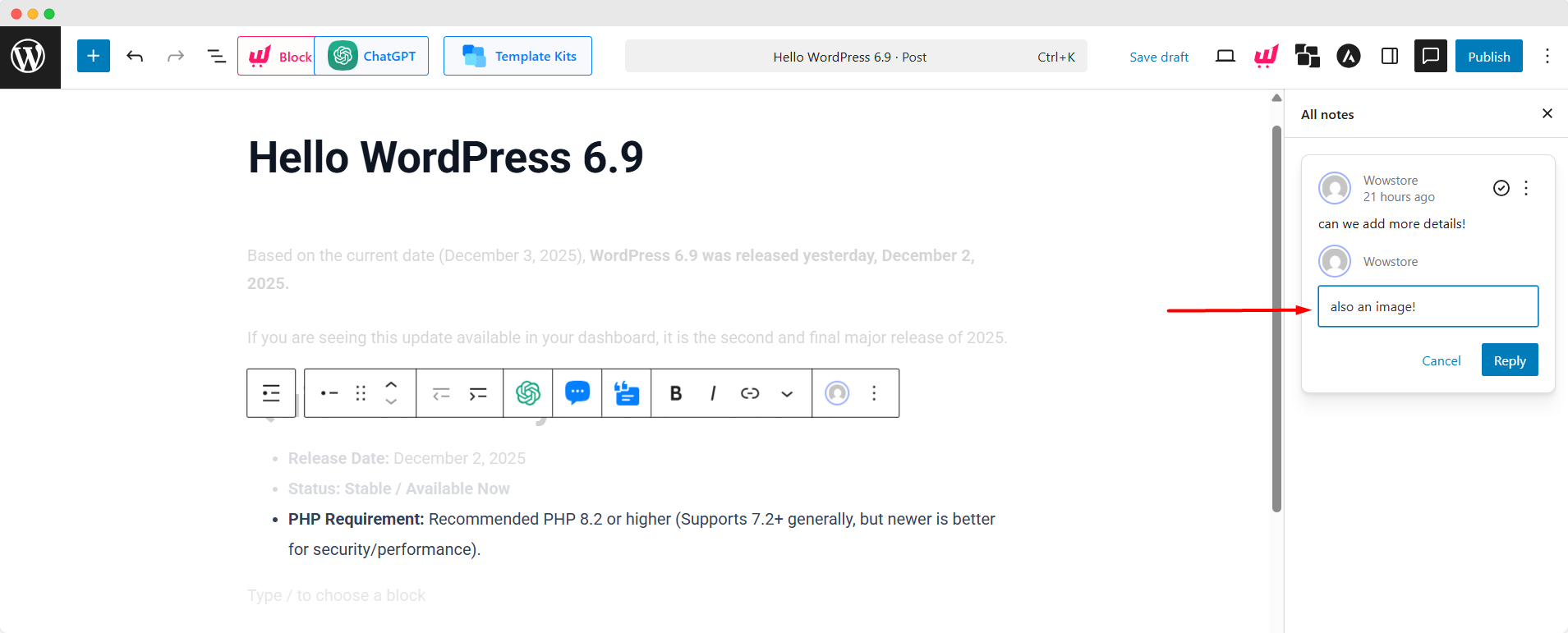
What are Notes? Simply said, it’s a new collaborative features that allow sharing feedback, making notes right inside your WordPress editor. Before this update, you would have to rely on third-party plugins to achieve this.
You and your team can now comment on individual blocks inside a page or single posts. For example, you can comment like “Can you shorten this paragraph?” or something like “A picture with more contrast would fit better here”.
Here are a few things to keep in mind:
- Notes are Block-level notes, so they are not applied to the whole page.
- You can reply to the comments and then resolve them easily.
- Connected to email alerts, so authors and collaborators get notified when there’s new feedback.
How you might actually use Notes:
Content reviews: Maybe you’re working with a co-editor or proofreader – they can click a sentence or paragraph and write: “Let’s simplify this intro for clarity,” or “This section is good, but maybe add a quick summary at the top.”
Design/visual feedback: Site owner can leave a note for designers. For example: “Consider using a darker background for contrast,” or “This banner image feels too busy – maybe use a simpler one.”
Solo-creator reminders to yourself: Even if you’re working alone, Notes are like inline to-do’s – “Replace this placeholder image before launch,” “Add real data or statistics here when they come in,” and so on.
Collaboration across roles: For example, a marketer may note: “We need a call-to-action button under this section,” a content editor may say: “Make this bullet list more concise,” etc.
2. Use Command Palette, Everywhere in the Dashboard
A great productivity upgrade which I personally like A LOT.
The Command Palette is no longer just a Site Editor thing – it’s now available across the entire WordPress dashboard.
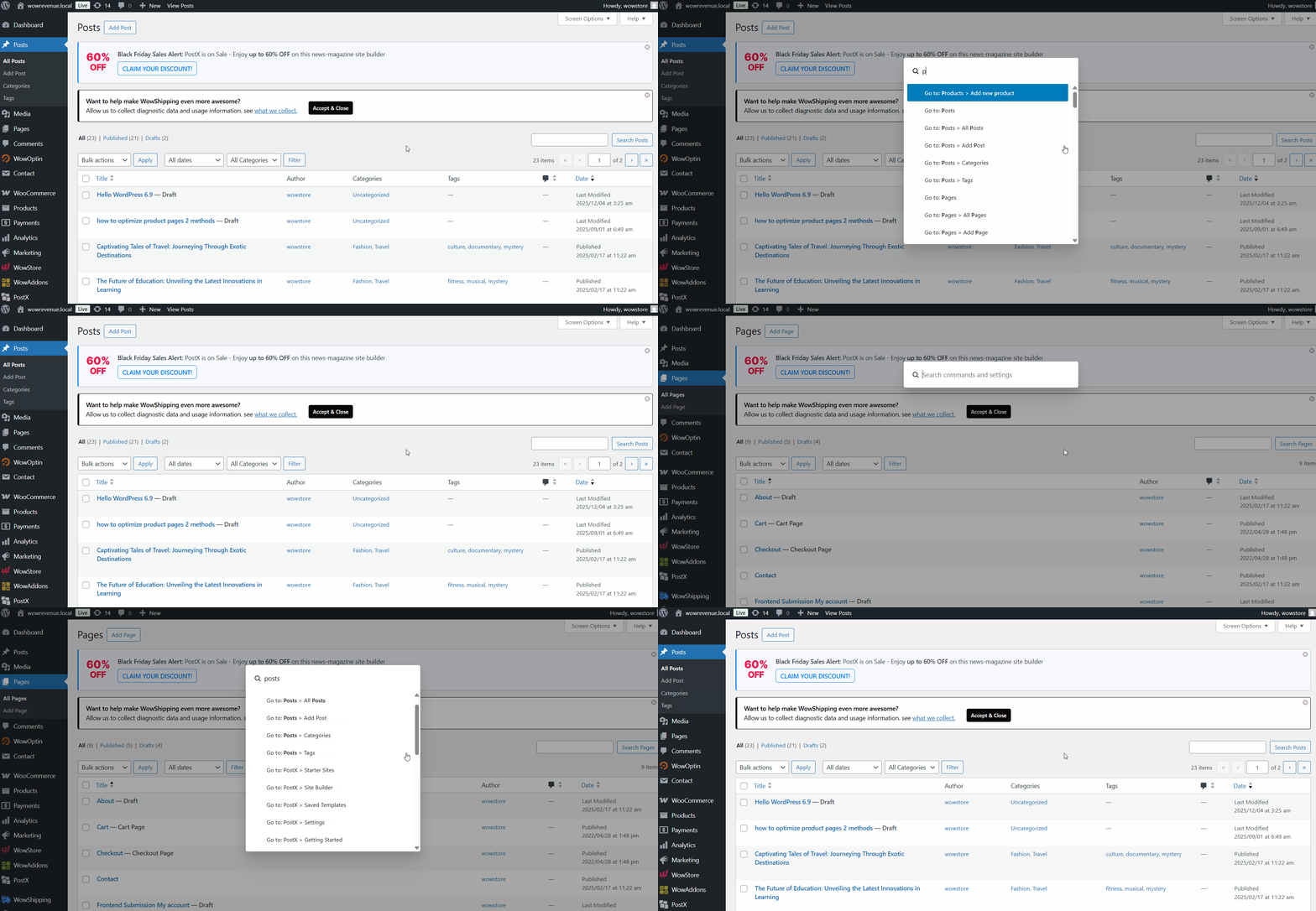
Simply press Ctrl/Cmd + K from almost any admin screen (Posts, Pages, Media, Settings, the Site Editor, etc.) to:
- Jump quickly to different areas of the site.
- Run commands without hunting through menus.
- Navigate like you would in modern apps such as VS Code or Notion.
If you often think, “Where did they hide that setting again?”, the Command Palette will quickly become your best friend.
3. Utilize New Blocks for Creative Layouts
This one is huge – this update of WordPress has brought so many cool blocks that otherwise would require installing plugins.
WordPress 6.9 ships these new blocks that are designed to help you present information more clearly.
Accordion Block
First of all, the must-needed Accordion block is natively available in WordPress – letting you create collapsible sections with headings and hidden content underneath.
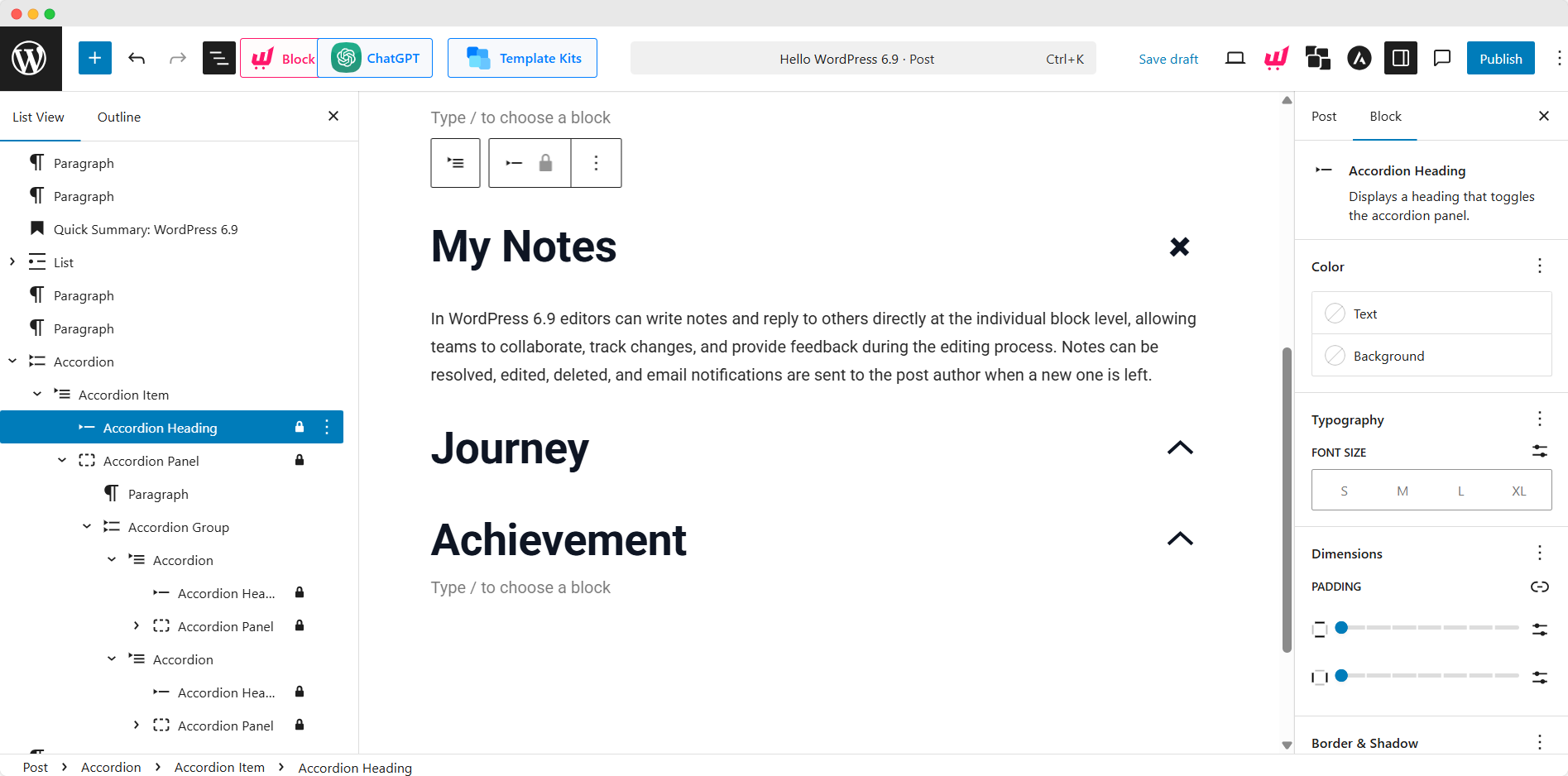
It’s especially ideal for:
- Writing FAQs
- Showing course modules and lesson summaries
- Presenting product details, policies, or feature lists
…in a convenient and organized layout.
Instead of long, intimidating pages, you can tuck details into accordions and let readers open what they care about.
If you want more customization and premade layouts, you can check out PostX’s accordion block.
Time-to-Read Block
The Time-to-Read block automatically calculates and displays how long a post will take to read, based on word count.
However, keep in mind that this does not magically boost SEO, but it:
- Gives an estimate of how long the content is
- Helps increase click-through rate based on content length
- Improves engagement and completion rates, which indirectly helps your site in terms of SEO.
Now, where can you add this block? Some most common places are: just under the post title, or at the top of tutorials and long-form guides.
Math Block
The new Math block (using LaTeX/MathML) lets you display mathematical equations and notation in a familiar, clean visual.
This is particularly helpful if you have:
- An education site
- A technical blog
- A research, finance, or data-heavy publication
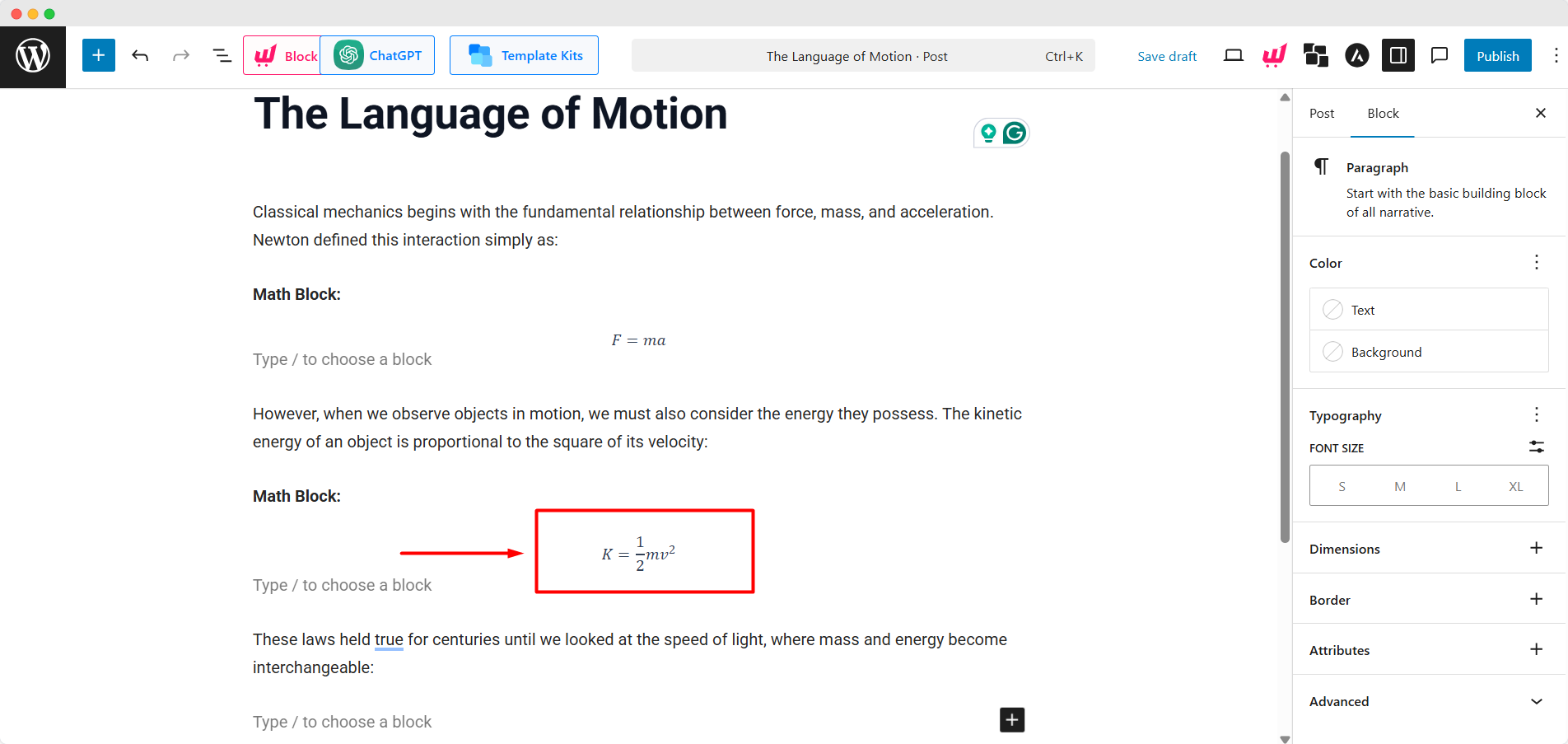
…you no longer have to rely on screenshots of equations or awkward plain text. You can enter LaTeX and get crisp, accessible formulas right in the editor.
Other New Blocks
The Term Query block and its companion blocks (Term Name, Term Count, Term Template) make it easier to build dynamic, category-driven layouts without touching code.
Instead of listing posts, these blocks let you display the terms themselves – your categories, tags, or custom taxonomies. This means you can create directory-style “Browse Topics” pages in neatly styled term lists with sorting controls and optional linking.
Meanwhile, the new Comment Count and Comment Link blocks give you much more freedom in how and where you display comment information. You can add a subtle “12 Comments” link near the top of a post, place a bold “Join the Conversation” button at the bottom, or hide comment links entirely on certain layouts.
4. Hide and Show Blocks Instead of Deleting Them
Now, you can easily hide blocks without deleting them. This is a game-changer for testing dev sites, controlling promotional sections’ visibility, and so on.
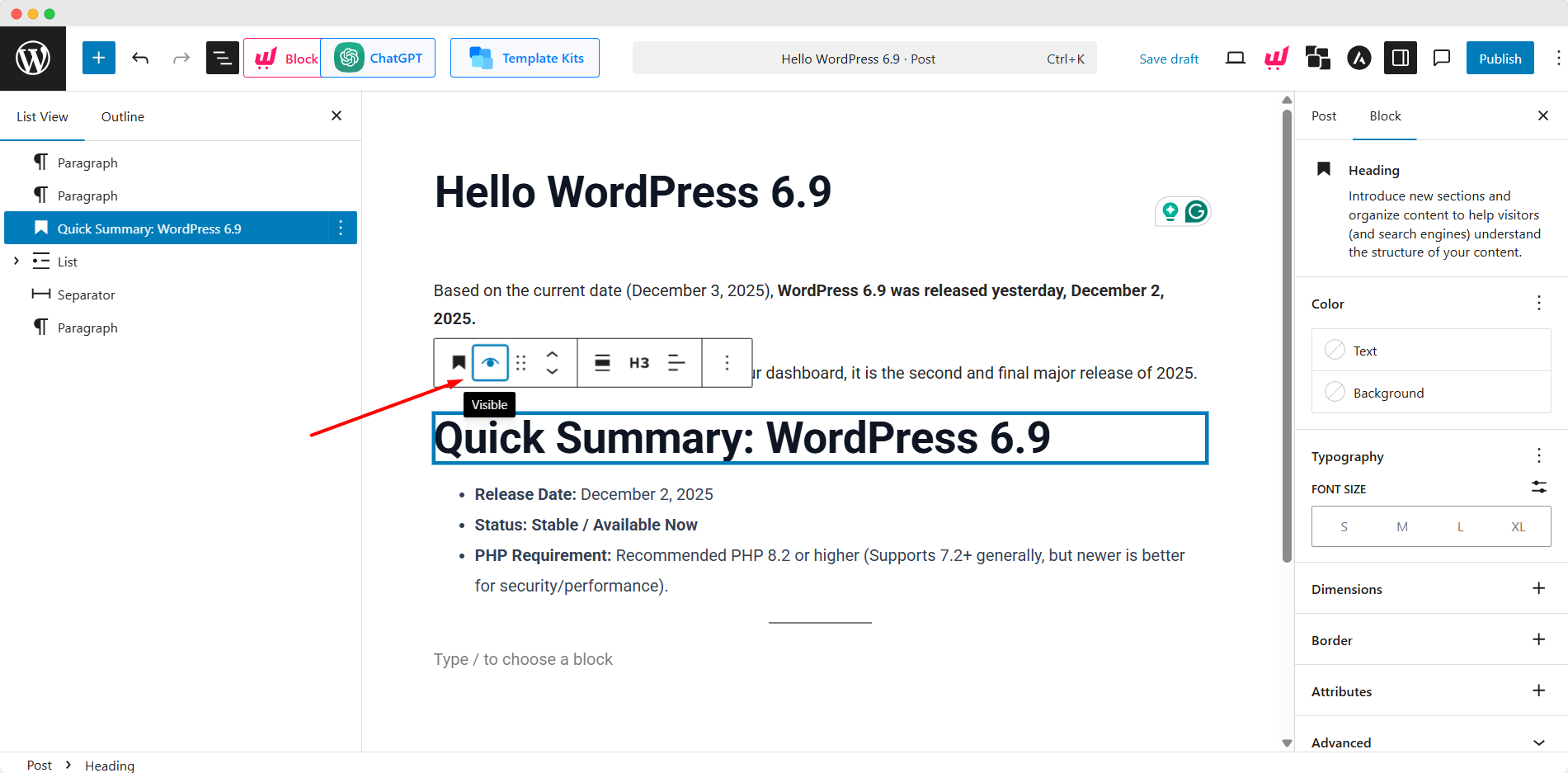
A small but very practical addition. There’s a visibility toggle in the block toolbar: flip it off, and the block disappears from the front end but stays ready in the editor – so you can reuse it again.
Instead of duplicating pages or keeping old content in draft posts, you keep everything in one place and just toggle visibility on and off.
5. Enhanced Control Over What Blocks Can Go Where
For those of you who build more structured layouts (for clients, teams, or large blogs), WordPress 6.9 adds an “Allowed blocks” UI in the Advanced settings for container blocks.
What this does: Lets you limit which block types can be placed inside a container (like a Columns block or a custom pattern).
It used to require editing block markup in code view; now it’s handled through a friendly interface.
Practical uses:
- Prevent authors from dropping random blocks into a carefully designed hero section.
- Lock down complex layouts so contributors don’t accidentally break them.
If you manage a team, this is a quiet but powerful way to keep your designs consistent.
6. Visual Drag and Drop That Feels Less “Guessy”
Drag-and-drop has been in WordPress for a while, but 6.9 upgrades it with clear handles and a live preview of where a block will land as you move it.
Now, as you drag a block:
- You see the exact new position in real time.
- You spend less time undoing accidental rearrangements.
- Layout updates feel more like a modern page builder and less like trial-and-error.
It currently works for single blocks, but you can expect to see multi-block dragging in WordPress 7.0.
Try this on your site: open any long article or landing page and experiment with moving sections. You’ll probably feel the improvement immediately.
7. More Power to Developers: Abilities API and External Bindings
While this post is mostly aimed at site owners, it’s worth knowing that 6.9 adds some deeper capabilities behind the scenes:
- A new Abilities API: A unified system allowing developers to register and run actions consistently across PHP, REST, and AI contexts – paving the way for more integrated, smarter features and workflows.
- Bindings to external sources: Third-party developers can extend the block bindings UI with their own data sources, making it easier to connect blocks to external services or custom data.
More Design, Performance, and Accessibility Enhancements
WordPress 6.9 brings a collection of design-focused upgrades that make sites look cleaner with far less manual effort.
The new Fit Text option automatically adjusts headings and paragraphs to perfectly fill their container, making hero sections, callout boxes, and banners instantly more polished without constant resizing.
In addition, the Gallery block’s new aspect ratio controls ensure all images appear consistent – no more mismatched heights. Also, the Cover blocks can now display a poster image, giving visitors a smooth visual experience even before a background video loads.
Alongside these visual improvements, 6.9 delivers meaningful boosts to performance and accessibility. Pages load faster thanks to on-demand block CSS, smarter scheduling of background tasks, and more efficient stylesheet and script handling – all working automatically once you update.
In terms of accessibility, over 70 enhancements have been made to improve screen-reader announcements, keyboard navigation, and focus behavior – ensuring that your content is more usable and inclusive for all visitors.
What You Should Do Next as a Site Owner
Here’s a simple action plan to get value from WordPress 6.9 right away:
- Update to WordPress 6.9
- If you’re on WordPress.com, it’s already live – you just need to open your dashboard and start using the new features.
- On self-hosted sites, make sure you have a backup, then upgrade from the Dashboard → Updates screen.
- If you’re on WordPress.com, it’s already live – you just need to open your dashboard and start using the new features.
- Test collaboration in a real post
- Open a draft, add a few Notes on different blocks.
- Try using Hide/Show on a section you might need again.
- Open a draft, add a few Notes on different blocks.
- Refresh one key page with new design tools
- Add Fit Text to your hero heading.
- Turn a long FAQ into an Accordion block.
- Use Gallery aspect ratios on a portfolio or blog post with lots of images.
- Add Fit Text to your hero heading.
- Speed up your workflow with the Command Palette
- Press Ctrl/Cmd + K and try jumping between Posts, Pages, and Settings without using the sidebar.
- Press Ctrl/Cmd + K and try jumping between Posts, Pages, and Settings without using the sidebar.
- Experiment with storytelling blocks
- Add Time-to-Read to your longest posts.
- If you publish technical content, try the Math block in your next tutorial.
- Use Term Query to build a “Browse Topics” or “All Categories” hub page.
- Add Time-to-Read to your longest posts.
Check Out These Resources:
- See the official release information: WordPress 6.9 Release
- For more in-depth explanation on the release: WordPress 6.9 Field Guide
Summing Up
WordPress 6.9 isn’t just a maintenance release – it’s a quality-of-life update for anyone who writes, designs, or manages a site regularly. If you lean into Notes, the new blocks, and the Command Palette, your daily WordPress routine can become a lot faster, more organized, and frankly, more fun.