
Keeping your plugin updated ensures you get the latest features, improvements, and security fixes.
This guide walks you through how to safely update both the WowStore free and Pro versions.
Updating WPXPO plugins won’t change your existing settings and data will also remain unchanged.
Update Free Version
If you installed the WowStore free version from the WordPress plugin directory, you can update it directly from your dashboard.
Method 1: Update from the Dashboard
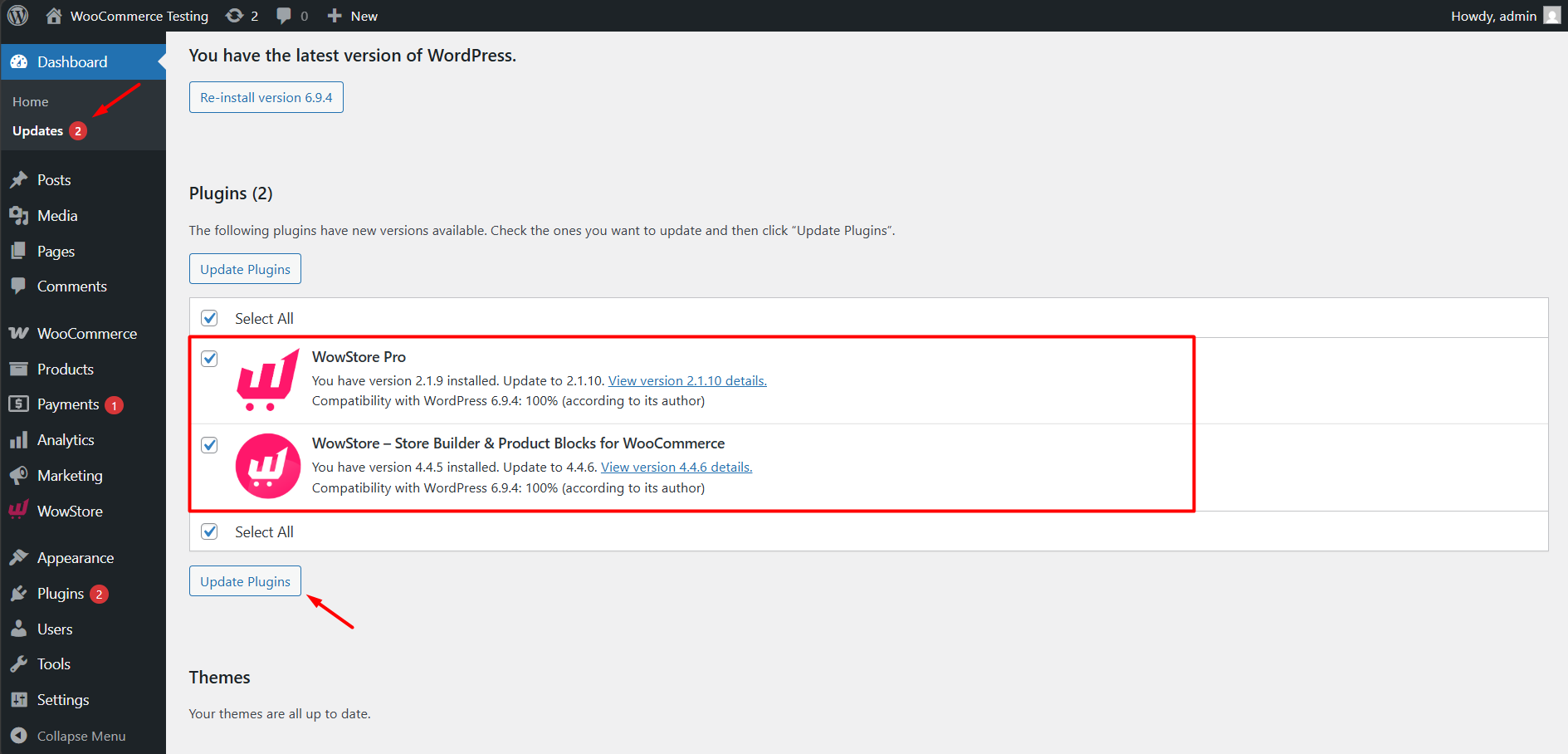
When a new version is available, you’ll see an update notice in your dashboard. Here’s what you should do,
Step 1: Go to Dashboard → Updates
Step 2: Locate the plugin in the list
Step 3: Click Update Plugins
Method 2: Update from the Plugins Page
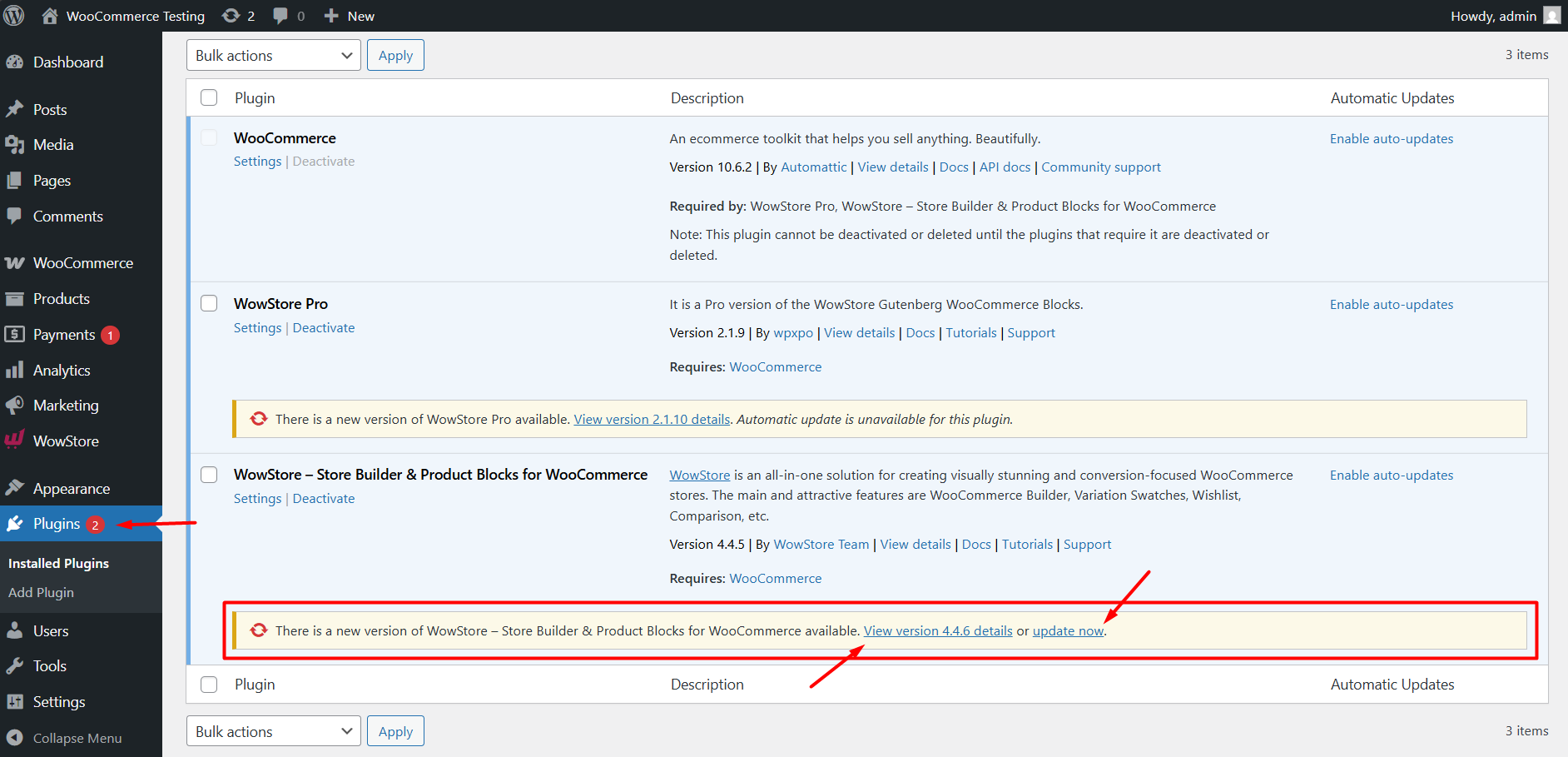
You can also update individually from the plugins list.
Step 1: Go to Plugins → Installed Plugins
Step 2: Find the plugin
Step 3: Click Update Now
Update Pro Version
Updating the Pro version depends on how your plugin handles licensing.
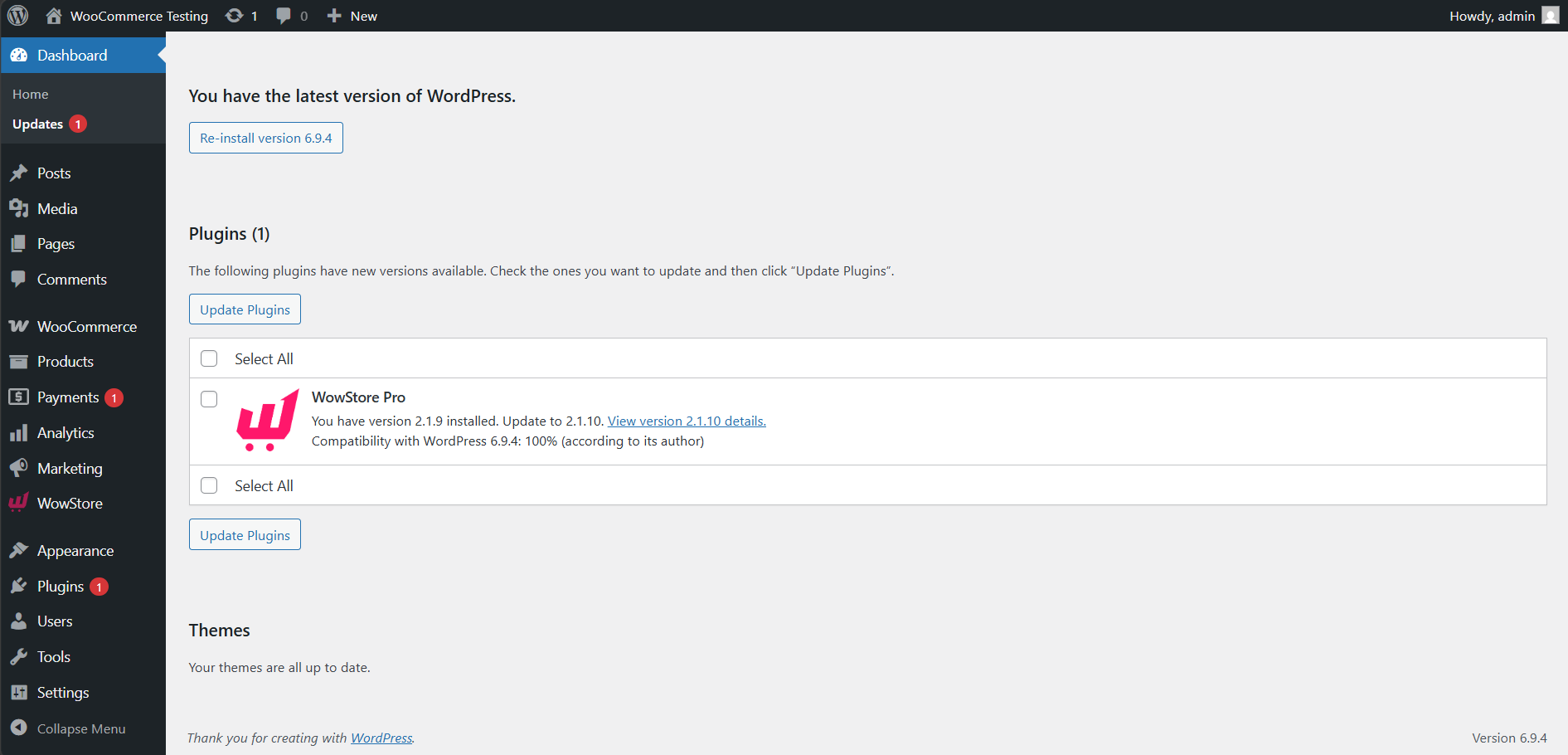
Method 1: Update from Dashboard (If Available)
If your license supports automatic updates, the process is the same as the free version.
Steps:
- Go to Plugins → Installed Plugins
- Find the Pro plugin
- Check & Click Update Now
Method 2: Manual Update (Upload/Reinstall Latest Version)
If automatic updates are not available, you can update manually by uploading the latest version.
- Download the latest Pro plugin ZIP file from your account
- Go to Plugins → Add New
- Click Upload Plugin
- Upload the ZIP file and click Install Now
- When prompted, click Replace current with uploaded
This is exactly how to install the pro version for the first time. You can recheck it here: Pro Version Installation
Enable Auto Updates (Optional)
Optionally, you can make the plugin update automatically. You can do it from the plugins menu.
Enable Auto-updates
In the plugins list, look for the plugin you want to enable auto-update. Then focus on the third column for automatic update.
Here, you can see if the status of the plugin is enabled or disabled.
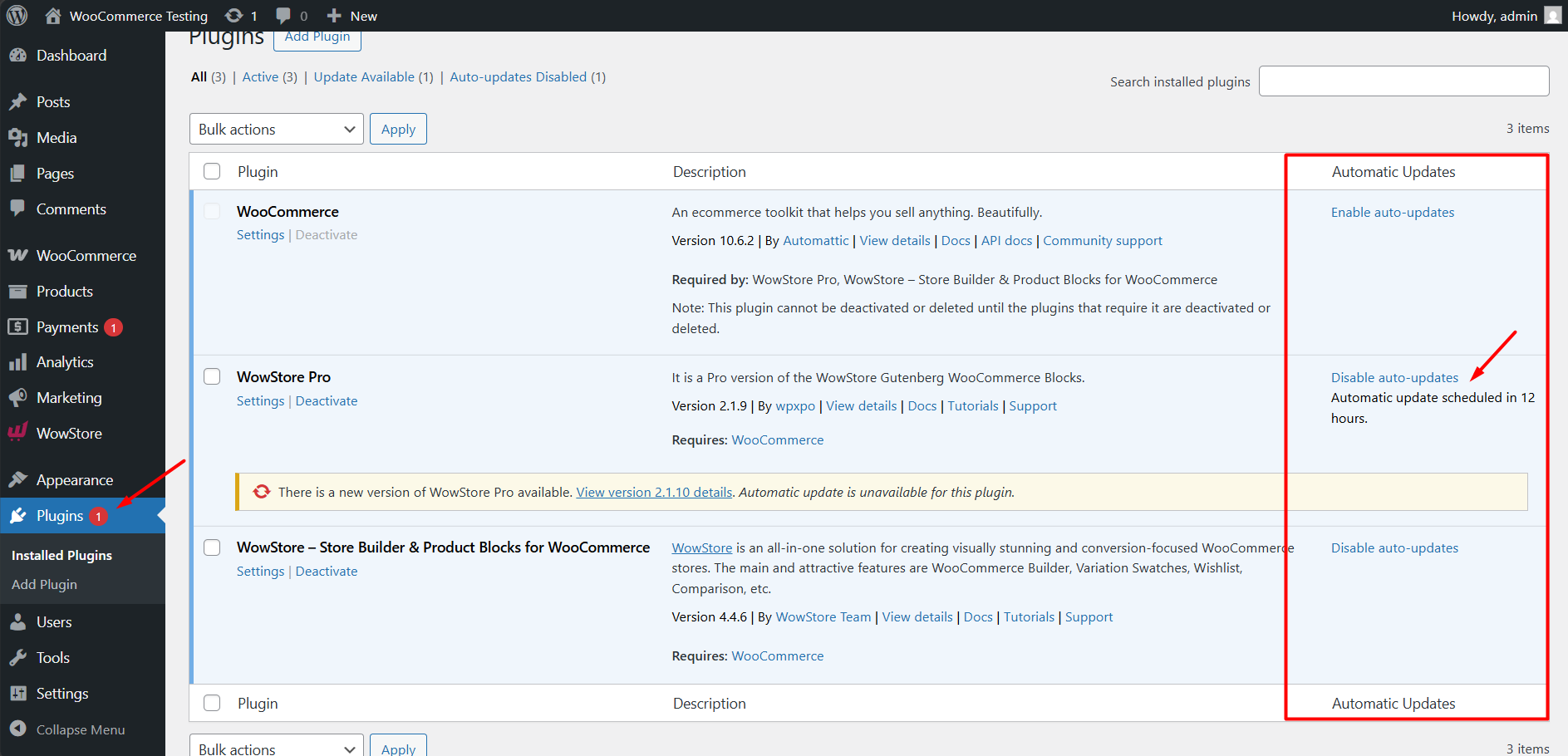
Generally, WordPress runs the auto update process twice a day. If enabled, you will see the scheduled update time in the third column.
Best Practice for Updating Plugin
Following these steps helps avoid issues, especially on live websites.
- Check What’s New: Before updating, review the changelog or update details to understand what has changed.
- Take a Backup: Always create a full backup of your website before updating any plugin.
- Wait for Stability (Optional): For major updates, it’s a good idea to wait a few days and check for any reported issues from other users.
- Test on Staging or Local Site (Recommended): If your website is critical, test the update on a staging or local environment before applying it to your live site.
Need Help?
If you face any issues during the update process, feel free to contact support or check the troubleshooting guide.