
The Global Settings section in WowShipping provides four key configuration options that control your default shipping behavior and overall setup.

1. Default Shipping Tax Status
This setting controls the default tax status applied to new shipping methods.
- Taxable: Sets the shipping tax status to Taxable by default for all newly created shipping methods.
- None: Sets the shipping tax status to None by default for all newly created shipping methods.
2. Debug Mode
This is a troubleshooting tool that helps to identify shipping configuration issues.
Important: Keep “Debug Mode” disabled on live sites. Enable it only when you need to troubleshoot shipping-related issues.

When Debug Mode Is Enabled, This Happens 👇
- Caching is disabled.
- Detailed logs and error messages become available under WooCommerce → Status → Logs.
- Shipping methods are visible only to users with the Administrator or Shop Manager role.
Safety & Best Practices for Debug Mode
- Whenever possible, reproduce issues on a staging site instead of your live store.
- If debugging on a live store is necessary, enable it for a short window and disable it once done.
- Avoid sharing full logs publicly, as they may contain sensitive customer data. Share only relevant snippets with support.
3. Data Deletion
This setting controls whether all plugin data is permanently removed when WowShipping is uninstalled.
When Data Deletion Is Enabled, This Happens 👇
All plugin-related data, including settings, configurations, and shipping rules, will be permanently deleted when the plugin is uninstalled. This action cannot be undone.
Safety & Best Practices for Data Deletion – When to Enable
Enable this option only if you want a complete cleanup and do not plan to reuse the plugin or its configurations. Keep it disabled if you may reinstall the plugin later and want to retain your existing setup.
⚠️ Important: Once deleted, the data cannot be recovered. Proceed with caution and consider taking a backup before uninstalling.
4. Shipping Origin
Here, you can set the address you ship from, such as your warehouse or fulfillment location. This origin replaces the default WooCommerce Store Address for shipping calculations. All shipping costs are calculated from this address to the customer’s delivery location.
This setting is crucial when using carrier live rates. Accurate origin details are needed to retrieve correct real-time shipping prices.
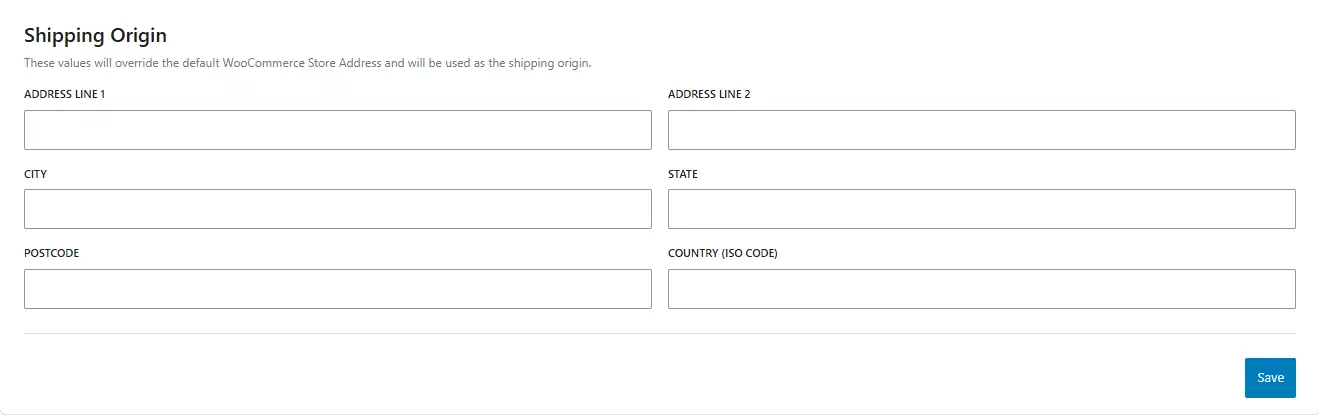
What to Configure in Fulfillment Location
⚠️ Important: Double-check the Fulfillment Location details to ensure complete accuracy. Even small spelling mistakes in the city, state, or other fields can break live rate calculations and return incorrect shipping prices.
- Address line 1: Primary street address of your fulfillment center/shipping origin
- Address line 2: Suite, unit, or building number (optional)
- City: City where your fulfillment center/shipping origin is located
- State: State/province name of the shipping origin (e.g., CA or California)
- Zip/Postcode: ZIP or postal code associated with the shipping origin
- Country (ISO Code): Two-letter/Alpha-2 country code (e.g., US, CA, BD) – Explore Country Codes