How can I change Product Measurement Units and Currency?
You can change measurement units (weight, height, width, length) and currency in WooCommerce.
For product measurements:
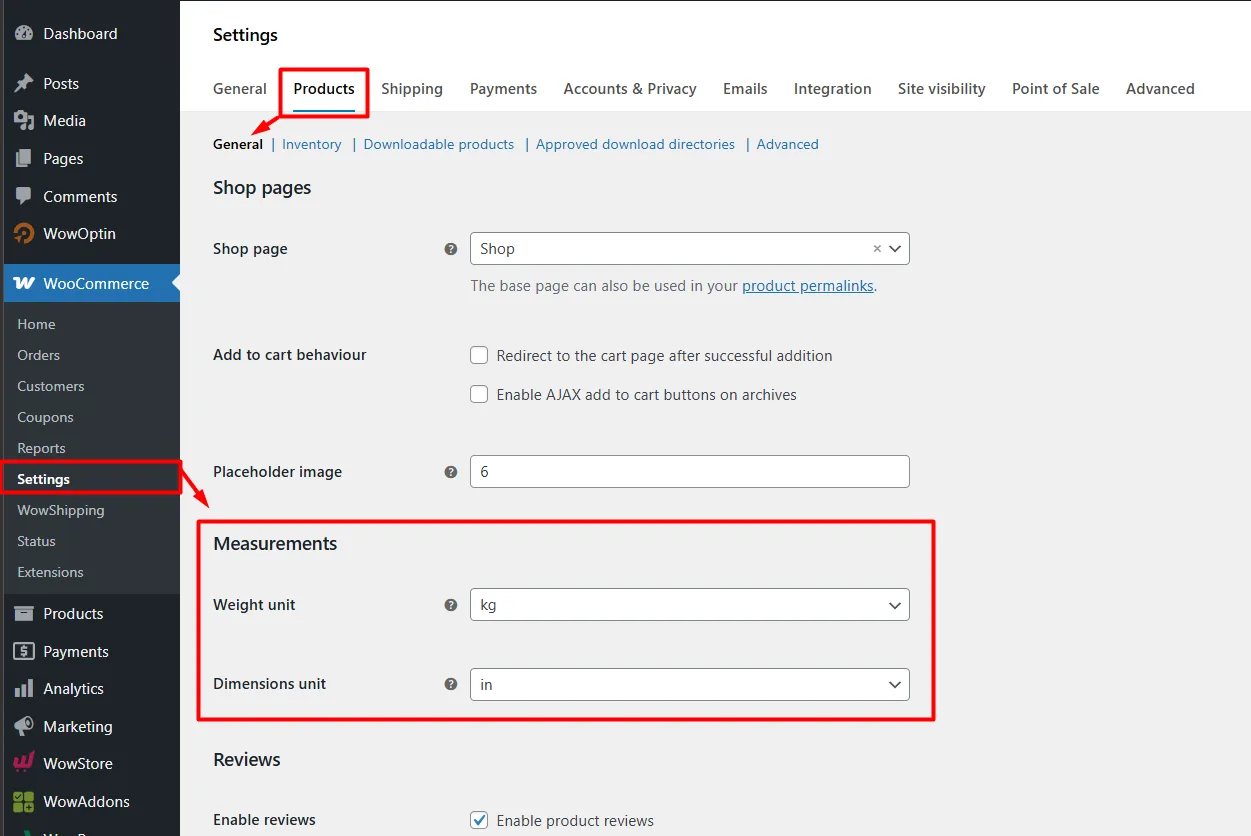
Go to WooCommerce > Settings > Products > General > Measurements.
From here, update the Weight unit and Dimensions unit (length, width, height, and volume).
For currency:
Go to WooCommerce > Settings > General > Currency options.
Select the currency that fits your store.
Which Shipping Method to Use When
Choosing the right shipping method depends on your pricing strategy, customer expectations, and operational needs. Here’s when to use each:
Flexible Rate
Use Flexible Rate when you need advanced, condition-based pricing. It’s ideal for creating tiered shipping rules based on cart value, weight, quantity, product category, or location.
👉 Best for stores with varied products or when you want precise control over shipping costs.
Flat Rate
Use Flat Rate when you want a simple, fixed shipping fee for all orders or specific zones. It’s easy to set up and predictable for both you and your customers.
👉 Best for small catalogs or when you prefer consistency over complexity.
Free Shipping
Use Free Shipping to incentivize purchases and improve conversion rates. It works well as a promotional tool, such as offering free shipping above a certain cart value or during campaigns.
👉 Best for boosting sales, increasing average order value, and enhancing customer satisfaction.
Carrier Live Rates
Use Carrier Live Rates when you want real-time shipping costs directly from carriers based on the customer’s address, package weight, and dimensions.
👉 Best for accuracy and transparency, especially for international shipping or when shipping costs vary significantly.
👉 Helps avoid undercharging or overcharging by passing actual carrier rates to customers.