

Your team has written the setup guide. Customers still open tickets asking for the same steps. An agent finds the article, explains it again, and moves to the next request.
What if those instructions could answer the question through chat or a ticket, with your team stepping in when the answer needs investigation?
That is the workflow this guide will help you build. Using NiroHelp, you can organize documentation, collect useful ticket details, assign requests, and add AI replies based on your published help articles.
Start with the questions your team answers repeatedly. Then test the automation before expanding it.
What Is WordPress Support Automation?
WordPress support automation uses rules and software to handle repeat tasks such as assigning tickets, sending notifications, and answering documented questions.
Some tasks need no AI. A rule can assign a new ticket to the agent with the fewest open requests. Other tasks involve interpreting a question and finding relevant information, which is where AI can help.
An AI-native helpdesk builds that capability into the support workflow. Its documentation, ticketing, and AI features work together, so your team can manage the source articles and customer conversations in one system.

For example, a documented installation question may be suitable for an automatic reply. An error that appears only with a particular plugin combination may need testing by an agent.
You still need to decide which requests should receive personal attention. A relevant article alone does not establish that automation is appropriate for every situation.
Where NiroHelp Fits Into the Workflow
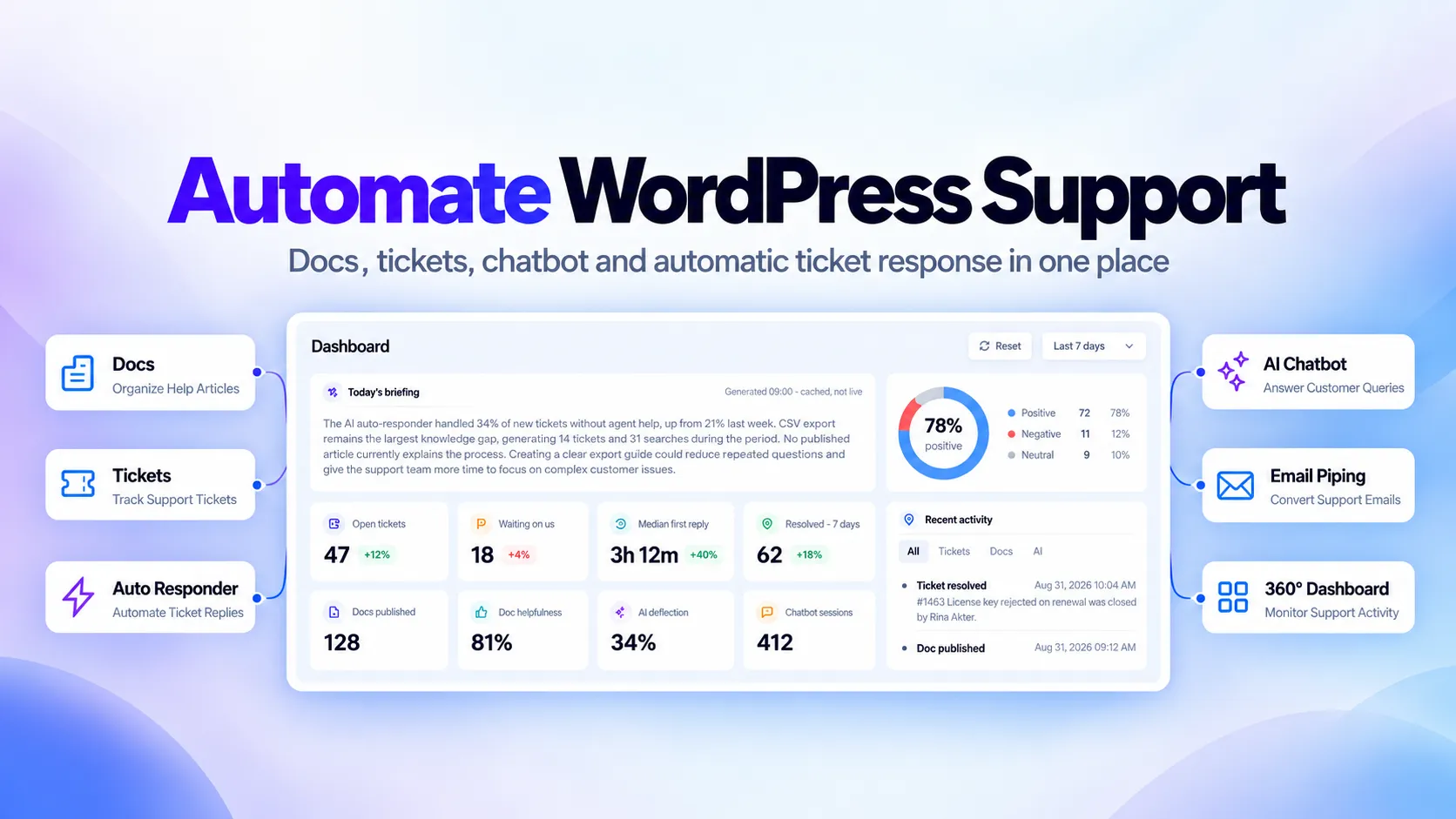
NiroHelp combines a WordPress knowledge base, ticket system, AI chatbot, ticket auto-responder, and support dashboard. The chatbot and auto-responder use documentation you sync to the AI service.
The free core lets you organize articles and manage tickets. Paid plans add AI features and email piping. You do not need a separate OpenAI or Anthropic account. AI usage is covered by a plan allowance, so check your expected volume before choosing a plan.
The setup below starts with the core helpdesk. Once customers can submit requests and agents can respond, you can add AI to that working process.
How to Automate WordPress Support With NiroHelp
Step 1: Install NiroHelp and Check Your Support Pages
In WordPress, open Plugins → Add New Plugin, search for NiroHelp, and install and activate it. You can also download it from the WordPress plugin directory.
On first activation, NiroHelp creates or adopts the pages needed for its public support area:
- Docs: The searchable knowledge base.
- My Tickets: A customer’s ticket history and conversations.
- Submit a Ticket: The form for opening a request.
Check their selections in NiroHelp → Settings. These page settings also affect links in ticket notifications.
Add the relevant pages to your navigation. Then test the process as a customer: submit a ticket, open its notification email, follow the link, and send a reply.
Complete this check before enabling automatic answers. It confirms that customers have a working route to your team.
Step 2: Build Documentation Around Repeat Questions
Review recent tickets and identify questions your team has answered more than once. Start with those that have clear, stable instructions.
NiroHelp organizes documentation using Topics and Products. Topics group related articles, while Products separate information for different plugins, themes, or services.
A plugin’s documentation might include:
| Topic | Example article |
| Getting Started | How to Install the Plugin |
| Licensing | How to Move a License to Another Site |
| Configuration | How to Enable Email Notifications |
| Troubleshooting | What to Check When an Import Fails |
Keep each article focused on one task. Explain any prerequisites, use the setting names customers see, and show what a successful result looks like.
If instructions differ between free and paid versions, say so. If a step applies only to a particular release, identify that version.
Before publishing, ask someone to follow the article without help. A missing step is easier to find during that check than after it appears in an automated answer.
Step 3: Use Ticket Reasons and Automatic Assignment
Documentation Topics organize articles. Ticket Reasons describe why a customer is contacting support.
Start with a short list such as Bug Report, Billing Question, Feature Request, and General Question. These categories help agents sort requests and understand their purpose.
Then configure the form to collect details needed for the next action. NiroHelp supports product, reason, urgency, order reference, and custom fields.
For example, a fictional request could look like this:
| Field | Example |
| Product | MapleForms |
| Reason | Bug Report |
| Urgency | Medium |
| Subject | Confirmation email missing after form submission |
| Description | The entry appears in the dashboard, but no confirmation arrives. This started after I changed the sender address. |
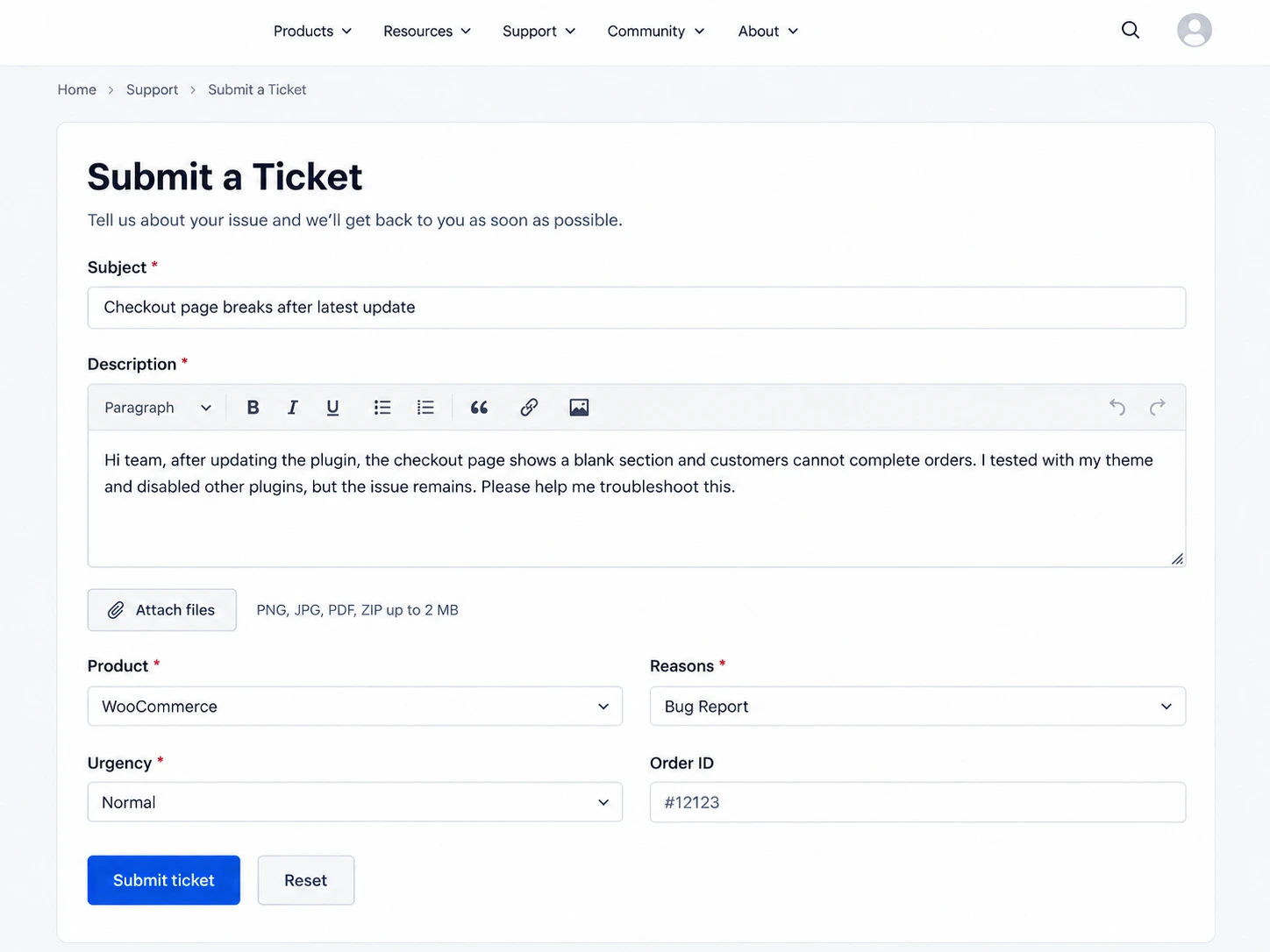
Ask only for information that helps resolve the request. An order reference may help with billing but adds little to a general product question.
Next, choose an assignment method. Round-robin distributes tickets in turn. Least-loaded sends the next request to the agent with the fewest open tickets. Random selects an agent without following that sequence. You can also set a workload cap or assign manually.
This handles routing before you introduce AI. The selected Reason provides context, but an agent still needs to assess the problem.
Step 4: Connect AI and Sync Your Published Articles
Open NiroHelp → AI and use the AI Connectivity card to register your site. Enter your contact details, select Send Code, then paste the emailed site key into the card and choose Verify.
This is a NiroHelp site key. You do not need to supply your own model-provider API key.
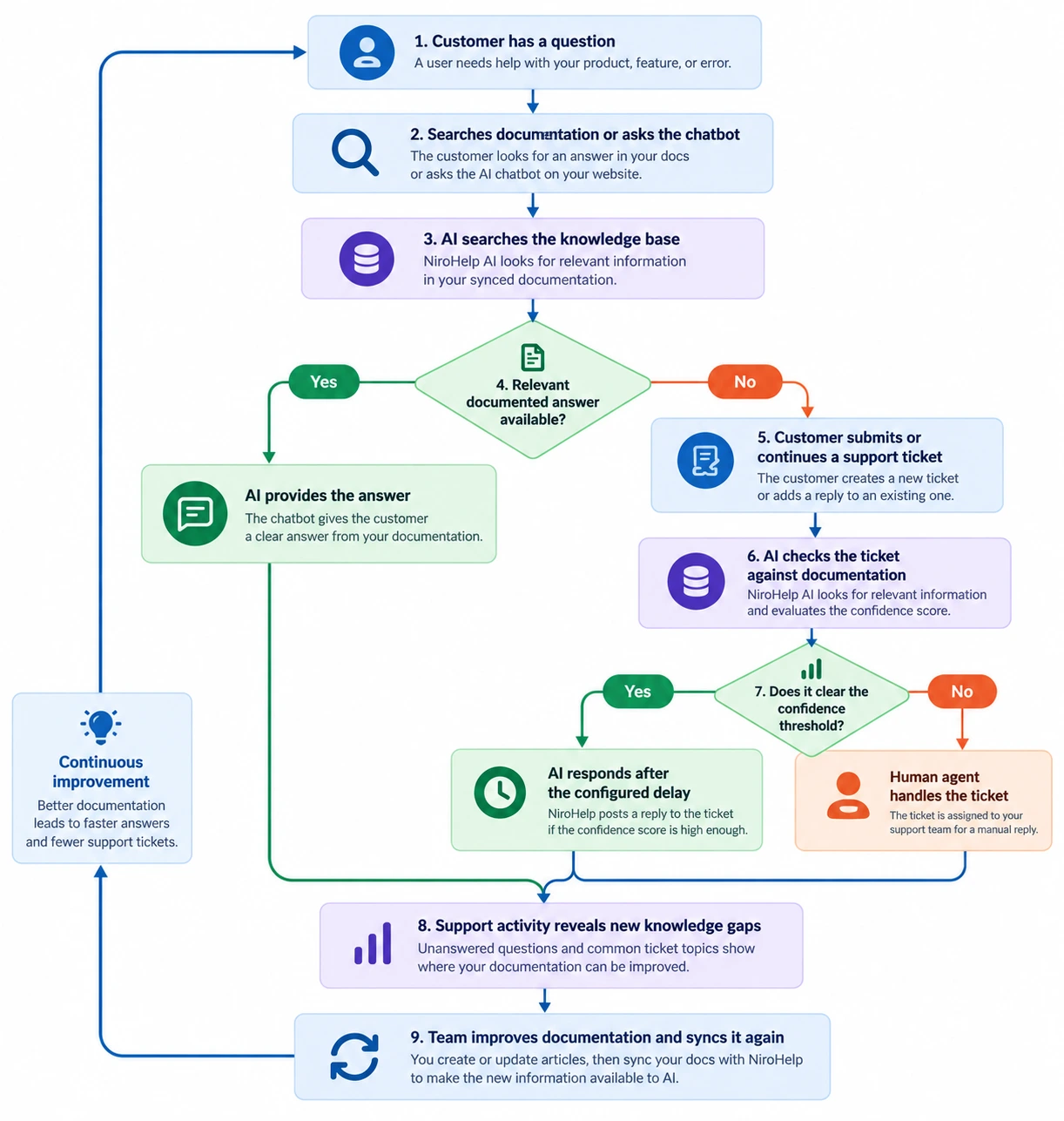
Once connected, select Sync Docs in the Knowledge Base row. The service indexes your published articles for chatbot and ticket responses. Syncing is manual, so editing an article does not immediately refresh the AI’s information.
Make syncing the final step of a documentation update. If you change the license activation process, publish the revised instructions, sync them, and test a question about the changed step.
Keep unreleased information in draft until it is ready for customers. Delaying an AI sync does not make an already published article private.
The AI service operates externally. Synced documentation and relevant request context are processed there; the language model does not run on your WordPress server.
Step 5: Configure the AI Ticket Auto-Responder
With ticketing enabled and AI connected, open NiroHelp → AI → Auto responder. The feature is off by default. Its documented defaults include a five-minute response delay and a confidence threshold of 70 on a 0–100 scale.
The threshold controls whether an AI answer is posted. A result below the threshold leaves the ticket without an automated reply. The team can then handle it through the normal queue.
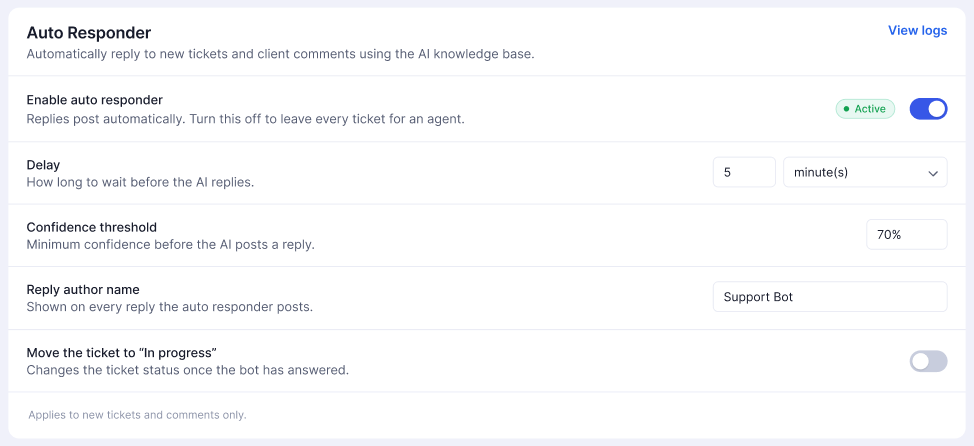
A higher threshold makes the system more selective. It does not guarantee accuracy, and a setting of 70 does not mean an answer has a verified 70% chance of being correct.
Use the delay to give agents time to respond first. An agent reply cancels the pending AI response. A new customer message restarts the delay, so the system works from the latest conversation. Resolved, closed, and cancelled tickets are excluded.
Test these rules with internal requests before using them for customer conversations. Check both a question your documentation covers and one it cannot answer.
Also inspect the wording of the replies. A relevant answer can still omit a prerequisite or assume the customer is using the wrong version.
Step 6: Add the Chatbot and a Clear Route to Your Team
The auto-responder works after a ticket exists. The chatbot lets visitors ask questions while browsing your site.
Configure its name, avatar, colors, welcome message, and suggested questions. Choose where it appears and set its business-hour behavior. NiroHelp provides a script for embedding the widget, including on non-WordPress websites.
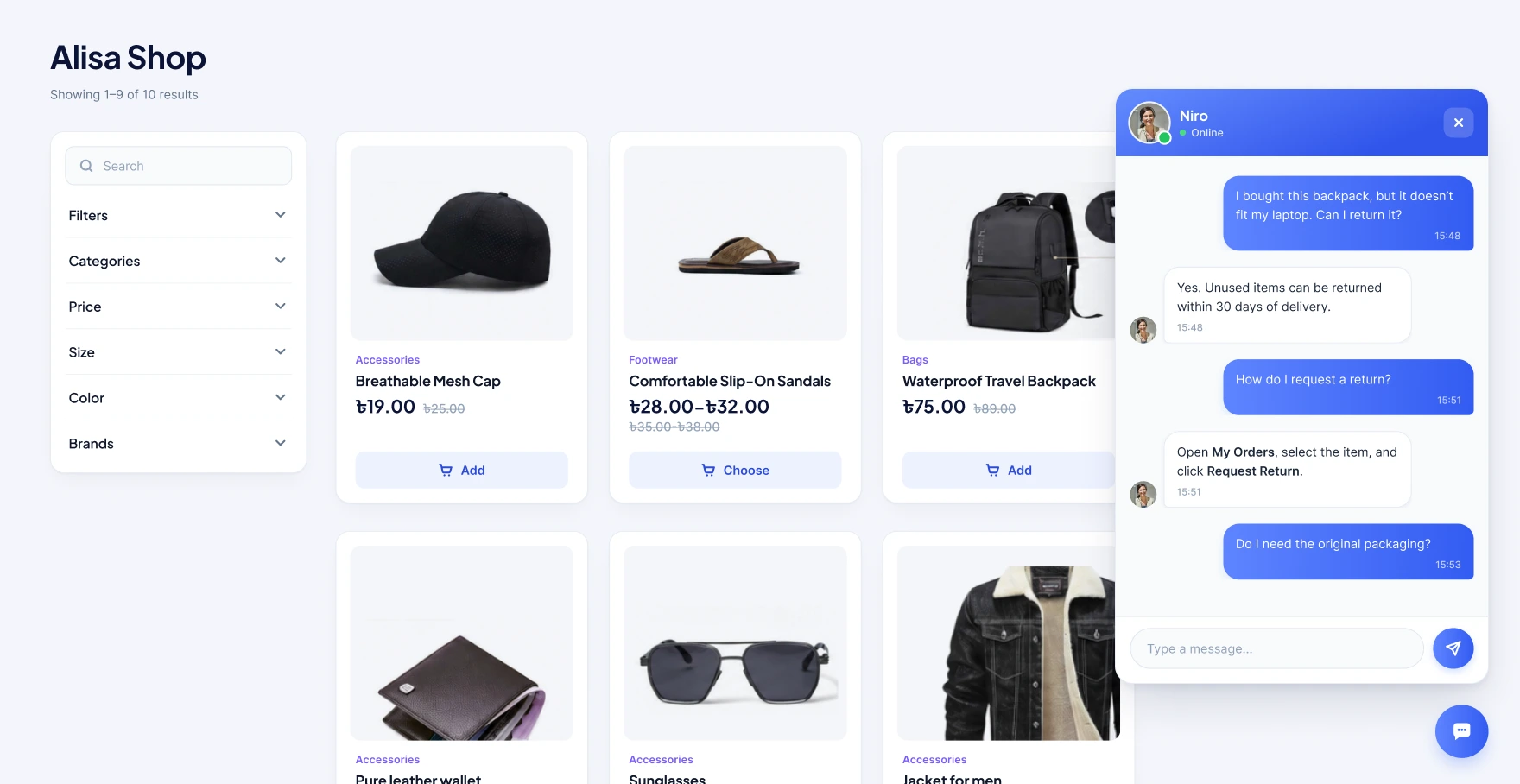
Start on your documentation pages, where visitors are already looking for help. Use suggested questions that your articles answer clearly, such as “Where do I enter my license key?”
Add the support email and ticket link customers should use when they need a person. This route is different from having an agent join the same chat live. Test it yourself and check whether customers need to repeat information when opening a ticket.
If you embed the chatbot on several product sites, check its answers on each one. Shared documentation should clearly identify which instructions belong to which product.
Step 7: Review Results and Improve the Source Articles
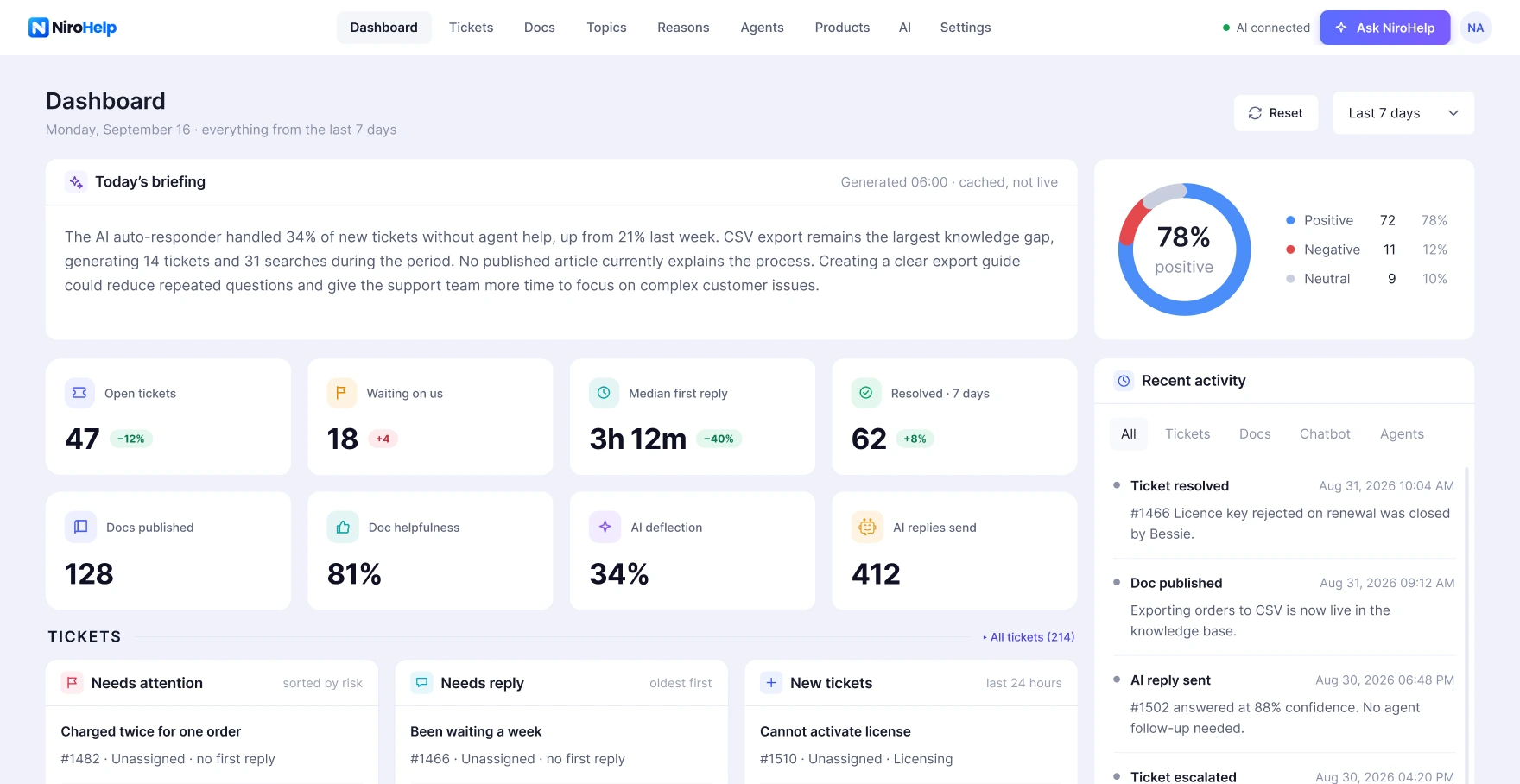
NiroHelp’s dashboard brings together ticket queues, reply metrics, article feedback, and support activity. Paid AI features add further insights and the Ask NiroHelp copilot.
Use those signals to decide what to inspect, then read the underlying conversations. A sentiment label or summary should not replace that check.
For example, several customers may report that an import stops halfway through. Read their tickets and the existing guide. If a required setting is missing from the instructions, update it. If the instructions are correct but the import still fails, investigate the product instead.
After an article changes, sync it and repeat the relevant test question. This connects support feedback to a specific improvement rather than simply adding more pages to the knowledge base.
Which Support Tasks Should You Automate?
Start with tasks that have a clear answer or a predictable rule. Keep decisions involving exceptions, investigation, or account changes under human review.
| Suitable starting point | Keep a person involved |
| Published installation steps | Unusual installation failures |
| Locating a documented setting | A setting that behaves differently on one site |
| Explaining standard license terms | Approving a license exception |
| Showing published refund instructions | Deciding whether to grant an exception |
| Assigning tickets by workload | Investigating a serious customer complaint |
| Explaining documented compatibility | Diagnosing an untested plugin combination |
A confidence threshold helps control replies, but it is not a substitute for these operating rules. Make sure your team monitors requests that require judgment, even when related documentation exists.
Test the Workflow Before Expanding It
Use a small internal test set that covers the situations your customers actually face.
| Test | What to check |
| A question answered directly in an article | The reply follows the current instructions |
| A question missing key details | The response does not invent the missing information |
| A question outside your documentation | Ticket automation withholds the reply when below threshold |
| An agent replies during the delay | The pending AI response is cancelled |
| An article is revised and synced | The next answer reflects the change |
| A visitor asks for human help | The email or ticket route is easy to use |
Record incorrect answers and unnecessary replies. Fix the source article or settings before increasing automation.
Once the system is in use, compare similar periods. Look at how many replies agents had to correct, whether customers returned with the same issue, and how long unresolved tickets waited.
An AI reply count shows activity. It does not, by itself, show that customers solved their problems.
Final Thoughts
Start with repeat questions, clear articles, and a working ticket queue. Then add AI replies, test them, and improve the instructions behind them.
NiroHelp lets you build that workflow inside WordPress. Begin with the WordPress free helpdesk NiroHelp and add paid automation when your documentation is ready to support it.
Frequently Asked Questions
Can AI answer WordPress support tickets automatically?
Yes. NiroHelp’s auto-responder can post answers based on synced documentation when its confidence threshold is met. A response delay gives agents time to reply first.
What happens when NiroHelp cannot answer a ticket?
If the result falls below your threshold, no automated answer is posted. The ticket remains in the queue for your team.
Does editing an article automatically update the AI?
No. NiroHelp’s documented process uses manual syncing. Run Sync Docs after publishing changes so the AI can use the updated information.
Do I need a separate OpenAI or Anthropic account?
No. NiroHelp provides the AI service through its paid plans. You connect using a NiroHelp site key rather than your own model-provider API key.
Can I use NiroHelp without AI?
Yes. The free core includes documentation, tickets, email notifications, the dashboard, and migration tools. You can organize support first and add AI later.