

You can use PostX templates inside WPBakery 9.0 without rebuilding your existing WPBakery pages.
The process is simple: Enable Saved Templates and WPBakery Addons in PostX → create a section in PostX → save it as a template → add the PostX Template element in WPBakery → select your saved template → publish.
This lets you add PostX post grids, post lists, sliders, and other Gutenberg-based sections directly to WPBakery 9.0 pages.
This tutorial uses the WPBakery 9.0 interface, which includes updated navigation, element controls, templates, and frontend editing options.
What You Can Add to WPBakery with PostX Templates
A PostX Saved Template can include both PostX blocks and regular WordPress Gutenberg blocks. This means you are not limited to adding only a single post grid or list to WPBakery. You can create and insert:
- A single PostX block, such as a post grid, list, or slider
- A section containing multiple PostX blocks
- A layout that combines PostX and default Gutenberg blocks
- A complete block-based page layout built in Gutenberg
WPBakery controls where the template appears on the page, while the actual block content and layout remain managed from PostX Saved Templates.
Add PostX Templates to WPBakery 9.0 in Five Steps
WPBakery 9.0 introduces a cleaner interface, redesigned editing windows, improved frontend controls, and updated navigation. Despite these interface changes, adding a PostX Saved Template remains straightforward.
Here’s how to add and display a PostX Saved Template in WPBakery 9.0 in five steps.
Step 1: Enable the Required PostX Addons
Before getting started, make sure both PostX and WPBakery Page Builder are installed and activated on your WordPress site.
Then, navigate to PostX → Addons and enable these two add-ons:
- Saved Templates
- WPBakery Page Builder
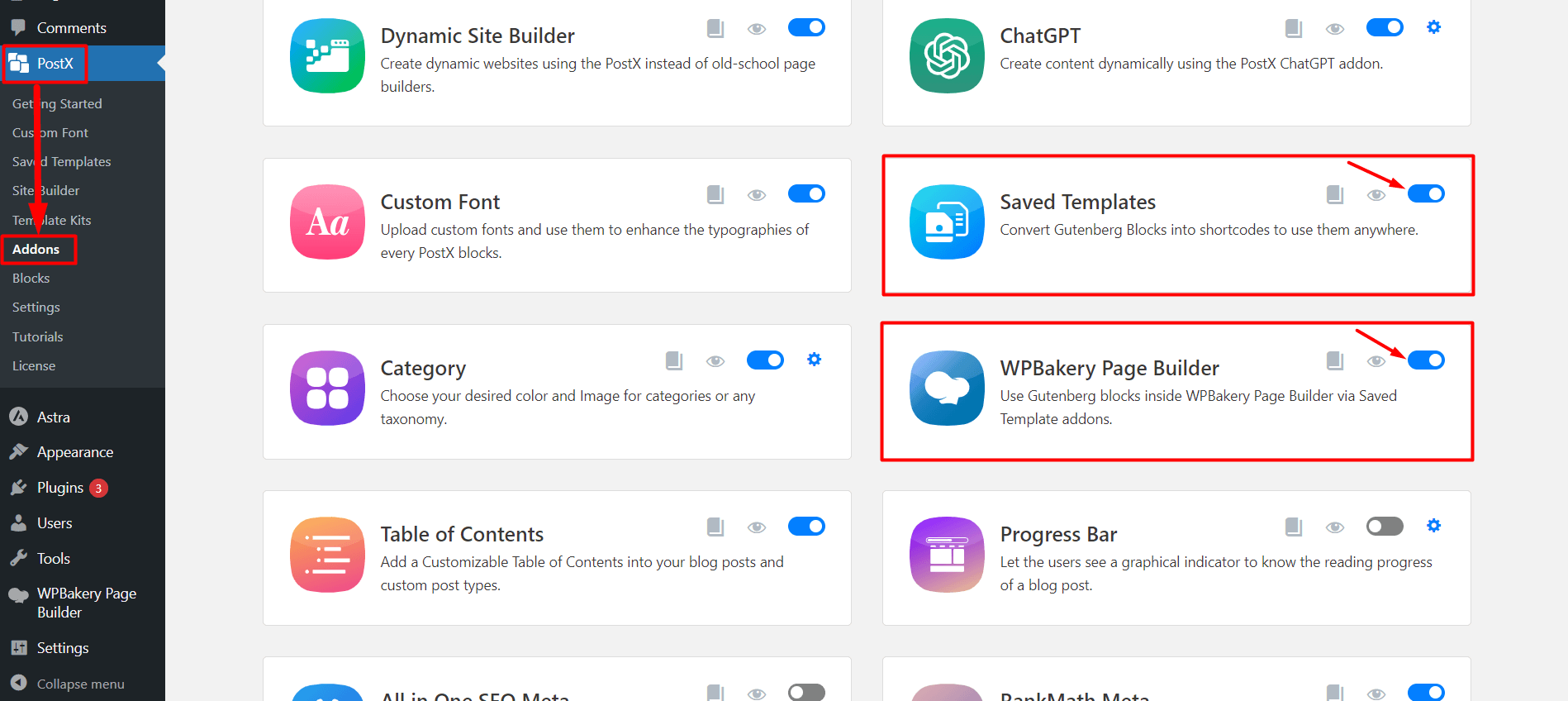
Once enabled, the Saved Templates add-on lets you create reusable layouts with PostX and Gutenberg blocks. The WPBakery Page Builder add-on adds a PostX Template element to the WPBakery elements list, allowing you to insert saved templates into your WPBakery pages.
Step 2: Create a Template with PostX
Now, let’s create a template using PostX blocks, core Gutenberg blocks, or a combination of both. Go to PostX → Saved Templates → Add New Template, then design your desired layout in the WordPress block editor.
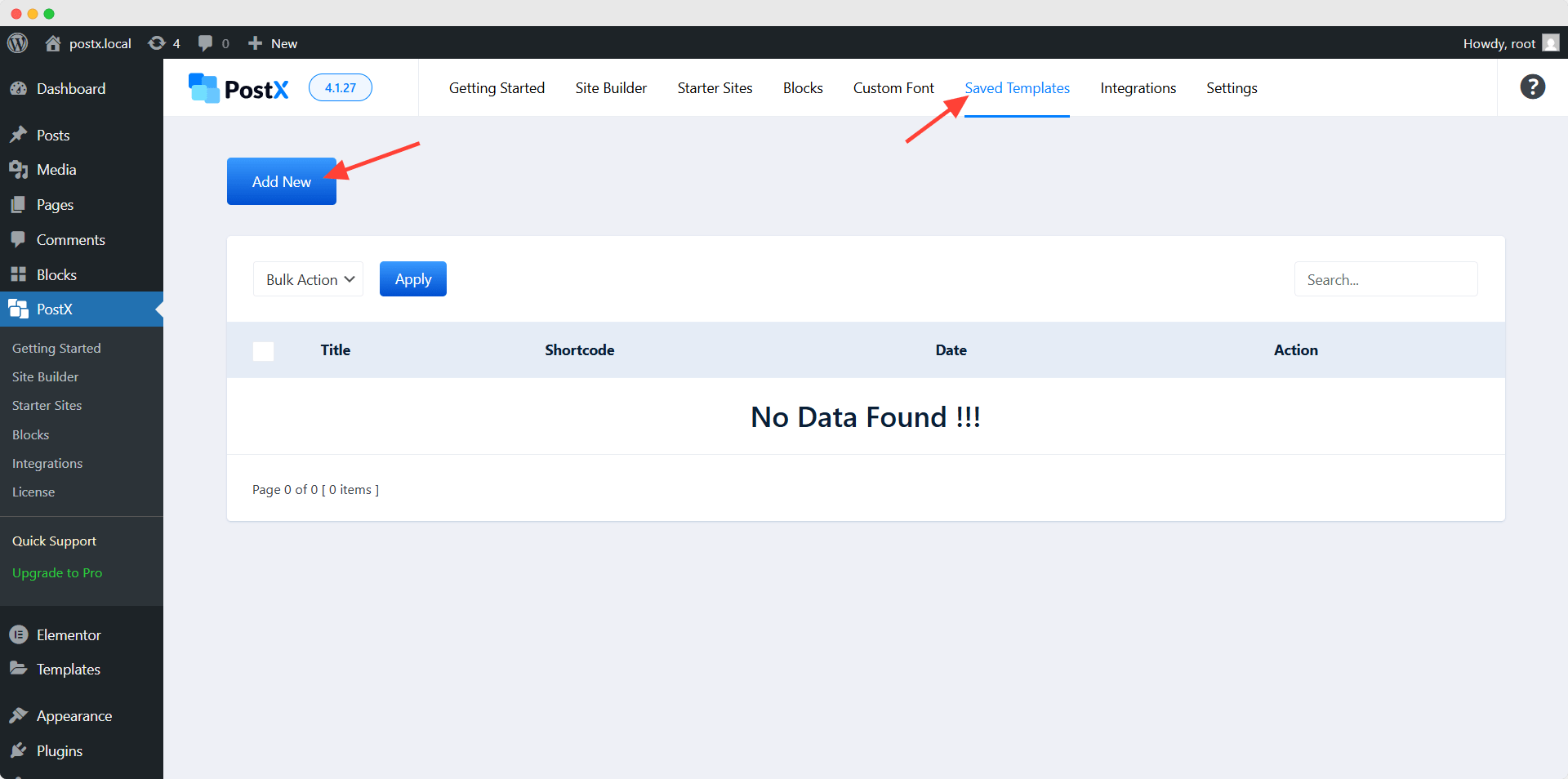
You can also start from one of the premade PostX designs instead of building everything from scratch.
For example, suppose you want to add a latest-news section to an existing WPBakery homepage. You could:
- Add a PostX Post Grid block.
- Configure which posts should appear.
- Set the number of columns.
- Adjust the heading, image, meta, excerpt, spacing, and other design options.
- Give the template a clear name, such as Latest News Grid.
- Click Publish.
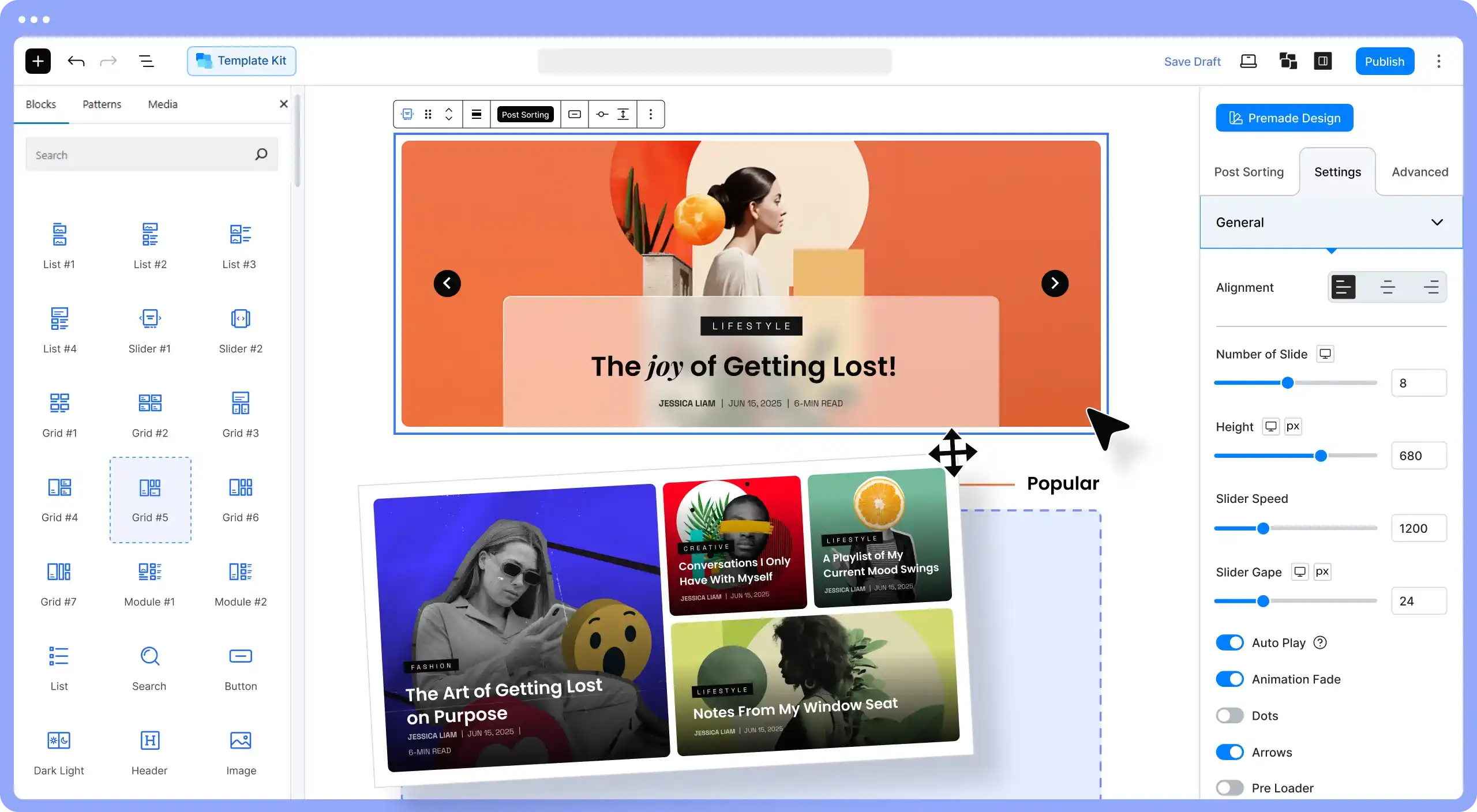
Note: Always use a clear, descriptive template name. This will help you quickly identify and select the correct layout in WPBakery later.
The important part here is that you are creating the actual content layout in the Gutenberg editor, not inside WPBakery.
Step 3: Open a New or Existing Page with WPBakery 9.0
Next, open the page where you want to display your PostX template. Go to Pages → All Pages, then edit an existing page or create a new one and open it with WPBakery Page Builder.
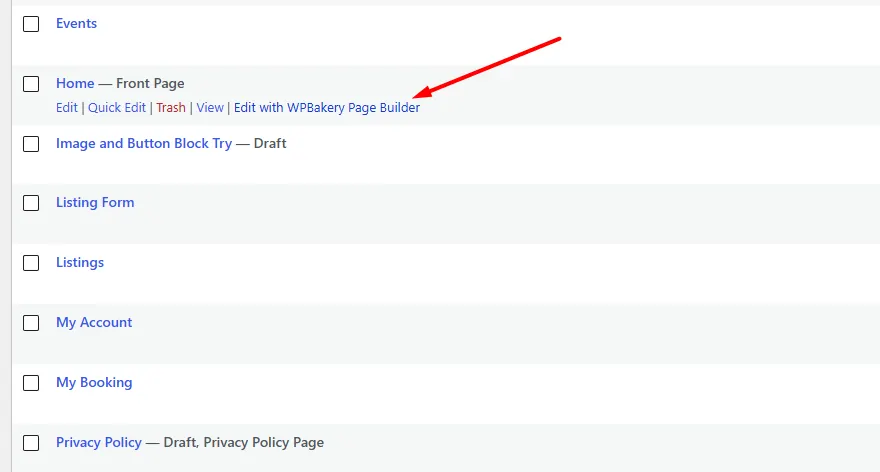
WPBakery 9.0 features a redesigned editor, so its controls may look different from those in version 8.x. However, the workflow remains the same: select the desired location and add a content element within the WPBakery row and column structure.
You can add the PostX Template element just like any other WPBakery content element.
Step 4: Add and Select Your PostX Template
In the WPBakery editor, go to the row or column where you want the layout to appear and click Add Element. Search for PostX Template, select the element, and open its settings.
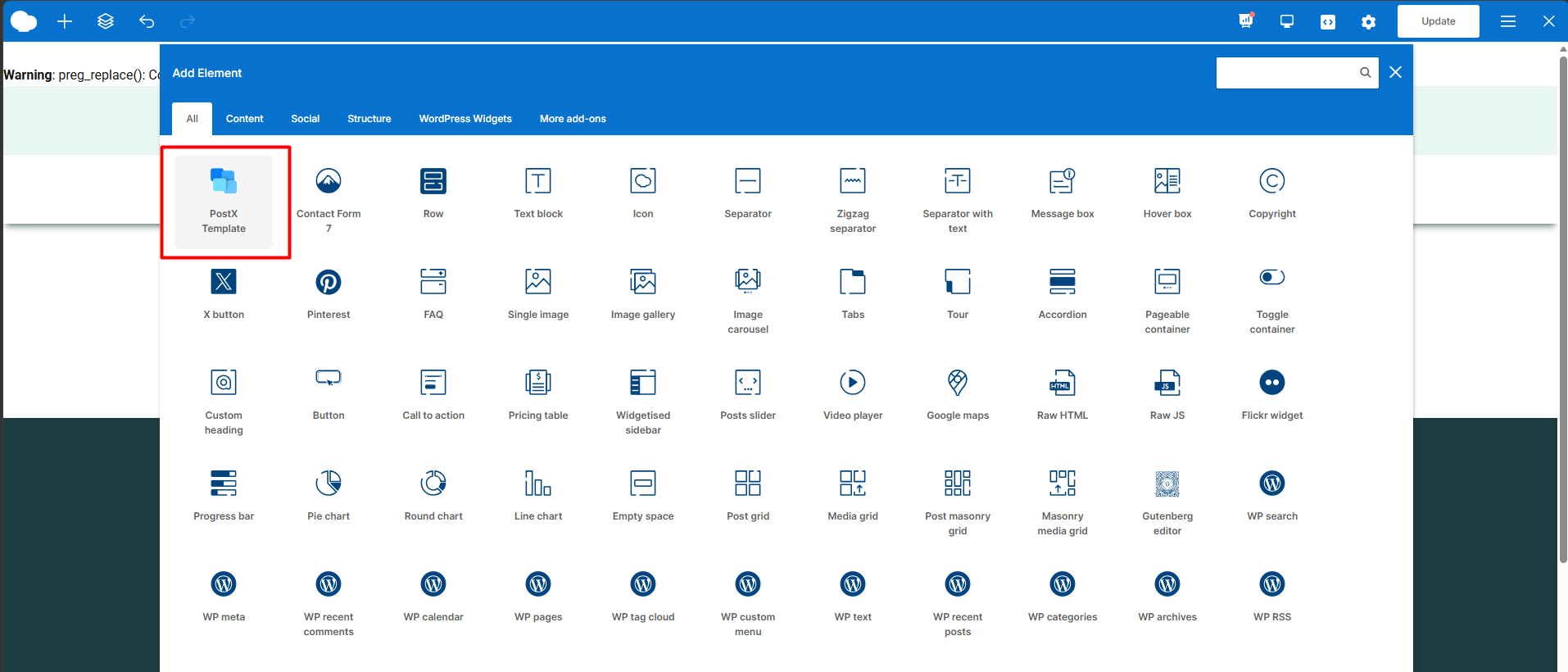
Choose the saved template you created earlier—Latest News Grid in this example—and save the settings. You do not need to copy shortcodes or manually add Gutenberg markup.
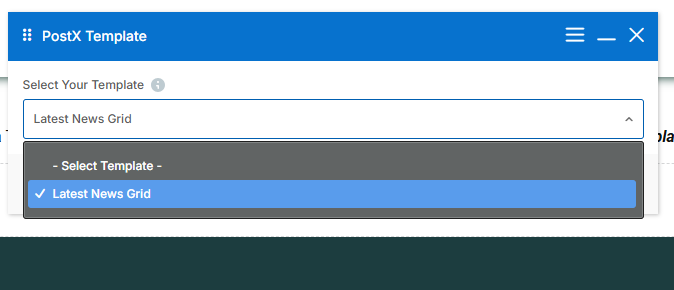
WPBakery controls where the section appears on the page, while PostX controls its content, design, and block configuration.
Step 5: Publish and Preview the Page
Publish the new page or update the existing one, then preview it on the frontend to confirm that your PostX layout appears correctly within the WPBakery page.
For example, your page structure might look like this:
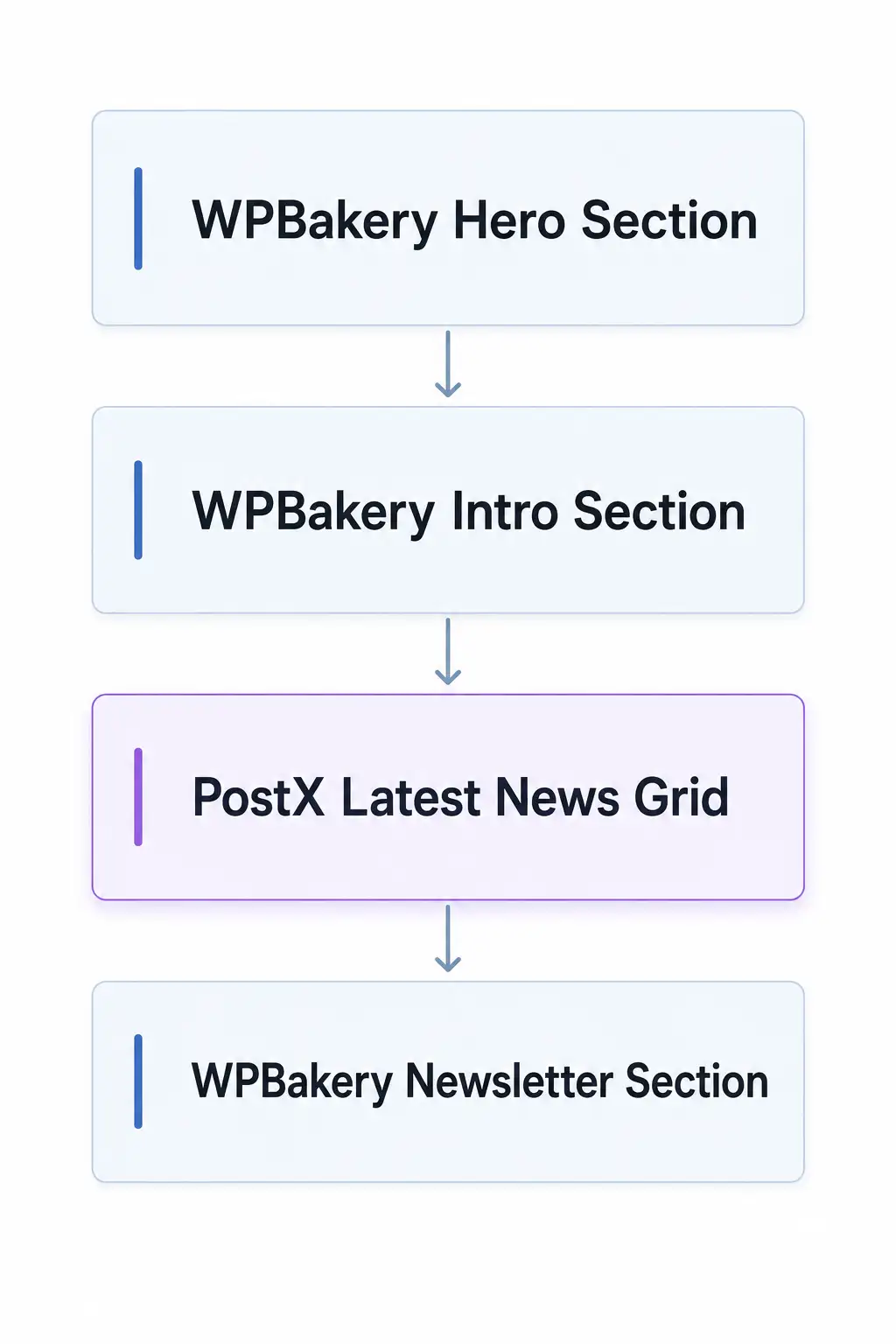
You can continue designing the rest of the page with WPBakery, while the selected PostX template works as a reusable section within the overall layout.
How to Edit a PostX Template After Adding It to WPBakery
You cannot edit the content of a PostX template directly from WPBakery.
The integration lets WPBakery display PostX Saved Templates, while the actual blocks and layout are still edited in the Gutenberg editor.
To change its Post Grid, query, typography, spacing, colors, or other block settings, go to PostX → Saved Templates, find the template, and click Edit.
Make the required changes in the WordPress block editor, then click Update. You do not need to remove or reinsert the PostX Template element in WPBakery; the updated design will automatically appear everywhere that saved template is used.
This is especially useful when reusing one template across multiple pages. For example, if the Latest News Grid appears on five WPBakery pages, you only need to update the saved template once for the changes to appear in all five locations.
How to Fix Common PostX Template Issues in WPBakery
If your PostX template is missing, not updating, or displaying incorrectly in WPBakery, use the checks below.
🔍 PostX Template Element Is Missing
If searching for PostX Template inside WPBakery returns nothing, go to PostX → Addons and make sure both Saved Templates and WPBakery Page Builder are enabled.
Then reload the WPBakery editor and search for PostX Template again.
📋 Saved Template Does Not Appear in the List
Go to PostX → Saved Templates and make sure the template is published. Draft or unpublished templates will not appear in the WPBakery template list.
If you have several templates, use clear names so you can quickly identify the one you need.
🔄 Template Changes Are Not Updating
After editing a Saved Template, click Update and refresh the frontend page. If the changes still do not appear, clear the cache from your WordPress caching plugin, hosting provider, or CDN.
You do not need to reselect the template in WPBakery. The existing PostX Template element stays linked to the Saved Template and reflects its latest updates.
🎨 Layout Looks Different on the Frontend
If the PostX template looks too narrow, misaligned, or has unexpected spacing, first check the WPBakery row and column settings and your theme container width.
Also review the PostX spacing and responsive settings. If the issue remains, check whether custom CSS, caching, or CSS optimization is affecting the layout.
Because the template is rendered inside your existing WPBakery and theme structure, those settings can influence its final appearance.
FAQs About Using PostX Templates Inside WPBakery 9.0
Here are quick answers to common questions about adding, editing, and managing PostX Saved Templates in WPBakery 9.0.
Can I use Gutenberg blocks inside WPBakery?
Yes, you can create a new template from PostX → Saved Templates and use Gutenberg blocks to build the layout. Once the layout is ready, publish the template and insert it into your WPBakery page using the PostX Template element.
Can I edit a PostX template directly from WPBakery?
No. WPBakery only controls where the PostX Template appears on the page. To edit the blocks, content, or layout, open the template you created under PostX → Saved Templates and update it there.
Will updating a Saved Template update the WPBakery page?
Yes. Once a WPBakery page references a PostX Saved Template, changes made to that Saved Template are reflected wherever it is used.
Can I use multiple PostX templates on one WPBakery page?
Yes. You can add multiple PostX Template elements to the same WPBakery page and select a different Saved Template for each one.
Do I need to use a shortcode?
No. For WPBakery, use the dedicated PostX Template element unless you have a specific reason to use the shortcode.
Use PostX and WPBakery Together More Efficiently
Using PostX with WPBakery 9.0 gives you a practical way to bring Gutenberg-based post layouts into your existing WPBakery pages.
You can create your grids, lists, sliders, and other sections once as PostX Saved Templates, then place them anywhere in WPBakery using the PostX Template element.
The biggest advantage is reusability. If the same template appears on multiple pages, you only need to update it once from PostX, and the changes will appear everywhere it is used.