

A furniture store cannot use the same shipping rule for every product. A dining chair, a wardrobe, and a sectional sofa have different weights, dimensions, handling needs, and delivery costs.
To charge accurately, a WooCommerce furniture store needs to separate delivery areas, group products by shipping requirements, identify bulky or heavy items, and apply different rates based on product type, cart weight, and destination.
WooCommerce provides the basic shipping zones and classes, while the WowShipping table rate shipping plugin adds the conditional rules needed to calculate rates by product type, weight, and delivery area.
What Are the Core Factors That Determine Furniture Shipping Rates?
Furniture shipping generally revolves around the customer’s delivery area, the type of furniture being ordered, its weight and handling requirements, and the combination of products in the cart.
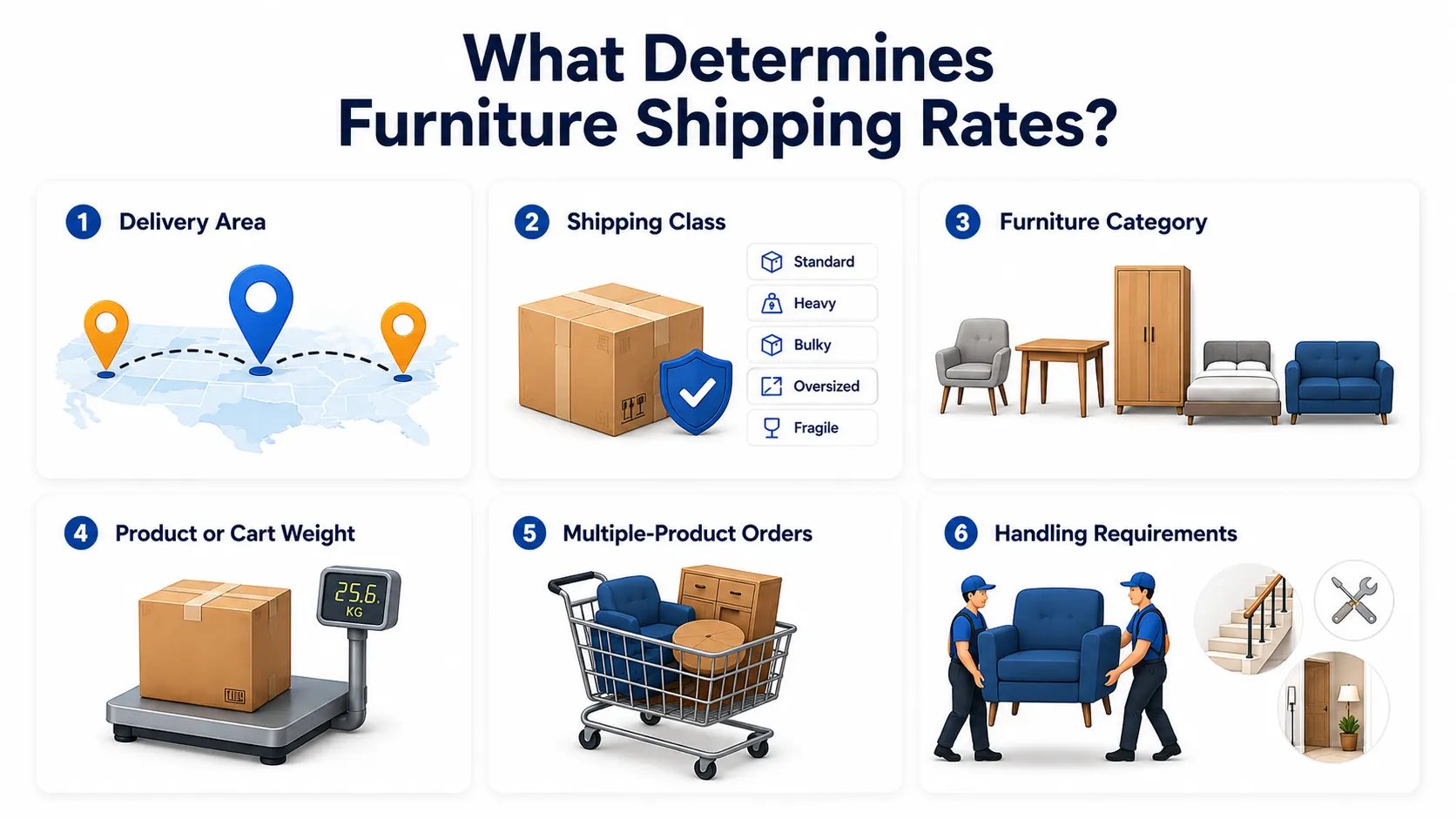
- Delivery area: Local, regional, and distant delivery zones may require different rates.
- Shipping class: Products can be grouped as standard, heavy, bulky, oversized, or fragile.
- Furniture Category: Chairs, tables, wardrobes, beds, and sofas may need separate shipping charges.
- Product or cart weight: Rates may increase based on individual item weight or the total cart weight.
- Multiple-Product Orders: Multiple items or a mix of standard and bulky furniture may require different calculations.
- Handling requirements: Large or fragile products may need extra fees for special handling, assembly, stair carrying, or room-of-choice delivery.
How WooCommerce and WowShipping Work Together for Furniture Shipping
WooCommerce provides the basic shipping structure for an online store, including shipping zones, shipping classes, flat rates, free shipping, and local pickup.
But furniture delivery rates depend on several conditions at the same time, such as the customer’s location, furniture category, shipping class, cart weight, product quantity, and handling requirements.
Creating these combinations with only the default WooCommerce settings is difficult to manage and can result in inaccurate rates, overlapping methods, or too many separate shipping configurations.
A dedicated table rate shipping plugin like WowShipping is therefore needed to turn WooCommerce product and delivery data into more precise shipping calculations.
Start with These WooCommerce Settings
Before creating furniture shipping rules in WowShipping, make sure the following WooCommerce data is set up correctly:
- Shipping zones: Group customer locations into delivery areas such as local, regional, nationwide, or restricted zones.
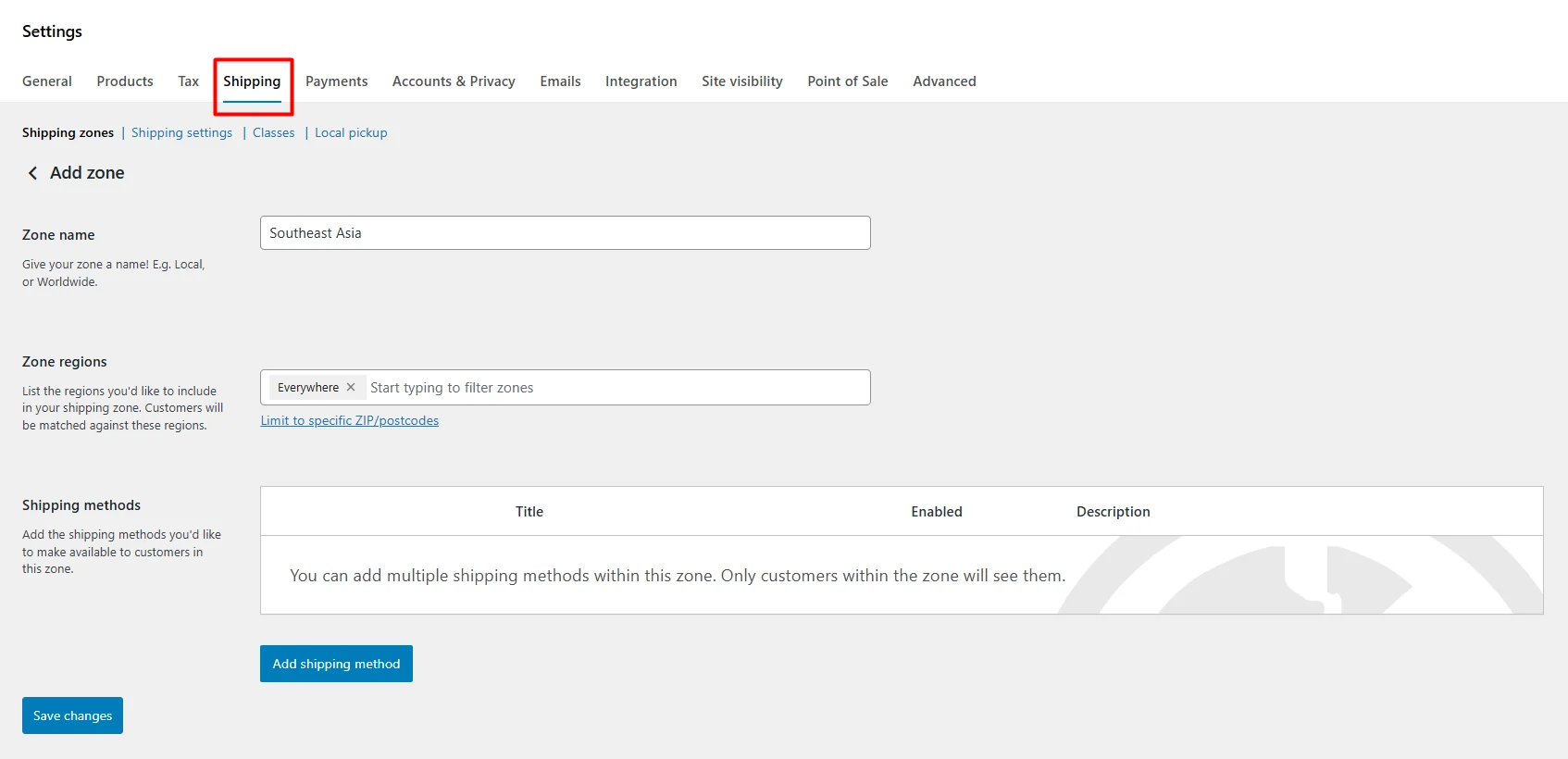
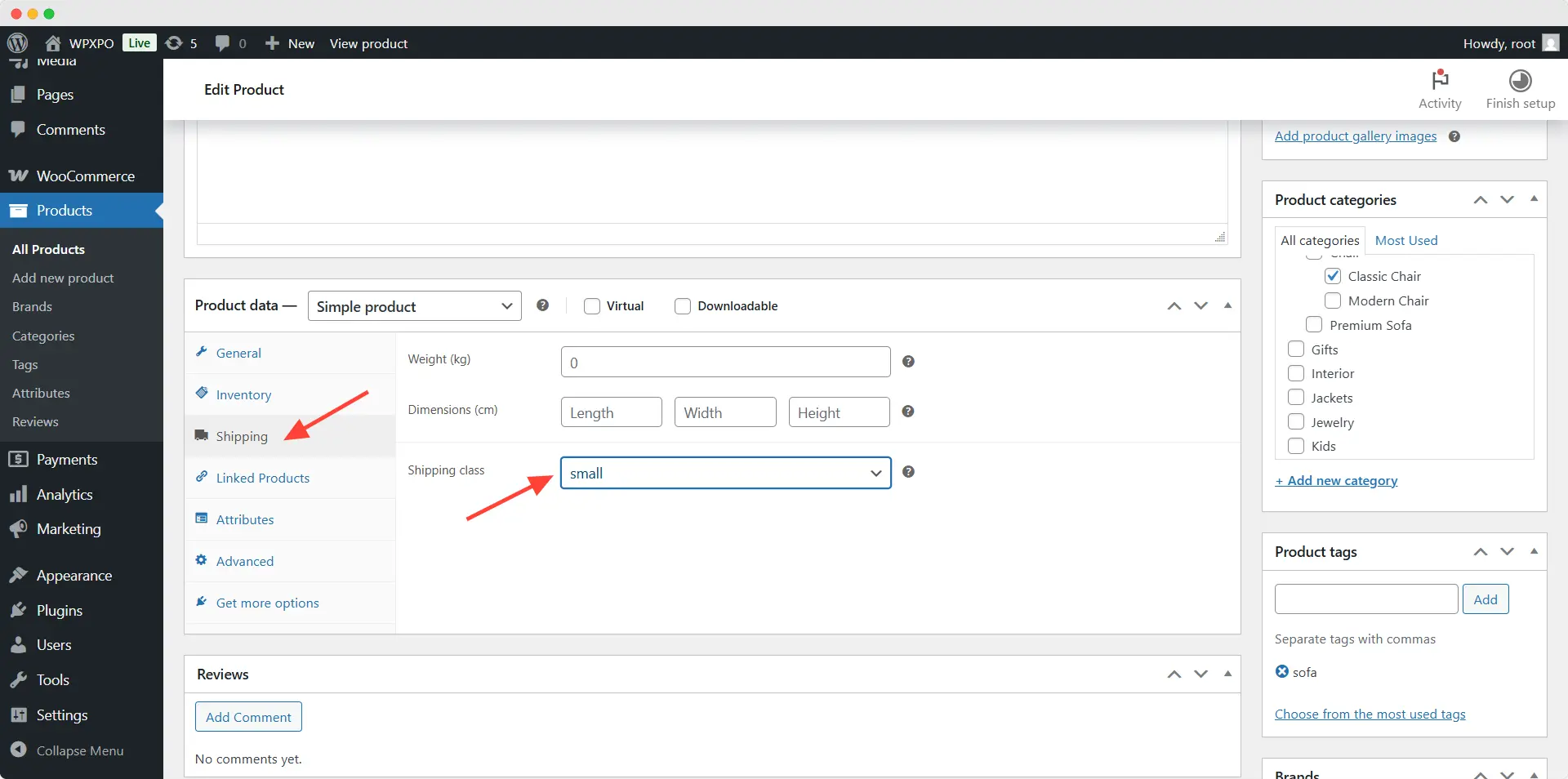
- Shipping classes: Assign products to classes such as standard, heavy, bulky, oversized, or fragile based on their shipping requirements.
- Product categories: Organize furniture into categories such as chairs, tables, beds, wardrobes, and sofas.
- Product weight and dimensions: Add accurate weight, length, width, and height information to each product.
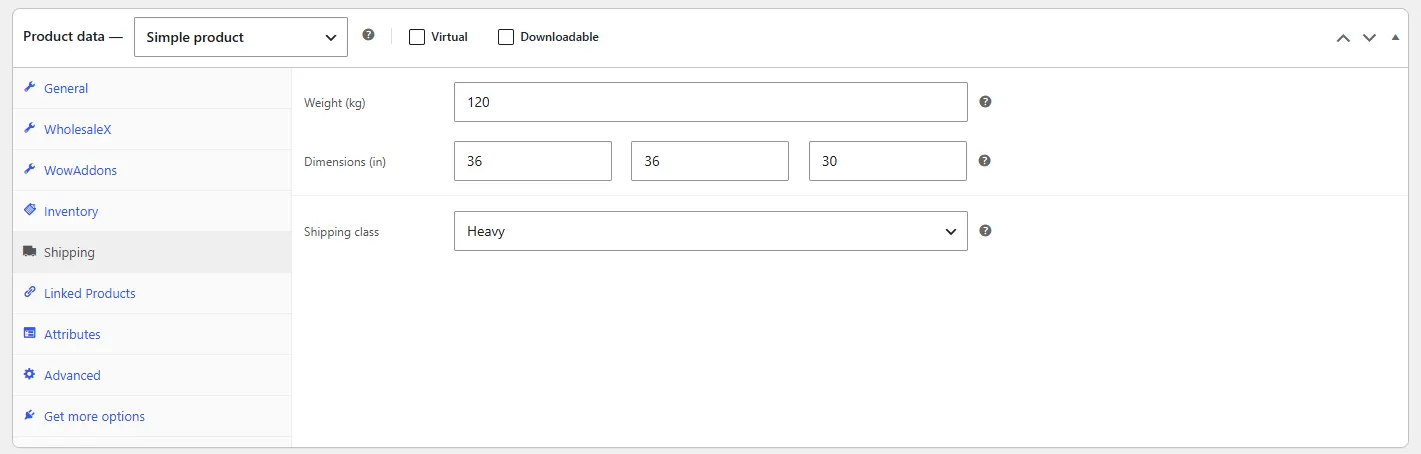
These settings provide the product and location data needed to build conditional rates.
Create the Shipping Rules with WowShipping
With WowShipping, you can now set shipping rates based on delivery zone, product or cart weight, furniture category, shipping class, quantity, price, and the contents of mixed carts.
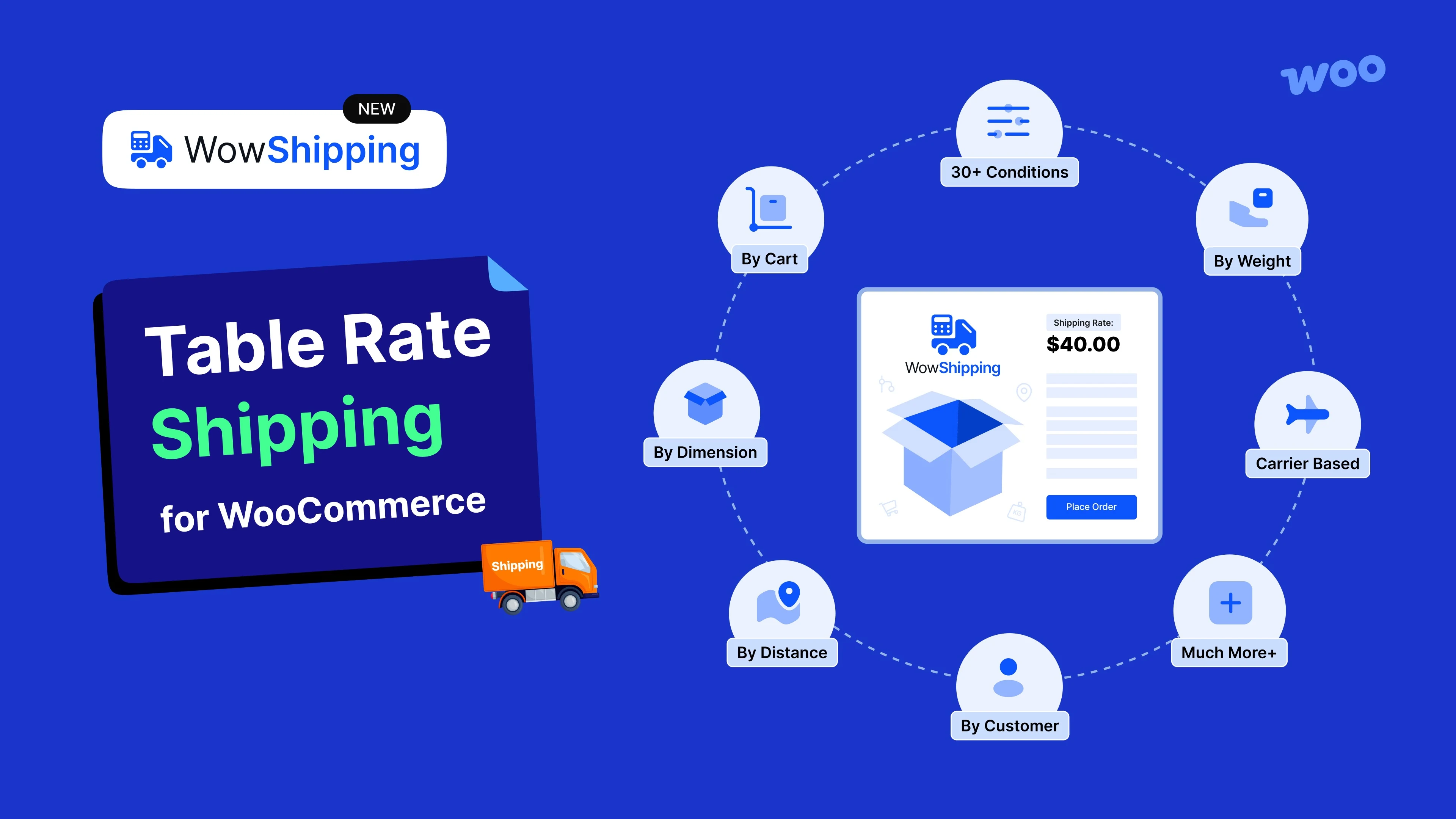
It also allows extra charges for heavy, bulky, oversized, or fragile items, plus services such as special handling, room-of-choice delivery, and assembly. This gives the store more control over shipping costs.
Setting Up WooCommerce Shipping for Furniture Stores Step-by-step:
To show how the setup works, we’ll use an example store with three shipping zones: Local, Regional, and Nationwide, and four shipping classes: Standard, Heavy, Bulky, and Oversized. Replace the sample rates with your actual delivery costs.
Step 1: Create the Base Delivery Method
Go to WooCommerce → WowShipping → Shipping Methods → Add Shipping Method.
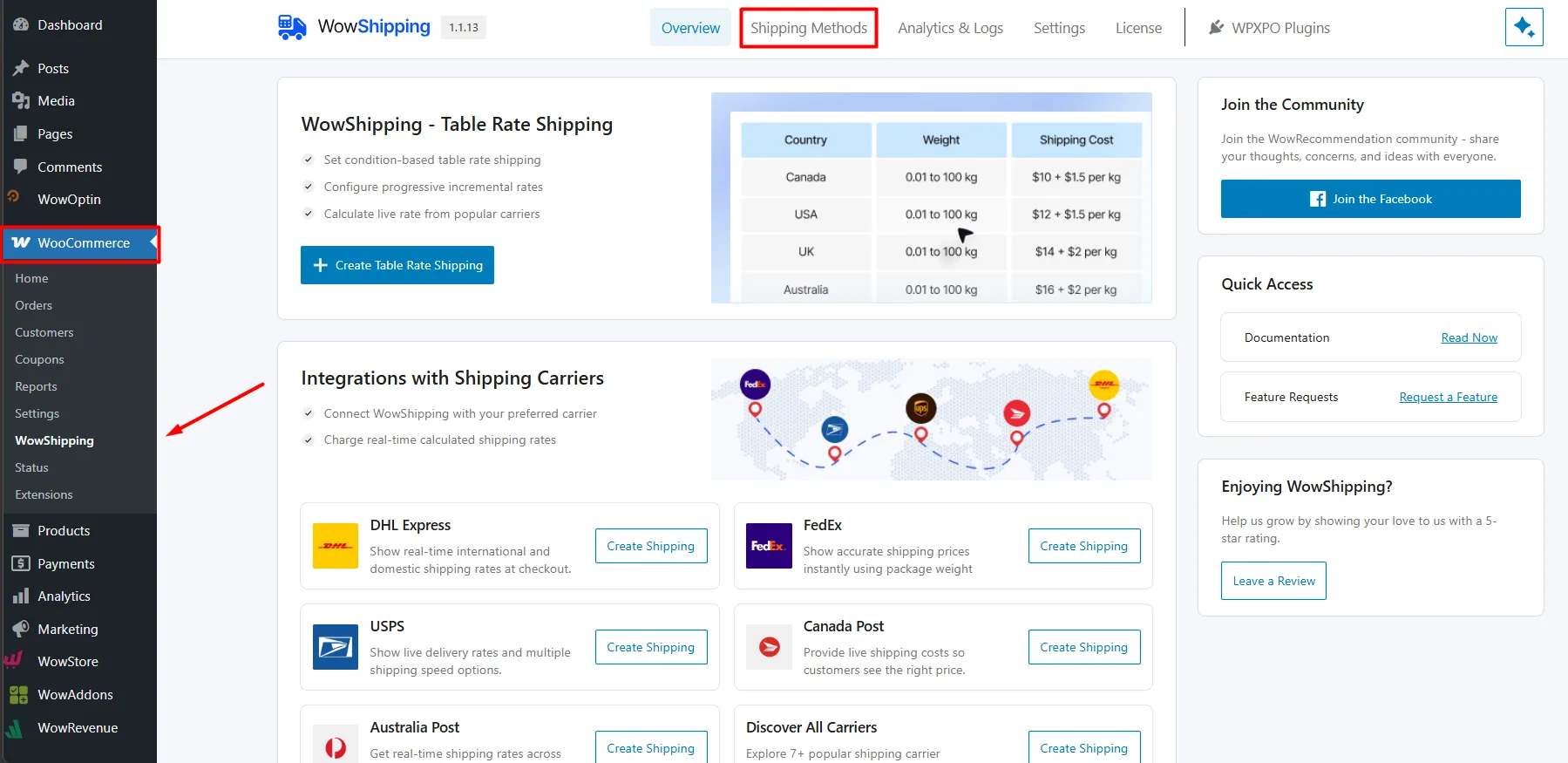
Enter a name such as Local Furniture Delivery, select the Local zone, choose Manual Rate, and select Flexible Rate Method. Flexible Rate supports conditional and tiered pricing based on cart weight, product category, shipping class, location, and other order data.
Add the following tiers in the Tier Table:
| Condition | Cost type | Shipping cost |
|---|---|---|
| Cart Weight between 0 and 50 kg | Fixed Rate | $30 |
| Cart Weight between 50.01 and 150 kg | Fixed Rate | $70 |
| Cart Weight greater than 150 kg | Fixed Rate | $120 |
For each tier, select Cart Weight, choose the relevant operator, enter the weight range, and add the cost.
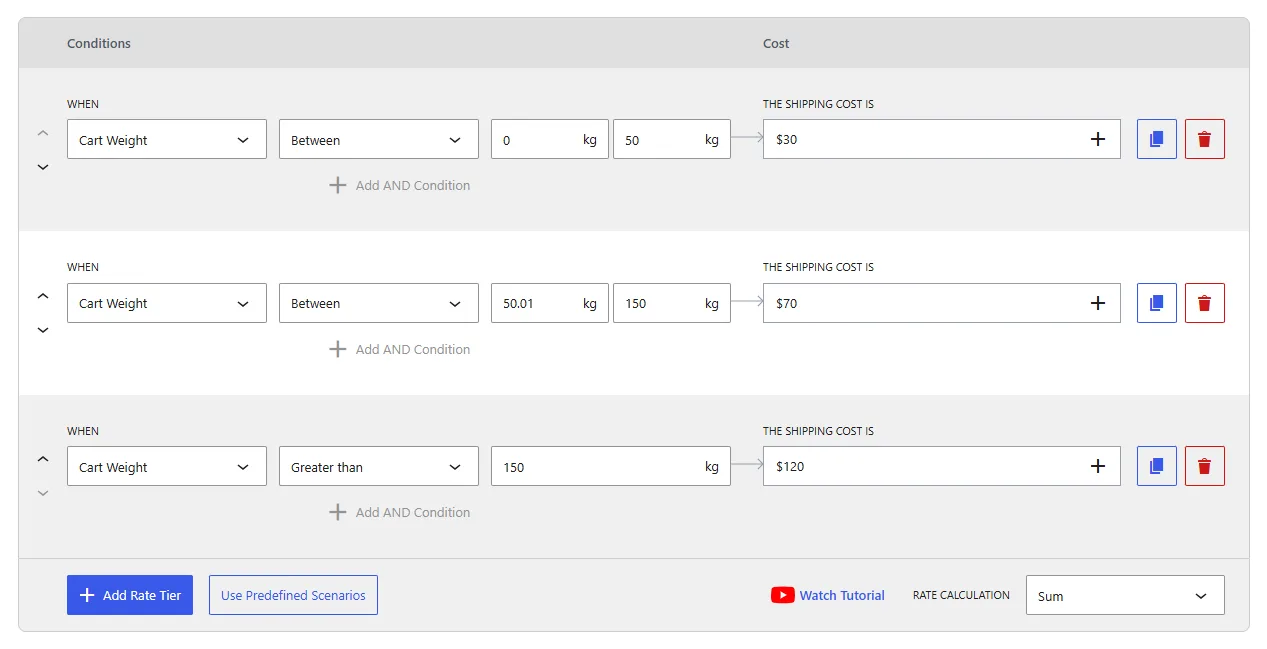
Conditions added within the same tier use AND logic, so you can also add a category or shipping-class condition to ensure a rate applies only to certain furniture.
Duplicate the method for the Regional and Nationwide zones and replace the example costs with the rates for those areas.
Step 2: Charge More for Bulky or Oversized Furniture
Create another Flexible Rate method named Bulky Furniture Delivery. Add the required rate tiers, then enable Advanced Display Rules and configure: Product Shipping Class → Contains → Bulky
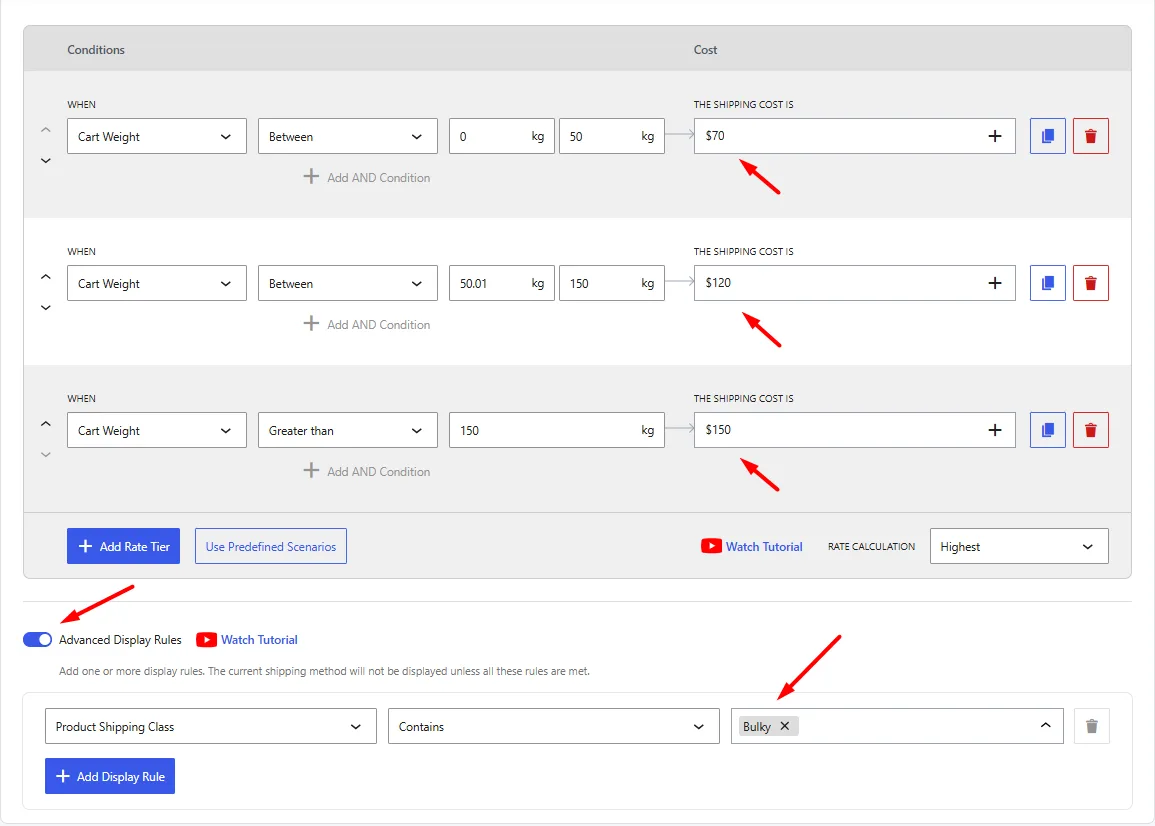
The method will be shown only when the cart contains a Bulky-class product. Advanced Display Rules can control method visibility by shipping class, category, weight, location, and other attributes. Multiple display rules use AND logic.
Create a separate Oversized Furniture Delivery method in the same way. In the standard method, add display rules to exclude the Bulky and Oversized classes so customers cannot select the cheaper standard rate for large furniture.
Ready to Simplify WooCommerce Shipping?
WowShipping helps you create accurate rates by weight, location, product type, and handling needs—without managing dozens of separate shipping methods.
Step 3: Charge for Optional Services with Handling Fees
Create optional services as separate shipping methods so customers can select them at checkout. WowShipping’s documented optional-delivery setup also uses separate standard and upgraded methods.
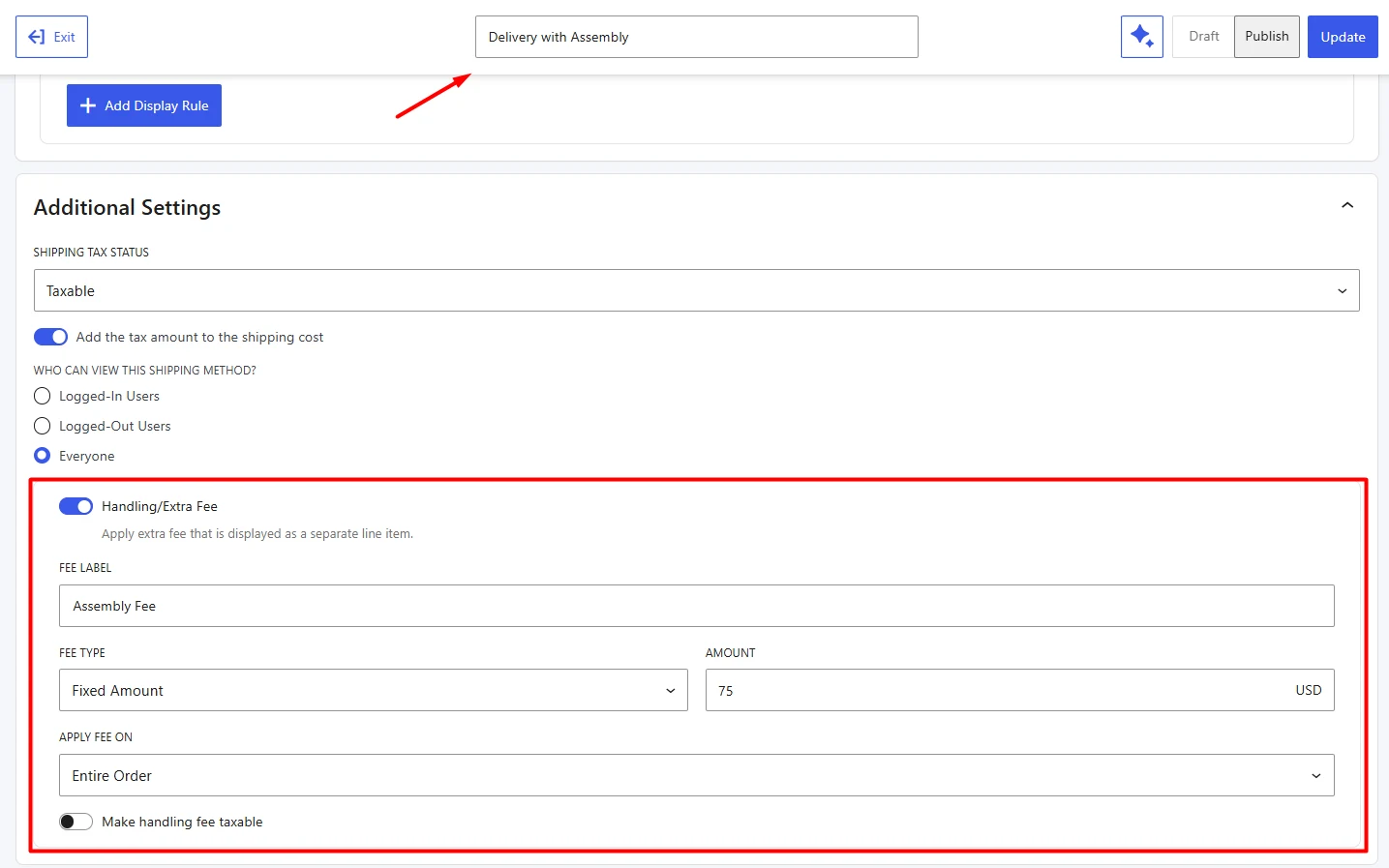
Duplicate the relevant furniture delivery method and rename it Room-of-Choice Delivery. Keep the same rate tiers, then open Additional Settings and enable Handling Fee. Configure:
- Fee type: Fixed Amount
- Fee value: $40
- Apply to: Entire Order
- Tax: Taxable or Non-taxable
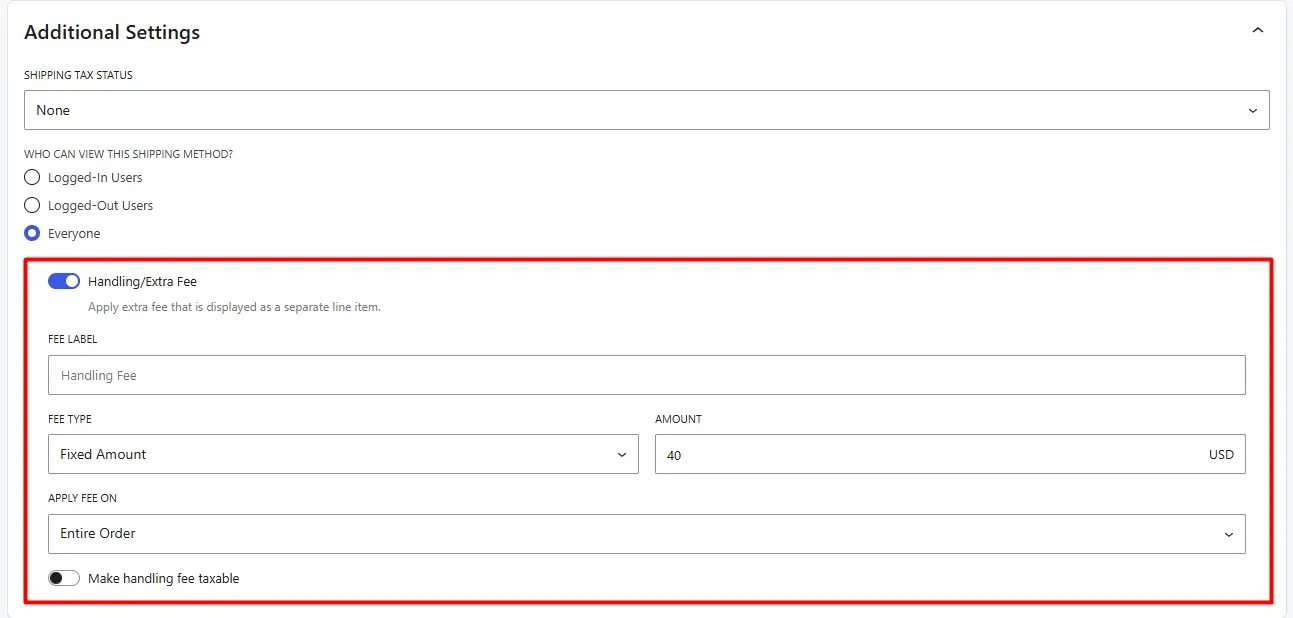
The fee is added once to that method’s calculated shipping charge. WowShipping also supports percentage fees and per-item fees; Per-Item multiplies the charge by the total item quantity.
Repeat the process for options such as Delivery with Assembly or Fragile Furniture Handling.
For example, when the base regional rate is $70, checkout could show Standard Delivery at $70, Room-of-Choice Delivery at $110, and Delivery with Assembly at $145. Use Advanced Display Rules to limit each service to supported zones, cities, categories, or shipping classes.
Real Furniture Store Use Cases and Examples
The following examples show how different furniture stores can configure their delivery rules with WooCommerce and WowShipping.
How can Steve charge different rates for chairs, tables, and sofas?
Steve runs a furniture store that sells dining chairs, coffee tables, wardrobes, and sofas. Smaller products are relatively inexpensive to deliver, but sofas and wardrobes require more vehicle space and handling.
He wants to charge:
- A standard rate for chairs and small tables
- A higher rate for wardrobes
- A separate bulky-item rate for sofas
- Different prices for local and regional customers
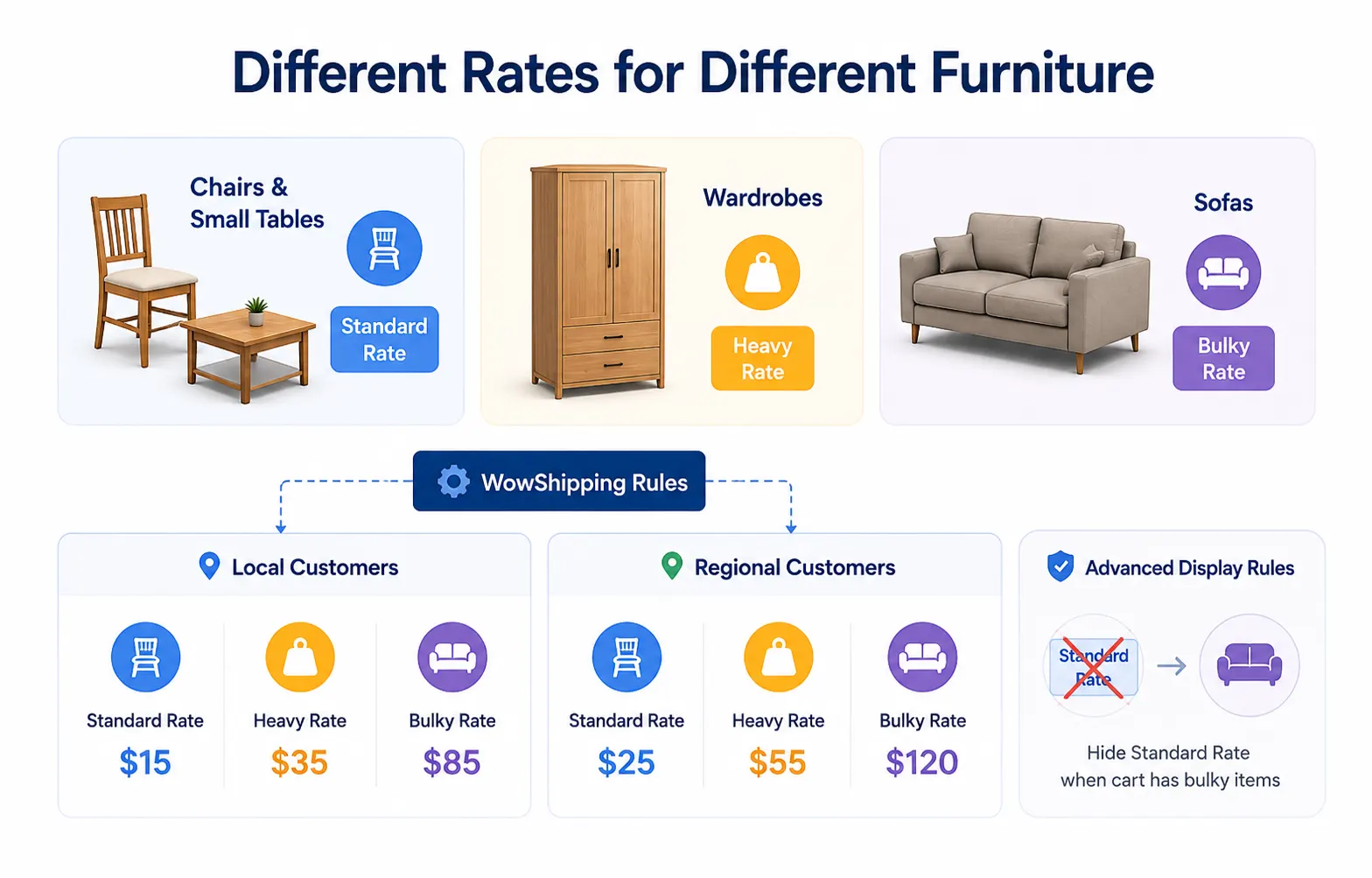
How WowShipping can handle it:
Steve can first assign WooCommerce shipping classes such as Standard, Heavy, and Bulky to his products. He can then create separate Flexible Rate methods in WowShipping for his local and regional shipping zones.
Within those methods, he can add conditions based on shipping class, product category, cart weight, or a combination of these factors. For example, chairs can receive the Standard rate, wardrobes can use the Heavy rate, and sofas can trigger the Bulky Furniture Delivery method.
Advanced Display Rules can also prevent the cheaper standard method from appearing when the cart contains bulky furniture.
How can Maria charge based on the total furniture weight?
Maria sells solid-wood furniture, including dining tables, bed frames, cabinets, and bookshelves. The courier charges her according to the total shipment weight, so one fixed rate would not cover every order accurately.
She wants to charge:
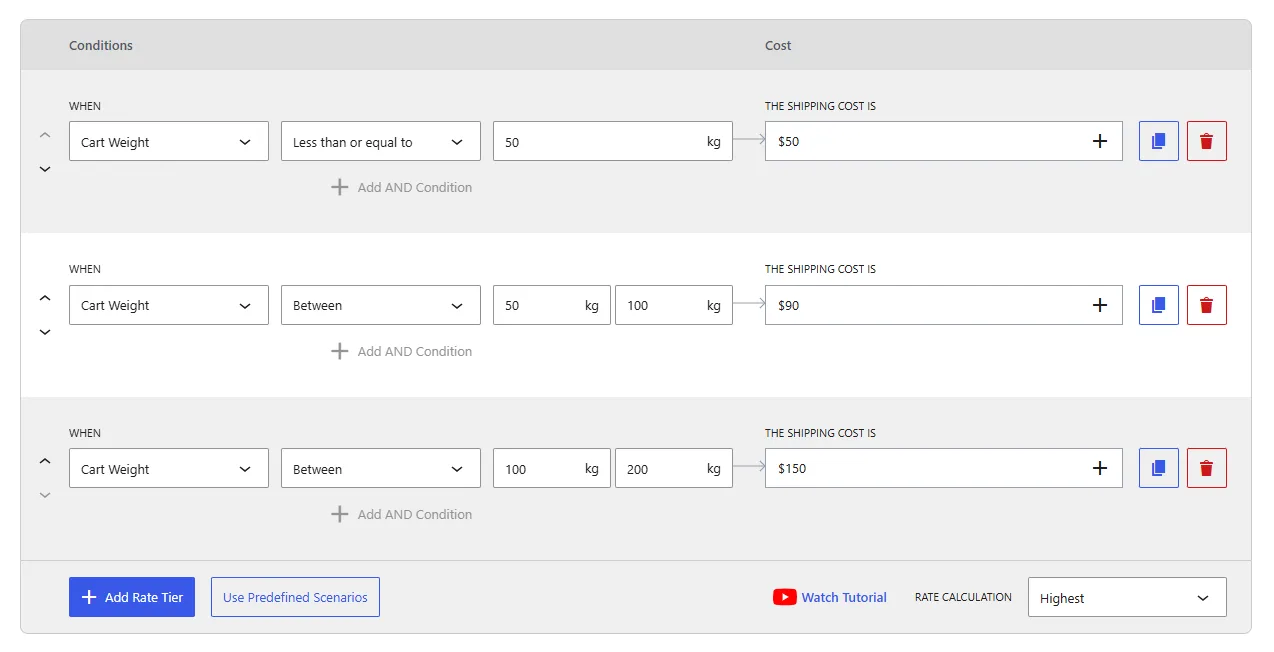
- $50 for carts weighing up to 50 kg
- $90 for carts weighing between 50 and 100 kg
- $150 for carts weighing between 100 and 200 kg
- A custom delivery option for orders over 200 kg
How WowShipping can handle it:
Maria can create a Flexible Rate shipping method and add separate weight tiers to its Tier Table. Each tier can use the total cart weight as its condition and apply the corresponding fixed shipping cost.
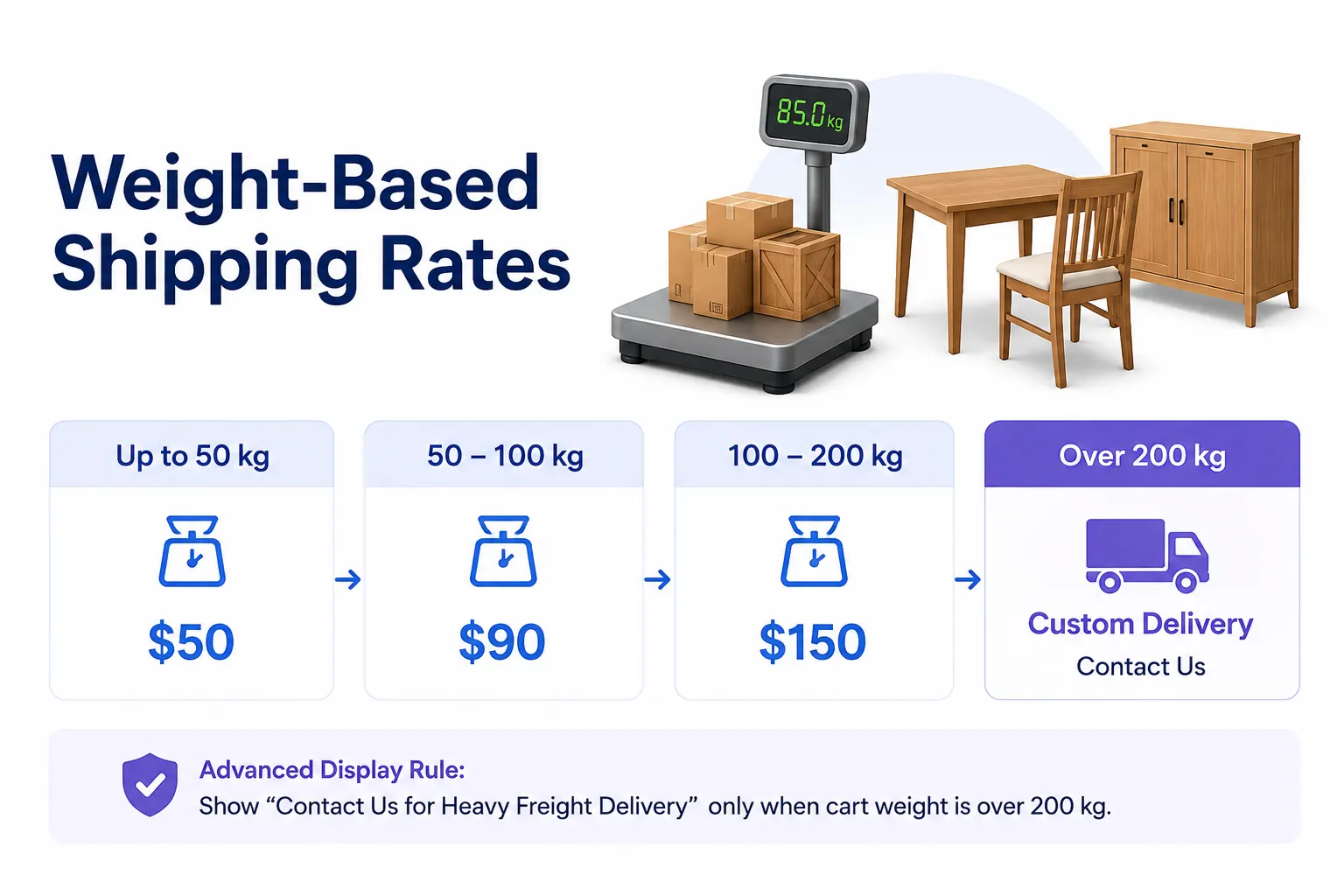
For orders above 200 kg, she can create another method, such as Contact Us for Heavy Freight Delivery, and use Advanced Display Rules to show it only when the cart exceeds the supported weight.
This allows Maria to calculate shipping from the actual order weight instead of charging every customer the same amount.
How can Daniel offer room delivery and furniture assembly as paid options?
Daniel operates a local furniture showroom and offers several delivery levels. Customers can choose basic doorstep delivery, room-of-choice delivery, or delivery with assembly.
He wants checkout to show:
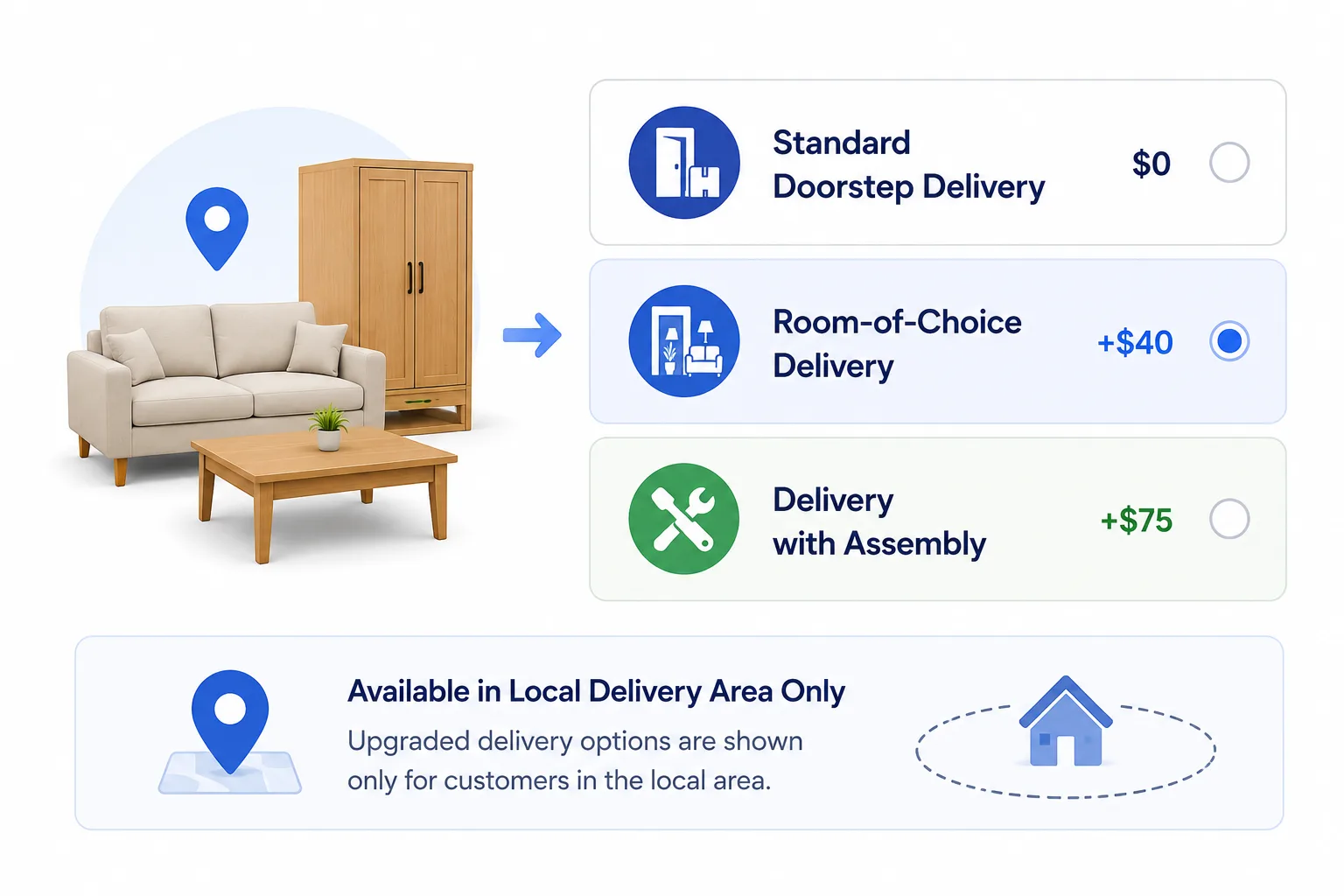
- Standard Doorstep Delivery
- Room-of-Choice Delivery for an additional $40
- Delivery with Assembly for an additional $75
However, these upgraded services are available only within his local delivery area.
How WowShipping can handle it:
Daniel can create a standard local delivery method and duplicate it for each upgraded service. He can then rename the duplicated methods so customers clearly understand the available options.
For Room-of-Choice Delivery, he can enable the WowShipping Handling Fee setting and add a fixed $40 fee to the entire order.
For Delivery with Assembly, he can create another method and apply a fixed $75 handling fee.
Advanced Display Rules can restrict both upgraded methods to Daniel’s local shipping zone. As a result, nearby customers can choose their preferred service at checkout, while customers outside the service area will see only the delivery methods available to them.
Frequently Asked Questions
Find practical answers about weight-based rates, bulky-item charges, mixed carts, delivery zones, and optional delivery services.
Can WooCommerce calculate furniture shipping by weight?
Yes. Add an accurate weight to each product, then use WowShipping to create rates based on total cart weight or individual product weight.
Should I use product categories or shipping classes for furniture shipping?
Use categories to identify furniture types, such as sofas or wardrobes, and shipping classes to represent delivery requirements, such as heavy, bulky, oversized, or fragile.
How do I charge more for bulky or oversized furniture?
Assign the product a Bulky or Oversized shipping class, then create a separate WowShipping method with a higher rate. Exclude those classes from the standard delivery method.
What happens when a customer orders different furniture types together?
WowShipping can evaluate the combined cart weight, categories, shipping classes, and quantities. You can create rules that apply a higher rate when the cart contains heavy or bulky products.
Can I offer room delivery or furniture assembly at checkout?
Yes. Create each service as a separate shipping method and add a fixed or per-item handling fee. Display rules can limit these services to supported delivery areas.
How can I charge different rates for local and nationwide delivery?
Create separate WooCommerce shipping zones, then assign different WowShipping methods and pricing tiers to each zone.
How should I handle furniture shipped in multiple boxes?
Use the packed weight and dimensions of the complete shipment rather than only the assembled product measurements. Test multi-package carrier calculations separately before using live rates.
Build Furniture Shipping Rules Around Your Actual Delivery Costs
Start by dividing customers into delivery zones and assigning each product the correct shipping class, category, weight, and dimensions. Then use WowShipping to create separate rates for standard, heavy, bulky, and oversized furniture.
Use weight tiers for base charges, display rules to hide unsuitable methods, and handling fees for services like room delivery or assembly. Replace the example rates with your actual delivery costs and refine them using real order data.