

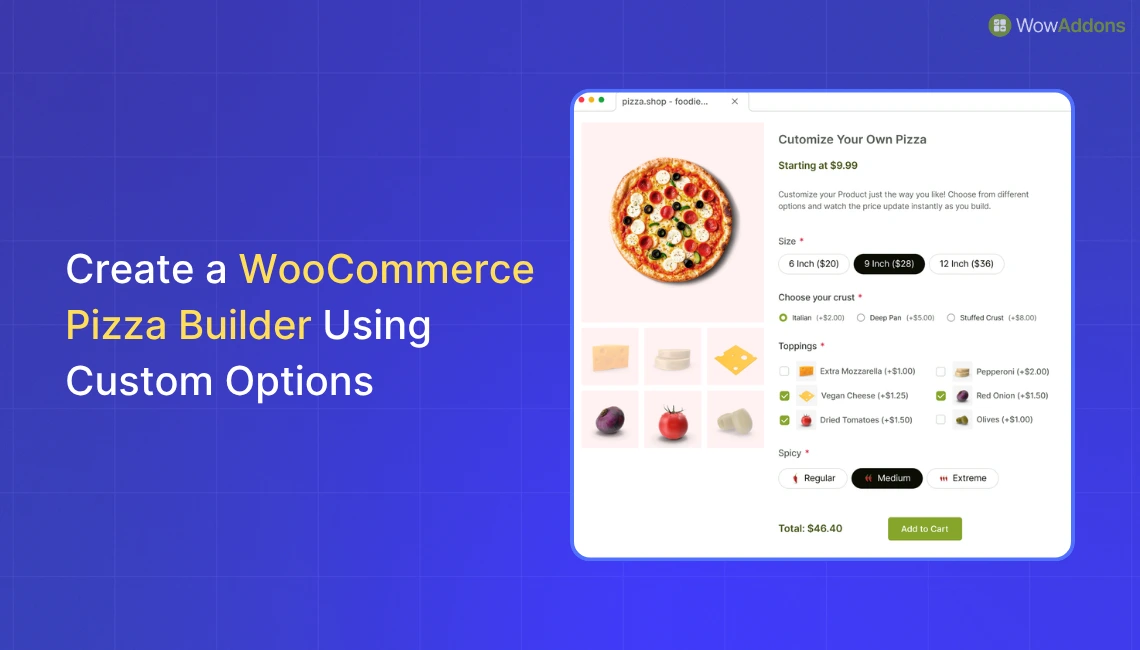
To create a custom pizza builder in WooCommerce, you need to add flexible product options that allow customers to choose size, crust, toppings, and add-ons with dynamic pricing.
Here’s a quick overview of the process:
- Set up WooCommerce and create a base product
- Use a product addons plugin
- Add customization options
- Assign pricing to each option
- Optimize the layout and user experience
A WooCommerce pizza builder lets customers create their own pizza by selecting size, crust, toppings, and add-ons with real-time pricing updates.
This type of customization is essential for pizza stores that want to offer a flexible and modern ordering experience.
Customers choose their preferred size, crust, toppings, and quantities to build a pizza that matches their exact taste.
However, the default WooCommerce setup does not support this level of dynamic product customization.
In this guide, I’ll show how to create a custom pizza ordering system in WooCommerce where customers can build their pizza step by step and see pricing updates instantly.
Why Do You Need a Custom Pizza Builder in WooCommerce
A fixed product setup may work for many typical products, but for pizza, a native WooCommerce setup doesn’t cut it.
Every customer has different preferences, which creates a lot of variations for a pizza. And any predefined combination can reduce both satisfaction and order value.
A custom pizza builder solves this by giving customers full control over their order.
Here’s why it matters:
- Better customer experience: Customers can build their pizza exactly how they like it, all in one place.
- Higher average order value: Add-ons like extra cheese, premium toppings, and sides become easy upsells when presented as selectable options.
- Clear and transparent pricing: Dynamic pricing updates help customers understand exactly what they’re paying for, reducing confusion and cart abandonment.
- Operational flexibility: Store owners can manage options, pricing, and combinations without creating hundreds of product variations.
In short, a custom pizza builder turns a basic WooCommerce store into a flexible ordering system tailored for real-world pizza businesses.
Must-Have Things for a Custom Pizza Order in WooCommerce
A complete WooCommerce pizza builder should include essential customization options that allow customers to build their pizza step by step with clear pricing.
- Size Selection (Required)
Customers choose the pizza size, such as small, medium, or large. Each size should have a different base price to reflect the portion and cost.
- Crust and Sauce Options
Customers select their preferred crust type (thin, thick, stuffed) and sauce (tomato, white, BBQ). These are usually single-choice options and can be required fields.
- Toppings (Multi-Select with Pricing)
Customers can select multiple toppings like pepperoni, mushrooms, or olives. Each topping should have an individual price that adds to the total.
- Extra Add-Ons
Customers can also order add-ons such as extra cheese, dips, or drinks. These options help increase the overall order value.
- Quantity-Based Choices
Customers may want to control how much of a topping they want.
- Special Instructions Field
Customers can add notes like “no onions” or “gluten-free bread.” This ensures the food is healthy as well as tasty.
- Dynamic Pricing Updates
The total price should update instantly as customers select or change options. This improves transparency and reduces confusion during checkout.
What You Need to Get Started
To build a fully functional pizza builder with the options above, you only need a few essential components in your WooCommerce setup.
- WooCommerce Installed: Make sure your WordPress site has WooCommerce installed and configured to sell products.
- A Basic Product Created: Create a standard product that will act as your base pizza item. This is where all customization options will be applied.
- A product addon Plugin: Install a product addon plugin for woocommerce to add a custom product option to your pizza builder.
With these basics in place, you’re ready to start building your custom pizza ordering system step by step.
Step-by-Step Guide for Creating Custom Pizza Builder
Now that you understand the required options and setup, let’s build a fully functional pizza ordering system in WooCommerce step by step using custom fields.
Fulfilling the Essential Requirements
Before adding customization options, make sure your setup is ready to go.
✅ Open your WooCommerce product (the pizza product you created earlier).
✅ Ensure the product has basic details like name, images, and base price.
✅ Confirm that your product addons plugin is installed and activated. I will use WowAddons for this demonstration.
Read how WowAddons is used on different industry products: WowAddons Powers Product Customization Across 5 Industries.
Add Field for Size
With the basic setup ready, you can start adding custom fields, beginning with the size option.
I used the Button field in WowAddons to display three available sizes. Since customers can select only one size, you need to use a field that supports single selection.
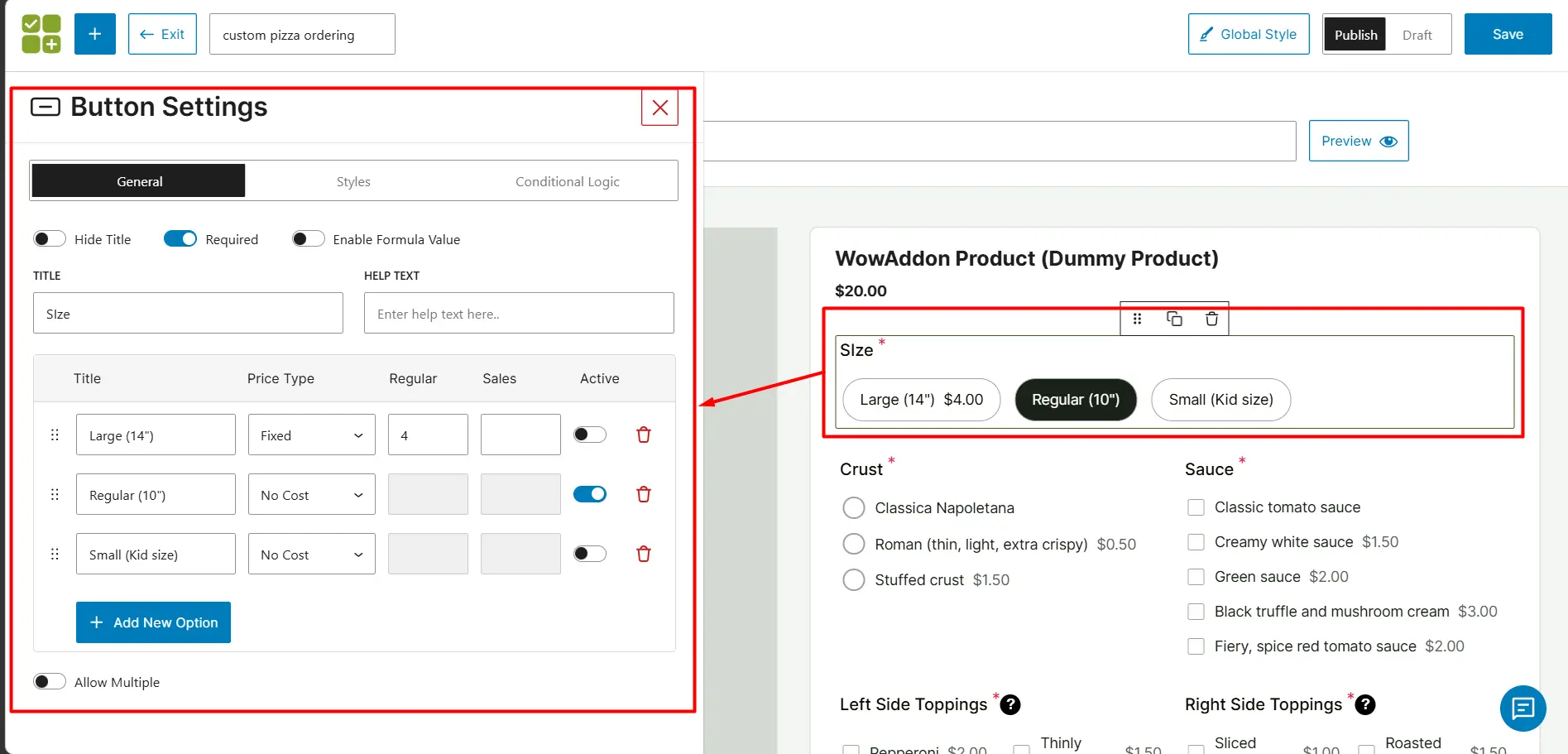
Make sure to:
- Mark the field as required
- Assign prices to each size (if applicable)
- Set a default option (regular size, as it’s commonly chosen)
You can also use a Radio field for the same purpose.
Add Field for Crust
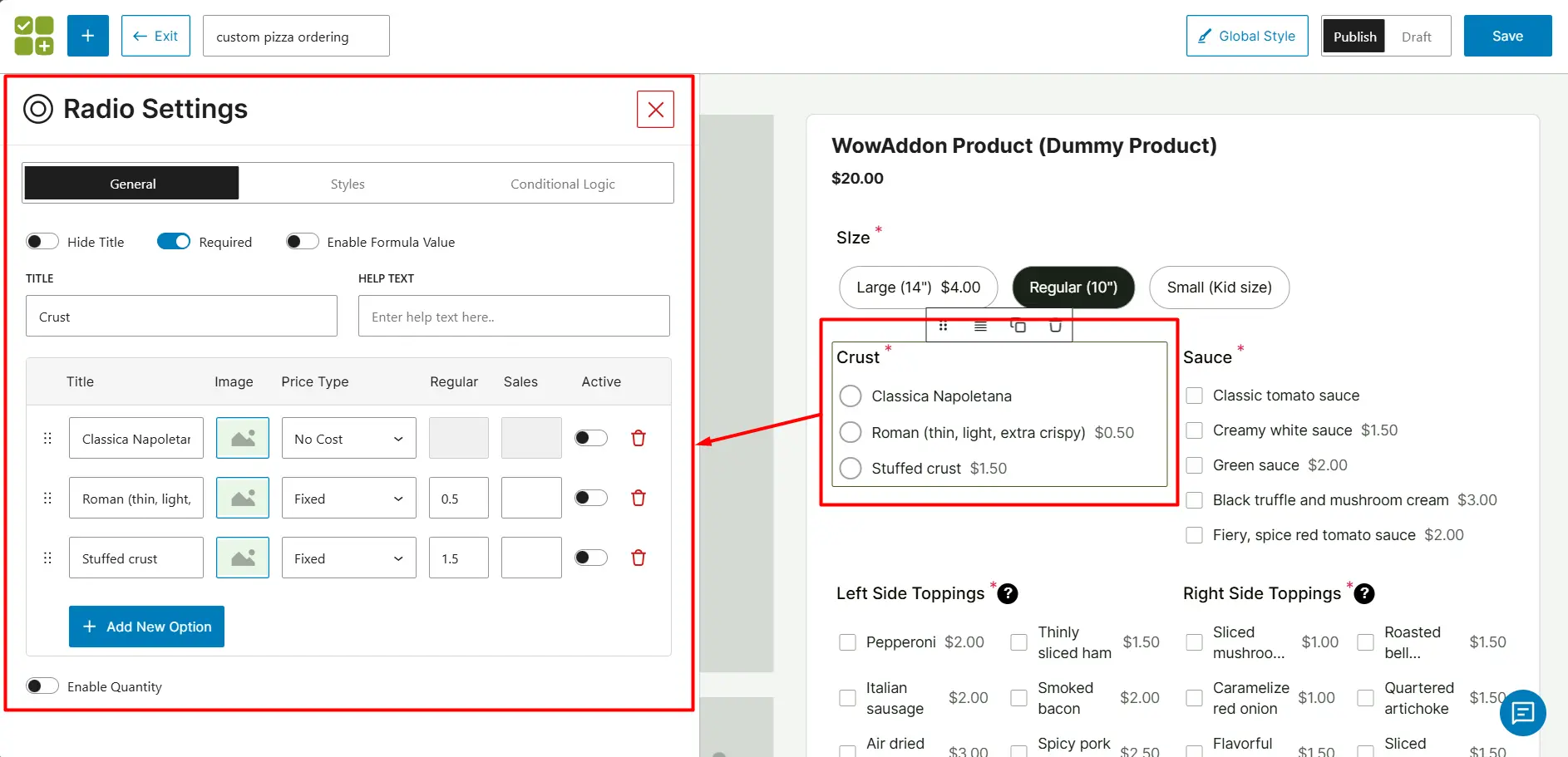
Similar to size, customers can select only one type of crust.
For this, I used the Radio field:
- Name the field clearly
- Made it required
- Assigned prices to each option
Add Field for Sauce
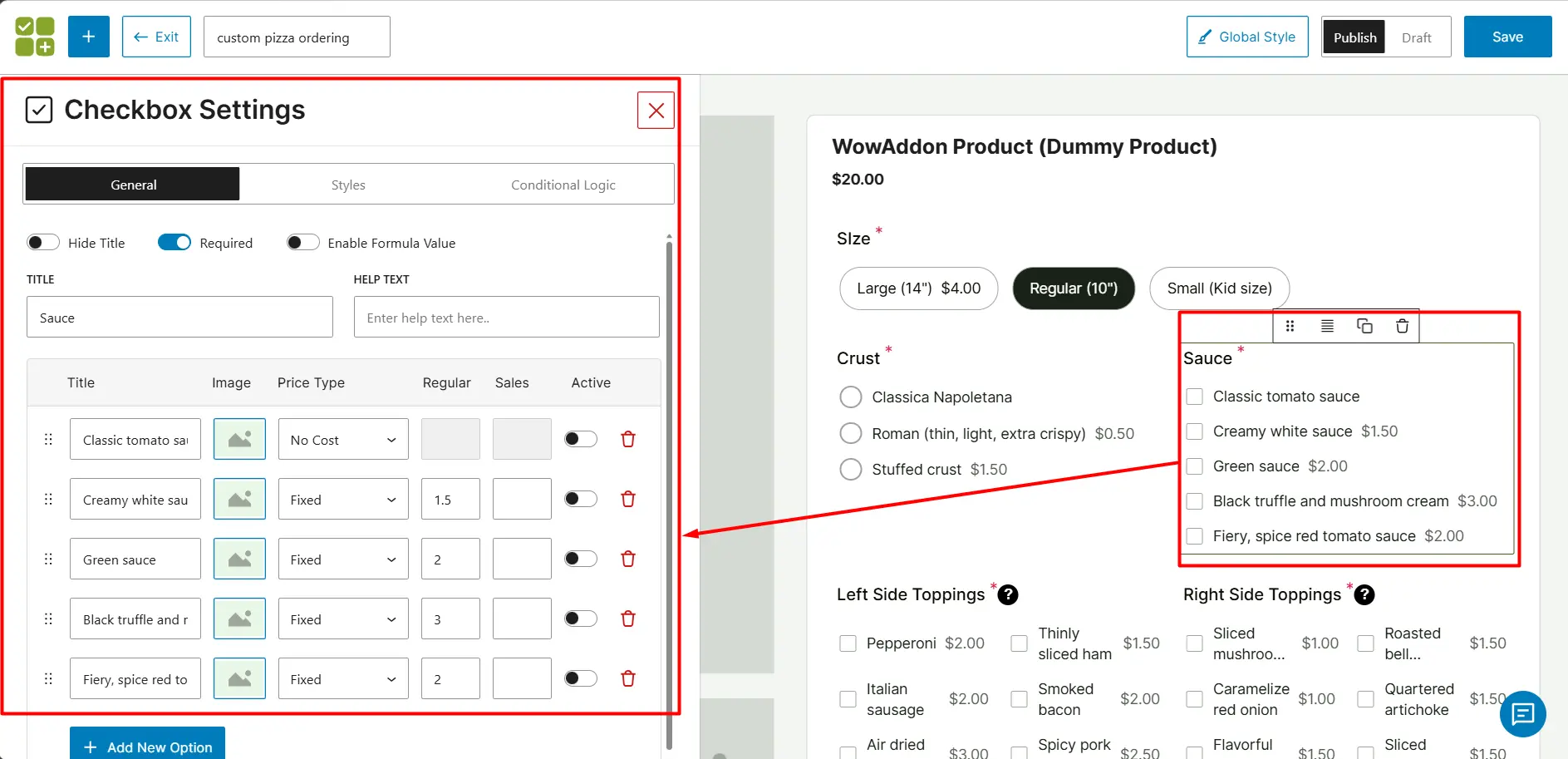
Unlike crust, customers may prefer combining multiple sauces.
To support this, I used a Checkbox field, allowing multiple selections.
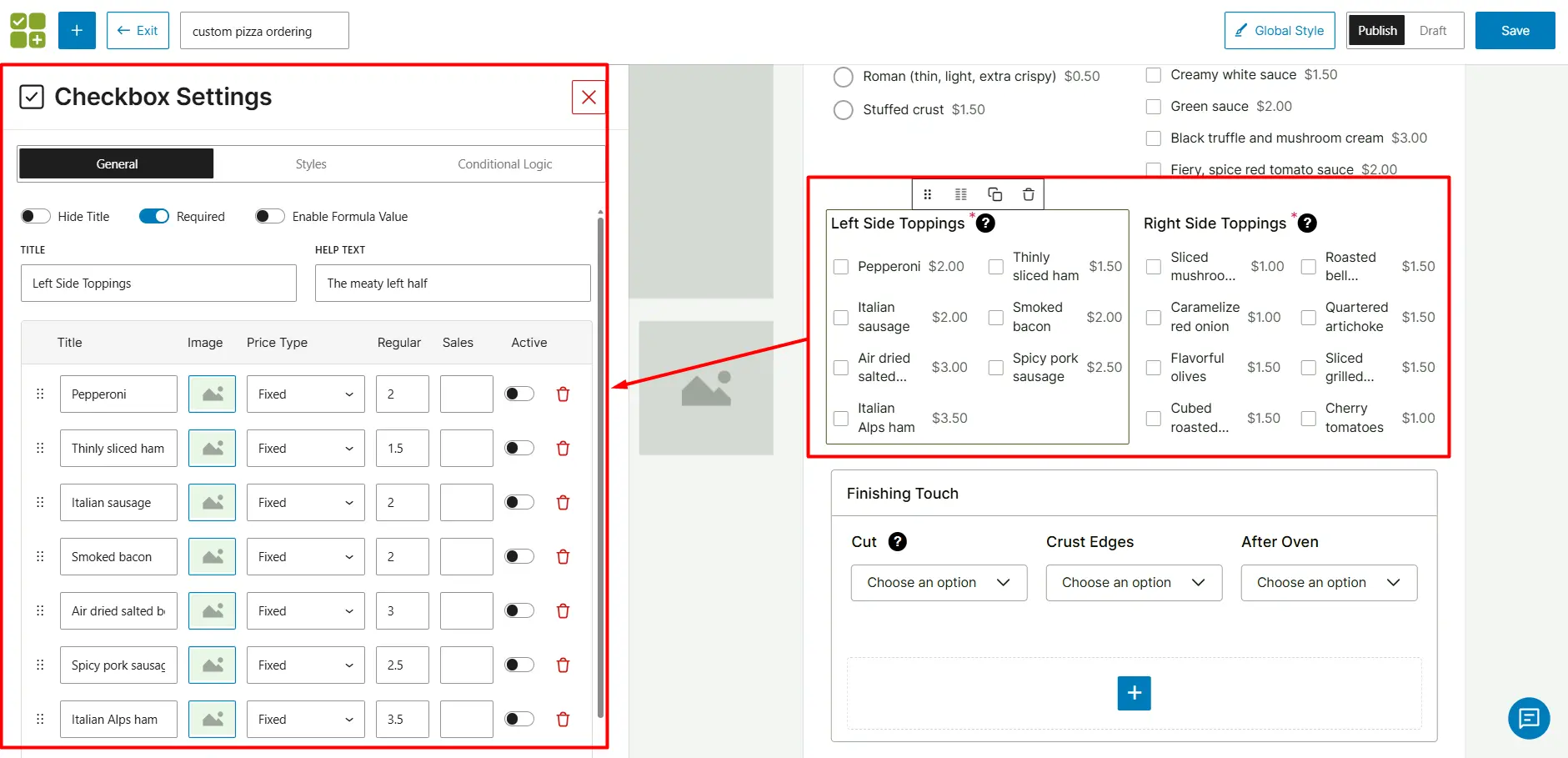
Add Field for Toppings
Toppings are the most important part of the pizza builder.
Since I’m creating a half-and-half pizza, I used two separate fields to distinguish toppings for each half. This helps both customers and kitchen staff understand the order clearly.
For multiple selections:
- I used the Checkbox field
- Added helpful tooltip text to guide users
Add Field for Advanced Personalization
After setting up the essential fields, I should add optional customization features.
Here, I created a section where customers can:
- Choose the number of slices
- Select crust edge options
- Add final preferences after baking
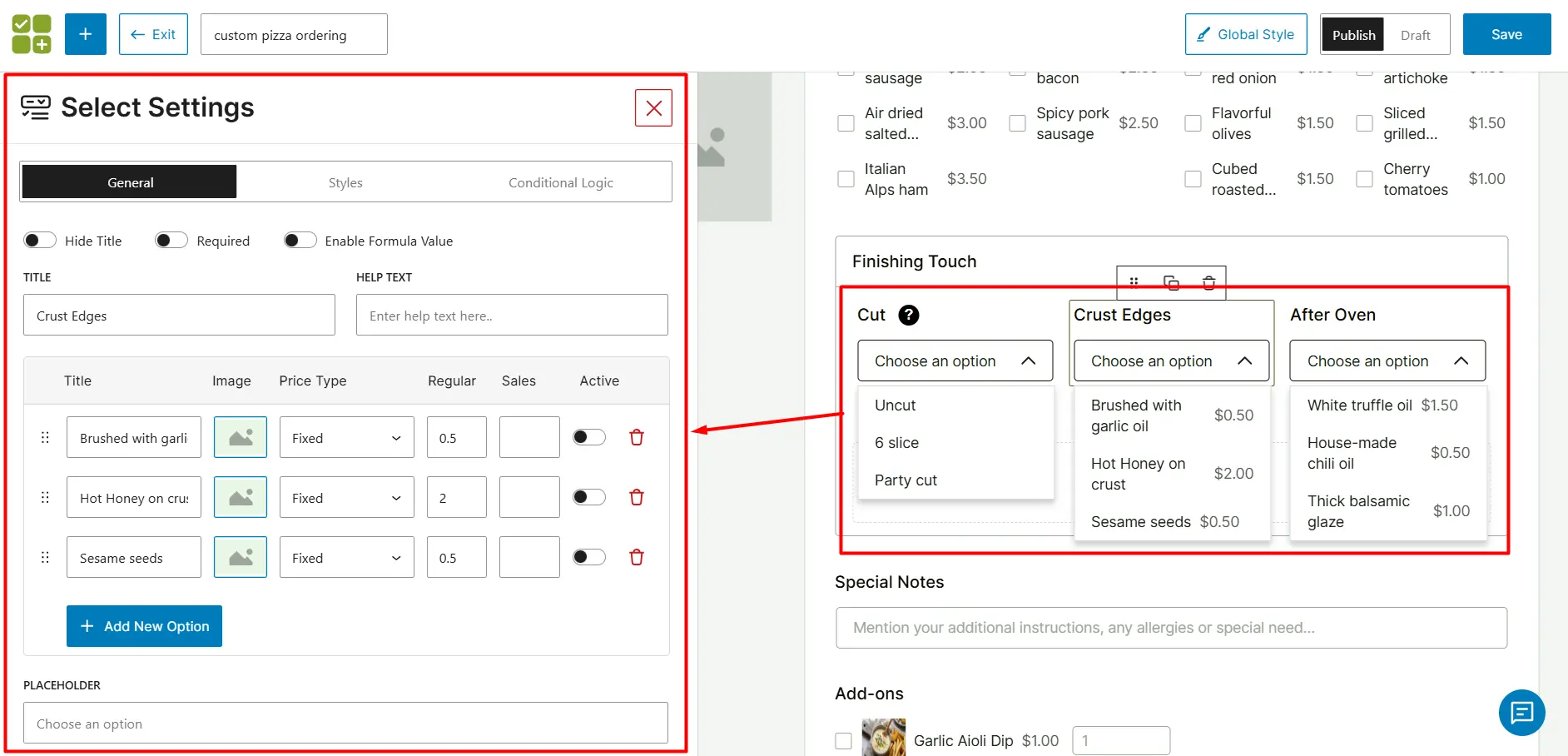
These options are optional but valuable. While not every customer uses them, they allow deeper personalization and can help increase the average order value.
See how the section field works: WowAddons Section Field.
Add a Special Note Field
Some customers may have specific instructions or preferences.
To handle this, I added a Text field where customers can leave notes.
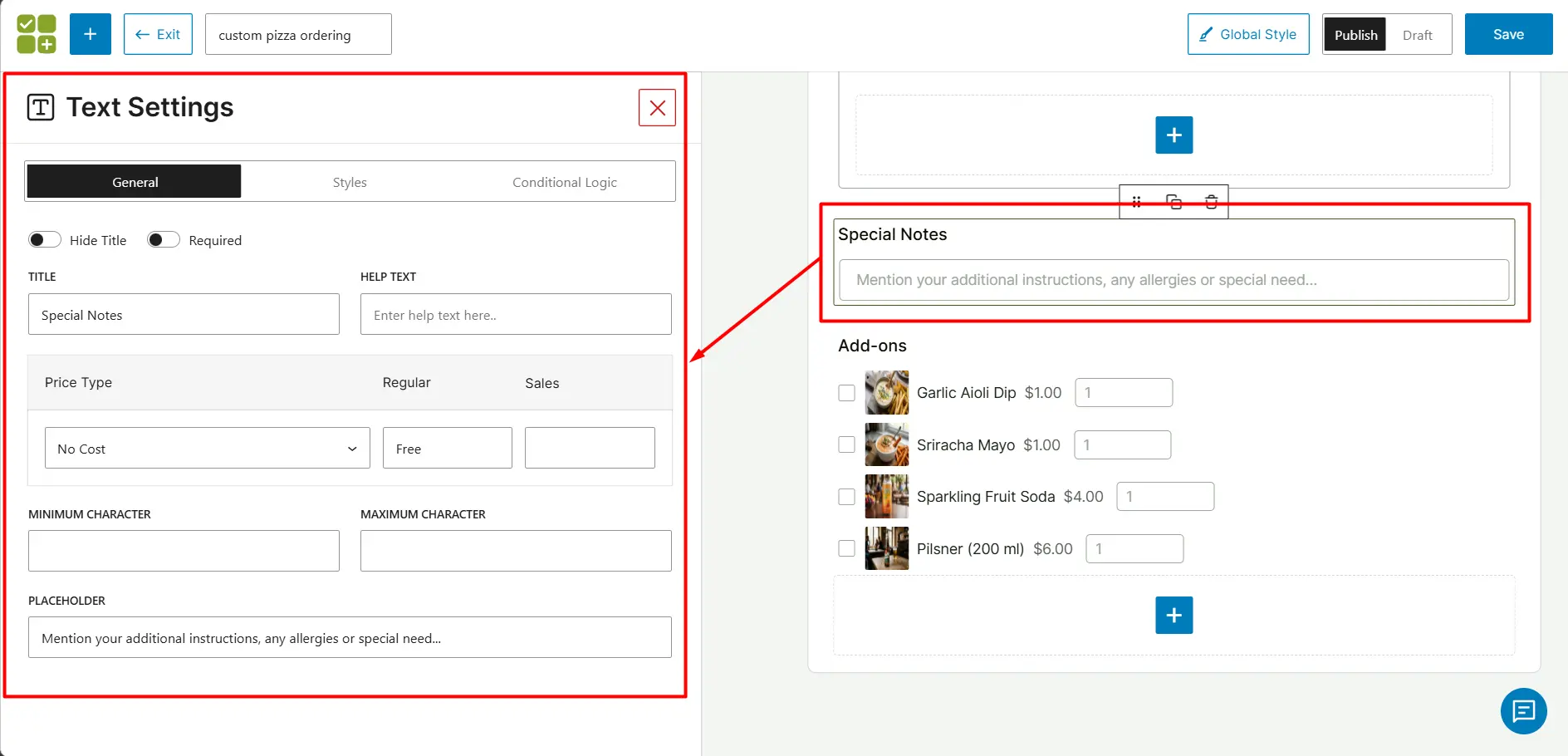
You can guide them by adding placeholder text (e.g., “No onions” or “Extra crispy”).
Extra Add-ons with Pizza
This section creates an opportunity to increase order value through upsells.
Using the Product field in WowAddons, I offered additional items like dips and drinks that pair well with pizza.
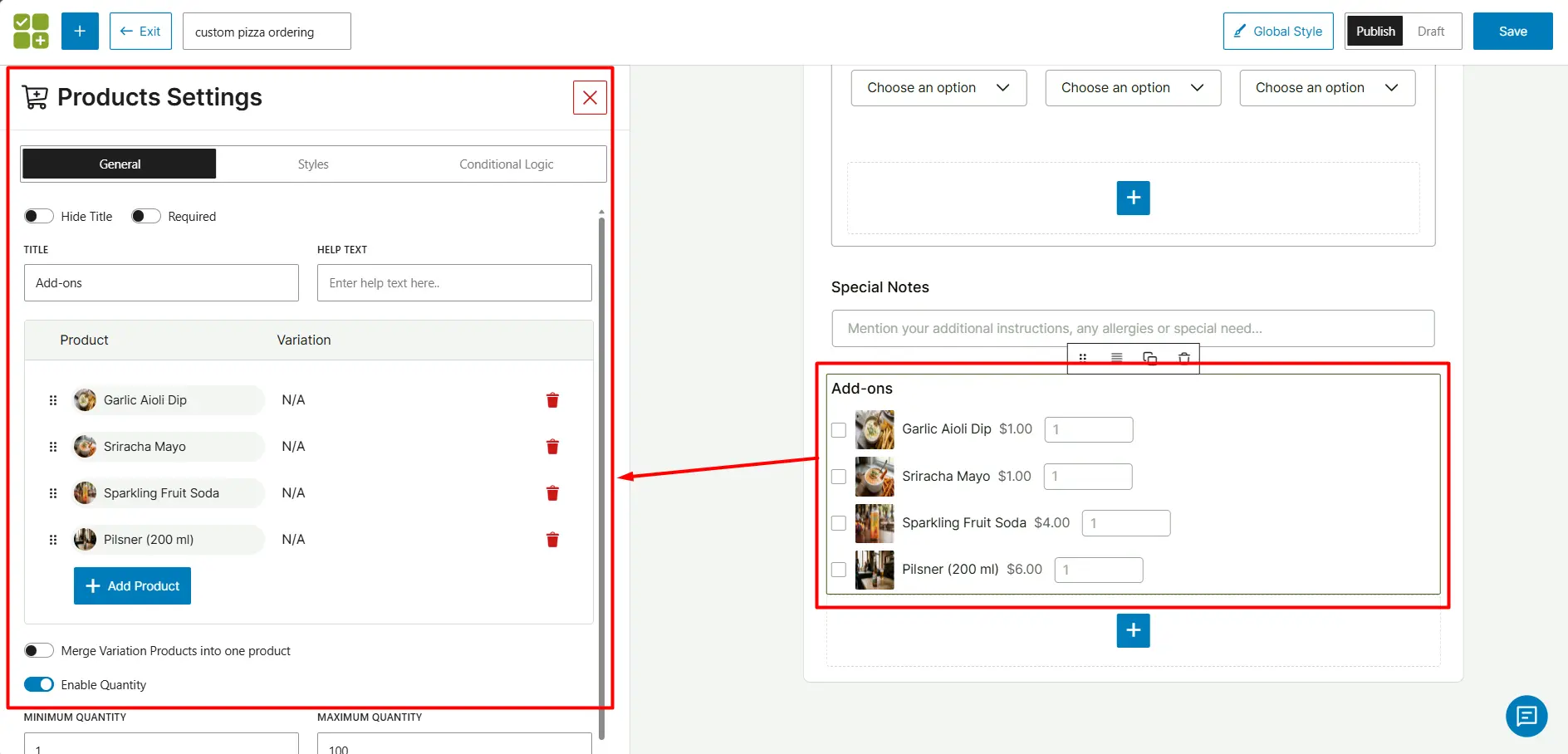
To make it more flexible:
- I used a checkbox-style selection
- Enabled quantity selection for each item
Choose add-ons carefully; focus on items that are commonly ordered with pizza.
Use Conditional Logic for Contextual Pizza Personalization
WowAddons allows you to apply conditional logic to show or hide fields based on customer selections. This helps you create a more relevant and streamlined customization experience.
In this setup, I used conditional logic in the Crust Edge and After Oven fields.
- Hide the Crust Edge field when the user selects Roman crust, since it is already thin and doesn’t support edge customization
- Hide the After Oven field when the small (kid-size) pizza is selected, as additional personalization is not practical for that size
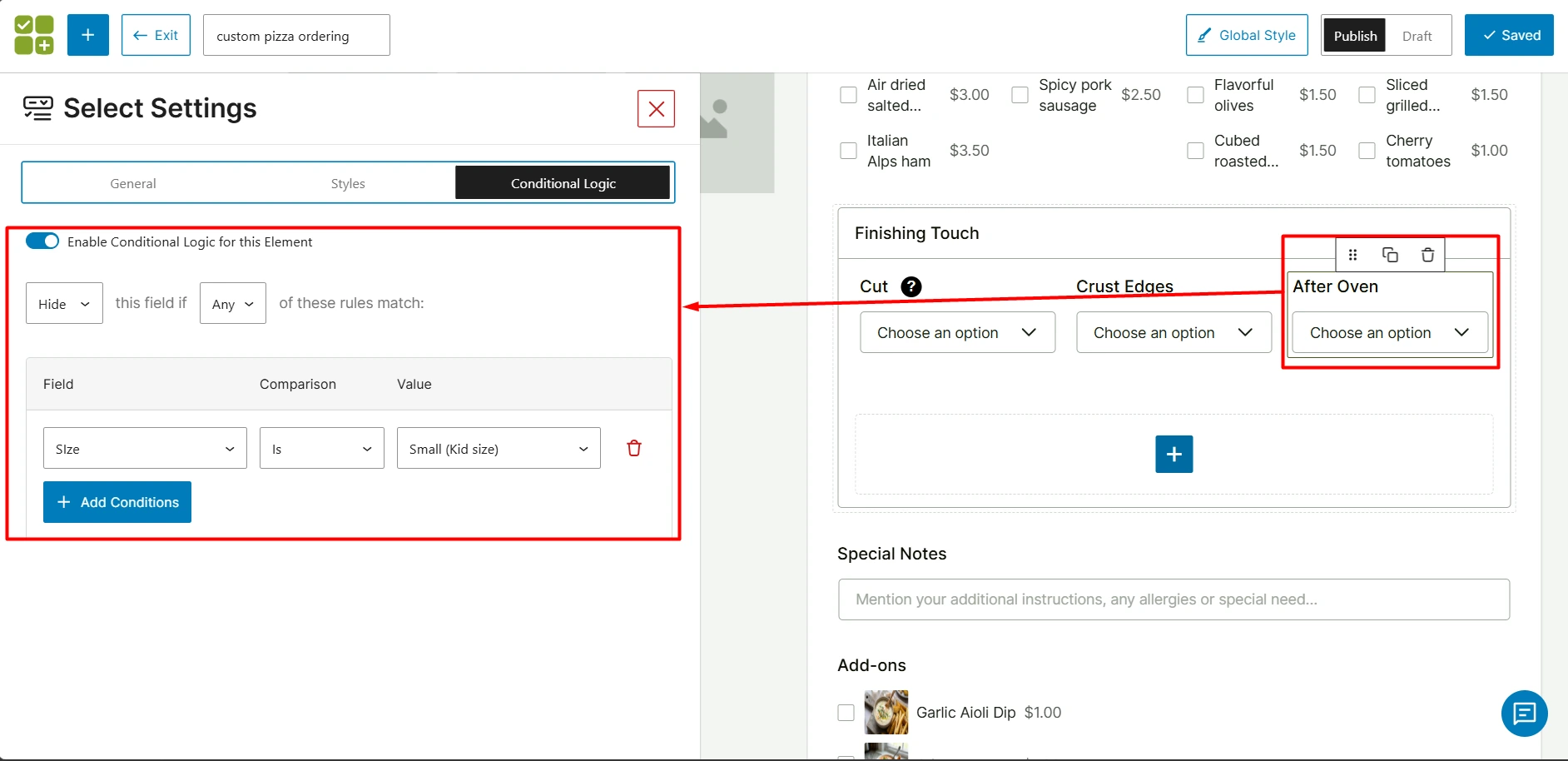
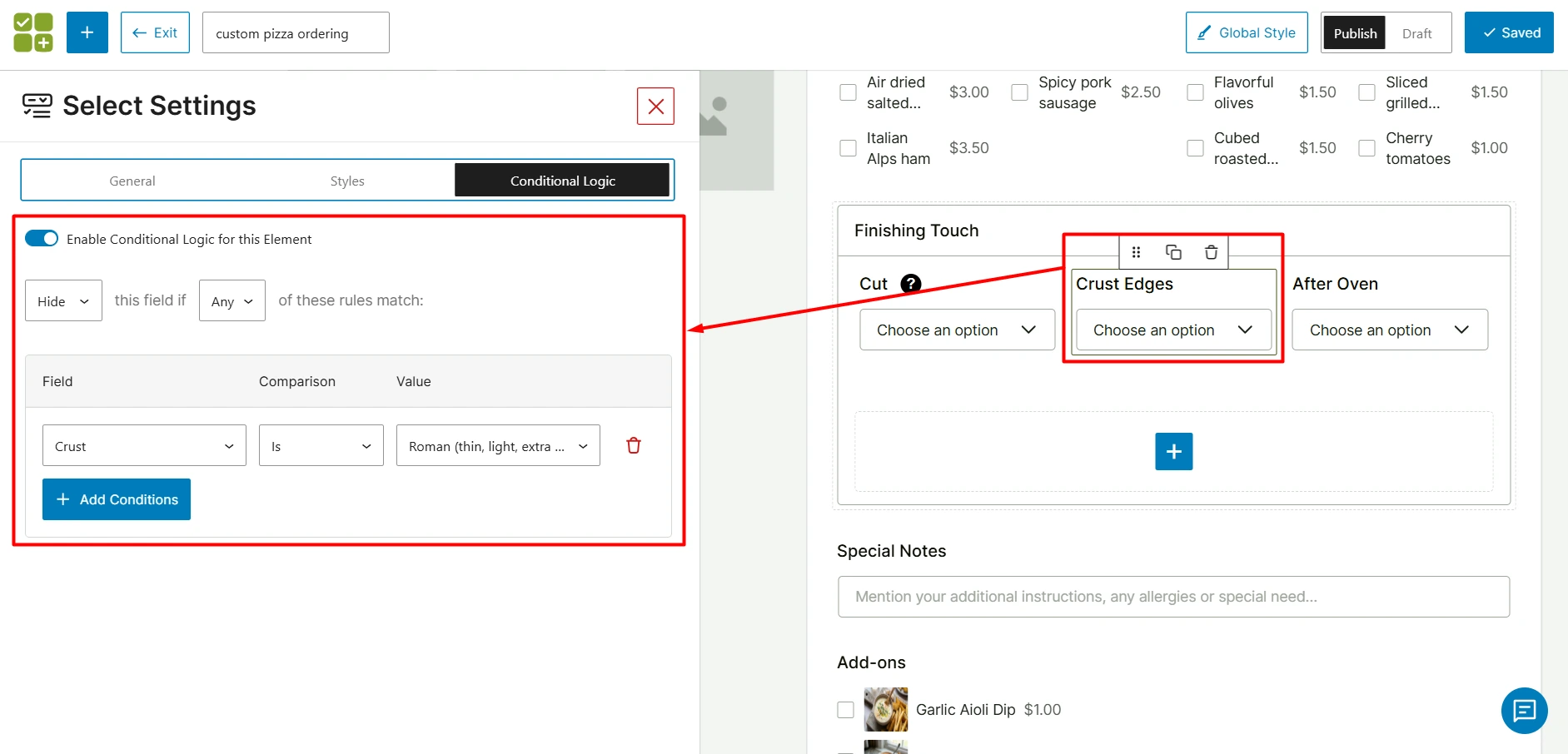
By using conditional logic, you can reduce unnecessary options, prevent invalid combinations, and keep the ordering flow clean and user-friendly.
Check for Prices and Overall UX Flow
After adding all fields, review the full setup to ensure everything works smoothly.
- Test different combinations to confirm pricing updates correctly
- Verify that each option adds the correct cost
- Ensure the flow is logical and easy to follow
Mobile optimization is especially important.
To improve usability:
- I set the field width to 50% so two fields appear side by side
- Used a two-column layout to reduce long scrolling
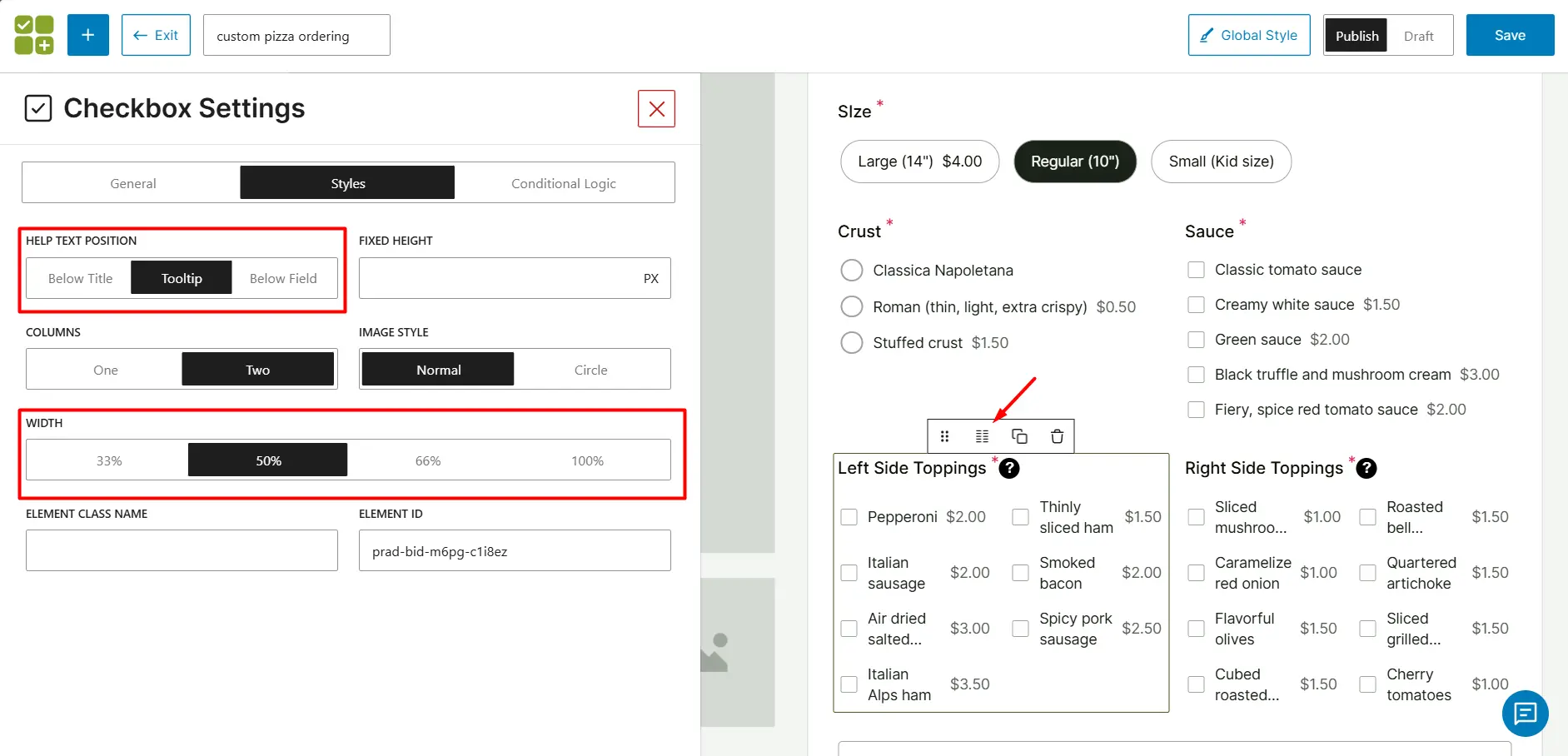
These adjustments make the interface cleaner and easier to use, especially on smaller screens.
Once everything is set up, save and publish the addons.
See how you can use WowAddons to set up a Print on Demand store: WooCommerce Print on Demand Guide
Common Mistakes to Avoid while Setting a Pizza Builder System
So we added custom product fields to create a pizza builder in a WooCommerce store. It may be an easy job but you have to look out for some mistakes that can negatively impact user experience.
| Issue | Impact | Solution |
|---|---|---|
| Too Many Options Without Structure | Can overwhelm customers and make the interface confusing. | Follow the flow of how customers usually think: Size → Crust → Sauce → Toppings → Add-ons |
| Confusing or Hidden Pricing | Confusion in ordering may lead to abandonment of the order. | Show clear and dynamic pricing changes as user input their choices. |
| Not Making Important Fields Required | Customers might skip them, leading to incomplete or invalid orders. | Make the essential fields required to complete the order. |
| Ignoring Mobile Experience | A large portion of users will order from mobile devices. Poor layout can make selection difficult. | Keep options compact and scroll-friendly. Avoid overly long lists without grouping |
| Not Testing the Full Ordering Process | Skipping testing can lead to pricing errors or broken selections. | Test different combinations & verify pricing calculations before going live. |
Avoiding these mistakes will help you create a smooth, user-friendly pizza ordering experience that not only looks good but also performs well in real-world use.
Why Use WowAddons
As WooCommerce does not support advanced product customization by default, you must use a plugin that lets you do that. This is where WowAddons becomes useful.
Among many other similar ones, why you should choose it:
- Add multiple types of custom fields: 25+ fields, including buttons, radio fields, checkboxes, text inputs, etc., to create structured pizza options like size, crust, toppings, and add-ons.
- Support dynamic pricing: Assign prices to individual options and automatically update the total as customers build their pizza. You can also change the price type and assign a sale price.
- Enable advanced customization: Create flexible setups like multi-select toppings, quantity-based options, and conditional logic for more complex scenarios.
- Improve user experience: Organize fields into sections, use tooltips, and control layouts to make the ordering process smooth and intuitive.
- No coding required: Everything is managed through a visual preview, making it accessible for store owners without technical knowledge.
With these capabilities, WowAddons makes it possible to turn a standard WooCommerce product into a fully customizable pizza ordering system that is both user-friendly and scalable.
FAQs about WooCommerce Pizza Builder
Can native WooCommerce handle pizza customization?
No. Default WooCommerce does not support advanced product customization like multi-select toppings, conditional logic, or dynamic pricing. You need a product addons plugin to enable these features.
How do I add multiple toppings with pricing in WooCommerce?
You can use a product addons plugin to create multi-select fields where each topping has its own price. The total updates automatically based on selected options.
Can customers choose topping quantities?
Yes. You can offer quantity-based options like light, regular, or extra toppings, or allow multiple selections depending on how you configure the fields.
WowAddons allows users to enable the quantity selector in the pro version.
Is coding knowledge required to build a pizza builder?
No. You can create a fully functional pizza builder using WooCommerce and a product addons plugin without any coding.
Conclusion
A custom pizza builder allows you to offer a flexible and user-friendly ordering experience where customers can create their pizza exactly the way they want.
By adding structured options like size, toppings, and add-ons with dynamic pricing, you can improve both customer satisfaction and average order value.
With the right setup in WooCommerce and the help of a product addons plugin like WowAddons, you can build a complete pizza ordering system without complexity.
For more helpful tips, stay connected with our LinkedIn Newsletter.