

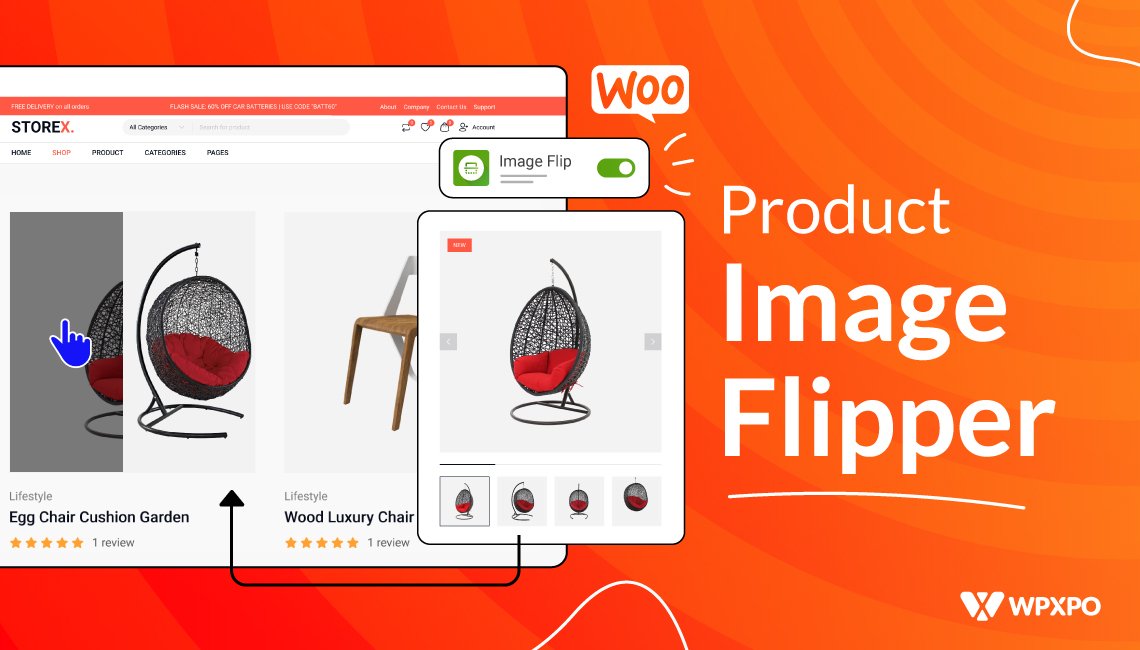
I will be honest with you – online shoppers don’t have enough time and patience to click on every product just to see another angle or variation.
That’s why flipping or changing a product image on hover can be very effective for your WooCommerce store. It gives visitors a quick visual preview (like front and back, or different colors) without needing to open the product page.
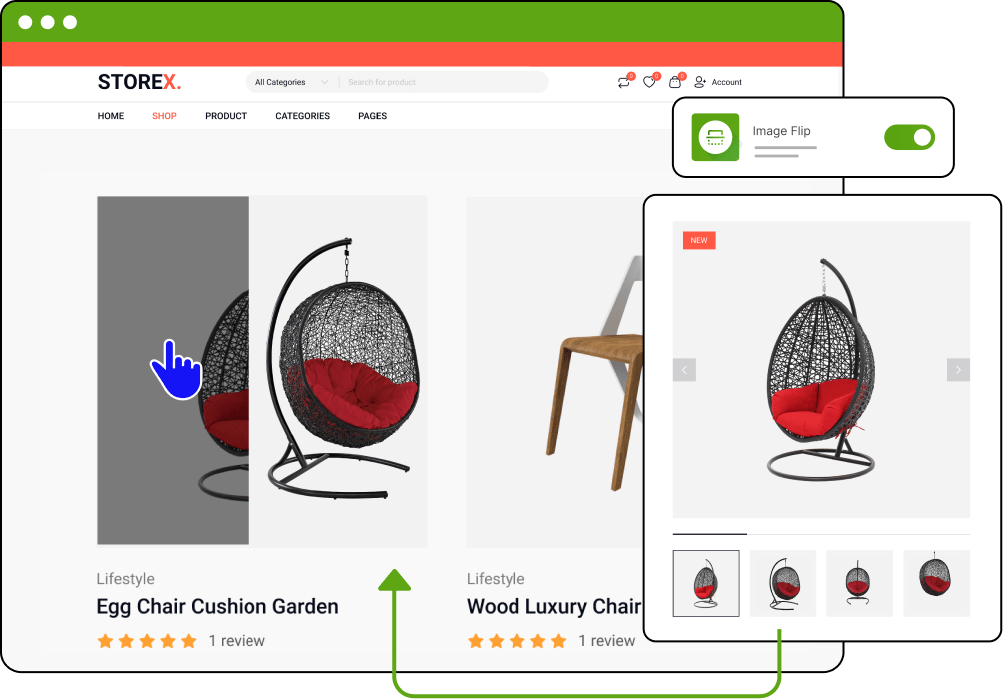
But here’s the catch: WooCommerce doesn’t offer this feature out of the box.
Good news – there are multiple ways to enable image hover effects in WooCommerce:
✅ Use a compatible WooCommerce theme with built-in hover effects
✅ Add a custom CSS/JS code snippet
✅ Use a WooCommerce plugin like WowStore
In this guide, we will discuss details on how you can easily flip images on hover on your store.
Quick Overview of Hover Effects in WooCommerce
Image hover effects for WooCommerce is a functionality that lets you flip images for a specific product when you hover over it. This is particularly helpful for the users of a WooCommerce store to quickly get extra information about a product without visiting a product page.
How Does WooCommerce Image Flip Work?
WooCommerce Image flip feature serves two key functionalities:
- Displays two images for a product: one main image and a secondary image showing different angles, colors, or details.
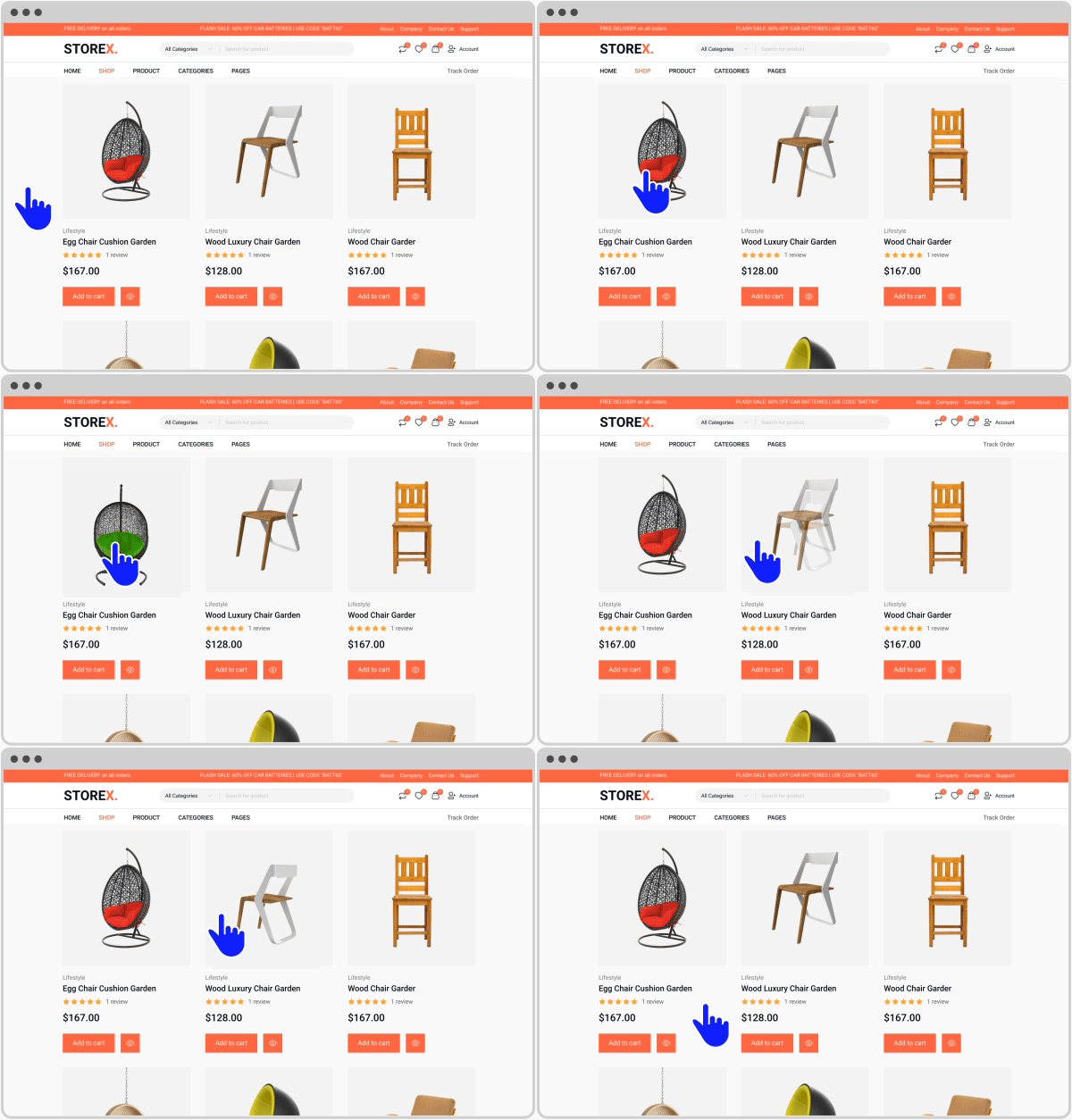
- When hovering over a product, it shows a flip effect. This reveals the secondary product image for WooCommerce and provides added detail about that particular product.
Method 1: Adding Flip Effect to Product Images Without a Plugin
If you do not want to use a plugin, you can create the WooCommerce image hover effect manually with a small PHP snippet and some custom CSS.
This method automatically shows the first gallery image when a customer hovers over the main product image on the shop page.
Step 1: Add This PHP Snippet
Add the following code to your child theme’s functions.php file or use a code snippets plugin.
add_action( 'woocommerce_before_shop_loop_item_title', 'wpxpo_hover_image', 11 );

function wpxpo_hover_image() {
    global $product;

    $attachment_ids = $product->get_gallery_image_ids();

    if ( isset( $attachment_ids[0] ) ) {
        $hover_image = wp_get_attachment_image(
            $attachment_ids[0],
            'woocommerce_thumbnail',
            false,
            array( 'class' => 'hover-image' )
        );

        echo $hover_image;
    }
}
Step 2: Add the CSS
Now add this CSS in:
Appearance → Customize → Additional CSS
.woocommerce ul.products li.product {
    position: relative;
    overflow: hidden;
}

.woocommerce ul.products li.product img.hover-image {
    position: absolute;
    top: 0;
    left: 0;
    opacity: 0;
    transition: opacity 0.4s ease;
    width: 100%;
    height: auto;
}

.woocommerce ul.products li.product:hover img.hover-image {
    opacity: 1;
}
How This Works
The PHP snippet pulls the first image from the WooCommerce product gallery and places it above the featured image.
The CSS then hides the second image by default and smoothly reveals it when customers hover over the product card.
Limitations of the Manual Method
While this method works well for simple stores, it also has some limitations:
- Requires editing theme files
- May break after theme updates if not using a child theme
- No advanced animation controls
- Can conflict with custom WooCommerce layouts
- Limited compatibility with some block themes and builders
If you want a beginner-friendly setup with more customization options, using a WooCommerce builder plugin like WowStore is usually the easier approach.
Method 2: Change Product Image on Hover Using A Plugin
Using a flip image plugin is the easiest way to achieve hover effects for WooCommerce products.
There are many free and paid WooCommerce plugins available that provide the functionality of an image flipper. But the one I recommend is the Product Image Flipper addon from the WowStore plugin.
If you want a visual guide, we have prepared a video tutorial for you:
In this section, you will get a step-by-step process for adding image hover effects in your WooCommerce store.
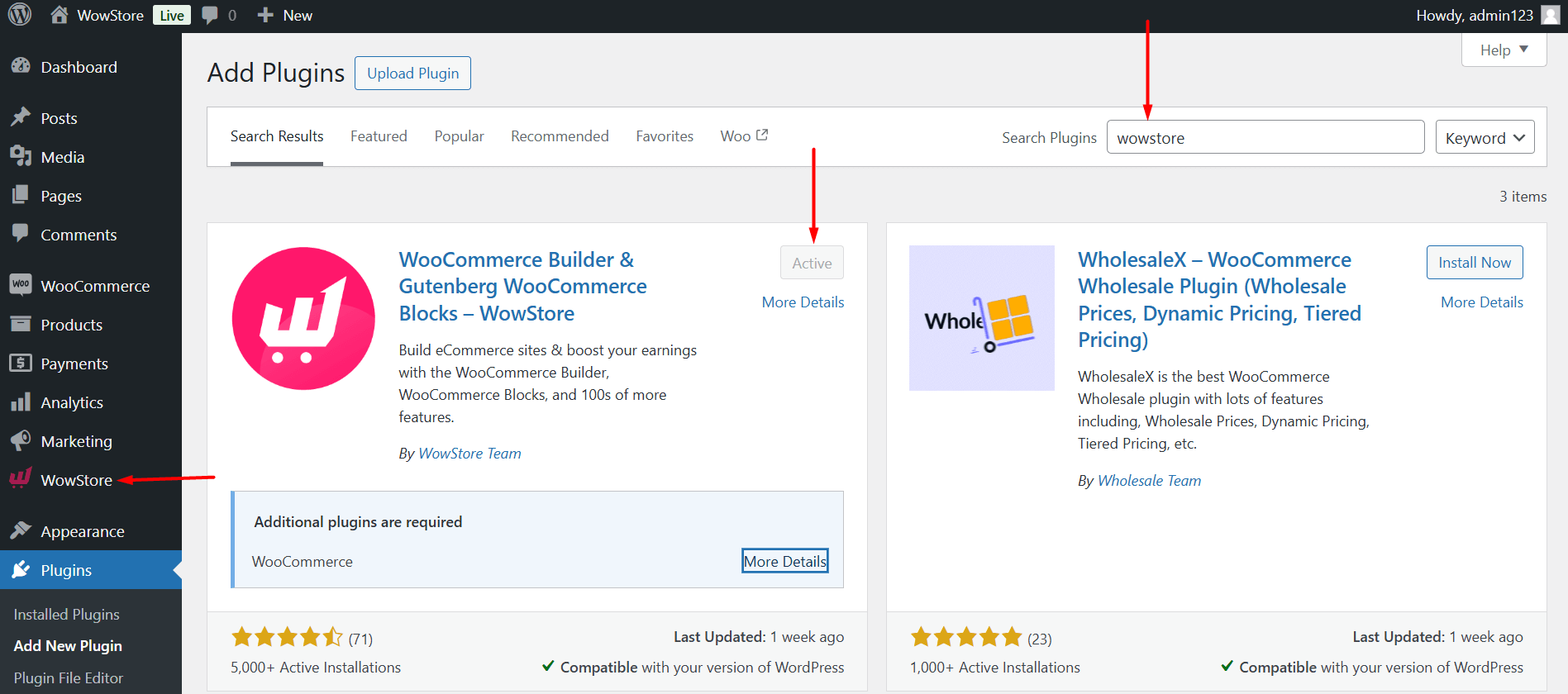
Step 1: Install & Activate A Plugin like WowStore
- Visit the admin panel of your WooCommerce store and navigate to the plugins section.
- Find and install the WowStore plugin.
Step 2: Enable The Product Image Flipper Addon
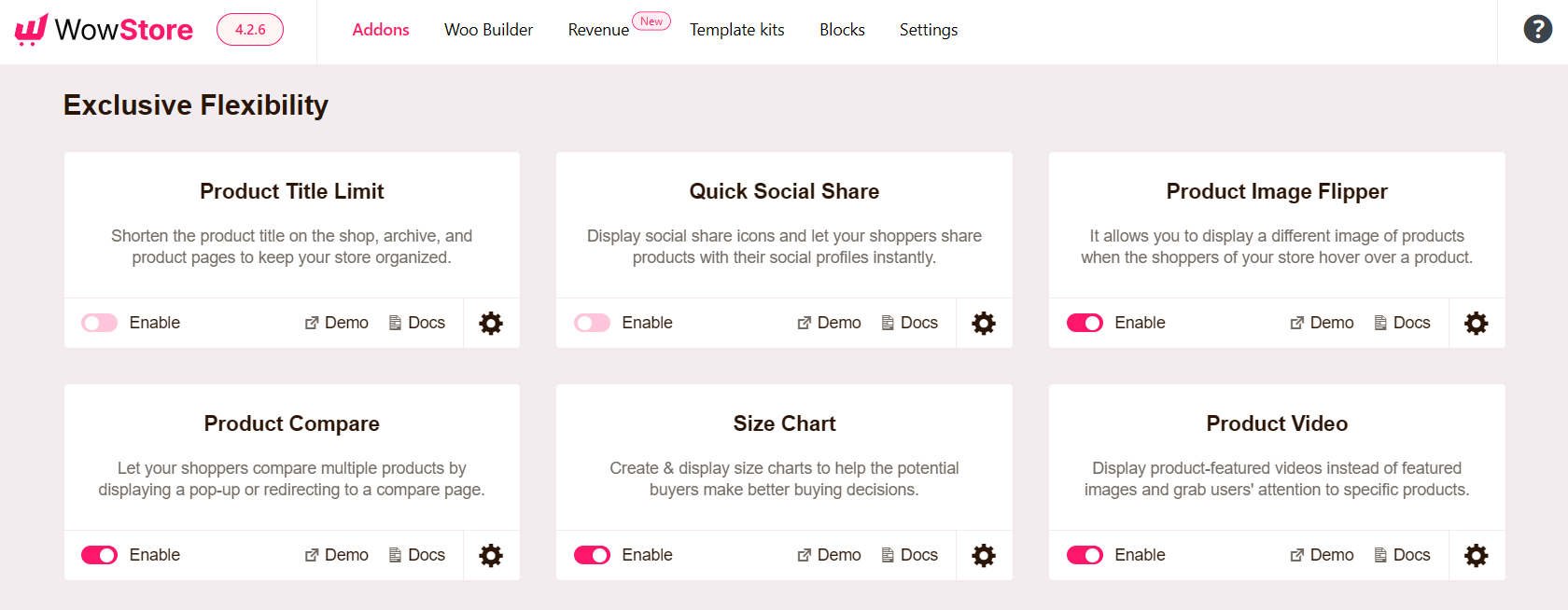
- After installing the plugin, navigate to its Addons page to find all the amazing features
- Scroll down this page and find the Product Image Flipper addon.
- Utilize the toggle button that will let you quickly activate or deactivate the addon.
Step 3: Set Specific Images for the Hover Effect
If you have already added multiple images for your products, you will see the image flip effect immediately after enabling the addon from WowStore.
By default, WowStore will show the first image from the image gallery when customers hover over a product.
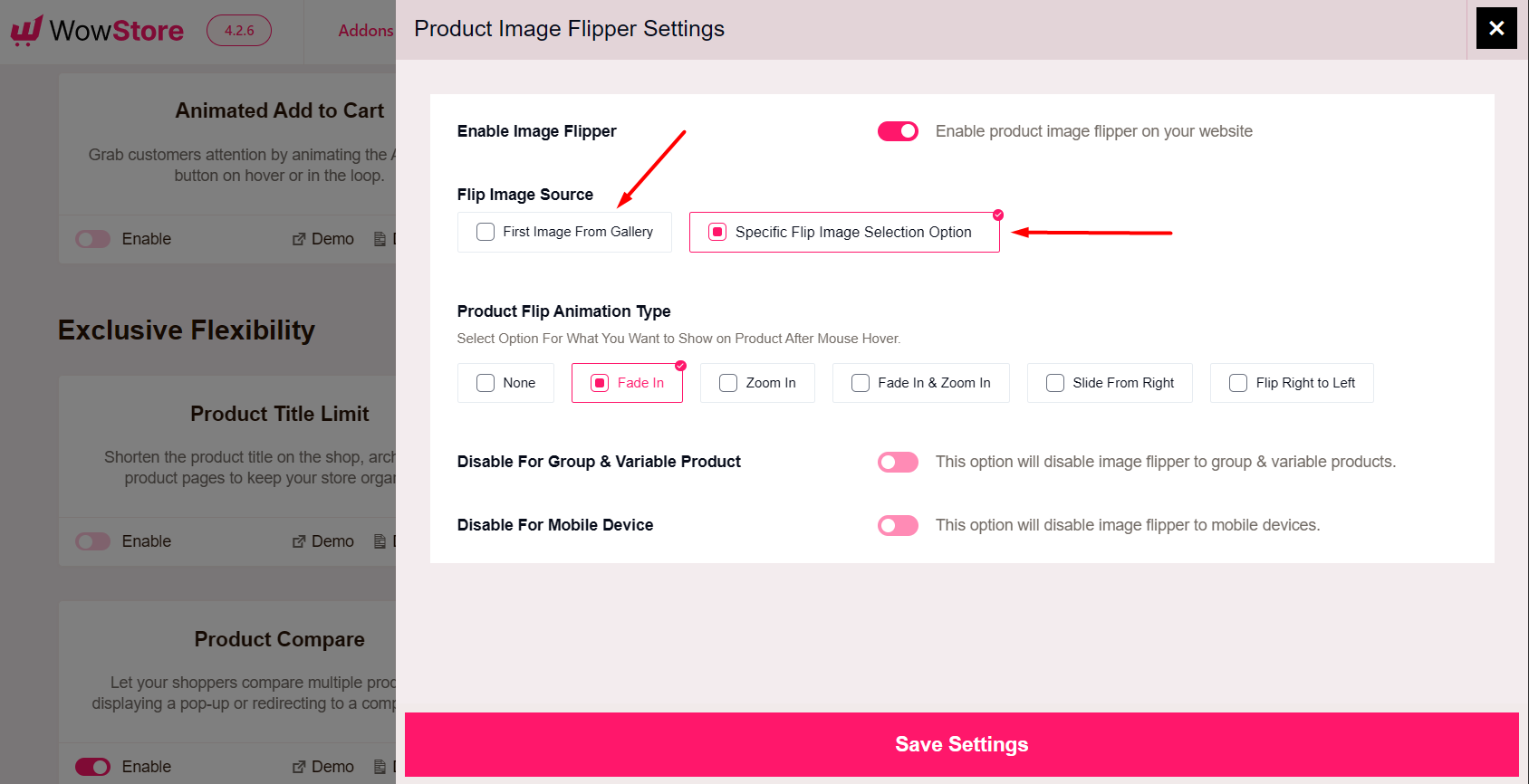
But if you want, you can set a specific image for the flip image effect. To do this:
- Navigate to the WowStore dashboard and from the Product Image Flipper addon, click on the Gear icon to access its settings.
- Enable the “Specific Flip Image Selection Option” under the Flip Image Source
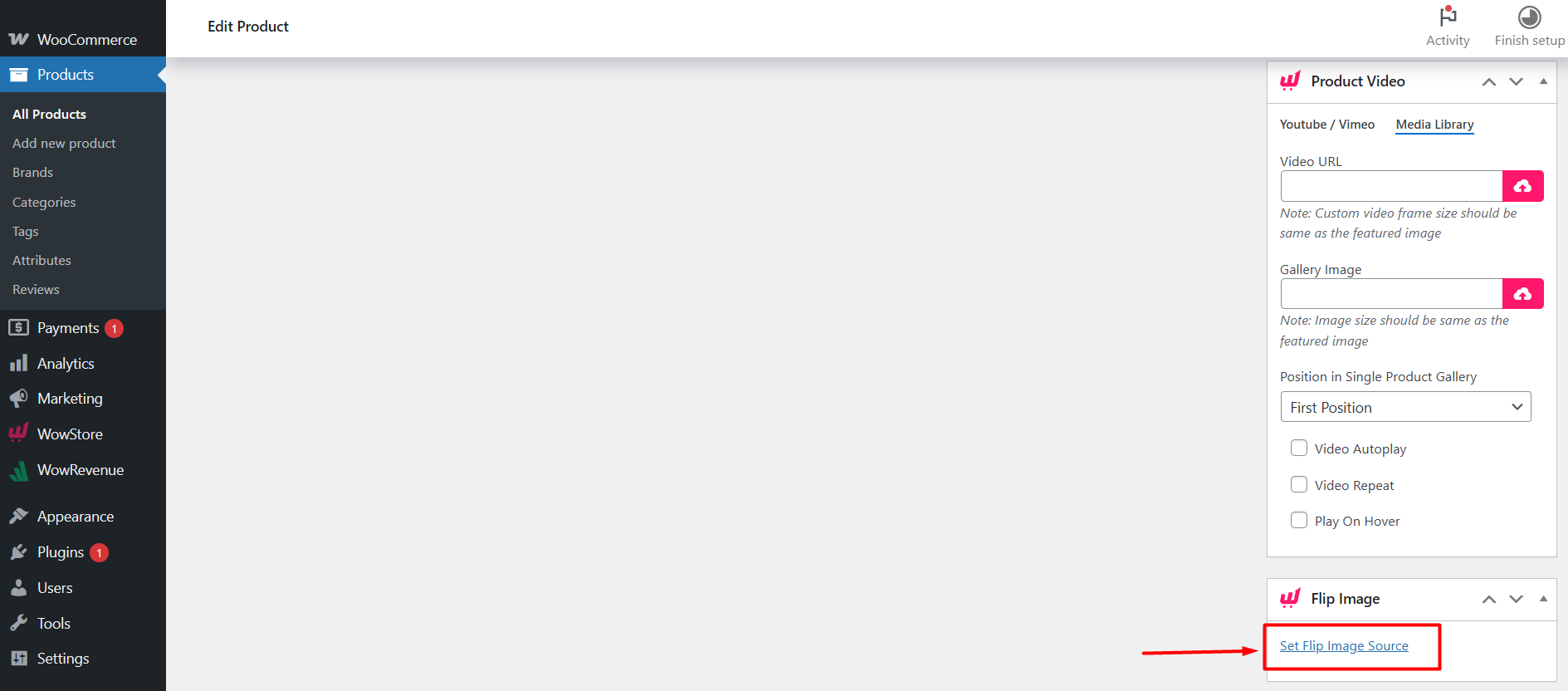
- Go to the Products section in your admin dashboard and click on Edit on a product.
- Scroll down the page, and you will find “Set Flip Image Source”. Now you can choose a specific image from your library or upload a new one.
Step 4: Customize The Product Image Flipper Addon
There are many other customization options available from the Product Image Flipper addon. As already mentioned, click on the Gear icon in the addon’s section to access the settings.
We have already set up the Flip Image Source. Next is – customizing the animation for the image hover.
To change the image hover animation: from the “Product Flip Animation Type“, select the type of animation you like.
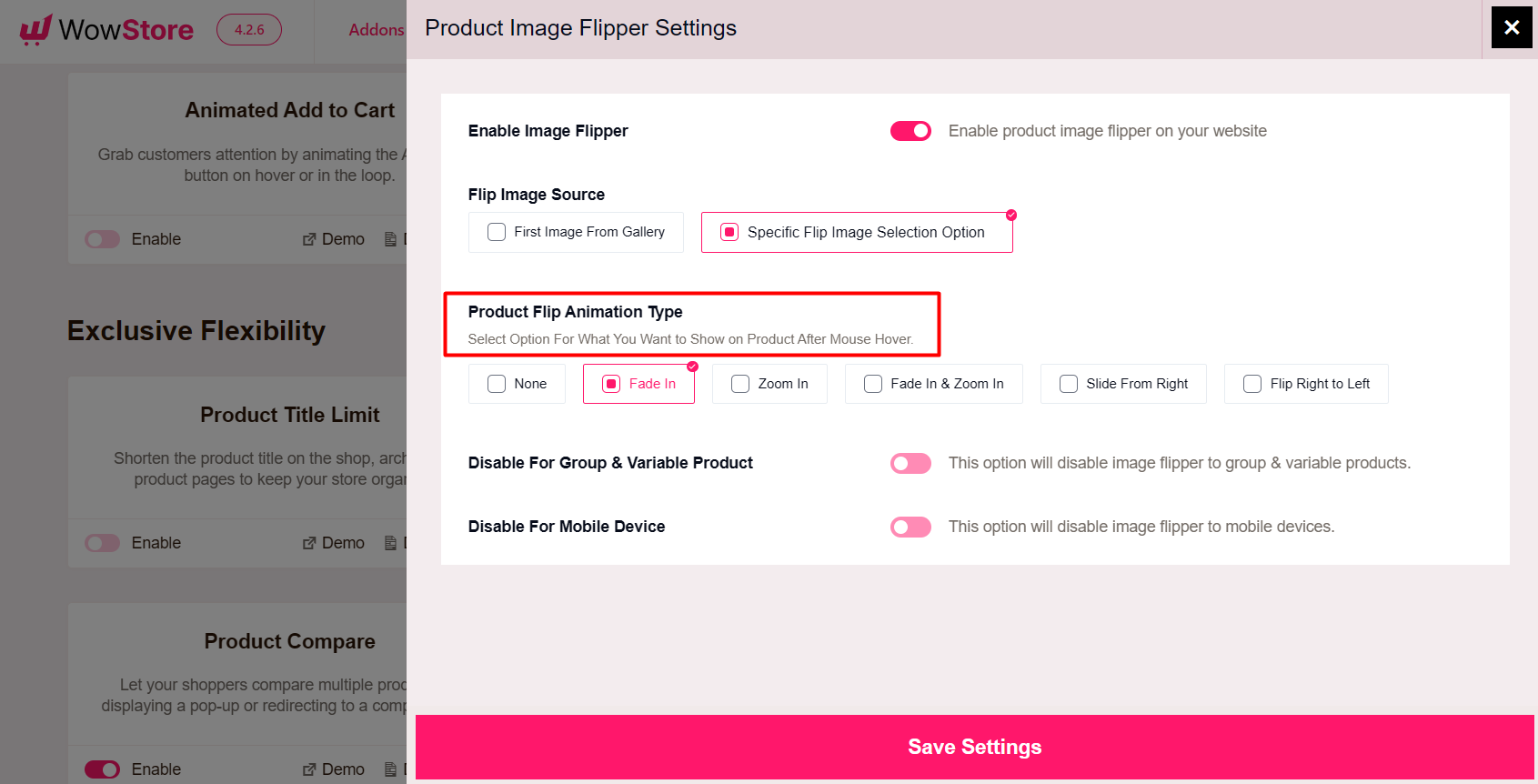
You can choose animation options such as Fade In, Zoom In, Fade In & Zoom In, Slide From Right, and Flip Right to Left.
In addition, you have the option to disable the image flipper addon for Group & Variable products in your store. This allows you to exclude certain products from the image flipper effect.
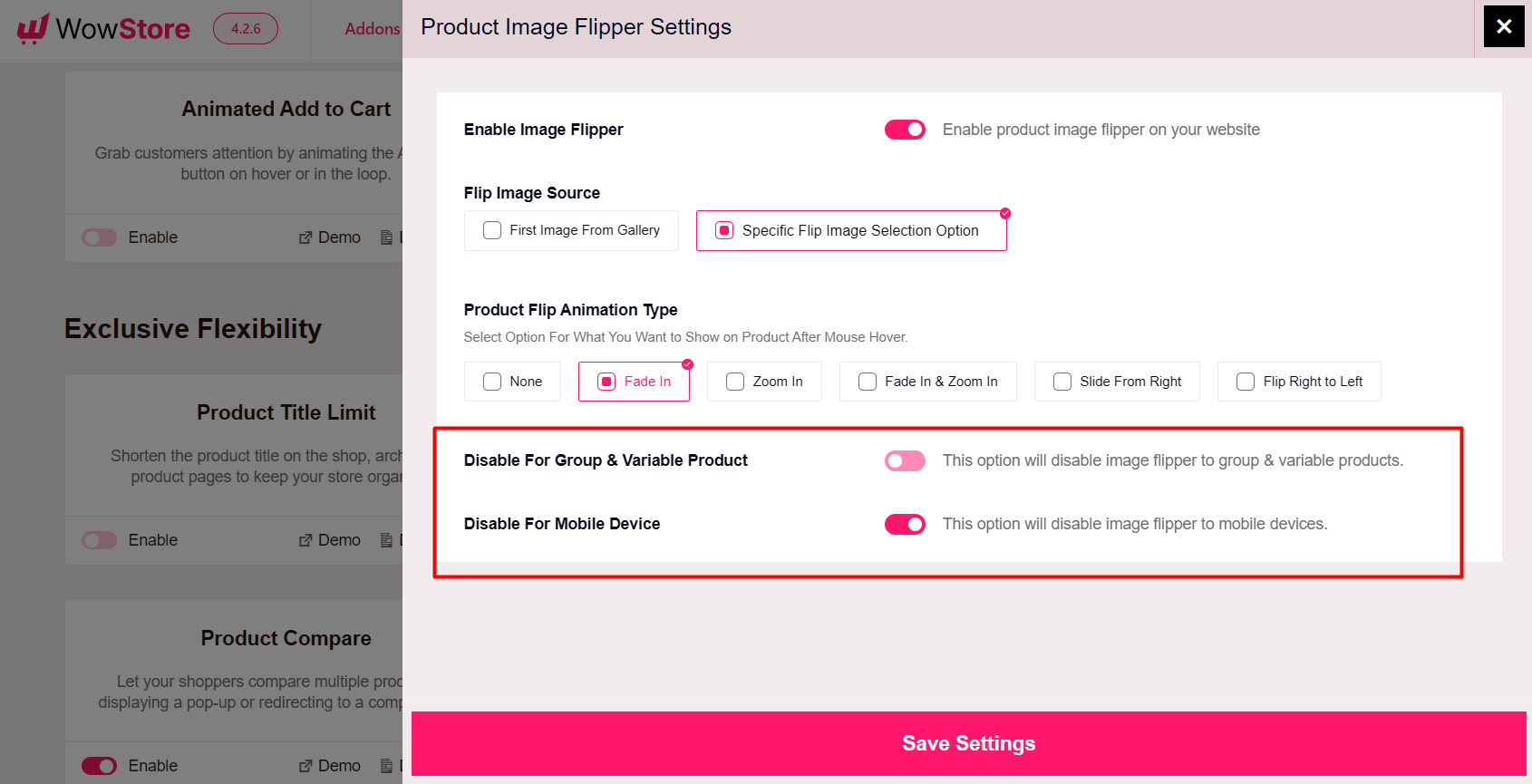
Also, you can hide the image flipper for mobile device users.
In addition to changing the settings in the WowStore dashboard, you can also customize the image flipper option in individual product blocks right from the Block Editor.
Simply go to your products page’s block editor. Select a specific block and scroll down to where it says “Disable Image Flip”.
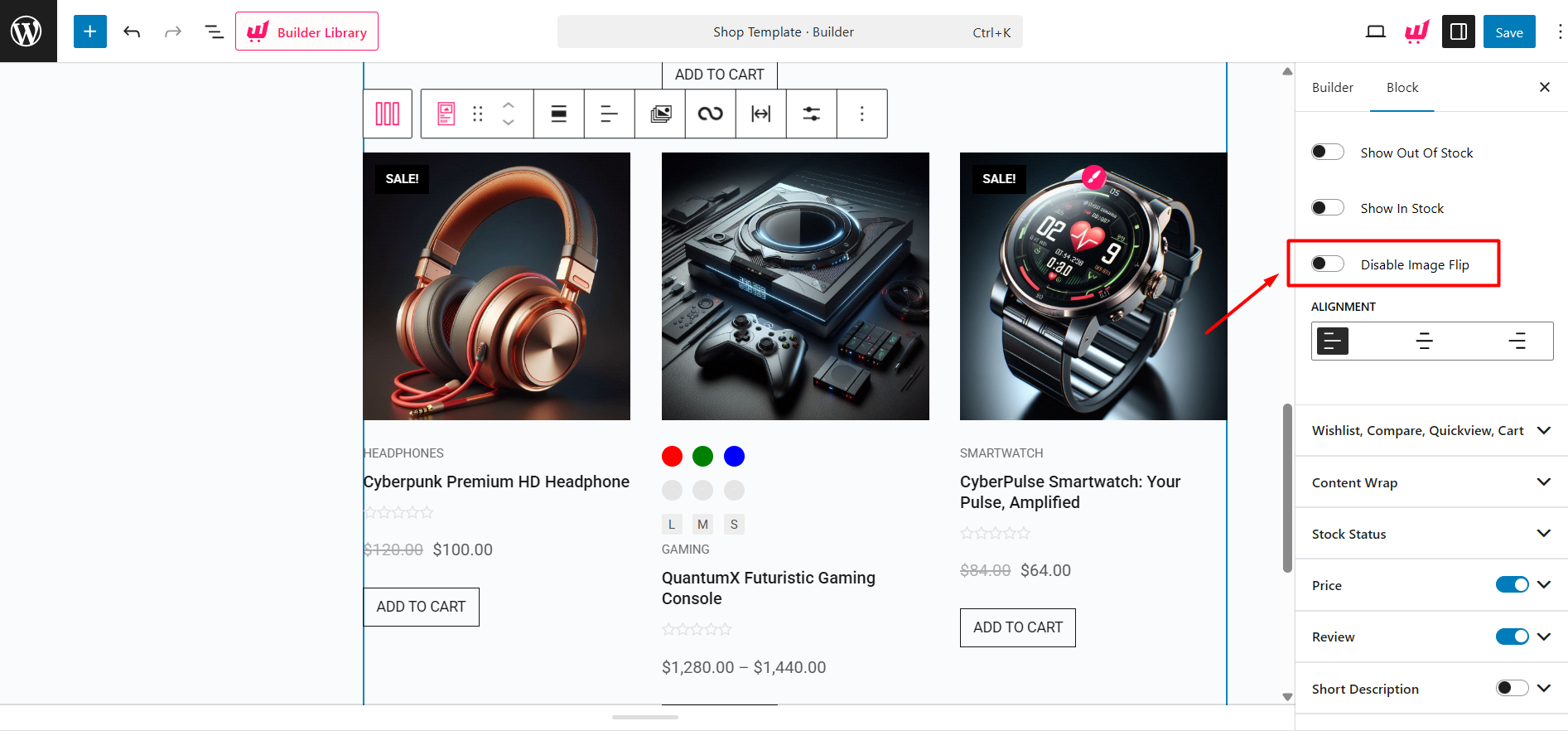
It will disable the image flipping effect from that particular product block. This gives a better customization system for the users of this addon.
After the customizations are complete, visit your store’s products page and hover over any product to see the flip effect in action. It’s that easy.
Why Choose Product Image Flipper from WowStore
The Product Image Flipper is an exclusive feature from one of the best WooCommerce Plugins called WowStore. This addon allows the user to show the second image on hover for a particular product in an effortless way.
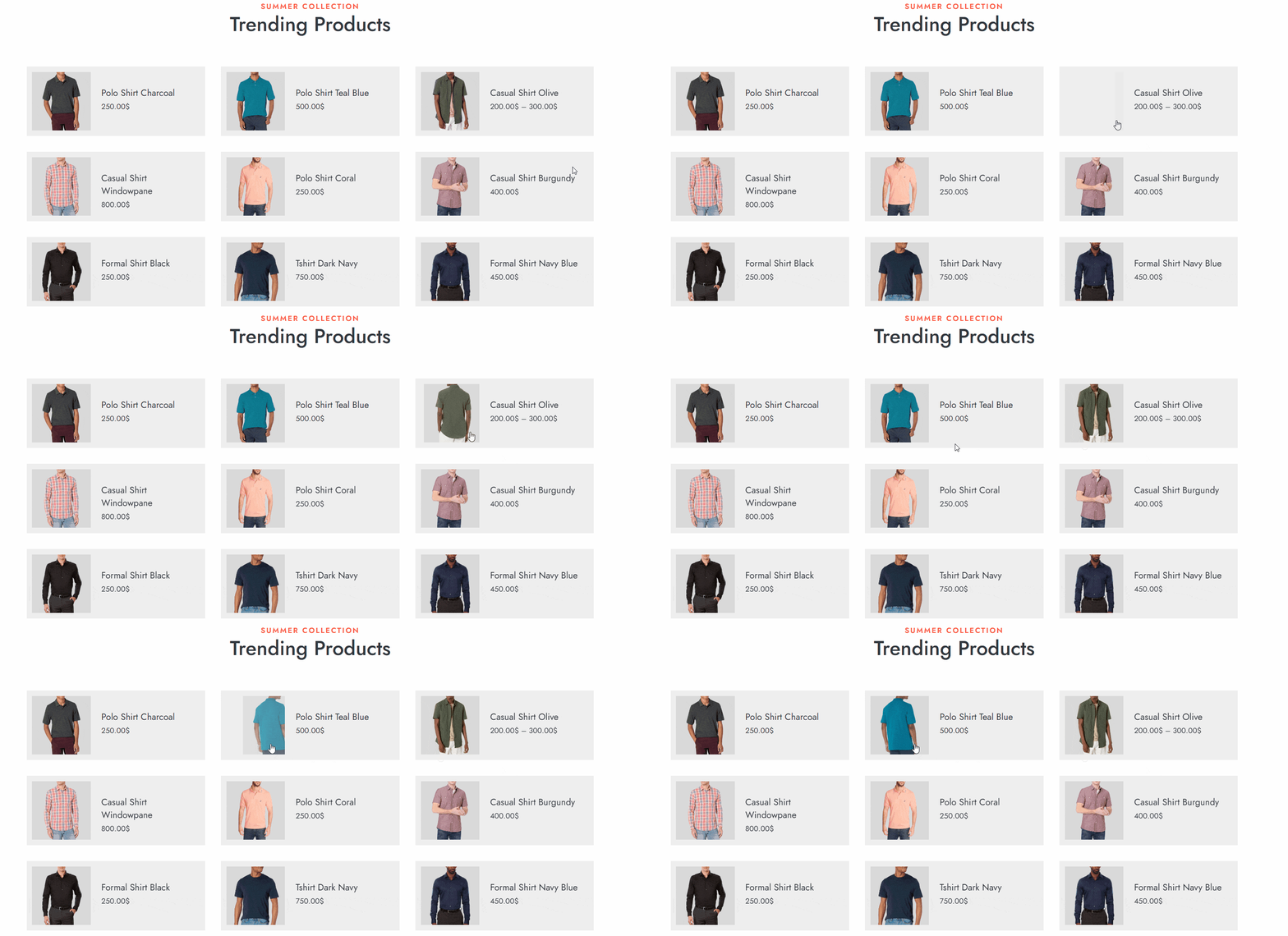
Let’s see how this addon provides unique offerings in terms of adding an image flipper function for your WooCommerce products.
- Better Product Showcase: The Product Image Flipper Addon allows users to showcase multiple images of a product. So, you can provide a dynamic and interactive way for your customers to view products.
- Easy Configuration: Setting up the Addon is straightforward. You can simply go to the Addons section, enable the Flip Image Addon, and choose the desired product block for activation. Also, customizing each setting is very easy to follow for new users.
- Customizable Image Selection: You get the flexibility to choose which image from the product gallery will be flipped as the featured image. You can show either the first image in the gallery or a specific image. This customization adds a personal touch to the product display.
- Toggle-Based Activation: The Image Flip feature can be activated or deactivated directly in the Product Block. This allows for easier control over when and where the flipping functionality is applied.
- Clear Documentation: The availability of documentation for the image flipper addon makes it easy for users to understand and implement the functionality in their WooCommerce store.
What Are The Benefits of Image Hover Effects for A WooCommerce Store?
When you know how to flip or change a product image on hover in WooCommerce, you can enjoy several benefits for your WooCommerce. It not only makes things easier for your users but also helps boost sales for your business.
Here are the key benefits of image hover effects for a WooCommerce Store:
- Unique Appeal: The image hover effects add a unique appeal to your WooCommerce store. It makes the products look more interesting. As a result, users become more interested in browsing the products.
- Time-Saving: The image flipper option saves valuable time for users as it shows extra information about a product by revealing a second image. So, users do not need to click and visit the webpage of a specific product to learn certain aspects.
- Increased Dwell Time: Image flipping allows for easier navigation of your products. This encourages users to browse more products and spend more time on your site. As a result, it leads to increased dwell time.
- Better Conversion Rates: As the image flipper makes it easier for customers to view products, it leads to increased conversion rates.
Summing Up
Hopefully, now you know everything about how to flip or change a product image on hover in WooCommerce. By using the Product Image Flipper addon, you can easily enhance your store’s user experience and increase conversion rates.
Feel free to refer back to this detailed guide if you come across any confusing steps while installing the addon.
User Queries About Image Flipper in WooCommerce
Here are the frequently asked questions real users have regarding the image flipper in WooCommerce:
Does image flipping slow down my site?
Not really. The effect loads images already included in your product gallery. However, make sure your images are optimized (WebP or compressed JPEG) to maintain site speed.
What happens if a product has no gallery image?
In that case, the flip effect won’t work since there’s no secondary image to show. Always add at least one gallery image if you’re using the hover feature.
Is it possible to change the hover animation (zoom, slide, flip)?
Yes. Plugins like WowStore offer multiple animation styles such as fade, zoom, slide, or flip transitions. You can customize it in just a few clicks.
Which plugin is best for flipping WooCommerce product images?
We recommend the WowStore’s Product Image Flipper addon – it’s beginner-friendly, flexible, and built specifically for WooCommerce performance.